Start with the connector: choose USB-A or USB-C based on the computers you’ll use to copy and open the handouts. If you work with a mix of ports, a stick with both connectors can be useful. Next, consider how much storage you need and, if copying time matters, check the stated write speed. If the handouts contain personal data, assess separately what level of security is appropriate for the risk. A stated read speed doesn’t tell you how quickly files can be written to the stick.
Who is this guide for?
Workshop organiser using USB-A computers
Want to take documents with you and copy them between computers without using the cloud? Check the ports and the number of files before choosing capacity or speed. Kingston’s specifications, for example, include USB-A models.
Anyone using devices with different ports
If you switch between USB-A and USB-C devices, check whether a single stick can connect directly to both. Kingston describes models with both connectors, while Samsung also offers a USB-C model.
Anyone managing handouts containing personal data
If you may be handling personal data, make sure the security of the files you carry is appropriate to the risks. The Dutch Data Protection Authority stresses that organisations must protect personal data properly.
What should you look for?
| What to consider |
What to look for |
Who is this important for? |
| Connector |
Check the ports on both the computer you’re copying from and the one you’ll use the stick with. A USB-A or USB-C plug won’t connect directly to the other type of port. |
If I work between computers with different ports, I want to be able to connect the stick directly. Around 36% of consumers say the connector is their top consideration. |
| Copying time |
Check whether a speed refers to reading or writing, and which capacity it applies to. Don’t infer write speed from read speed or the USB version. |
If I copy files regularly, I want to know how quickly they transfer to the stick, not just how quickly they can be read from it. Around 29% of consumers prioritise write speed. |
| Space and file system |
Add up the file sizes and check the file system. Microsoft states that FAT32 has a maximum file size of 4 GiB; exFAT doesn’t have this specific limit. |
If I’m taking larger files or a complete set of handouts with me, I want enough usable space and a file system that works with my files. Around 21% of consumers prioritise storage capacity and file size. |
| Data protection |
Decide whether the files contain personal data and what level of security is appropriate. If you choose an encrypted model, also check that you can unlock it on the computers you’ll be using. |
If my handouts contain personal data, I want to protect the copy I carry appropriately and control access to it. Around 14% of consumers name data protection as their top consideration. |
Common pitfalls
-
Confusing read speed with write speed
Reading and writing are different directions of data transfer. Samsung states a maximum sequential read speed for the MUF-128DA/APC under test conditions. This doesn’t tell you how quickly files will copy to the stick.
If copying time matters, compare the write speed specification for the capacity you need, and bear in mind that performance can vary depending on the device and conditions of use.
When you copy files repeatedly, a slower write speed can mean more time spent waiting.
-
Looking only at the available storage space
A file may be rejected because of the file system, even when there’s still space available. Microsoft states that FAT32 has a limit of 4 GiB per file.
Check the size of individual files and the file system. Back up existing files before reformatting the stick, as formatting will delete them.
-
Treating files containing personal data like ordinary handouts
The Dutch Data Protection Authority gives the loss of a USB stick containing unencrypted personal data as an example of a data breach. The appropriate security measures depend on how the data is processed and the risks involved.
Before sharing the files, check whether they contain personal data and follow your organisation’s security and incident procedures.
An incident can take time and resources to assess and resolve.
Brands to compare
Kingston
Kingston offers several options: USB-A models, a model with USB-A and USB-C, and the IronKey Locker+ 50 G2 for encrypted storage.
- According to Kingston, the DataTraveler microDuo 3C has USB-A and USB-C connectors.
- For the IronKey Locker+ 50 G2, check that your computer is compatible. Kingston states that two consecutive drive letters are required.
Samsung
The MUF-128DA/APC is a USB-C option for devices with that connector.
- For the 128GB model, Samsung states a maximum sequential read speed of 400 MB/s under test conditions.
- This is a read speed, not a stated write speed. The USB-C plug won’t connect directly to a USB-A port.
SanDisk
The Ultra Flair is described as a USB-A alternative. Check the full model designation and connector for the specific version you’re considering.
- Product information lists versions with storage capacity for files you need to carry.
- A stated read speed isn’t a write speed, so don’t base your expected copying time on that figure alone.
Transcend
The JetFlash 790 is a USB-A model with a retractable connector.
- Its retractable design means there’s no separate cap to lose.
- Transcend says speed can vary depending on the computer, software, usage and storage capacity. Check the write speed specification for the version you want.
USB sticks on Joybuy
These Joybuy products are suitable for handouts you want to carry and copy locally, with options for USB-A, USB-C and transferring files between devices with different connectors.
 No image available
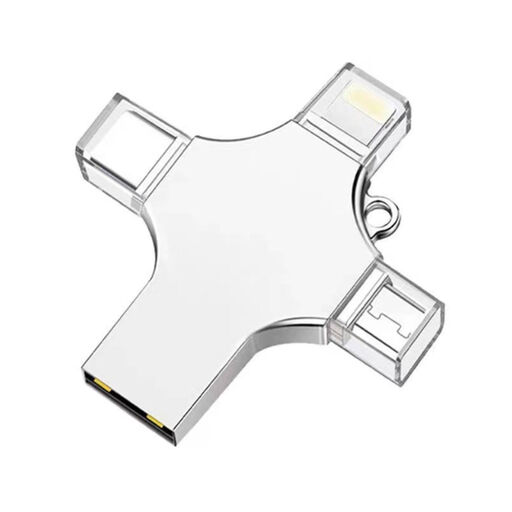
32 GB USB stick with USB 3.0, Lightning, USB-C and Micro-USB
The product title lists several connector types for use with different devices. Check that they’re compatible with your computers.
Storage capacity: 32 GB. Listed connectors: USB 3.0, Lightning, USB-C and Micro-USB.
View on Joybuy
 No image available
SanDisk Ultra Flair 64 GB, USB 3.0
This version is described as suitable for computers with USB-A. Check the port on the computer where you’ll open the handouts.
Storage capacity: 64 GB. The product description lists USB-A and plug-and-play use. The stated read speed of up to around 150 MB/s is not a write speed.
View on Joybuy
 No image available
SanDisk Ultra Dual Drive Go 512 GB
The two listed connectors make this an option for transferring handouts between devices with USB-A and USB-C.
Storage capacity: 512 GB. Connectors: USB-A and USB-C. The product description states a read speed of up to 150 MB/s; this is not a write speed.
View on Joybuy
 No image available
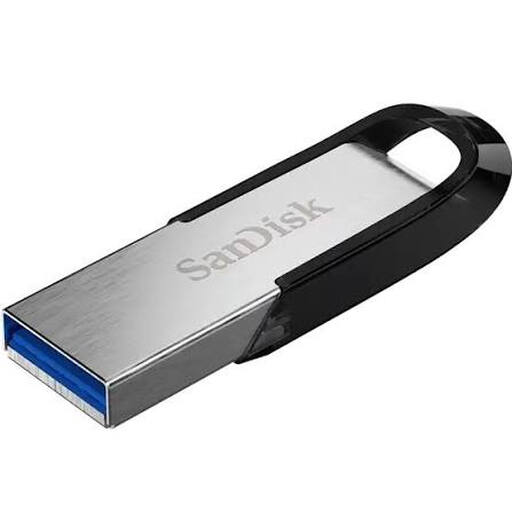
SanDisk Ultra Flair 256 GB, USB 3.0
This USB stick is an option for storing and carrying handouts locally. Check that USB-A is compatible with the computers you use.
Storage capacity: 256 GB. Connector: USB 3.0. The product description states a read speed of up to 150 MB/s, not a write speed.
View on Joybuy
 No image available
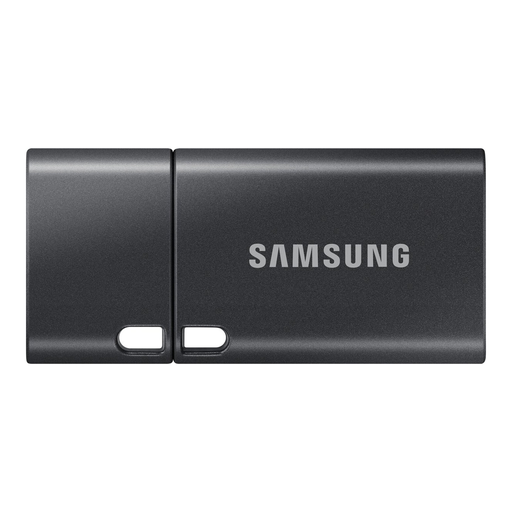
Samsung MUF-512DA 512 GB USB Type-C
This version is described for use with USB-C devices. It won’t connect directly to a computer with USB-A only.
Storage capacity: 512 GB. USB 3.2 Gen 1. The product description states a read speed of up to 400 MB/s, not a write speed.
View on Joybuy
Frequently asked questions
Should I use FAT32 or exFAT for handouts?
First, check which file systems the computers can read and the size of each individual file. Microsoft states that FAT32 has a maximum file size of 4 GiB; exFAT doesn’t have this specific limit. Back up any existing files before formatting the stick.
Do I need an encrypted USB stick for workshop handouts?
Not simply because they’re workshop handouts. The Dutch Data Protection Authority says organisations must protect personal data properly, in line with the risks. This doesn’t mean that one specific encrypted USB stick is required for every handout. Losing a stick containing unencrypted personal data may constitute a data breach.
Do I always need to report the loss of a stick containing personal data?
No, you don’t automatically have to report it to the Dutch Data Protection Authority. According to the authority, this depends on the risk to the rights and freedoms of the people concerned; whether they need to be informed depends on whether there’s a likely high risk. The organisation must assess the circumstances.
How do I remove the stick after copying?
First, check that copying has finished, then eject the stick using your operating system. For a Mac, Apple describes options including ‘File > Eject’ or the eject button in Finder.


