
Teaching archive administrator
You want to be able to retrieve project documents. Work out the capacity you need based on your files, and check that you can actually open a copy. The National Cyber Security Centre (NCSC) recommends testing backups.


Start by choosing a USB stick with enough usable storage for your needs and the right connections for your devices. Keep a separate copy too, and test that you can open files from it. If they contain personal data, ask the school to decide what storage and security measures are appropriate.
You want to be able to retrieve project documents. Work out the capacity you need based on your files, and check that you can actually open a copy. The National Cyber Security Centre (NCSC) recommends testing backups.
You use devices with different connections and want to transfer files between them. Check which connectors the exact model has: some combine USB-A and USB-C, while others do not.
If your project materials might contain personal data, ask the school whether a portable copy and your chosen security measures are in line with its policies. The Dutch Data Protection Authority stresses that organisations must decide which security measures are appropriate.
| What to consider | What to look for | Who is this most important for? |
|---|---|---|
| Capacity and recovery | Compare your file sizes with the usable space on the exact model. Keep a separate copy too, and test that you can open files from the backup. | I want to be able to keep and retrieve my teaching archive, not just copy files to a stick. Around 40% of consumers would prioritise recoverability and capacity. |
| Connections | Check whether your devices use USB-A, USB-C or both, and make sure the stick is compatible. | If you use devices with different ports, you’ll want to transfer files without connection issues. Around 30% of consumers would mainly look for compatible connections. |
| Personal data protection | Check whether the files contain personal data and follow the school’s rules on storage and security. | If the materials contain student data, I want to know what portable storage and security measures the school allows. Around 20% of consumers would prioritise personal data protection. |
| Transfer time | Compare read and write speeds separately for the exact model, and take the port you use into account. | If you regularly copy large amounts of material, write speed can affect how long you have to wait. Around 10% of consumers would mainly consider transfer time. |
The percentages are an indicative breakdown of these purchase priorities, not measured market shares. Manufacturers’ stated speeds are maximums and do not necessarily tell you how long files will take to transfer to or from your computer.
If the stick is your only copy, losing it or finding it has failed could mean you can no longer retrieve your files. The NCSC recommends keeping multiple versions of important business data on different media.
Keep a separate copy and regularly open a file from the stick to check that you can recover it.
The Dutch Data Protection Authority identifies losing a stick containing unencrypted personal data as a potential data breach. Using an encrypted stick alone does not prove that your chosen approach meets all your obligations.
Check whether the files contain personal data and follow the school’s security and storage policies.
A high maximum read speed does not tell you how long it will take to write your backup. Performance can also depend on the connection you use and other conditions.
Compare the stated read and write speeds for the exact model separately, and treat maximums as figures that may not reflect real-world speeds.
Wifiwijs lists the Kingston DataTraveler Exodia; the Exodia M is a different model. A similar name alone is therefore not enough to confirm that the capacity and version match.
Before buying, check the full model name, capacity and connections of the exact version.
The Ultra Dual Drive Luxe range has USB-A and USB-C; the Extreme PRO Dual Drive is a separate range.
The DataTraveler Exodia is a USB-A range for file storage. The IronKey Locker+ 50 G2 is a separate range with hardware encryption.
The BAR Plus MUF-128BE4/APC is a 128 GB USB-A version.
The Dual QuickStick 128GB combines USB-A and USB-C.
The JetFlash 790 range includes USB-A versions, including a 128 GB model listed by Transcend.
These USB sticks are options for storing or transferring teaching materials. Check that the capacity suits your files and that the connection is compatible with your devices.
 No image available
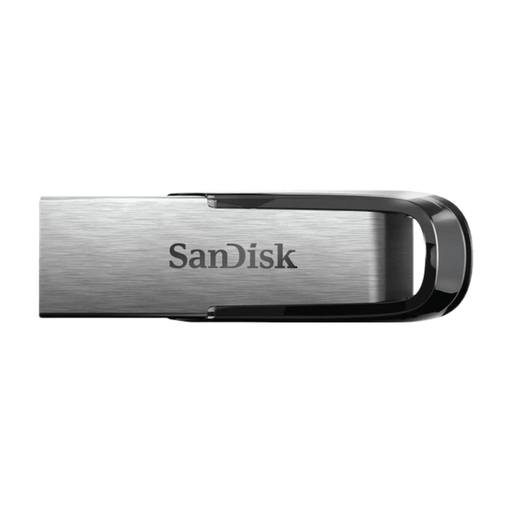
Could suit a 128 GB teaching archive that you want to use on a device with USB-A.
The product name lists USB 3.2 Gen 1 and USB Type-A. The stick won’t connect directly to a device with USB-C only.
 No image available
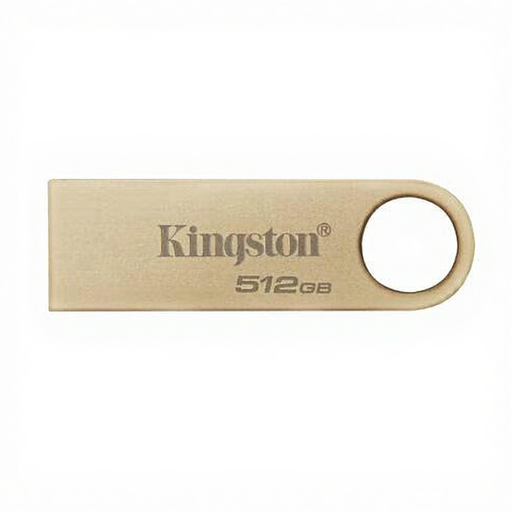
Could suit you if your teaching archive fits within the stated capacity.
The product name lists 512 GB and USB 3.0. Check that the connection is compatible with the device you’ll use to create or restore your backup.
 No image available
Could suit a teaching archive that needs up to 64 GB of usable storage.
The product name lists 64 GB and USB 3.0. Check your device’s connection and, after copying, test that you can open files from the stick.
 No image available
Could suit you if your teaching archive needs the stated capacity and the stick is compatible with your device.
The product name lists 512 GB, 220 MB/s and USB 3.2 Gen 1. The product information specifies USB Type-A, so check that your device has this connection.
 No image available
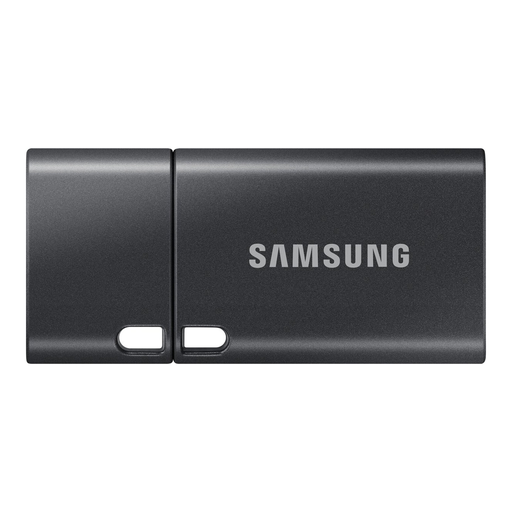
Could suit you if your teaching archive fits within the stated capacity and your device uses USB-C.
The product name lists 512 GB and USB Type-C 3.2 Gen 1 (3.1 Gen 1). Check that this connection is compatible with the devices you want to use to store or restore files.
Add up the files you want to keep and compare the total with the usable space on the exact stick. The stated capacity isn’t all available for storing files, so don’t choose based on the figure on the packaging alone.
Open files from the backup to check that you can retrieve them. The NCSC recommends testing recovery: having a backup doesn’t automatically mean the files can be opened.
First, check that the connector fits the port and that the device recognises the file system. Formatting may resolve a compatibility issue, but it deletes existing data, so make sure you’ve backed up the original files first.
It depends on the files and the security measures the school considers appropriate. The Dutch Data Protection Authority does not give general permission or impose a blanket ban on every USB stick; the school must assess the risks and be able to justify appropriate technical and organisational measures. Ask the school to decide whether this type of storage is allowed, and under what conditions.
You’re entitled to a legal guarantee if the product doesn’t meet what you could reasonably expect from it under normal use. According to ACM ConsuWijzer, the seller is your point of contact if a product is faulty; any manufacturer’s guarantee does not replace your legal rights.