Start with a USB stick that works with the shared workstation and has enough space for your teaching files and future backups. If you’re copying pupil data, choose storage that meets your school’s security policy; the Dutch Data Protection Authority says appropriate measures depend on the risks. Don’t keep the stick as your only copy, and test that you can restore your files.
Who is this guide for?
Teacher using a shared PC
You want to be able to copy teaching files and restore them later. Check which connections are available at your workstation, and keep a copy you can recover. VeiligInternetten describes a backup as a copy to use if files are lost.
Teacher handling pupil data
If you store personal data on portable storage, your choice must comply with your school’s security policy and risk assessment. The Dutch Data Protection Authority emphasises that organisations must decide which security measures are appropriate.
Teacher working with large media files
For files such as teaching videos, capacity, connections and the stated write speed may all be relevant. Manufacturers don’t always list both read and write speeds, so check the specifications for the exact model.
What should you look for?
Start by checking the ports and the size of your teaching folder. Then, depending on what it contains and how often you copy files, consider security and the stated write speed.
| What to consider |
What should you look for? |
Who is this important for? |
| Storage and recovery |
Check the size of your teaching folder and leave room for future copies. Test that you can restore your files. |
If I want to keep a usable copy of my teaching folder, I look for enough storage and the ability to restore it. Around 30% of consumers prioritise this need. |
| Pupil data |
First check your school’s policy and which security measures are appropriate for the data and the shared PC. The Dutch Data Protection Authority advises organisations to choose measures according to the risks. |
If my backup contains pupil data, I want to know which storage and security measures my school allows. Around 30% of consumers put the protection of personal data first. |
| Connections |
Check whether the PCs and other devices you need to use have USB-A, USB-C or both, and whether they allow external storage. |
If I want to use my backup on devices with different ports, the connection needs to be compatible. Around 20% of consumers give port compatibility greater priority. |
| Write speed |
Check the write speed for the exact model; a stated read speed doesn’t tell you how quickly files are written to the stick. |
If I often copy large files, I want to know how quickly they can be written to the stick. Around 20% of consumers give copying time top priority. |
Common buying and usage mistakes
-
Assuming a USB stick on its own is a complete backup plan
A backup is there to help you recover files if the originals are lost. If the stick is your only copy, recovery depends on a single storage device.
Keep another copy as well, and regularly test that you can restore your files from the stick.
-
Confusing read speed with write speed
Backing up means writing files to the stick. Samsung lists a sequential read speed of up to 400 MB/s for the BAR Plus MUF-128BE3/APC; that figure is not the write speed.
If you copy large files or do so frequently, check the stated write speed for the exact model. Don’t treat a manufacturer’s maximum as a guaranteed speed.
-
Copying pupil data without checking your school’s policy
Losing a stick containing unencrypted personal data could result in a data breach. The Dutch Data Protection Authority points out that organisations should choose appropriate measures according to the risks.
Before using the stick, check what data will be stored on it and follow your school’s security policy and procedures.
Brands to compare
Kingston
DataTraveler Exodia is a USB-A range for everyday storage. IronKey Locker+ 50 G2 is a separate range with hardware encryption.
- Kingston says the IronKey Locker+ 50 G2 has AES-256-XTS hardware encryption and supports Windows and macOS.
- These features don’t automatically apply to the standard Exodia. Check the full model name and capacity, as Exodia models vary.
SanDisk
Ultra Dual Drive Luxe is an option if you need both USB-A and USB-C.
- SanDisk lists both connections for the 128GB SDDDC4-128G-G46 model.
- The product specifications don’t state a measured write speed or built-in hardware encryption for this buying decision.
Samsung
BAR Plus is a USB-A option for workstations with that connection.
- Samsung lists a sequential read speed of up to 400 MB/s for the Dutch MUF-128BE3/APC model.
- That’s a read speed, not a measured write speed. Check that USB-A is compatible with the devices you use.
Transcend
JetFlash 930C is an option if you need both USB-A and USB-C and want to compare stated write speeds too.
- Transcend lists speeds of up to 420 MB/s for reading and 400 MB/s for writing for this range, with models starting at 128 GB.
- These are manufacturer claims, not independent measurements on a shared workstation. Check the specifications for the model you choose.
Joybuy products
This Joybuy selection includes USB sticks for storing teaching files, with a range of capacities and connections. Before buying, check that the capacity and ports suit your files and workstation.
 No image available
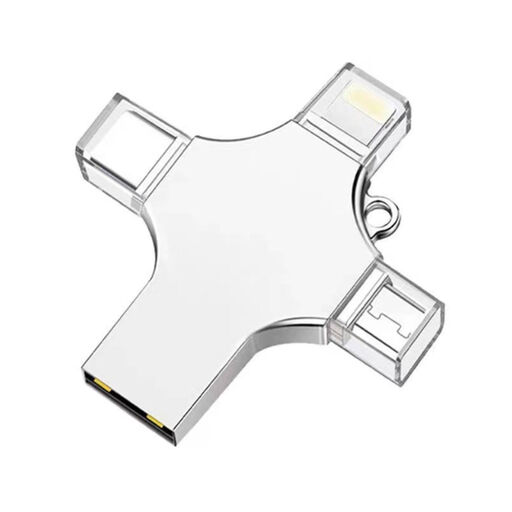
32 GB USB stick with USB 3.0, Lightning, USB-C and Micro-USB
Worth considering if your teaching files fit within the stated 32 GB and you want to use the stick with devices that have different connections.
The product name lists 32 GB and USB 3.0, Lightning, USB-C and Micro-USB connections.
View at Joybuy
 No image available
SanDisk Ultra Flair 64 GB USB 3.0
A USB-A option worth considering if the shared computer has that connection and your teaching files fit within the stated 64 GB.
The product description lists a read speed of up to around 150 MB/s and software-based password protection with 128-bit AES encryption.
View at Joybuy
 No image available
SanDisk Ultra Dual Drive Go 512 GB USB 3.1/USB-C
Worth considering if you want to use your backup on devices with both USB-A and USB-C, and the stated capacity suits your files.
The product description lists USB-A and USB-C connections and a read speed of up to 150 MB/s.
View at Joybuy
 No image available
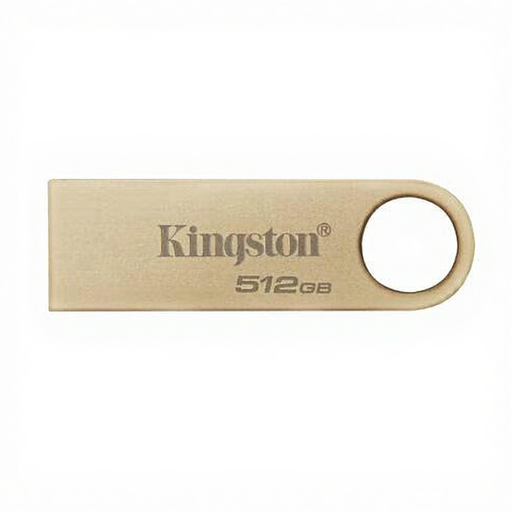
Kingston DataTraveler SE9 G3 Metal 512 GB USB 3.2 Gen 1
Worth considering if your files fit within the stated 512 GB and the computer has a compatible USB connection.
The product description lists USB 3.2 Gen 1 and a read speed of up to 220 MB/s.
View at Joybuy
 No image available
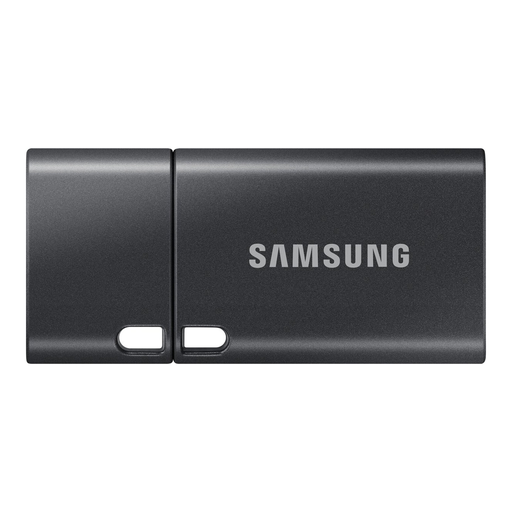
Samsung MUF-512DA 512 GB USB Type-C 3.2 Gen 1 (3.1 Gen 1), grey
Worth considering if you use devices with USB-C and your teaching files fit within the stated 512 GB.
The product description lists a read speed of up to 400 MB/s.
View at Joybuy
Frequently asked questions
Can I store pupil data on a USB stick?
First, check your school’s security policy. The Dutch Data Protection Authority says schools must be able to justify appropriate technical and organisational measures; which measures are suitable depends on the risks involved in processing the data.
Is an encrypted stick always a legal requirement?
The Dutch Data Protection Authority doesn’t prescribe a universal encryption standard for every situation; organisations must choose appropriate security measures based on the risks. However, the Authority recommends using an encrypted stick if sensitive work documents can’t be stored on the work server.
Can the USB stick be my only backup?
Don’t rely on the stick alone: keep another copy and test that you can restore your files from the stick. A backup is there to help you recover files if the originals are lost.
How do I safely remove a stick from a shared Windows PC?
Wait until copying is complete, then use ‘Safely Remove Hardware’ before disconnecting the stick. Microsoft recommends this to help prevent data loss.
Does losing a stick containing pupil data need to be reported?
Report the loss immediately, following your school’s procedures. Losing a stick containing unencrypted personal data could result in a data breach; whether you need to notify the Dutch Data Protection Authority or the people affected depends on the risk and potential consequences.


