Choose a USB stick with a connector that works with your devices and enough capacity for your teaching files. If you regularly copy large amounts of data, check the stated write speed too. A compact USB-A stick, a model with both USB-A and USB-C, and an encrypted stick each meet different needs. Don’t keep important files on just one stick, and make sure your storage of personal data complies with your school’s policy.
Who is this guide for?
A teacher building up a growing teaching archive
You want to copy documents, presentations and possibly larger media files, then be able to restore them later. Work out how much capacity you need based on your own files, and keep another secure copy as well. VeiligInternetten describes different ways to store backups.
A teacher with limited desk space
You’re looking for a stick that doesn’t protrude too far, while also considering its write speed and how easy it is to remove. Verbatim says its 32 GB Store 'n' Stay NANO protrudes by 5 mm when plugged in.
A teacher who switches between devices
You use both USB-A and USB-C and want to transfer teaching materials between devices with the corresponding ports without carrying a separate adapter. Check that the specific version has both connectors.
What should you look for?
Start with the storage capacity and connectors you need, then consider write speed and how you’ll protect and restore your files.
| Concern |
What to check before buying |
Who is this important to? |
| A usable backup that you can restore |
Compare the capacity of the specific version with your files, and check the write speed if you copy files regularly. Keep another secure copy and try restoring a file. |
I want enough space for my teaching archive and to know that I can restore my files. For around 31% of consumers, having a usable backup is the top priority. |
| Hardware that doesn’t protrude too far |
Check the dimensions and how far the stick protrudes from the port. Also make sure you can reach and remove it easily. |
On a small desk, I want as little hardware protruding as possible, without losing sight of how easily I can access the stick. Around 25% of consumers prioritise a compact design. |
| Connecting to different devices |
Check the physical ports on your devices and whether the specific stick has USB-A, USB-C or both connectors. |
If my devices have different ports, I want to transfer teaching files directly. For around 25% of consumers, switching between USB-A and USB-C is the main priority. |
| Protecting sensitive data |
Check whether the files contain personal data, what storage methods your school allows and which security measures are suitable. If you’re considering an encrypted model, check its connector and which computers it supports too. |
If I need to keep personal data on a portable backup, I want the storage and security to comply with my school’s policy. Around 19% of consumers prioritise protecting sensitive data. |
Common pitfalls
-
Looking only at read speed
When you back up files, you’re writing them to the stick. For the 32 GB Verbatim Store 'n' Stay NANO model reviewed, Verbatim lists a read speed of up to 10 MB/s and a write speed of up to 3 MB/s.
Check the stated write speed for the specific capacity, especially if you regularly copy a lot of files.
A lower write speed can add time to repeated copying sessions.
-
Relying on a small stick as your only backup
A compact design doesn’t stop a stick from being lost or damaged. VeiligInternetten points out that files stored on a USB stick can be lost as a result.
Keep another securely managed copy as well, and regularly check that you can restore a file.
-
Assuming every teaching file can be taken with you without extra protection
Files may contain personal data. The Dutch Data Protection Authority gives the example of a lost USB stick containing unencrypted personal data as a data breach.
Check which files you’re taking with you and what your school’s policy requires. The Dutch Data Protection Authority recommends storing sensitive work documents on the work server wherever possible, and suggests an encrypted stick as an alternative if that isn’t possible.
Brands to consider
Samsung
The FIT Plus range is a compact USB-A option for a small workspace. Check the capacity and features of the specific version.
- Samsung lists FIT Plus versions from 64 to 512 GB, with dimensions of 23,5 × 18,59 × 7,21 mm. The stated read speed varies by capacity.
- These are Samsung’s specifications, not the results of an independent performance test. Check which connector and capacity the specific version has.
Verbatim
The Store 'n' Stay NANO and Dual USB Drive offer different options: a low-profile USB-A stick or a model with both USB-A and USB-C.
- Verbatim says the 32 GB NANO protrudes by 5 mm when plugged in. According to Verbatim, the Dual USB Drive has USB-A and USB-C.
- For the 32 GB NANO version reviewed, Verbatim lists a write speed of up to 3 MB/s. According to Verbatim, USB-C transfer depends on the device; features of one range don’t automatically apply to another.
Kingston
The IronKey Locker+ 50 G2 may be suitable if portable storage with security features complies with your school’s policy.
- For this range, Kingston lists XTS-AES-256 hardware encryption, USB-A and support for certain versions of Windows and macOS.
- The security and compatibility features listed are claims made by Kingston. The model has USB-A, and it doesn’t replace a review of your school’s policy or the need for another backup.
SanDisk
The Ultra Dual Drive Luxe is listed as an option with USB-A and USB-C. The Extreme PRO Dual Drive is another option for larger transfers.
- Wifiwijs included these product names in an editorial selection updated on 25 October 2026.
- Wifiwijs says the author didn’t test the sticks personally. Check the capacity and write speed of the specific version; this selection isn’t an independent performance test.
USB sticks at Joybuy
This selection includes USB-A sticks for storing teaching materials and a USB-A/USB-C model for use with devices that have different ports. Compare the capacity of the specific version and check the stated write or read speed if you copy files regularly.
 No image available
Kingston DataTraveler Exodia, 128 GB, USB 3.2 (Gen 1) Type-A, 2.0, black/blue
The listed 128 GB of storage and USB Type-A connector may suit you if you’re storing teaching files on a device with USB-A.
The product name lists USB 3.2 (Gen 1) Type-A and 2.0.
View at Joybuy
 No image available
SanDisk Ultra Flair, 64 GB, USB 3.0
The product description mentions a compact design for computers with USB-A; the title lists 64 GB of storage.
The title lists USB 3.0. The product description mentions software-based 128-bit AES encryption. Check whether this security option suits your needs and complies with your school’s policy.
View at Joybuy
 No image available
SanDisk Ultra Dual Drive Go, 512 GB, USB 3.1/USB-C
The product description lists USB-A and USB-C, making it suitable for use with devices that have either type of connector.
The title lists 512 GB. The product description states a read speed of up to 150 MB/s; it doesn’t give a write speed.
View at Joybuy
 No image available
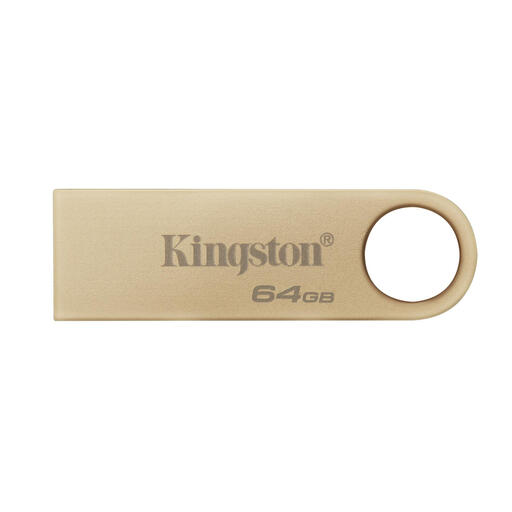
Kingston DataTraveler 64 GB 220 MB/s Metal USB 3.2 Gen 1 SE9 G3
The product details list USB Type-A, 64 GB of storage and a metal casing.
This version is listed with a write speed of up to 100 MB/s. The product name also mentions 220 MB/s; check which speed applies to reading and which to writing for this version.
View at Joybuy
 No image available
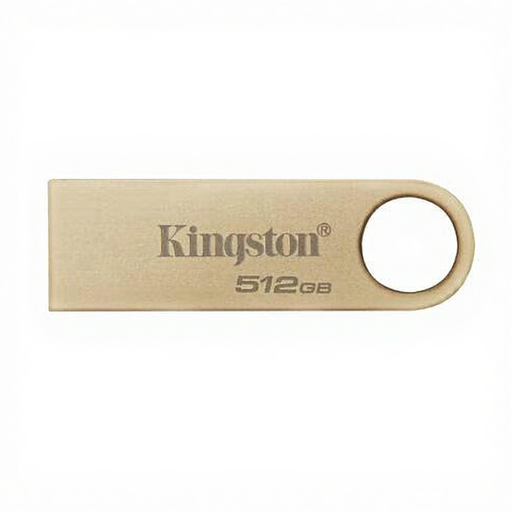
Kingston DataTraveler 512 GB 220 MB/s Metal USB 3.2 Gen 1 SE9 G3
The product description lists 512 GB of storage for a larger teaching archive, as well as a metal casing.
This version is listed with a read speed of up to 220 MB/s. This figure doesn’t indicate how quickly files are written to the stick.
View at Joybuy
Frequently asked questions
Can I store my teaching materials only on a USB stick?
Not if you need a copy you can restore should the stick be lost or damaged. VeiligInternetten explains that files on a USB stick can be lost, so keep another securely managed copy and check that you can restore your files.
How do I use a USB stick for regular backups?
Copy the files you want to keep, then check that you can open or restore a test file. VeiligInternetten describes both manual and automatic backups. Choose a method you’ll actually use, and put a removable stick away safely after use.
Which connector do I need for my devices?
Choose a connector that fits the physical ports on the devices you’ll use to copy and restore files. If you use both USB-A and USB-C ports, check that the specific stick has both connectors. Performance may also depend on the connected device.
When should I consider an encrypted USB stick?
Consider one if you need to store personal data on a portable stick and your school’s policy allows it. The Dutch Data Protection Authority recommends storing sensitive work documents on the work server wherever possible, and suggests an encrypted stick as an alternative if that isn’t possible. Make sure your choice complies with the policy and check that the stick works with the devices you use.


