
Student who wants to keep a backup
You want to make and check a recent copy before moving, rather than leaving your study notes on a single USB stick.


When choosing a USB stick for your study notes before a move, first check that it has the right USB connection and enough usable storage. After copying your files, open a few directly from the stick to check that the transfer worked. USB-A is enough if both devices have a suitable USB-A port, while a stick with both USB-A and USB-C can be handy if you switch between devices. Keep the original files for now, too: the Dutch Data Protection Authority lists losing a stick containing unencrypted personal data as a possible data breach.
You want to make and check a recent copy before moving, rather than leaving your study notes on a single USB stick.
You switch between devices with different ports and want to check whether they support external storage.
You need to carry larger files as well as notes, so it’s worth checking the available space, write speed and file system.
First, check that the stick connects to both devices and has enough space for the whole folder. For large files, also check the write speed and file system.
| What to consider | What should you check? | Who is this important for? |
|---|---|---|
| A copy you’ve checked | Copy the files rather than moving the only version, then open a few files directly from the stick. | If I want to know my notes have actually transferred before moving, checking the copy is my main priority. Around 36% of consumers put confidence in their copy first. |
| A connection that works with both devices | Check the ports on the source and destination devices and, if you’re using a mobile device, whether it supports external storage. | If you transfer files between devices with different ports, a connection that works with both is useful. Around 29% of consumers put compatibility first. |
| Enough storage space | Compare the size of the whole folder with the available space. Usable storage may be less than the stated capacity. | If my folder also contains presentations or project files, I want to make sure everything will fit and leave some space for extra files. Around 21% of consumers focus first on storage space. |
| Transferring large files | Check the stated write speed and whether the file system supports individual files of the size you need. | For large projects, I want to avoid write speeds or file limits getting in the way of copying. Around 14% of consumers prioritise transferring large files. |
Microsoft Learn states that FAT32 has a maximum file size of 4 GB per individual file. For larger files, check which file systems your devices support; Apple lists ExFAT as a format compatible with Windows.
A backup is a copy that remains available if files or a device are lost. If you move the original files instead of copying them, you may not have a separate version left.
Copy the files, check that the folders you expect are there, and open a few files directly from the stick. Keep the original version for now.
Having the right connector doesn’t necessarily mean the device supports external storage or tell you what transfer speed you’ll get.
Check the ports on both devices. If you’re using a phone or tablet, test whether it can read and write to the stick.
When copying files to a stick, write speed matters. A stated maximum doesn’t guarantee the speed you’ll get on your device.
For larger project folders, look for a separate write-speed specification, but don’t assume it guarantees you’ll save time.
Similar product names can refer to different capacities, connections or versions.
Before buying, check the full model name and specifications of the version you’ve chosen.
DataTraveler Exodia is a USB-A range for everyday files. Kingston also offers USB-A/USB-C models and separate IronKey models with encryption.
According to SanDisk, the Ultra Dual Drive Luxe combines USB-A and USB-C for use with devices that have compatible ports.
BAR Plus is a USB-A option for devices with a suitable USB-A port.
The Dual USB Drive version reviewed has USB-C and USB-A for transferring files between devices with compatible ports.
JetFlash 930C combines USB-A and USB-C; Transcend lists speeds for larger transfers.
This selection of Joybuy products includes USB-A sticks and models with both USB-A and USB-C, with a range of stated storage capacities for keeping and transferring study files.
 No image available
A good fit if your devices have a compatible USB-A port and your study folder fits in the available space.
128 GB storage; USB Type-A and USB 3.2 Gen 1.
Not suitable for direct connection to a device with USB-C ports only.
 No image available
A USB-A option if the computer you’re copying files from has a compatible USB-A port.
64 GB storage; USB 3.0.
Not suitable for direct connection to a device with USB-C ports only.
 No image available
Suitable for transferring files between devices with compatible USB-A and USB-C connections.
512 GB storage. Check whether your mobile devices support external storage.
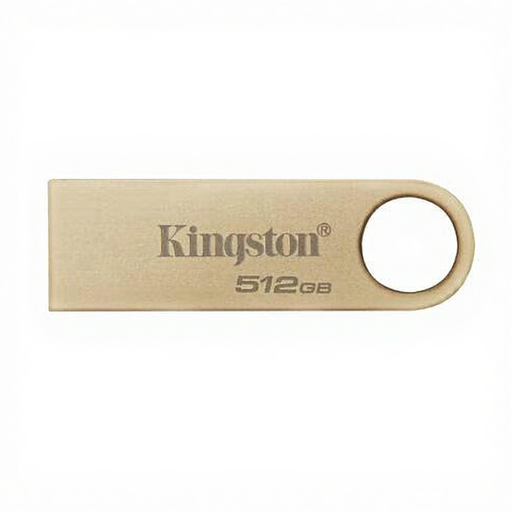 No image available
The stated capacity may suit a larger study folder; compare it with the space you need on your devices.
512 GB storage; metal version.
The stated speed of up to 220 MB/s is for reading, not writing.
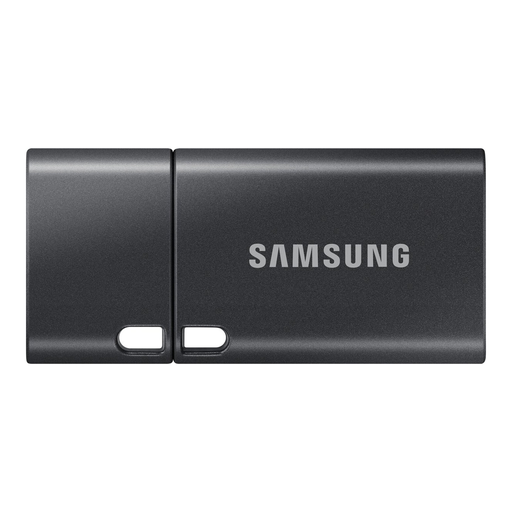 No image available
A USB-C option for files on devices with a compatible USB-C port.
512 GB storage; stated read speed of up to 400 MB/s.
The speed is for reading, not writing; not suitable for direct connection to a device with USB-A ports only.
Check that the folders you expect are there and open a few files directly from the stick. Keep the original files available for now, so you’re not relying on the copy as your only version.
The file system may limit the size of an individual file. Microsoft Learn states that FAT32 has a maximum file size of 4 GB per individual file. If you reformat the stick, back up any existing files first and check which format your devices support.
It depends, among other things, on the connections and file system. Apple lists ExFAT as compatible with Windows; a Mac may be able to read an NTFS drive but not write to it. Test the stick on both devices before relying on the copy.
Consider using appropriate encryption and keep the stick with you. The Dutch Data Protection Authority lists losing a USB stick containing unencrypted personal data as a possible data breach. What’s needed in a specific situation depends on the data and who is responsible for it.
The cooling-off period for an online purchase and your legal rights if a product is faulty are two different things. The Dutch government says a 14-day cooling-off period applies to many distance purchases, with some exceptions. If a product is faulty, contact the seller; the Netherlands Authority for Consumers and Markets explains that there is no fixed term for the legal guarantee in the Netherlands, and it depends on what you could reasonably expect from the product.