
Managing growing project folders
You want to keep spreadsheets alongside large attachments and project files. Work out how much space your next backups will need, and remember that not all of the stated capacity will be available for files.


Choose a capacity based on the size of your project folders and how much they’re likely to grow. If you regularly copy large amounts of data, check both the stated write speed and your computer’s USB port. A high read speed won’t tell you how long a backup will take. Also, don’t keep your only copy on the stick, and test that you can restore your files. If your spreadsheets contain personal data, consider what security measures are appropriate for handling it.
You want to keep spreadsheets alongside large attachments and project files. Work out how much space your next backups will need, and remember that not all of the stated capacity will be available for files.
You regularly copy large folders and want to keep waiting times down. Compare the stated write speed and check that your computer and port can handle the transfer. Maximum speeds may differ in real-world use.
You want to be able to restore files after they’re lost or an incident occurs, and may need to protect personal data. The Digital Trust Center advises against relying on a single storage location and recommends testing backups by restoring files.
First, measure the folders you want to keep, then choose a suitable capacity. For large or frequent copies, also check the write speed, connection, recoverability and any protection needed for confidential files.
| What to consider | What to look for | Who should pay particular attention? |
|---|---|---|
| Space for your backup | Measure your folders and any versions you want to keep, then check how much space is available after formatting. Kingston says that the full stated capacity isn’t available for files. | If I also want to keep future files or earlier versions, I’ll check the available space first; around 28% of consumers rank having enough backup space as their top priority. |
| Write speed | Compare the stated write speed for the exact model and check that your computer, port and any hub are suitable. Kingston notes that the host port can limit performance. | If you often copy large folders, keeping waiting times down is a key consideration; around 22% of consumers put copying time first. |
| Recoverability | Make new copies regularly, don’t keep them only on the stick, and test that you can restore your files. The Digital Trust Center recommends using multiple storage locations and testing recovery. | If I need to restore my recent work after losing a device, a usable backup matters more than speed alone; around 22% of consumers rank recoverability as their top priority. |
| Connection and file system | Check that the connector fits the computers you use to create or restore your files. FAT32 can be a limitation for files larger than 4 GB; Microsoft says exFAT supports files above that size. Check that all your devices support it. | If I want to use the stick on different computers, I’ll make sure it connects to them and that they can read the files; around 17% of consumers put device compatibility first. |
| Confidential data | Work out whether your folders contain personal data or other confidential information, and what access protection is appropriate. The Dutch Data Protection Authority says that suitable security for organisations depends on the risks involved in processing the data. | If I store sensitive work files on a portable stick, I’ll choose appropriate protection in advance; around 11% of consumers rank confidentiality as their top priority. |
A backup writes data to the stick. Read and write speeds are different specifications, and your computer’s connection can also limit the transfer.
Check the write speed for the exact model, as well as the port or hub you’ll use to copy your files.
Repeatedly copying large amounts of data can mean longer waits, making your backup routine less practical.
A stick can be lost or damaged. Without another copy, you may have difficulty accessing your files. The Digital Trust Center recommends using different storage locations and testing that you can restore your files.
Keep important files in another storage location too, update your copies and periodically test that you can restore your files.
Keeping multiple copies also requires extra storage space and management.
Kingston says that the full stated capacity isn’t available for your own files. As a result, a folder that seems to fit within the nominal capacity may need more space than is available.
Measure your folders and any earlier versions, then check how much space is available after formatting.
If your folders grow, you may need additional storage.
The Dutch Data Protection Authority says that organisations must protect personal data appropriately, based on the risks involved in processing it. This doesn’t mean that everyone needs the same type of USB stick.
Work out what data you’ll store on the stick, then consider what access protection and recoverable backup process are appropriate.
A secure process may require additional management of access and passwords.
The DataTraveler Max is worth considering if you have a compatible high-speed USB-C port. The IronKey Locker+ 50 G2 is a separate range with hardware encryption.
The USB Type-C MUF-512DA/APC and USB-A FIT Plus MUF-512AB/APC offer different connections in the 512GB version.
The JetFlash 920 is a USB-A model worth comparing if you need to copy large folders.
The JumpDrive P30 is a USB-A range with capacities of up to 1 TB and a stated option for software-based file protection.
The Extreme PRO Flash Drive with USB-A is worth comparing if you’re interested in the stated write performance and this type of connection.
These product options are intended for storing and backing up spreadsheet files and project folders. When comparing them, consider the capacity and your computer’s connection.
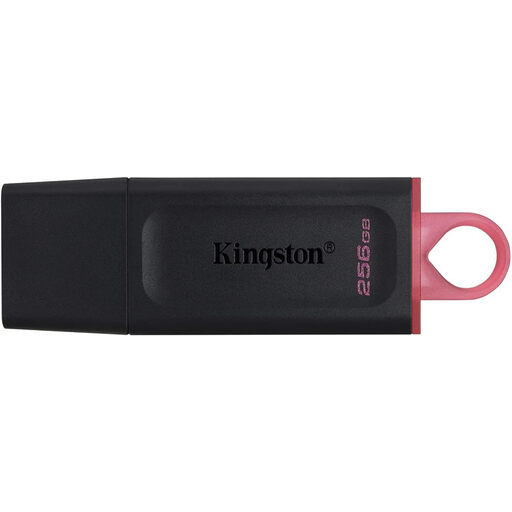 No image available
An option to compare if you want to store and copy work files on a USB stick.
256 GB; USB 3.2 Gen 1; the product title states a write speed of up to 625 MB/s. This is not an independent measurement.
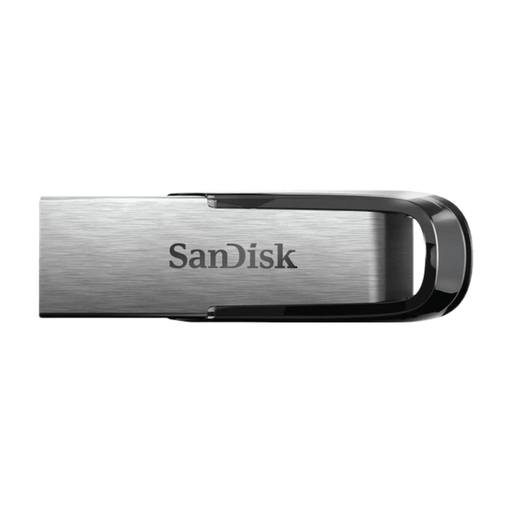 No image available
Worth considering if you want to store project folders using a USB-A connection.
512 GB; USB 3.0; USB-A.
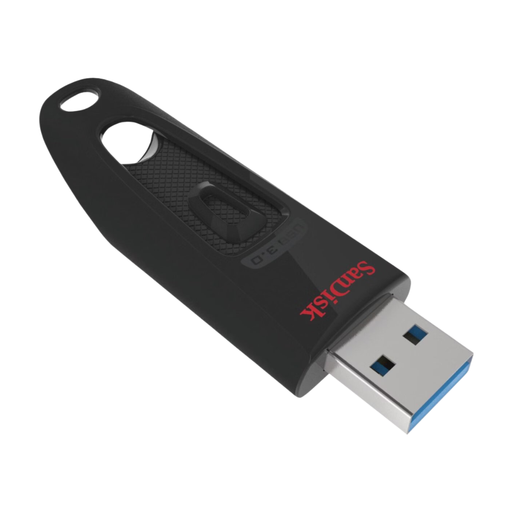 No image available
A USB stick to compare if you want to store large files on computers with USB-A.
512 GB; USB 3.0; USB-A.
 No image available
A lower-capacity version to compare if you want to store files on a computer with USB-A.
64 GB; USB 3.0; USB-A.
 No image available
An option to compare if you want to carry large files between devices with different USB connections.
512 GB; USB-C and USB-A.
Allow space for the folders you want to copy now, as well as expected growth or earlier versions. Not all of the stated capacity is available for files, so measure your folders and check the available space after formatting.
FAT32 has a 4 GB limit for individual files, while exFAT supports files above that size, according to Microsoft. Before you choose, check that all the devices you’ll need to use for the backup support the file system.
Periodically try restoring files from a backup. The Digital Trust Center also recommends using multiple storage locations so that you’re not relying on a single copy.
There isn’t one product requirement that applies to every spreadsheet. The Dutch Data Protection Authority says that organisations must protect personal data appropriately, based on the risks involved in processing it. The right measures for your situation will therefore also depend on the data and how you use it.
No. A stated top speed on its own doesn’t tell you how long your backup will take. Kingston notes that the host port can limit the performance of the DataTraveler Max. When comparing write performance, check the stated write speed and your computer’s connection too.