
Presenting on a shared PC
You’ll want to know in advance whether the stick will fit the available port and whether the workstation allows removable storage. Microsoft Learn explains that device policies can restrict the use of USB sticks.


First, check which ports the shared workstation has and whether removable storage is allowed. Then choose a USB-A stick or a stick with both USB-A and USB-C that also works with your own device. For standard presentation files, having enough storage space and a suitable file system is important. If your files are sensitive, encryption and whether you can unlock the stick on the workstation matter more.
You’ll want to know in advance whether the stick will fit the available port and whether the workstation allows removable storage. Microsoft Learn explains that device policies can restrict the use of USB sticks.
You’ll need to consider the risk of losing the stick, encryption and your organisation’s removable media policy. The National Cyber Security Centre advises limiting the use of removable media for sensitive information.
You create presentations on a USB-C device and want to transfer files to a workstation with USB-A.
Choose this option: if both your own device and the shared workstation have a free USB-A port.
Bear in mind: a USB-A stick won’t plug directly into a device with USB-C only.
Choose this option: if you want to transfer files between devices with different ports without carrying a separate adapter.
Bear in mind: check that both connectors and the file system work with the devices you use.
Choose this option: if your files are sensitive and your organisation’s policy allows it.
Bear in mind: unlocking it may place additional requirements on the workstation.
| What to consider | What should you check? | Who should pay particular attention? |
|---|---|---|
| Connector and access | Check the ports on both devices. If the workstation is managed, ask whether removable storage is allowed. | If I need to open my presentation on a shared PC, I want to know in advance whether the stick will fit and be allowed. Around 36% of consumers prioritise connector compatibility and access. |
| File protection | Assess how sensitive your files are, check your organisation’s policy and confirm the unlocking method and system requirements for the exact model. | If my presentation contains sensitive information, protecting it if the stick is lost matters more than extra convenience when connecting it. Around 29% of consumers give data protection top priority. |
| Storage space and copying time | Check the total file size and the size of the largest file separately. Pay attention to available space, the file system and the stated write speed. | If I’m bringing large files such as videos, I want to make sure they’ll fit and can be copied in time. Around 21% of consumers say storage space and copying time are their main considerations. |
| Carrying and storing | Look for a loop for attaching the stick or a protected connector. Keep the original elsewhere and safely eject the stick after use. | If I carry the stick regularly, I want to store it easily without relying on it as my only copy of a file. Around 14% of consumers prioritise portability and keeping a copy elsewhere. |
Write speed matters too when copying files to a stick. The stated read speed doesn’t tell you how quickly files will be written; the result also depends on the device and the conditions of use.
If copying time matters, check the write speed for the exact model. Don’t assume the manufacturer’s figures guarantee the same speed on your workstation.
Administrators may restrict the use of removable storage. A secure model may also have its own system requirements: for example, the Kingston IronKey Locker+ 50 requires two free, consecutive drive letters.
Before buying or giving an important presentation, check that your organisation’s policy allows it and that the stick can be unlocked on the workstation you plan to use.
Small storage devices can easily be misplaced. Microsoft recommends using the Safely Remove feature in Windows to help prevent data loss when disconnecting a device.
Keep an authorised backup elsewhere and use the Safely Remove feature before disconnecting the stick.
The DataTraveler Exodia M is a USB-A range for everyday files; the IronKey Locker+ 50 is a separate range with hardware encryption.
The Ultra Dual Drive Go is designed for transferring files between devices with USB-A and USB-C ports.
The BAR Plus is a metal USB-A range. Samsung lists a capacity of 128 GB for the MUF-128BE3/APC.
The Dual USB Drive USB-C/USB-A #49966 is a 32 GB model for devices with these two types of connector.
The JetFlash 790 is a USB-A range with a retractable connector; the 64 GB black model has the part number TS64GJF790K.
Browse USB sticks for presentation files you want to transfer between your own device and a shared workstation. Beforehand, check which connector and how much storage space will suit your devices and files.
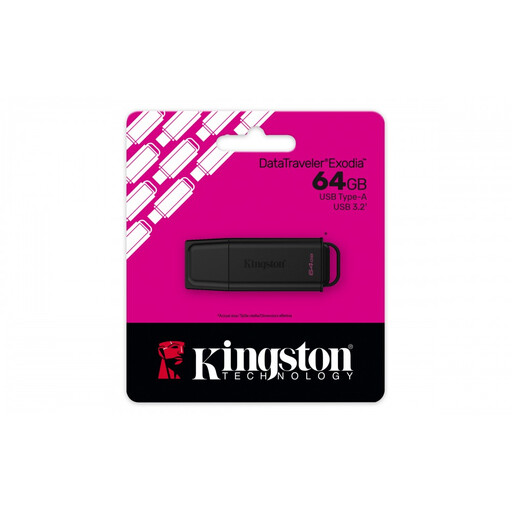 Image unavailable
A good choice if both devices have a USB-A port and 64 GB is enough for your files.
 Image unavailable
A good fit for the USB-A option if both devices have a free USB-A port and your files fit within the capacity.
The product name lists 128 GB and USB 3.2 Gen 1 Type-A.
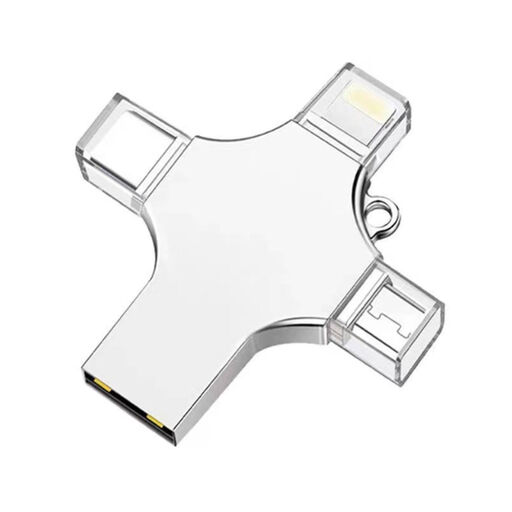 Image unavailable
Check that the listed connectors match the devices you want to transfer your presentation files between.
The product name lists 32 GB and USB 3.0; make sure the available storage space is enough for your files.
 Image unavailable
A good fit for the USB-A option if both devices support this connector and 64 GB is enough for your presentation files.
The product name lists 64 GB and USB 3.0.
 Image unavailable
Suitable for transferring files between a USB-C device and a computer with USB-A, provided the available ports match.
The product name lists 512 GB. Check that the devices you use and the workstation support the file system you need.
No. The connector must fit an available port, and a managed workstation may restrict removable storage. Check both before relying on the stick.
Check the file system and its maximum file size. Microsoft lists a limit of 4 GiB per individual file for FAT32; in Microsoft’s comparison, exFAT has a higher limit. First check that the workstation supports that format, and make a backup before formatting a device that contains existing files.
Wait for copying to finish, then use the Safely Remove feature in Windows 10 or Windows 11 before disconnecting the stick. Keep important files in another permitted location too.
Assess how sensitive the files are and follow your organisation’s policy. The Dutch Data Protection Authority describes the loss of a USB stick containing unencrypted personal data as a potential data breach. It recommends using an encrypted stick for sensitive work documents if storing them on the work server isn’t possible.
No. According to the Dutch government, there is no fixed statutory warranty period in the Netherlands. A manufacturer’s warranty is additional; if a product is faulty, contact the retailer.