
Student using two computers
You create your presentation on one device and open it on another. Check which ports both computers have before choosing a stick.


Start by checking the ports: USB-A is enough if both computers have that connection; if they have different ports, a stick with both USB-A and USB-C is an option. Then check that it has enough space for your presentation and all your media. A higher read speed alone doesn’t tell you how quickly files will be written to the stick, so test your presentation on the computer you’ll be using to give it.
You create your presentation on one device and open it on another. Check which ports both computers have before choosing a stick.
Your presentation includes videos or other large files. Consider the total file size and any media that needs to be carried separately.
You’re taking personal data with you. Limit what you copy and check whether secure storage can be used on the school computer.
First check the connections on both computers. Then work out how much storage you need, and only after that consider whether write speed or security matters for your files.
| What to consider | What to look for | Who is this important for? |
|---|---|---|
| Connection | Check the ports on both the computer you work on and the one you’ll use for your presentation. | If I want to plug the stick directly into both computers, I check the ports first. Around 36% of consumers prioritise a connection that works with both devices. |
| Storage space | Add up the presentation and all the media you need to take with you; remember to allow for linked files too. | If my presentation includes videos or other media, I want to know whether everything will fit on the stick. Around 29% of consumers put having enough storage at the top of their list. |
| Copying time | For large files, compare the write speed of the exact model; read and write speeds are not the same. | For large files, I mainly want to know how quickly the stick writes, not just how quickly it reads. Around 21% of consumers consider copying time their most important factor. |
| Sensitive files | Only take the data you need and check whether any secure stick you’re considering will work on the school computer. | If my project contains personal data, I want to know what protection and access options are available at school. Around 14% of consumers put the protection of sensitive data first. |
Microsoft points out that embedded videos make a presentation larger, while links to external files can stop working. So check whether your media is embedded or needs to be carried separately.
A quoted read speed doesn’t tell you how quickly you can copy files to the stick. Samsung states that the write speed of the 64 GB BAR Plus is lower than its read speed.
For large transfers, look up the write speed of the exact model and don’t compare different capacities as if they offer the same performance.
Videos and other linked files may be missing or fail to open if you copy only the presentation file. Microsoft describes a feature for packaging a presentation with external elements.
Take any linked files with you and open the presentation on the computer you’ll use to show it before the lesson.
A USB-A stick won’t plug directly into a device with only USB-C, and vice versa. A stick with both connections can be useful if the two computers have different ports.
Check the connections on both computers before you order. You may need an adapter if the plug doesn’t fit one of the devices.
DataTraveler Exodia is a USB-A range; IronKey Locker+ 50 G2 is a separate range for those who need hardware encryption.
The Ultra Dual Drive Luxe is designed for devices with USB-A and USB-C ports; the Extreme PRO Dual Drive is a different product range.
The BAR Plus is a USB-A option for anyone who carries a stick around regularly.
The 64 GB Store 'n' Go USB-C is an option if the devices you use have USB-C ports.
The JetFlash 790 is a USB-A stick with a retractable connector.
These product picks are for transferring school files between computers with USB-A, USB-C or a combination of the two.
 No image available
Handy for transferring files between devices with USB-A and USB-C.
512 GB storage; USB-A and USB-C connections. The description lists a maximum read speed of 150 MB/s.
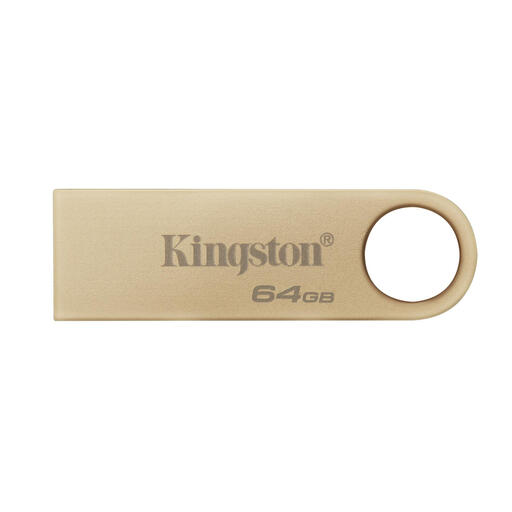 No image available
A USB-A option if both computers have a compatible USB-A port.
64 GB storage; maximum read speed of 220 MB/s and maximum write speed of 100 MB/s, according to the product information.
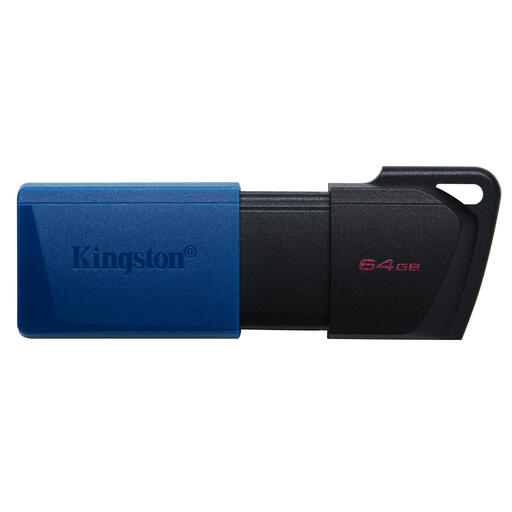 No image available
Suitable for presentation files if both computers have a USB-A port.
64 GB storage and USB Type-A. The product description mentions a protective cap and a loop for attaching it to a keyring.
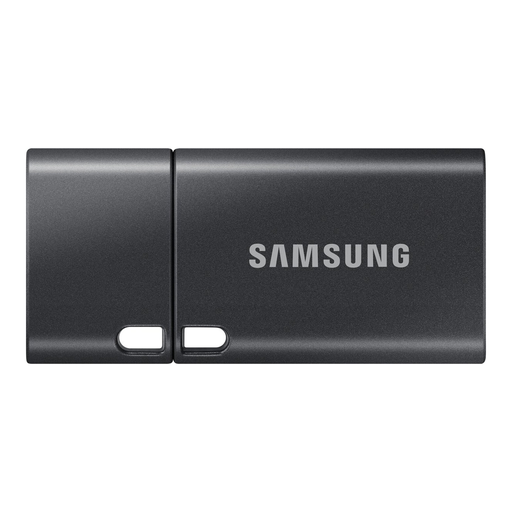 No image available
Suitable for transferring files between devices with a compatible USB-C port.
512 GB storage and USB-C. The product description lists a maximum read speed of 400 MB/s.
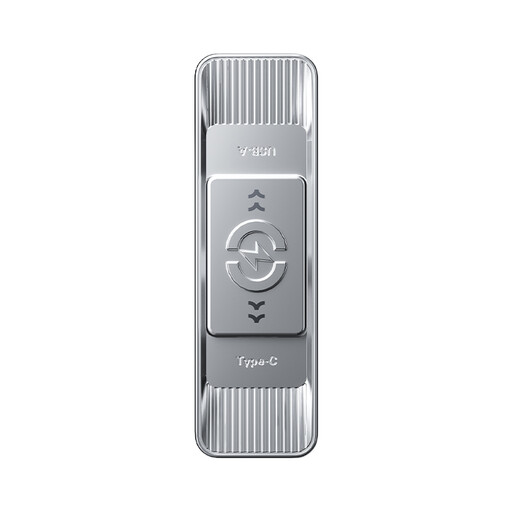 No image available
An option for transferring files between devices with different connections.
512 GB storage and a dual connection: USB-A and USB-C.
Not always. Linked media may be missing or fail to open. Microsoft describes a feature for packaging a presentation with external elements on a USB stick. Open and check the result on the computer you’ll use for your presentation.
Check the file format. Microsoft Learn lists a limit of 4 GiB per file for FAT32 and a higher limit for exFAT. Check that the presentation computer supports exFAT before reformatting the stick.
That depends on the data and the arrangements with your school. The Dutch Data Protection Authority stresses that personal data must be properly protected; check what protection can be used on the computer you’ll use for your presentation.
In Windows, use the safe removal feature before unplugging the stick. Microsoft recommends this to help prevent data loss.
For a consumer purchase in the Netherlands, the product must be fit for purpose, and the seller must offer a solution if something goes wrong. According to the Dutch government, statutory warranty has no fixed term; the manufacturer’s warranty is separate.