
Students who move between home and school
If you want to open your notes on different computers, check that the stick works with both devices. Look at the USB-A and USB-C ports available.


First, check which USB ports the devices at home and at school have. A USB-A stick will work with two USB-A ports, while a stick with both USB-A and USB-C can be useful if the devices have different ports. Then choose a capacity to suit your project files and keep the original notes separate; extra storage or a different type of stick is no substitute for a backup.
If you want to open your notes on different computers, check that the stick works with both devices. Look at the USB-A and USB-C ports available.
Keep the original files separate, check that they have copied across correctly, and safely eject the stick before unplugging it. Microsoft Support explains these steps for checking and safely removing external storage.
If you mainly want to carry documents with you, choose storage capacity and connectors to suit your files and devices, without paying for features you don’t need.
Start by checking the connectors on both devices. Then look at your project folder and think about how you’ll keep a separate copy.
| What to consider | What should you check? | Who is this important for? |
|---|---|---|
| Connectors | Check the ports on both devices and whether the stick has USB-A, USB-C or both. | If I want to open my notes on a computer at home and one at school, the stick needs to work with both. Around 33% of consumers say the connector is their top priority. |
| Keeping your files safe | Copy the files, open a few from the stick and safely eject it before unplugging. | If I don’t want to have to recreate my project, I want to check that the copy works and keep the original separate. Around 27% of consumers put keeping their files safe first. |
| Storage capacity | Compare the size of your project folder with the available space on the stick; this may be less than its stated capacity. | If my project includes images or other files as well as notes, I want to know how much space the whole folder needs. Around 20% of consumers focus on having enough storage. |
| Total cost | Compare the connectors and storage you need with the stick you’re considering, and check for any delivery charges at checkout. | If I only want to copy notes, I don’t need features I won’t use. Around 20% of consumers say total cost is their main priority. |
A USB standard or maximum sequential read speed doesn’t automatically tell you the write speed you’ll get with your project files.
If speed matters to you, compare the read and write specifications separately. First, check that the connector is compatible.
If the stick is the only place your files are stored, you won’t have a separate original to fall back on.
Keep the original separate, check the copy on the stick and safely eject it before unplugging.
The DataTraveler Exodia M is a USB-A option for everyday file transfers. The DataTraveler range also includes models with USB-C or two connectors.
The Ultra Dual Drive Go is an option for transferring files directly between devices with USB-A and USB-C.
The JetFlash 790 is a retractable USB-A option; the JetFlash 790C is designed for devices with USB-C.
The BAR Plus 64 GB is a USB-A option with a metal casing.
This selection includes USB-A sticks and models with multiple connectors for transferring project files. Before buying, check which ports your devices at home and at school have.
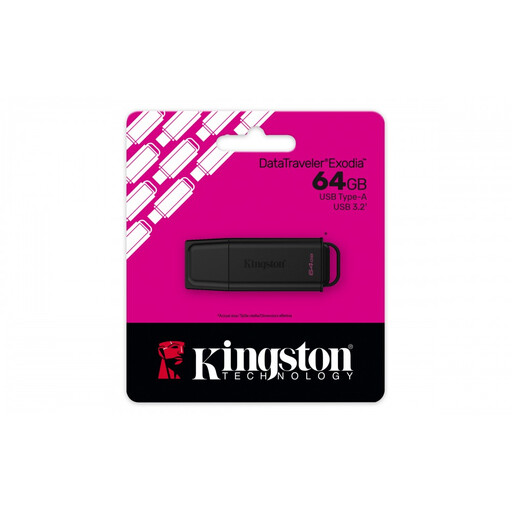 No image available
An option for carrying project files on a USB stick; check that the connector works with both devices.
Capacity: 64 GB.
 No image available
The Type A connector may work with computers that have USB-A; check the ports on your devices at home and at school.
Capacity: 128 GB. The product title lists USB 3.2 Gen 1 Type A.
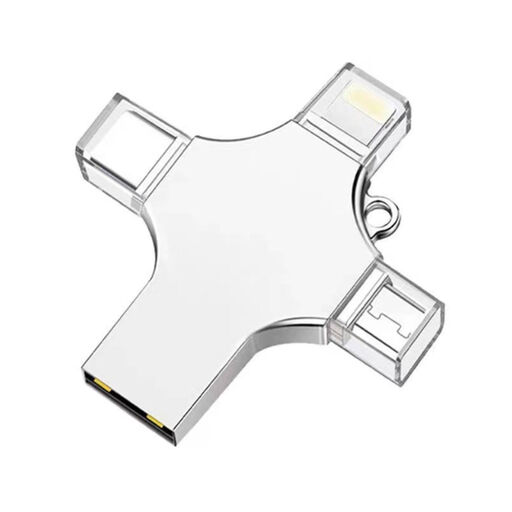 No image available
The listed connectors may be useful if you want to transfer files between different devices; check that they work with your devices.
Capacity: 32 GB. The product title lists USB 3.0, Lightning, USB-C and Micro-USB.
 No image available
A USB-A option for project files on computers with that connector; check that both devices have USB-A.
Capacity: 64 GB. The product title lists USB 3.0.
 No image available
The listed USB-A and USB-C connectors are designed for use with devices that have different ports; check the exact model.
Capacity: 512 GB. The product title lists USB 3.1 and USB-C.
Compare the capacity with the size of your project files before choosing a model.
Copy the files to the stick and check that they’re in the right place. Keep the original separate and safely eject the stick before unplugging it.
Check both the USB ports and the file format. Apple lists ExFAT as compatible with Windows and recommends this format for Windows-compatible volumes over 32 GB. Formatting erases existing files, so make a copy of them first.
No. According to the Dutch government, there is no fixed statutory warranty period in the Netherlands; you’re entitled to a product that works as it should. Any separately stated manufacturer’s warranty is in addition to this.
Don’t assume you can. The Dutch Data Protection Authority gives the loss of a USB stick containing unencrypted personal data as a possible example of a data breach. Whether you’re allowed to keep this kind of data on a personal stick also depends on the circumstances and your school’s rules.