Use a USB stick as an additional or portable copy of scanned letters, not as the only place to store irreplaceable files. First, choose a storage and back-up method that’s permitted. Then decide whether access protection is needed, and check the shared workstation’s ports, software and capacity. A stick with its own keypad may let you unlock it without software on the computer, but it requires careful PIN management and doesn’t replace having another copy.
Who is this guide for?
Keeping irreplaceable letters
You want to be able to find your scans later, even if a USB stick is lost or stops working. In that case, a verifiable extra copy matters more than a high advertised speed. The National Cyber Security Centre advises keeping multiple versions and back-ups of important business data.
Managing confidential scans
You work with letters that may contain personal data or other sensitive information, and want to control who can access them on the shared workstation and on the portable stick. The Dutch Data Protection Authority stresses that organisations must protect personal data properly.
Using a shared scanning computer
You want to connect and unlock your stick using the ports, permissions and software arrangements available on a computer that other people use too. So check in advance which connection and security method are permitted on that workstation.
What should you look for?
Start with keeping your scans safe and confidential. Then check whether you can connect and unlock the stick on the shared workstation.
Hardware encryption with a keypad
A good fit if: you want to unlock confidential scans on different computers without installing encryption software on the workstation. Kingston describes the KP200 series as hardware-encrypted and equipped with a keypad.
Bear in mind: you’ll need the right USB-A or USB-C version and careful PIN management. Also check the unlocking procedure for the model you choose.
Standard stick with software encryption
A good fit if: the administrator permits the software, and authorised users can manage access and recovery properly. Microsoft lists removable drives under BitLocker To Go.
Bear in mind: according to Microsoft, manually enabling BitLocker drive encryption requires Windows Pro, Enterprise or Education. Also check permissions and workstation policies.
Standard stick without encryption
Only suitable if: unauthorised access isn’t a relevant risk and this method is permitted by your storage policy.
Bear in mind: basic storage doesn’t protect your files from being viewed if the stick is lost. The Dutch Data Protection Authority cites the loss of a USB stick containing unencrypted personal data as a possible data breach.
| What to consider |
What should you check? |
Who is this important for? |
| Keeping scans safe |
Where the original scans and extra copy are stored, how the copy is updated, and whether you can open the files. |
If my scans are irreplaceable, I want to be able to check and restore an extra copy. Around 29% of consumers put keeping scans safe and being able to restore them first. |
| Confidentiality |
Which documents need protection and who manages the PIN, key or recovery process. |
If letters contain sensitive information, I want to restrict access if the stick is lost or used by others. Around 23% of consumers put confidentiality first. |
| Connection and access |
Check USB-A or USB-C, workstation policies and user permissions. According to Microsoft, manually enabling BitLocker drive encryption requires Windows Pro, Enterprise or Education. |
If I need to use the stick on a shared scanning computer, I want to make sure the connection and unlocking method work there. Around 18% of consumers prioritise workstation compatibility. |
| Capacity |
Measure a representative folder of scans and check the capacity of the exact version; usable space may differ from the advertised capacity. |
If my folder of scans grows, I want enough space for the files I actually keep. Around 18% of consumers choose capacity as their main consideration. |
| Write speed |
Compare the write-speed specifications for the exact version; an advertised read speed doesn’t tell you how quickly scans will be copied to the stick. |
If I regularly transfer lots of scans, I want to know how long it takes to write them. Around 12% of consumers put transfer time first. |
Common buying mistakes
-
Assuming a large or rugged stick is a complete archiving solution
Capacity and physical features can’t prevent the only copy from being lost or the stick from failing.
Before buying, decide where the original scans and a separate copy will be kept, and how you’ll check that the copy is still readable.
-
Mistaking read speed for write speed
Write speed matters when transferring scans; the advertised read speed doesn’t tell you how quickly files are written to the stick.
Look up the write-speed specification for the exact capacity and version you’ve chosen. Actual speed may also depend on the computer and how you use it.
-
Buying a secure stick without agreeing how to manage the passcode
For the Verbatim Keypad Secure version reviewed, reformatting is required after 20 incorrect passwords. This could prevent you from accessing your files.
Agree who is allowed to unlock the stick, and keep a separate copy before several people use the device.
Brands to consider
Kingston
The IronKey Keypad 200 series is worth considering if you want to unlock a stick on different computers without installing software on them.
- Kingston describes the KP200 series as hardware-encrypted and equipped with its own keypad, with USB-A and USB-C versions available.
- Check the connector on the exact version and agree who will manage the PIN. Product features aren’t an independent performance comparison.
Verbatim
Keypad Secure is an alternative with its own keypad; the version reviewed, #49427, is a 32 GB USB-A stick.
- According to Verbatim, this version uses AES-256 hardware encryption and works with PC and Mac.
- Verbatim says the stick must be reformatted after 20 incorrect passwords. So don’t keep important scans exclusively on this stick.
Samsung
FIT Plus is a compact USB-A stick for extra storage when access protection is managed separately.
- Samsung lists 128 GB and sequential read speeds of up to 400 MB/s for MUF-128AB/APC, under the manufacturer’s stated conditions.
- The advertised read speed isn’t a write speed and doesn’t demonstrate built-in encryption; actual speed may vary.
Transcend
JetFlash 790 is a USB-A stick with a retractable connector; the product range includes various capacities.
- Transcend lists the 128GB version TS128GJF790K, among others.
- Usable capacity may differ from the advertised capacity. The product specifications don’t substantiate built-in encryption or a guaranteed data-retention period.
USB sticks on Joybuy
This selection of Joybuy products includes USB sticks for extra storage and models whose product descriptions mention software-based password protection. Before using one on a shared computer, check whether the software mentioned is permitted and works there.
 No image available
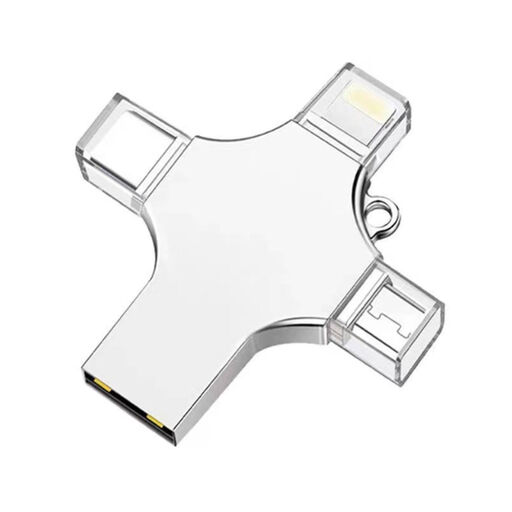
32 GB USB stick with USB 3.0, Lightning, USB-C and Micro-USB
The product title lists 32 GB of storage and four types of connector. Check which connector is suitable for the shared workstation and the devices you want to use the files on.
View on Joybuy
 No image available
SanDisk Ultra Flair USB 3.0, 64 GB
The product description lists 64 GB and password protection with 128-bit AES via SanDisk software. Check whether the software is permitted on the shared workstation; a software download is listed for Mac.
View on Joybuy
 No image available
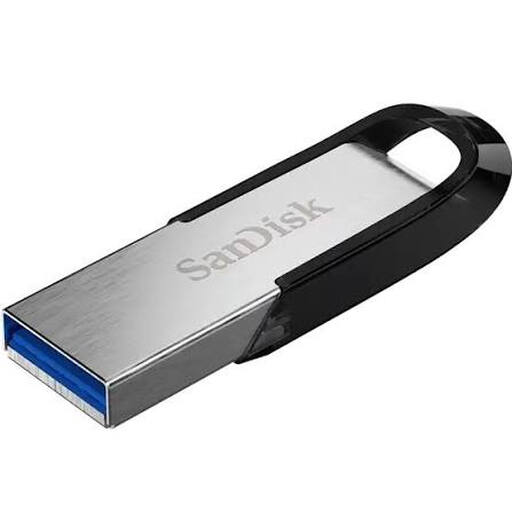
SanDisk Ultra Flair USB 3.0, 256 GB
According to the product information, this version has 256 GB and read speeds of up to 150 MB/s; that isn’t a write speed. The description mentions password protection with 128-bit AES via SanDisk SecureAccess software, so check whether this software can be used on the workstation.
View on Joybuy
 No image available
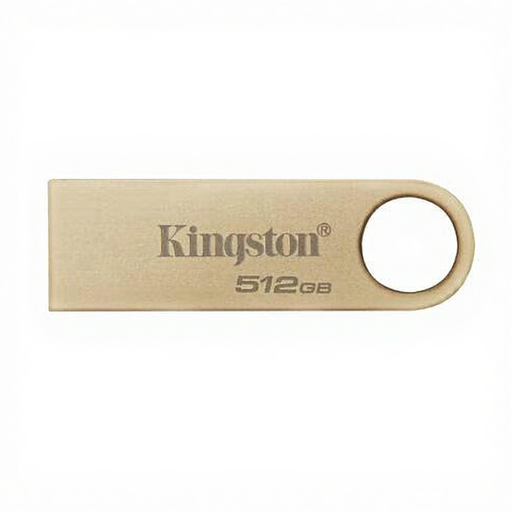
Kingston DataTraveler SE9 G3 USB 3.2 Gen 1, 512 GB
The product information lists 512 GB, plug-and-play use on PCs and laptops without installing software, and read speeds of up to 220 MB/s. Read speed doesn’t tell you how quickly scans are written to the stick.
View on Joybuy
 No image available
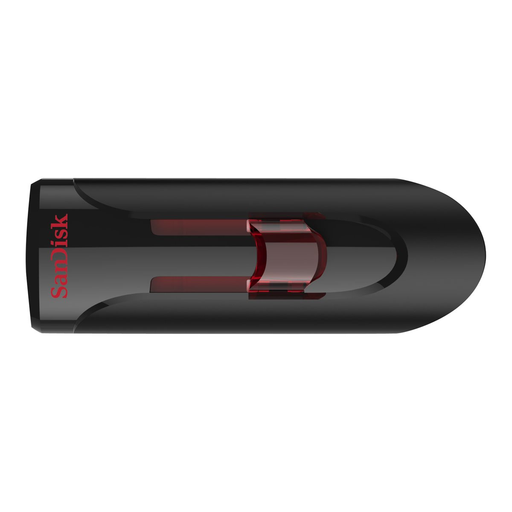
SanDisk USB 3.0, 32 GB
The product description lists 32 GB, read speeds of up to 80 MB/s and password protection with 128-bit AES via SanDisk SecureAccess. It states compatibility with Windows and Mac OS X, and lists a software download for Mac; check whether the software can be used on the shared computer.
View on Joybuy
Frequently asked questions
Can a USB stick be the only archived copy of my letters?
Using a USB stick as the only copy isn’t a sensible back-up approach for irreplaceable scans. The National Cyber Security Centre advises keeping multiple versions and copies of important business data. In your own situation, keep an extra copy separately and check that you can open the files.
Can I set up BitLocker To Go on the shared computer?
Only if the Windows edition, user permissions and workstation policy allow it. Microsoft lists removable drives under BitLocker To Go and states that manually enabling BitLocker drive encryption is available on Windows Pro, Enterprise and Education, but not Home. Keep the recovery key separately.
How can I keep my scan archive usable after copying files?
Check that you can open files from the stick and that the separate copy has been updated. Use a clear folder and file structure. Requirements for the long-term accessibility of government archives don’t automatically apply to personal letters.
Am I always entitled to exactly two years’ warranty on a USB stick in the Netherlands?
No, the legal guarantee isn’t automatically exactly two years. ACM ConsuWijzer explains that it depends on what you could reasonably expect from the product under normal use; the seller must resolve a faulty product under the applicable conditions. This doesn’t mean lost scanned files will be recovered.


