Which stick is right for you?

Recipe manager using one workstation

You mainly save and edit documents on a shared computer, so you need a connection that fits it directly. For small files, maximum transfer speed isn’t necessarily the deciding factor. Kingston describes the DataTraveler Exodia as USB-A storage for documents.

Someone using multiple devices

You transfer recipes between a shared workstation and a device with a different type of USB port. According to Verbatim, the Verbatim Dual USB Drive #49966 has both USB-C and USB-A.

Someone managing restricted files

You want to restrict access to files or account for the risk of losing the stick, and need to check whether its security features will work on the shared computer. Kingston lists encryption for the IronKey Locker+ 50 G2; the Dutch Data Protection Authority emphasises that organisations must protect personal data appropriately.

What should you look for?

Basic USB-A stick

Suitable if: the shared workstation has a USB-A port and you save standard recipe documents. Kingston describes the DataTraveler Exodia as USB-A storage for documents.

Bear in mind: a standard document storage stick doesn’t automatically restrict access for everyone using the shared computer.

USB-A and USB-C stick

Suitable if: you want to transfer the same recipes between a USB-A workstation and a device with USB-C. The Verbatim Dual USB Drive #49966 has both types of connection.

Bear in mind: having two connectors doesn’t provide access management or an extra copy. Also check that the other device can read USB storage and its file system.

Encrypted stick

Suitable if: files need to be protected and the administrator confirms that the model works on the shared computer. Kingston lists hardware encryption and administrator and user passwords for the IronKey Locker+ 50 G2.

Bear in mind: this IronKey needs two consecutive free drive letters. Entering the wrong passwords can block access or erase the stick.

What to consider What should you check? Who should pay particular attention?
Connection Check the ports on the shared workstation and your other devices. Choose a stick with two types of connection only if you need both. If I transfer recipes between the workstation and a device with a different port, I don’t want an unnecessary extra step. Around 29% of consumers prioritise a connection that fits the shared workstation.
Keeping files safe Keep a separate, up-to-date copy in addition to the one on the stick, and test that you can restore it. The Digital Trust Center advises keeping important files in multiple locations and testing recovery. If I don’t want to lose my updated recipes, I don’t want to rely on a single stick. Around 29% of consumers give keeping recipe files safe their highest priority.
Restricting access Decide which files need to be protected and check the secure model’s requirements for use on the shared computer. If recipes contain personal information or aren’t intended for every user, I want to know who can open the files. Around 21% of consumers prioritise restricting access.
Everyday use Check that the connection fits and find out what you need to do to save changes and safely remove the stick. Microsoft advises safely removing USB storage in Windows. If several people update recipes, I want saving and disconnecting the stick to fit easily into our routine. Around 21% of consumers place particular importance on a practical everyday workflow.

Common mistakes

  • Assuming maximum read speed means recipes will save faster

    Maximum speed can depend on capacity, computer and conditions of use. Samsung lists different maximum read speeds for different BAR Plus capacities.

    First compare the connection and how you’ll use the stick. Treat speed claims as manufacturer specifications for the exact version, not as a guaranteed speed on your workstation.

  • Choosing an encrypted stick without checking the shared computer

    The Kingston IronKey Locker+ 50 G2 needs two consecutive free drive letters. Entering the wrong passwords can block access or erase the stick.

    Ask the administrator to check in advance whether the model can be used on the workstation, and agree who will keep the administrator password.

  • Assuming a dual connector or high capacity is a backup

    A stick with USB-A and USB-C makes it possible to transfer files between devices, but it doesn’t give you a second, independent copy of your recipes.

    Keep important files somewhere else too, and check that you can restore them.

Brands to compare

Kingston

Kingston offers both a USB-A range for documents and separate IronKey models for those looking for encryption.

  • Kingston specifies a USB-A connection and protective cap for the DataTraveler Exodia.
  • Kingston lists encryption and administrator and user passwords for the IronKey Locker+ 50 G2. The requirement for two consecutive free drive letters applies to this model.

Verbatim

The Dual USB Drive #49966 is worth comparing if you use both USB-A and USB-C.

  • Verbatim lists both types of connection and USB 3.2 Gen 1 for this model.
  • The product information doesn’t confirm access protection for this stick. Verbatim also states that a compatible host is needed to achieve the specified performance.

Samsung

The BAR Plus range includes USB-A versions with a metal casing and carrying loop.

  • Samsung lists the metal casing and carrying loop as design features.
  • Maximum read speed varies by capacity; a manufacturer’s specification isn’t a measured speed on the shared workstation.

SanDisk

The Ultra Dual Drive Luxe range is worth comparing if you need both USB-A and USB-C.

  • Wifiwijs describes the range as having both types of connection and a metal, swivelling casing.
  • Wifiwijs’s editorial selection isn’t an independent product test and doesn’t substantiate the speed or suitability of a specific version.

PNY

The Attaché 4 USB 3.1 is a USB stick with a sliding connector cover.

  • PNY lists document storage, backwards USB compatibility and a sliding mechanism.
  • The product specifications listed apply to the version described; don’t assume its speed figures apply to a different capacity.

USB sticks at Joybuy

These USB sticks are suitable for storing recipe documents, with versions for different connections and storage needs.
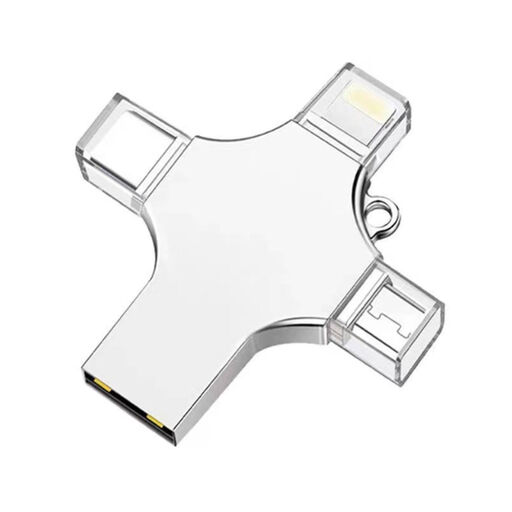
32 GB USB stick with USB 3.0, Lightning, USB-C and Micro-USB

32 GB USB stick with USB 3.0, Lightning, USB-C and Micro-USB

An option if you want to transfer recipes between devices with the listed connections.

The product name lists 32 GB and USB 3.0, Lightning, USB-C and Micro-USB connections.

View at Joybuy

SanDisk Ultra Flair USB Flash Drive, 64 GB, USB 3.0

SanDisk Ultra Flair USB Flash Drive, 64 GB, USB 3.0

For a shared workstation, check that the connection on the exact version matches the available port.

The product name lists 64 GB and USB 3.0.

View at Joybuy
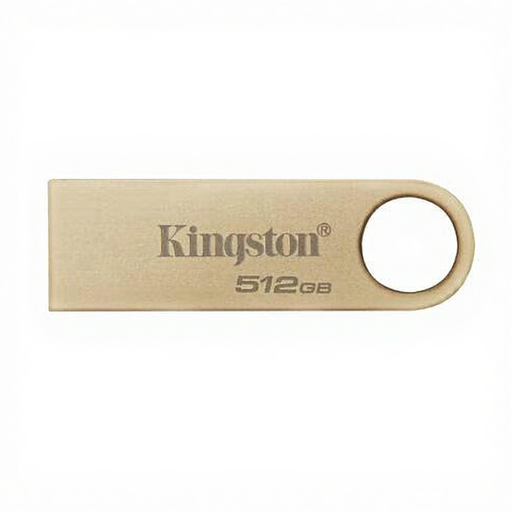
Kingston DataTraveler SE9 G3, 512 GB, 220 MB/s, metal, USB 3.2 Gen 1

Kingston DataTraveler SE9 G3, 512 GB, 220 MB/s, metal, USB 3.2 Gen 1

A stick for taking documents with you; check that its connection is suitable for the computer you use to manage your recipes.

The product name lists 512 GB, a metal design, USB 3.2 Gen 1 and 220 MB/s.

View at Joybuy
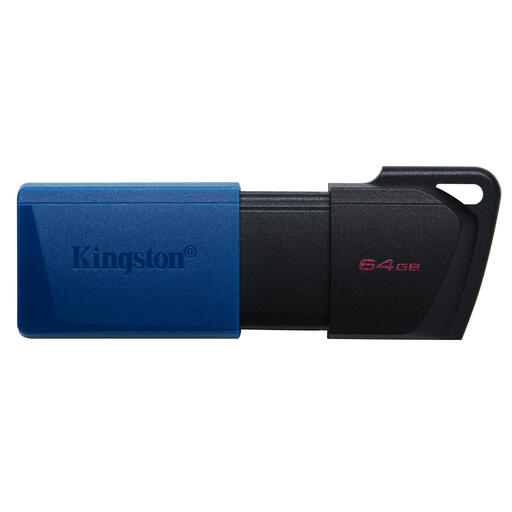
Kingston DataTraveler Exodia M, 64 GB, USB 3.2 Gen 1, Black + Blue

Kingston DataTraveler Exodia M, 64 GB, USB 3.2 Gen 1 (Black + Blue)

An option for storing documents; check that the connection is suitable for the shared workstation.

The product name lists 64 GB, USB 3.2 Gen 1 and the Black + Blue version.

View at Joybuy
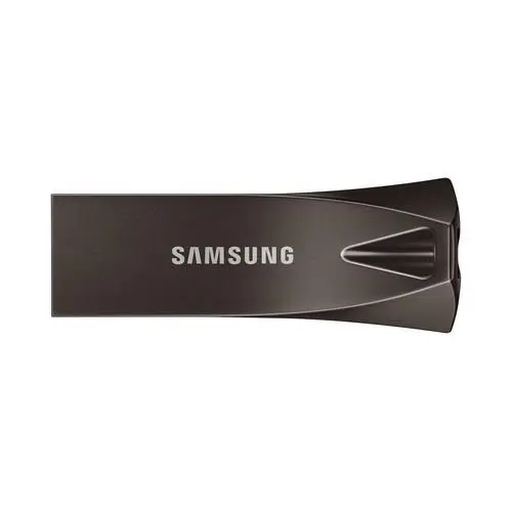
Samsung MUF-256BE, 256 GB, USB Type-A 3.2 Gen 1, grey

Samsung MUF-256BE, 256 GB, USB Type-A 3.2 Gen 1, grey

An option if the shared workstation has USB Type-A and you need this capacity.

The product name lists 256 GB and USB Type-A 3.2 Gen 1.

View at Joybuy

Frequently asked questions

Can I use a USB stick as the only place to keep my recipes?

Using a single USB stick as the only copy of important files isn’t a good backup practice. The Digital Trust Center advises keeping files in multiple locations and regularly testing that you can restore a backup.

How do I safely remove the stick from a Windows workstation?

Save your changes, then use ‘Safely Remove Hardware’ in Windows before disconnecting the stick. Microsoft recommends this to help prevent data loss.

What if a USB stick breaks earlier than expected during normal use?

If you buy as a consumer in the Netherlands, you have statutory rights in addition to any manufacturer’s warranty. If the product doesn’t do what you could reasonably expect, the seller is responsible for an appropriate free solution, according to ACM ConsuWijzer. This isn’t a fixed two-year warranty period.

Does the GDPR require recipe documents to be stored on an encrypted USB stick?

Not for ordinary recipes as such; it depends on the content and how it’s used. The Dutch Data Protection Authority says organisations must protect personal data appropriately based on the risks, but doesn’t prescribe one specific stick model for every situation. According to the Dutch Data Protection Authority, personal or household use alone isn’t covered by the GDPR. However, if the GDPR applies, losing a stick containing unencrypted personal data may constitute a data breach.
