Choose a USB stick with connectors that suit the devices you want to use to access your recipes before and after the move. USB-A and USB-C are useful if those devices have different ports. Keep the stick as an additional copy, check that you can open the files on it, and maintain a separate, up-to-date copy too. Extra capacity or write speed matters mainly if your folder also contains lots of scans, photos or videos. Sensitive files call for a separate assessment of access security.
Who is this buying guide for?
Anyone moving who wants to keep recipes safe
You want to take your recipe folder with you without making the USB stick your only place to store it. Keep a separate, up-to-date copy and check that you can open the files. VeiligInternetten lists a USB stick as one possible place to keep a backup, while pointing out that a stick can be damaged or lost.
Anyone using both USB-A and USB-C
You may want to use your documents on devices with different connectors. Check which ports your devices have in advance, and whether they support external USB storage.
Anyone taking sensitive studio documents with them
If the stick will contain sensitive files as well as recipes, access security may be a factor. The right measures depend on the contents and on who is processing the data.
What should you look for?
First, check the ports on the devices you want to use for your recipes, and keep a separate, up-to-date copy. Then check the folder size; encryption is most relevant when the files need extra protection.
| What to consider |
What to look for |
Who is this important for? |
| A usable extra copy |
Compare the folder size with the available space, open files from the stick, and keep an up-to-date copy somewhere else too. |
If I want my recipes with me during the move, I want to be able to check that the copy works without relying on a single stick. Around 36% of consumers give keeping a usable copy their highest priority. |
| Compatibility with both devices |
Check the physical ports on the devices at both ends of the move, and whether any phone supports external USB storage. |
If I want to open my recipes on devices with different ports, I want to know that the stick will fit directly. Around 29% of consumers give compatibility with their devices their highest priority. |
| Access to sensitive files |
Decide whether the folder contains sensitive data. For a secure stick, check the access method and which operating systems it supports. |
If I’m taking sensitive studio documents as well as recipes, I want to limit unauthorised access. Around 21% of consumers give file protection their highest priority. |
| Storage space and copying time |
Check the size of the whole folder. If you have a lot to write, compare the stated write speed for the exact model with the capabilities of the port you’re using. |
If my folder also contains lots of scans, photos or videos, I want enough space and a suitable copying time. Around 14% of consumers give folder size or copying time their highest priority. |
Common pitfalls
-
Using the USB stick as your only place to store files
A stick is handy to take with you, but it can be lost or damaged during a move.
Keep a separate, up-to-date copy too, and check that you can open files from the stick.
-
Assuming USB 3.2 or a high read speed guarantees fast saving
Reading and writing are different tasks. A stated read speed doesn’t tell you how quickly your recipe folder will copy to the stick.
Check the folder size first. If you have a lot to write, compare the write specification for the exact model with the port you’re using.
-
Formatting a stick before backing up its contents
Formatting erases the files on the stick.
Check the connector and the format you need first, then copy any existing files somewhere else before formatting.
-
Choosing a secure stick without checking how to access it
Password protection only helps if you can use the access method on your device and remember the password. Encryption is no substitute for a backup.
Check which systems are supported, and keep sensitive files somewhere suitable and separate too.
Brands to consider
Kingston
The DataTraveler Exodia is a USB-A range for transferring files. The IronKey Locker+ 50 G2 is a separate range for files where access security matters.
- Kingston specifies USB 3.2 Gen 1 for the DataTraveler Exodia, with capacities of 64, 128 and 256 GB.
- That standard doesn’t specify a particular write speed. Kingston lists hardware encryption and support for Windows and macOS for the IronKey Locker+ 50 G2; those features don’t automatically apply to the Exodia.
SanDisk
The Ultra Dual Drive Luxe is designed for transferring files between USB-A and USB-C devices. The Extreme PRO Dual Drive is a different product range.
- SanDisk specifies two connectors for the 128 GB Ultra Dual Drive Luxe model reviewed.
- The higher read and write speeds SanDisk quotes for the Extreme PRO Dual Drive are manufacturer claims for that product range. They are not independent test results or a feature of every SanDisk stick.
Samsung
The BAR Plus is a USB-A option if you’re looking for a metal design with a loop for carrying it.
- Samsung describes the Dutch MUF-128BE3/APC model as a USB-A stick with a metal casing.
- The stated speed is a maximum sequential read speed; it doesn’t tell you how long it will take to save a recipe folder.
Verbatim
The 64 GB Dual USB Drive USB-C/USB-A is an option for use with devices that have either of these two types of port.
- Verbatim specifies USB-C, USB-A and USB 3.2 Gen 1.
- Verbatim notes that USB-C transfer speed depends on the device; this doesn’t measure how long your files will take to copy.
USB sticks at Joybuy
This selection includes USB sticks for keeping an extra copy of recipe documents, with USB-A models and a stick with multiple connectors.
 No image available
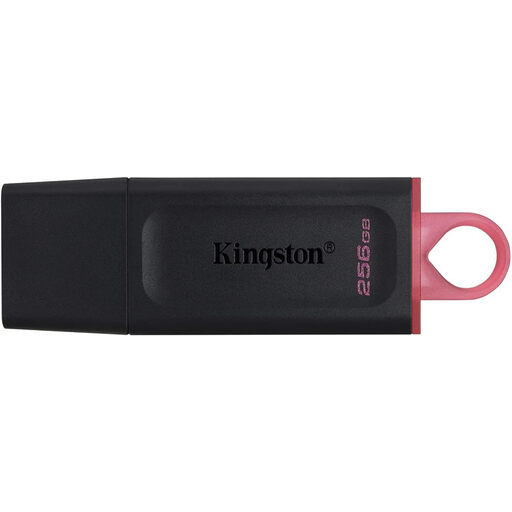
Kingston DataTraveler Exodia DTX 256 GB
Can be used as a portable extra copy; check that there’s enough space for the whole folder.
256 GB; USB 3.2 Gen 1.
Joybuy
 No image available
Kingston DataTraveler Exodia 128 GB
A USB-A option for keeping an extra copy, provided the device you want to use for your recipes has a compatible port.
128 GB; USB 3.2 Gen 1; USB-A connector. A USB-A port is required for a direct connection.
Joybuy
 No image available
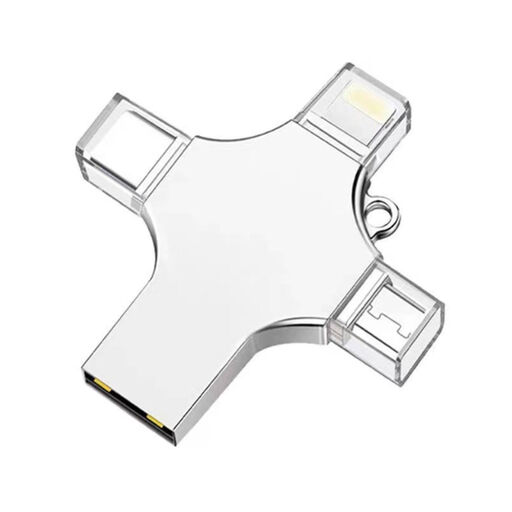
32 GB USB stick with four connectors
The different connectors may be useful with a range of devices. Before buying, check that the stick and its files will work with each device you plan to use.
32 GB; connectors for USB 3.0, Lightning, USB-C and Micro-USB.
Joybuy
 No image available
SanDisk Ultra Flair 64 GB
Can be used as an extra copy when the device you’re using has a compatible USB-A port.
64 GB; USB 3.0. The product description says it can be used with computers that have a USB-A port.
Joybuy
 No image available
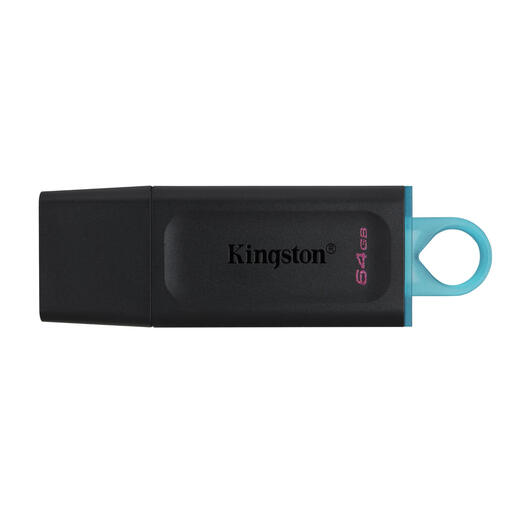
Kingston DataTraveler Exodia 64 GB
A portable option for keeping an extra copy of your documents; check that the folder fits in the available space.
64 GB; USB 3.2 Gen 1.
Joybuy
Frequently asked questions
How can you use the stick without losing your only copy of the recipes?
Make an up-to-date copy on the stick, check that you can open the copied files, and keep the files somewhere separate too. VeiligInternetten lists a USB stick as one possible place to keep a backup, while pointing out that a stick can be damaged or lost.
Can you use the same stick with a Mac and a Windows computer?
Yes, with a compatible file system. Apple lists ExFAT as a formatting option compatible with Windows for drives larger than 32 GB. Check the current format first, as formatting erases all the files already on the stick.
What should you do after copying files on a Windows computer?
Use ‘Safely Remove Hardware’ before disconnecting the stick. Microsoft recommends this to help prevent data loss.
Does a USB stick containing your recipes need to be encrypted under the GDPR?
Putting your own recipes on a stick doesn’t automatically mean you need an encrypted model. If an organisation processes personal data in the files being taken, it must protect that data appropriately. The Dutch Data Protection Authority doesn’t require you to buy one specific type of USB stick for this purpose.


