
Keeping project versions
You scan receipts and want to be able to find older versions of project folders. Work out how much space you need based on your own files, and give each version a recognisable name. A USB stick won’t organise them for you.


Choose a USB stick with a connector that fits your devices, then work out the capacity you need based on your scans and the project versions you want to keep. Use the stick as a portable or additional copy, not as your only archive. If your scans contain personal data, access protection is important too. A maximum read or transfer speed doesn’t automatically tell you how quickly files will be written to the stick.
You scan receipts and want to be able to find older versions of project folders. Work out how much space you need based on your own files, and give each version a recognisable name. A USB stick won’t organise them for you.
You want to keep scans available in case a device or storage location fails. A separate USB stick can be part of your approach, provided you keep copies apart and check that you can restore them. The Digital Trust Center advises against relying on a single location for backups.
You’re moving receipts or project documents containing personal data and want to reduce the risk if they’re lost. Look for suitable access protection and, if you work for an organisation, check the security rules that apply.
First, check which connectors your devices have and how much space your files and saved versions take up. Then consider whether the contents need extra access protection. A USB stick is not a substitute for a backup you can restore.
| What to consider | What should you check? | Who should pay particular attention? |
|---|---|---|
| Storage and project versions | Add together the size of your scans and the versions you want to keep. Give files recognisable names; capacity is not a version management feature. | If I want to find multiple project versions, I need to match the capacity to my folders and give files clear names. Around 36% of consumers prioritise storage and versions. |
| Restorable additional copy | Keep a copy in another location or on a different type of storage, and test whether you can restore the files you need. The Digital Trust Center advises businesses to use different storage locations and test recovery. | If I don’t want to lose scans and older versions due to loss or a fault, I need a separate copy to fall back on. Around 29% of consumers prioritise restoring scans. |
| Protecting scans | Check whether the files contain personal data, what security measures are needed and how password management works. The Dutch Data Protection Authority identifies the loss of a USB stick containing unencrypted personal data as a potential data breach. | If I’m taking sensitive scans with me, I want to restrict unauthorised access while still being able to open my own files. Around 21% of consumers prioritise protecting scans. |
| Connector and transfer | Check the ports on the devices you’ll use to access the files. Compare read and write speeds separately if the manufacturer lists them for the exact model. | If I want to open files directly on my devices, I’ll start by checking the connector. If I’ll be copying a lot of files, I’ll also look at the stated write speed. Around 14% of consumers start by checking for a suitable connector. |
If your only stick is lost or damaged, you could lose your scans and older project versions too.
Keep a separate copy and test that you can retrieve your documents and the versions you need.
An additional storage location also takes time to update and check for recovery.
A maximum read or transfer speed doesn’t tell you how quickly your scans and other files will be written to the stick.
Check whether the manufacturer gives a write speed for the exact model, and don’t treat maximum speeds as real-world test results.
Security features vary between models. If a stick containing sensitive personal data is lost, it could pose a risk if the files aren’t properly protected.
Consider how sensitive your scans are and check the security and access instructions for the model you choose.
A secure model may require extra set-up and careful password management.
Kingston offers standard USB-A sticks, including the DataTraveler Exodia M range, as well as secure models in the IronKey Locker+ 50 G2 range.
The Ultra Flair is a USB-A option for transferring documents; the manufacturer model reviewed has a capacity of 64 GB.
The Type-C USB Flash Drive range is worth considering if you want to access scans directly on devices with USB-C.
According to Transcend, the JetFlash 790 has a retractable connector instead of a removable cap.
These product options are intended for storing and transferring scans and project files. Check that the capacity and connector of each model are suitable for your files and devices.
 No image available
A USB-A option for storing scans and project versions on devices with this connector.
128 GB; USB 3.2 Gen 1; Type-A; black and blue.
Also keep a separate copy and test that you can restore your files.
 No image available
A USB-A stick for storing and transferring scans and documents. Choose a capacity that suits your files.
64 GB; USB 3.0.
Don’t use the stick as your only archive copy.
 No image available
The product description lists USB-C and USB-A for transferring documents between devices with these connectors.
512 GB; USB 3.1 according to the product name; USB-C and USB-A according to the product description.
Check that both connectors are suitable for the devices you want to use with your files.
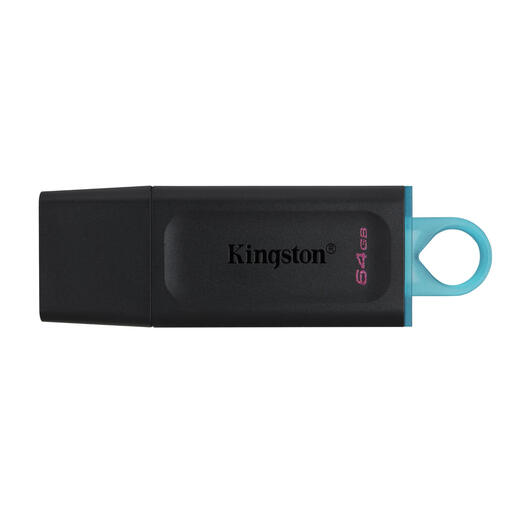 No image available
A USB stick for storing and transferring documents and project files.
64 GB; USB 3.2 Gen 1.
The space you need depends on the scans and project versions you want to keep.
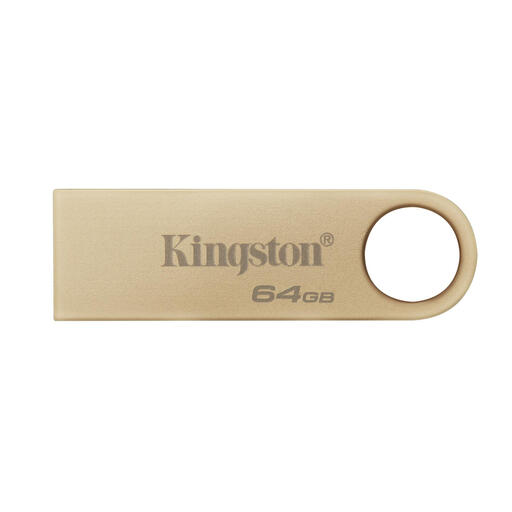 No image available
A USB-A option for storing and transferring documents on devices with this connector.
64 GB; USB 3.2 Gen 1; the product name also lists 220 MB/s.
Choose a capacity that suits the size of your scans and project versions.
Add up the size of your scans and project folders, including any older versions you want to keep, then choose a suitable capacity. The space you need depends on your files.
It’s best not to use a USB stick as your only copy. For business data, the Digital Trust Center advises using different storage locations and testing recovery. Set how often you check your backups according to how frequently you create new scans.
Based on the information given, not every USB stick needs to have hardware encryption. However, organisations processing personal data must protect it appropriately. The Dutch Data Protection Authority identifies the loss of a stick containing unencrypted personal data as a potential data breach. Also check your organisation’s security rules.
A clear folder structure and descriptive version names can help you find files, but they aren’t a built-in version management feature. For an encrypted model, check the instructions for that exact stick and how to manage its password.
Don’t automatically assume you can throw away the original. The Dutch Tax and Customs Administration sets out conditions for keeping records in their original form and states that invoices must be kept in the form in which they were sent or received. Check which rules apply to the specific documents and records.