If both devices have USB-A ports and you want the stick to take up as little space as possible, consider a low-profile model. If you switch between USB-A and USB-C, a stick with both connectors is a better fit. Also check that the full presentation, including linked files, fits on the stick, and that its security meets your organisation’s requirements if it contains personal data.
Who is this relevant to?
Users with limited space around the USB-A port
If you prepare presentations at a small desk, a low-profile design may be useful. SanDisk and Kingston describe models of this type, but be sure to check the dimensions and the space around your device’s port.
Presenters using USB-A and USB-C devices
If you move files between devices with different connectors, a stick with both types of connector can save you needing a separate adapter. Verbatim and Kingston describe models with USB-A and USB-C.
Presenters whose files contain personal data
When carrying personal data on portable storage, it’s important to consider the risk of loss and the security measures required by your organisation’s policy. The Dutch Data Protection Authority cites losing a stick containing unencrypted personal data as an example of a data breach.
What should you look for when choosing?
Low-profile USB-A stick
Choose this option: if both devices have USB-A ports and you want as little hardware as possible protruding from the computer.
Bear in mind: the models mentioned have USB-A and won’t meet a need for a USB-C connection.
USB-A and USB-C stick
Choose this option: if, for example, you transfer files from a USB-C laptop to a computer with USB-A.
Bear in mind: two connectors won’t solve an incompatible file system or missing linked files.
Secure storage for personal data
Choose this option: if your organisation’s policy requires encrypted portable storage for the data in your presentation.
Bear in mind: check that you can unlock the secure stick on the presentation computer; this may involve extra steps.
| What to consider |
What should you check? |
Who is this important for? |
| Space around the port |
Compare the connector and product dimensions with the space around your port. SanDisk lists the Ultra Fit at 19,40 × 14,30 × 8,40 mm; Kingston lists the DataTraveler Micro at 24,95 × 12,2 × 4,5 mm. These are the product dimensions, not how far the stick protrudes once plugged in. |
If you work at a small desk and want as little hardware as possible to protrude, focus on the size; around 36% of consumers prioritise having plenty of space around the computer port. |
| Connections on both devices |
Check whether the computer you’re copying from and the presentation computer have USB-A or USB-C ports. If you’re using a phone or tablet, also check that it supports external USB storage. |
If you regularly switch between devices with different ports, you’ll want to transfer files without a separate adapter; around 29% of consumers make this connection their priority. |
| A complete, usable presentation |
Compare the size of the complete presentation folder with the available space, and check that linked files and fonts are included. Open the copy on the destination device in advance. |
If you want to open your presentation at the venue without anything missing, check the whole folder rather than just the presentation file; around 21% of consumers prioritise a complete transfer. |
| Data protection |
Decide whether the presentation contains personal data and what security your organisation’s policy requires. Then check whether the specific encrypted model can be unlocked on the devices you need to use. |
If you carry personal data, you’ll want suitable protection in case the stick is lost; around 14% of consumers put this security first. |
Common buying mistakes
-
Confusing read speed with write speed
A stated read speed doesn’t tell you how quickly you can write files to the stick. SanDisk says that the Ultra Fit’s write speed is lower than its read speed.
If frequent copying is important, compare write speed information for the exact same capacity, and take into account the computer and files you use.
-
Copying only the presentation file
A presentation may need linked files or fonts. Microsoft explains that you can package a presentation so that these items are included.
Package the presentation if needed, and open the copy on the device you’ll be presenting from in advance.
-
Choosing a USB-A stick for a USB-C-only setup
A low-profile USB-A stick won’t plug directly into a device that only has USB-C.
Check the ports on both devices before choosing. If they’re different, consider a model with both connectors or a suitable adapter.
-
Assuming every compact stick protects personal data
The Dutch Data Protection Authority cites losing a USB stick containing unencrypted personal data as an example of a data breach. Kingston describes hardware encryption for the separate IronKey Vault Privacy 50 range, not standard DataTraveler models.
When handling personal data, follow the relevant organisational policy and check the security features of the exact model.
Brands to consider
SanDisk
SanDisk offers, among other options, low-profile USB-A models and models with both USB-A and USB-C.
- The manufacturer lists the Ultra Fit’s dimensions as 19,40 × 14,30 × 8,40 mm.
- The stated read speed varies by capacity; SanDisk says the write speed is lower. A USB-A model doesn’t have a USB-C connector.
Kingston
Kingston describes the DataTraveler Micro as a low-profile option and the microDuo 3C as a model with USB-A and USB-C. IronKey Vault Privacy 50 is a separate product range.
- Kingston lists the DataTraveler Micro as having a low-profile metal casing and a maximum read speed of 200 MB/s.
- A model with two connectors has different dimensions from a low-profile model. The hardware encryption Kingston attributes to IronKey doesn’t automatically apply to standard DataTraveler sticks.
Samsung
The FIT Plus MUF-128AB/APC is a compact USB-A stick that Samsung describes as suitable for leaving plugged in.
- For the 128GB model, Samsung lists a maximum sequential read speed of 400 MB/s via USB 3.2 Gen 1.
- This is the manufacturer’s read-speed figure, not a measured write speed when copying presentations. Check the full model and colour variant.
Verbatim
The 32 GB Dual USB Drive #49966 is an example of a stick with USB-A and USB-C.
- Verbatim specifies both connectors and USB 3.2 Gen 1, with support for USB 2.0 devices.
- The connectors alone don’t tell you whether there’s enough space for your files or whether the stick will physically fit alongside other equipment.
USB sticks at Joybuy
These Joybuy product picks are designed for transferring presentation files via USB-A or across multiple connector types.
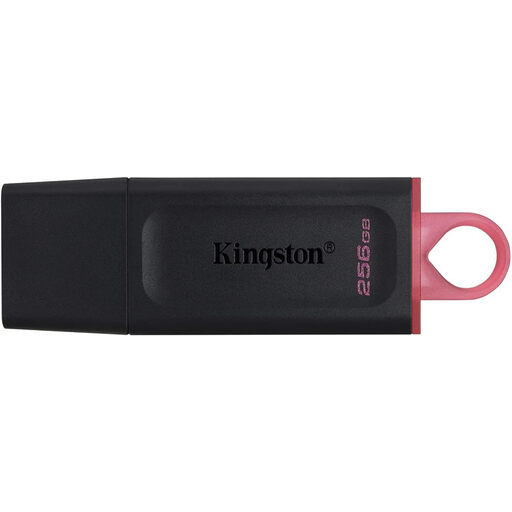 Image unavailable
Kingston DataTraveler Exodia DTX 256 GB
An option for presentation files transferred via USB-A, if the folder you need fits within 256 GB.
256 GB; USB Type-A; USB 3.2 Gen 1.
View at Joybuy
 Image unavailable
Kingston DataTraveler Exodia 128 GB, USB 3.2 Gen 1 Type-A, Black, Blue
Suitable for taking presentation files to a device with USB-A, if 128 GB is enough for your files.
128 GB; USB 3.2 Gen 1 Type-A.
View at Joybuy
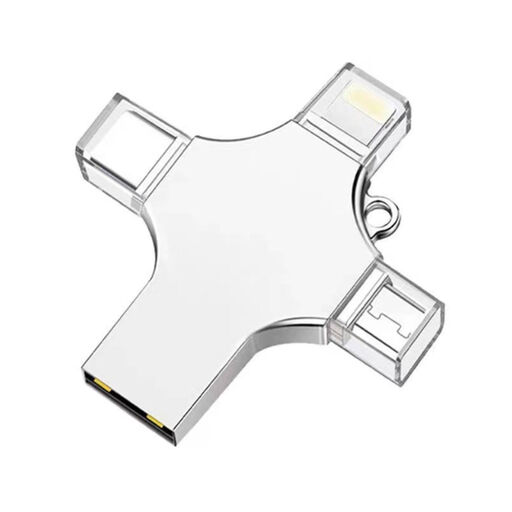 Image unavailable
32 GB USB stick with USB-A, USB-C, Lightning and Micro-USB
An option for sharing files between devices with one of the listed connectors; check that the receiving device supports USB storage.
32 GB; USB-A, USB-C, Lightning and Micro-USB.
View at Joybuy
 Image unavailable
SanDisk Ultra Flair 64 GB USB 3.0
A USB stick for presentation files via USB-A, if the files fit within the available storage space.
64 GB; USB 3.0.
View at Joybuy
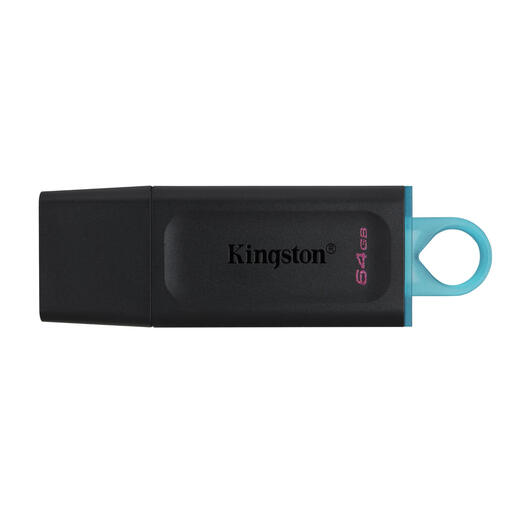 Image unavailable
Kingston DataTraveler Exodia USB 3.2
An option for transferring presentation files from a device with USB Type-A.
USB 3.2 Gen 1; USB Type-A.
View at Joybuy
Frequently asked questions
Which stick will work with your laptop and the computer you’re presenting on?
Check whether the available ports are USB-A or USB-C. A stick with both connectors may work if the devices have different ports; also check that the receiving device can read USB storage.
How can you avoid missing elements in a PowerPoint presentation?
Microsoft explains how to package a presentation for a USB drive so that linked files and fonts, among other things, are included. Then open the copy on the computer you’ll be presenting on.
Can you use the same stick on a Mac and a Windows PC?
Check the file system before transferring files. Apple lists exFAT and MS-DOS (FAT) as formats compatible with Windows, and warns that a Mac may be able to read an NTFS drive but not write to it. Also check the presentation computer’s requirements, and save your files elsewhere before formatting.
Do you need to use an encrypted USB stick for every presentation?
The Dutch Data Protection Authority doesn’t require a specific USB stick for every presentation. Organisations that process personal data must protect it appropriately, so follow the relevant policy and check what level of security your files need.
How should you remove the stick after copying?
Microsoft recommends safely ejecting the device in Windows before unplugging the USB stick to prevent data loss.


