
Switching between USB-A and USB-C
You copy files on one device and open them on another after the move. A stick with both connectors could save you from needing a separate adapter, but check the ports on both devices.


Start with a USB stick that connects directly to both the device you use to copy your presentations and the device you’ll use to open them after the move, and that has enough space for your entire collection. Once you’ve copied the files, open a few directly from the stick to check them. A higher quoted write speed matters most when you’re transferring lots of files or large ones, and when you have a suitable USB port. If your presentations contain personal data, consider what level of security is appropriate rather than assuming every stick offers encryption.
You copy files on one device and open them on another after the move. A stick with both connectors could save you from needing a separate adapter, but check the ports on both devices.
If you want to transfer large image or video files as well as slides, check the total file size, the size of your largest individual file and the quoted write speed.
If your work files contain personal data, consider what level of security is appropriate and bear in mind the risk of a stick being lost or damaged.
First, check the connections and how much storage you need. Then compare the write speed with the USB port you’ll use, and decide whether your files need extra protection.
| What to consider | What should you check? | Who is this important for? |
|---|---|---|
| Connection to both devices | Check the USB port on the source and destination devices, and make sure the stick has the right connectors. | If I want to open files directly on two devices with different ports, I look for a suitable connector at both ends. Around 36% of consumers say connection type is their top priority when buying. |
| A complete, readable copy | Add up the file sizes, check the available space and make sure the file system supports your largest file. | When I want to be sure all my presentations will fit, I check both the total collection and the largest file. Around 29% of consumers prioritise having enough space for a complete copy. |
| Copying time | Compare the quoted write speed for the exact variant and check the USB standard of the port you’ll use. | If I need to transfer lots of files or large ones, I look at the write speed and the port I’ll use to copy them to the stick. Around 21% of consumers prioritise copying time. |
| Protection if the stick is lost | Decide whether the files contain personal data and check the security features of the exact model. | When I take sensitive files with me, I want to know what security will protect the data if the stick goes missing. Around 14% of consumers prioritise protecting sensitive files. |
When you prepare the stick, you’re writing files to it. So the quoted read speed alone won’t tell you how quickly the copy will finish; the USB port can also limit the transfer.
Compare the quoted write speed for the exact variant and check the connection on the device you’ll use to copy the files.
The storage space actually available and the file system both affect whether your entire collection will fit. Microsoft states that FAT32 has a maximum file size of 4 GB per individual file.
Check the available space and the size of your largest file. Before formatting, also check that the chosen file system will work with both devices.
A USB stick can be damaged or lost, leaving the files on that one storage device unavailable.
Keep a second copy somewhere else and open a few files to check that it works. The National Cyber Security Centre recommends opening files from a backup as a way to check it.
The Ultra Dual Drive Luxe and Extreme PRO Dual Drive ranges are worth considering if connections or quoted speeds are important to you.
DataTraveler Exodia is a USB-A range, while DataTraveler Max is designed for situations where the range’s connection and quoted performance are a good fit.
FIT Plus is a compact USB-A option for devices with a compatible port.
According to Transcend, JetFlash 930C has USB-A and USB-C connectors and is available in 128, 256 and 512 GB variants.
These USB sticks are designed for transferring presentations. When choosing, check the capacity, connectors and quoted write speed of the variant.
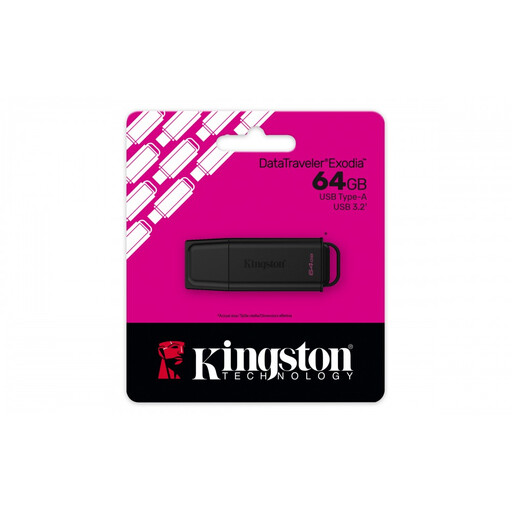 No image available
An option for a collection that fits within 64 GB and a device with USB-A.
USB 3.2 Gen 1; quoted speeds of up to 200 MB/s read and 60 MB/s write. These are not measured copy times.
The USB-A connector won’t connect directly to a device with USB-C only.
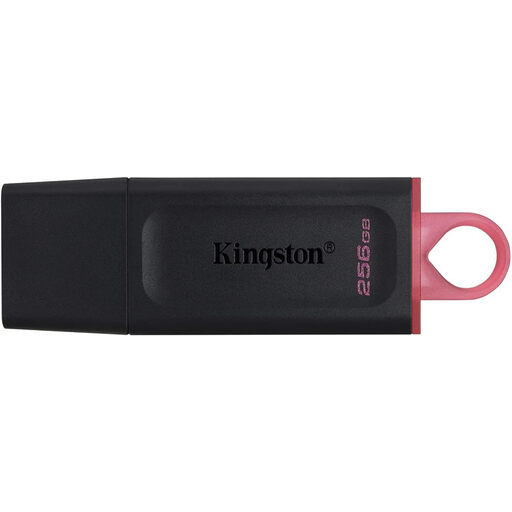 No image available
An option if your collection fits within 256 GB and the quoted write speed suits the copying task.
USB 3.2 Gen 1; the product title states write speeds of up to 625 MB/s. This is a product specification, not a measured copy time.
 No image available
An option for files that fit within 128 GB and use with a USB-A port.
USB 3.2 Gen 1 Type A.
Won’t connect directly to a device with USB-C only.
 No image available
An option for a collection that fits within 64 GB and a computer with a USB-A port.
USB 3.0; the product description quotes read speeds of up to around 150 MB/s. This is not a measured copy time.
The USB-A connector won’t connect directly to a device with USB-C only.
 No image available
An option for files that fit within 512 GB and transfers between devices with USB-A and USB-C.
USB 3.1; the product description quotes maximum read speeds of 150 MB/s. This is not a measured copy time.
After copying, open a few important presentations directly from the stick and check that the folders you expect are there. The National Cyber Security Centre recommends opening files from a backup to check that the right files have been included.
Check the file system: Microsoft says FAT32 supports a maximum of 4 GB per individual file. Before formatting, check that both devices can read the other file system, and save any existing files somewhere else.
Don’t use the stick as the only stored copy of important presentations. It could be damaged or lost, so keep a separate copy as well and check that you can open files from it.
Not every presentation automatically needs the same security measures. The Dutch Data Protection Authority says organisations must protect personal data properly and notes that losing a stick containing unencrypted personal data could result in a data breach. Consider what data you’re taking with you and what security is appropriate.