Choose a USB stick after establishing which catalogue files, photos and exports the client needs, and how much space the complete handover will require. Check the connection too, and test the files on the receiving device. Keep a separate copy for yourself as well. A stated read speed doesn’t tell you how quickly files will be written to the stick.
Who is this choice relevant to?
Anyone preparing a complete handover for a client
You want the client to be able to open the catalogue, required photos and agreed exports, while keeping a recoverable copy for yourself. Adobe explains that a Lightroom Classic catalogue backup contains only the catalogue file; the National Cyber Security Centre advises testing backups.
Anyone working across different computers
You’re handing over files on a device that may have a different connection or disk format from your own computer. Apple Support explains which disk formats are relevant for use with Windows and Mac.
Anyone handling confidential client photos
If people are identifiable in the photos, or other personal data is involved, you need to consider who should have access and how to manage the risk of losing the stick. The Dutch Data Protection Authority notes that identifiable people in images are personal data, and that security measures should be appropriate to the risks.
What should you look for?
First, work out exactly what needs to go on the stick and test the complete copy. Then choose a stick with enough capacity, the right connection and any access restrictions you need.
| What to consider |
What should you check? |
Who is this important for? |
| A complete, recoverable handover |
Keep the catalogue, photos and exports as separate items. Adobe says that a Lightroom Classic catalogue backup contains only the catalogue file; open the copied files from the stick. |
I don’t want to discover that agreed photos or exports are missing after the client opens the catalogue. Around 29% of consumers put completeness and recoverability first. |
| Enough space for the handover |
Measure the total size of everything you need to hand over, then compare it with the stick’s capacity. Samsung warns that the storage space actually available may be less than the stated capacity. |
I want to know in advance whether the entire folder will fit on one stick. Around 24% of consumers give sufficient capacity top priority. |
| Opening files on both computers |
Check the USB ports and test the files on the client’s device. Apple Support lists exFAT as compatible with Windows; also check that the chosen format can be written to on the computer you’re using to make the copy. |
I want to open the files on the client’s computer without connection or format issues. Around 18% of consumers put compatibility with the required devices first. |
| Access to confidential files |
Consider what protection is appropriate for the contents and the risks, and test in advance that the client can access the files. The Dutch Data Protection Authority considers identifiable people in photos to be personal data. |
I want to restrict access to confidential files without locking the client out. Around 18% of consumers put confidentiality first. |
| Writing time for a large handover |
Compare the stated write speed for the exact model with the computer’s USB connection, and allow time to copy and check the files. |
I want to know how much time to set aside for a large or repeated copy. Around 11% of consumers give write time top priority. |
Common mistakes
-
Assuming a catalogue backup is the complete photo handover
Adobe says that a Lightroom Classic catalogue backup contains only the catalogue file. Any photos and exports the client needs are not included automatically.
Agree which files are being handed over, copy those items separately, and open important files from the stick.
Missing files could mean having to put the handover together or deliver it again.
-
Keeping the handed-over stick as your only backup
If that sole storage device fails or goes missing, you could lose your own means of recovering the files too.
Keep a copy somewhere else and test that you can open or recover files from it, as advised by the National Cyber Security Centre.
Keeping a separate copy requires extra storage and upkeep.
-
Confusing a high maximum read speed with a short copying time
Reading and writing are different operations, and the result also depends on the computer and connection you use.
Before copying files to the stick, compare the write specification for the exact model and carry out the transfer in advance.
Set aside time to write and check the files before your appointment.
-
Choosing encryption without arranging client access
The client needs to be able to follow the unlocking procedure. Kingston warns that repeatedly entering the wrong administrator password on the Vault Privacy 50 can lead to a cryptographic erase.
Test the unlocking process and file access with the intended recipient, and keep a separate copy for yourself.
Setting it up, testing the unlock process and managing the code carefully all take extra time.
Relevant brands to consider
Transcend
The JetFlash 930C is an example of a stick for transferring files between computers with USB-A and USB-C ports.
- Transcend lists capacities of up to 512 GB and maximum speeds of 420 MB/s read and 400 MB/s write for this product range.
- You can’t use both connectors at the same time. Actual speeds depend on the computers and transfer in question.
SanDisk
The Extreme PRO SDCZ820-1T00-G46 is a 1 TB USB-A model for a handover that fits the measured file size.
- SanDisk lists maximum speeds of 1,000 MB/s read and 900 MB/s write for this model.
- These stated maximums don’t guarantee the same speeds on your computer or with your photo files.
Kingston
The IronKey Vault Privacy 50 series is worth considering when restricted access is appropriate for the risks involved; the USB-C model is IKVP50C/128GB.
- Kingston specifies hardware encryption and different password roles for this series.
- Unlocking the stick and managing the code take preparation. Kingston warns that repeatedly entering the wrong administrator password can lead to a cryptographic erase; check the connection on the model you choose.
Samsung
The BAR Plus MUF-256BE4/APC is a 256 GB USB-A model.
- Samsung lists sequential read speeds of up to 400 MB/s for the relevant BAR Plus models.
- This is not a stated write speed. The storage space actually available may be less than the stated capacity.
USB-A sticks at Joybuy
These USB-A sticks are suitable for transfers where the client’s computer has a compatible USB-A port. Compare the capacity with the complete handover and test the files on the receiving device.
 Image unavailable
Kingston DataTraveler Exodia 128 GB USB 3.2 Gen 1 Type-A
Suitable for a handover that fits within 128 GB and a computer with a USB-A port.
128 GB; USB 3.2 Gen 1 Type-A.
View at Joybuy
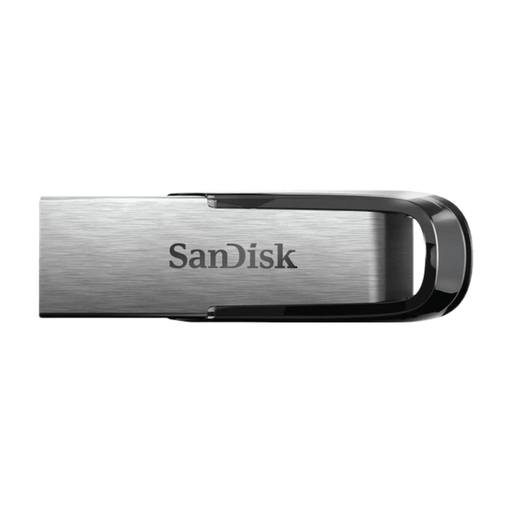 Image unavailable
SanDisk Ultra Flair 512 GB USB 3.0
An option if the measured handover fits within 512 GB and your computer has a USB-A port.
512 GB; USB 3.0; the product description mentions a metal casing.
View at Joybuy
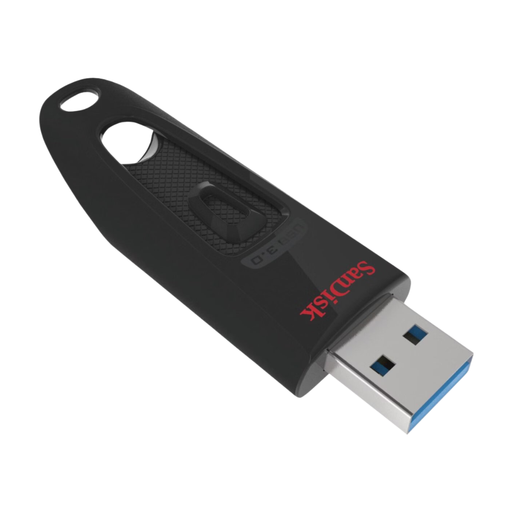 Image unavailable
SanDisk Ultra 512 GB USB 3.0
Suitable for photos and other files that fit within 512 GB, for use with a computer with a USB-A port.
512 GB; USB 3.0. The product description mentions password protection.
View at Joybuy
 Image unavailable
SanDisk Ultra Flair 64 GB USB 3.0
An option for a smaller handover that fits within 64 GB and is transferred via a USB-A port.
64 GB; USB 3.0; the product description mentions a metal casing.
View at Joybuy
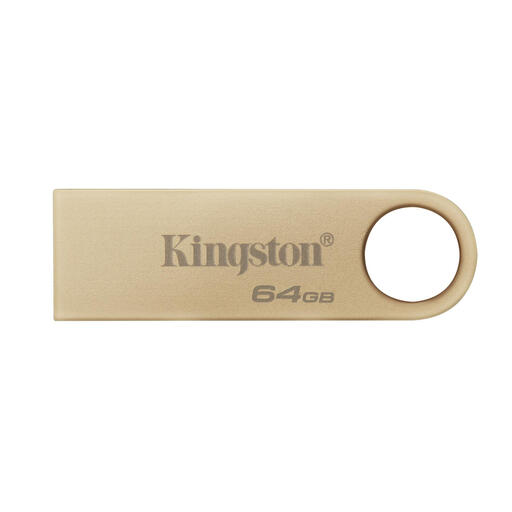 Image unavailable
Kingston DataTraveler 64 GB 220 MB/s Metal USB 3.2 Gen 1 SE9 G3
Suitable for a handover that fits within 64 GB and a computer with a USB-A port.
64 GB; USB 3.2 Gen 1; metal design. The product description lists speeds of up to 220 MB/s read and 100 MB/s write.
View at Joybuy
Frequently asked questions
Is a backup of just your Lightroom Classic catalogue enough for the client?
Not if the client also needs to receive photos or exports. Adobe says Lightroom Classic catalogue backups contain only the catalogue file, so agree which image files and exports are part of the handover, and test the copy.
How should you check the USB stick before handing it over?
Open important files directly from the copy and check that the catalogue and required image files work. The National Cyber Security Centre advises testing backups, for example by opening files.
Which disk format should you use if you have a Mac and the client has Windows?
Apple Support lists exFAT as compatible with Windows. Check the current format and test the stick on both devices before copying the final handover; formatting erases the existing contents.
Does every USB stick containing client photos need hardware encryption?
Not necessarily: the right security measures depend on the contents and the risks involved in handling them. The Dutch Data Protection Authority considers identifiable people in photos to be personal data, so assess what protection is needed and test that the recipient can access the files.
What should you consider when choosing an encrypted stick?
Arrange access before handing over the stick, and test the unlocking process with the recipient. Kingston warns that repeatedly entering the wrong administrator password on the IronKey Vault Privacy 50 can lead to a cryptographic erase; keep a separate copy for yourself too.


