
Manager of a growing photo archive
You collect family photos and large project folders, and want to plan for enough space without overlooking any files or folders.


First, check how much space your photo folders and project files take up, then choose a stick with enough capacity for future back-ups. Next, compare the stated write speed and check that the connector is compatible with your devices. A USB stick is no substitute for a separate copy that you’ve checked you can restore your files from.
You collect family photos and large project folders, and want to plan for enough space without overlooking any files or folders.
You often copy large folders and want to weigh up write speed alongside having a back-up you can restore from.
You transfer photos between devices with USB-A and USB-C, and want to check in advance that the connector and file system are suitable.
| What to consider | What to look for | Who is this important for? |
|---|---|---|
| Space for your collection | Add up the folders you want to keep, allow for any older versions and compare the total with the capacity of the model. | If your photo collection and project folders are growing, you’ll want to avoid running out of space on the stick. Around 36% of consumers prioritise having enough capacity. |
| Restorable back-up | Decide where to keep the original files and a separate copy. After copying, check that the folders you intended to save are there and that you can restore your files. | If you want to be able to retrieve your photos even if you lose the original device, your whole back-up process matters. Around 29% of consumers prioritise keeping and restoring their files. |
| Write speed | Compare the stated write speed of the exact model and check that it’s compatible with the port you’re using. A maximum read speed doesn’t tell you how quickly your files will be written. | If you regularly copy large folders, you’ll want to know how the stated speed relates to writing files. Around 21% of consumers give copy time the highest priority. |
| Connector and file system | Check which ports and operating systems you use. According to Microsoft, FAT32 has a 4 GiB limit per individual file; this limit does not apply to the total size of a folder. | If you transfer files between devices with different connectors or systems, you’ll want a stick that works with them. Around 14% of consumers prioritise compatibility. |
A back-up writes data to the stick. Samsung says that its USB-C model’s write speed is lower than its stated read speed, so comparing read speeds alone won’t tell you how long it will take to save your files.
Where possible, compare the write speed of the exact model and check which USB port your computer has.
A stick can hold an extra copy, but if your files are stored only on it, you won’t have a separate copy to fall back on.
Keep another copy too, and check that you can restore your files.
Kingston sells DataTraveler Max models with different connectors. According to Transcend, the JetFlash 930C has USB-A and USB-C connectors on one stick, but you can’t use both plugs at the same time.
Check the full model code and the connectors on the specific model. You may need an extra adapter or a different stick.
If the connector isn’t compatible, switching between devices may require extra accessories or a different stick.
The available space on the stick and the maximum size of a single file are two different limits. Microsoft states that FAT32 has a 4 GiB limit per individual file.
Check the folder size and, if a copy fails, also check the file system and the size of the individual file.
The speeds listed are figures provided by the manufacturers and are subject to conditions. Compare the model and connector with your own devices.
The DataTraveler Max range is an option for large files if your device has a compatible high-speed USB port. USB-A and USB-C are separate models.
The JetFlash 930C has USB-A and USB-C connectors for use with devices that have different ports.
The 512 GB USB Type-C Flash Drive is designed for devices with USB-C.
The Ultra Flair is a USB-A option, while the Ultra Dual Drive Luxe is a separate range for USB-A and USB-C.
The JumpDrive P30 is an option if you want to compare stated read and write speeds.
These USB sticks are options for storing or transferring large photo and project folders. The range includes USB-A models and one model with USB-A and USB-C.
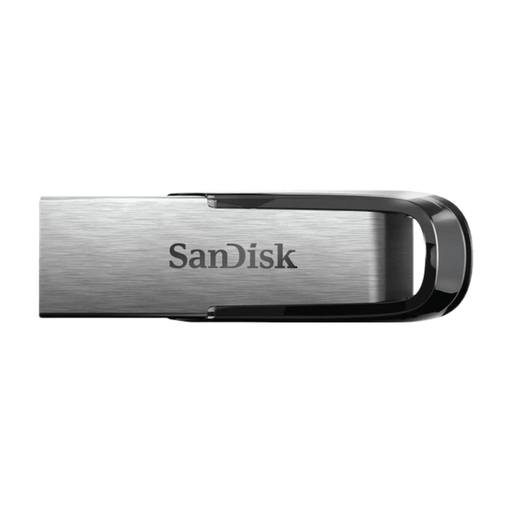 No image available
A USB-A option for large photo folders if your computer has a compatible port.
512 GB; USB 3.0. SanDisk states that this model offers transfer speeds of up to 150 MB/s, but this is not a stated write speed for your back-up.
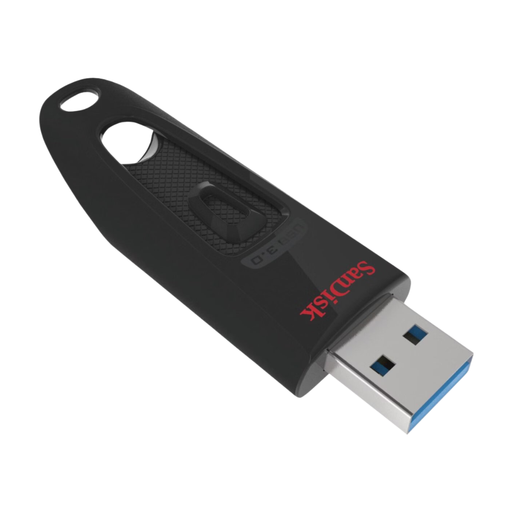 No image available
A USB-A option for photos and back-ups if you want to use the stick with a compatible computer.
512 GB; USB 3.0. No specific read or write speed is listed here.
 No image available
An option for transferring files between devices with USB-A and USB-C.
512 GB; USB 3.1; USB-A and USB-C connectors. The product description states read speeds of up to 150 MB/s, not a write speed for large back-ups.
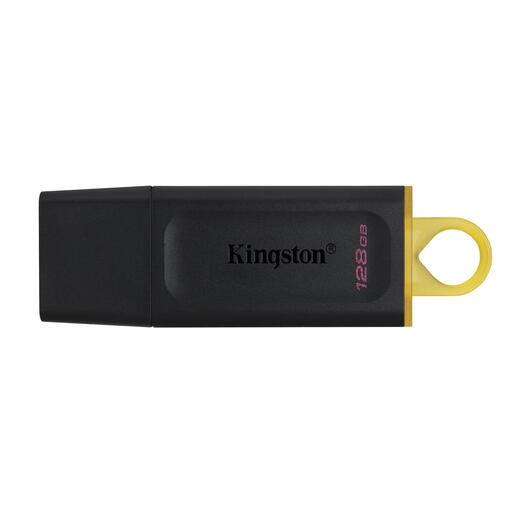 No image available
A USB-A option for storing and transferring files with a computer that has a compatible port.
128 GB; USB 3.2 Gen 1; USB Type-A. No specific write speed is listed.
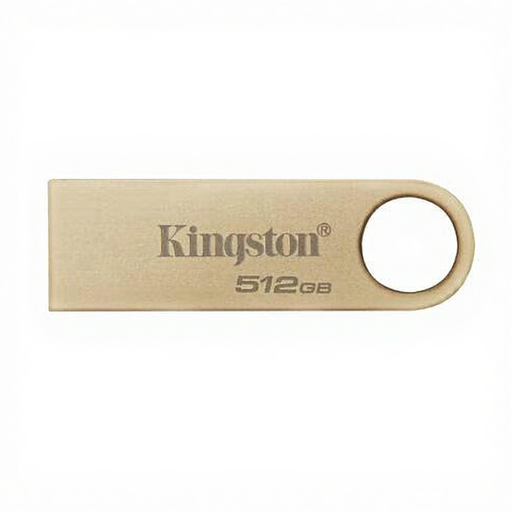 No image available
A USB-A option for storing photos and back-ups if your computer has a compatible connector.
512 GB; USB 3.2 Gen 1; read speeds of up to 220 MB/s according to the product description. This is not a stated write speed.
It’s best not to use the stick as your only storage location. Keep the original files and a separate copy, check which folders have been included and try restoring some files. Microsoft’s File History can keep versions; you may need to add folders outside the usual libraries.
Check the file system: Microsoft states that FAT32 has a maximum file size of 4 GiB. This limit doesn’t apply to the combined size of a project folder. Apple Support lists exFAT as an option for use with Mac and Windows. Formatting erases the files already on the stick.
Contact the seller. According to the Dutch government, there is no fixed legal guarantee period in the Netherlands: what you can reasonably expect from a product depends, among other things, on the product itself and the information provided. A manufacturer’s guarantee is in addition to your statutory rights.
According to the Dutch Data Protection Authority, the exception for personal or household use applies if you keep your photos private or share them only with a very limited group. This exception doesn’t automatically apply to wider publication. Encryption is a separate security measure for a stick you could lose.