What should you look for?
First, check the ports and file formats used by the computers involved. Then decide how much storage and protection you need, and consider write times if you often transfer large recording sessions.
| What to consider |
What should you look for? |
Who is this important for? |
| Write time |
Check the quoted write speed, the USB standard supported by the computer and hub, and tests involving large transfers for the exact model. |
If you regularly copy large session folders, you’ll want to know how long transfers take with your setup. Around 20% of consumers cite write time as their main reason for buying. |
| Storage capacity |
Add up your existing project folders and planned versions, and check the capacity of the exact variant. |
If you want to carry several sessions and project versions, you’ll need enough space without relying solely on the stated capacity. Around 20% of consumers make storage capacity their top priority. |
| Device compatibility |
Check the USB ports and support for your chosen file system on every device. |
If you share files between different studio computers, you’ll want both the connector and file format to work. Around 25% of consumers give compatibility top priority. |
| Access to sensitive files |
Identify which files are confidential and check the security features of the exact variant. |
If you carry personal data or other confidential recordings, you’ll want to restrict unauthorised access and manage who can use the files. Around 15% of consumers put protection first. |
| Keeping recordings safe |
Keep a recent copy on another storage device; formatting deletes existing files. |
If the stick could be lost or fail while you’re out and about, you won’t want your recordings stored only on it. Around 20% of consumers cite keeping copies as their main reason for buying. |
The percentages in each row show the proportion of consumers in this breakdown who name that need as their main reason for buying; together, the figures cover all the priorities listed.
USB sticks at Joybuy
This selection includes USB sticks with a range of capacities and connections for carrying and sharing files. Before choosing, check that the variant works with the ports and file system used by the studio computers.
 No image available
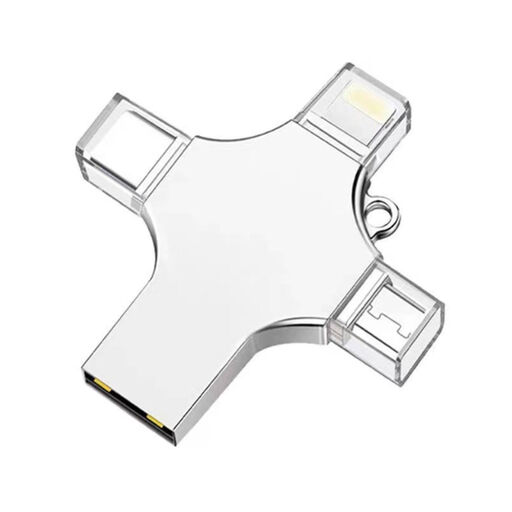
32 GB USB stick with USB 3.0, Lightning, USB-C and Micro-USB
The connections listed may be useful if you want to transfer files between different devices.
Storage: 32 GB. Connections listed: USB 3.0, Lightning, USB-C and Micro-USB.
View at Joybuy
 No image available
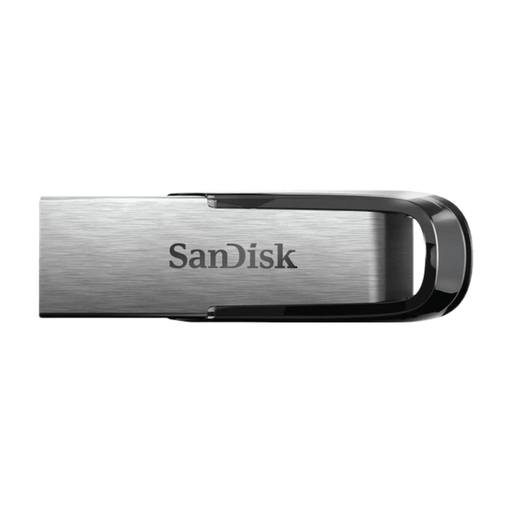
SanDisk Ultra Flair USB Flash Drive 512GB, USB 3.0
A USB-A model for storing and carrying files. Check that all the studio computers have a compatible port.
Storage: 512 GB. Connection according to the product information: USB-A; USB 3.0.
View at Joybuy
 No image available
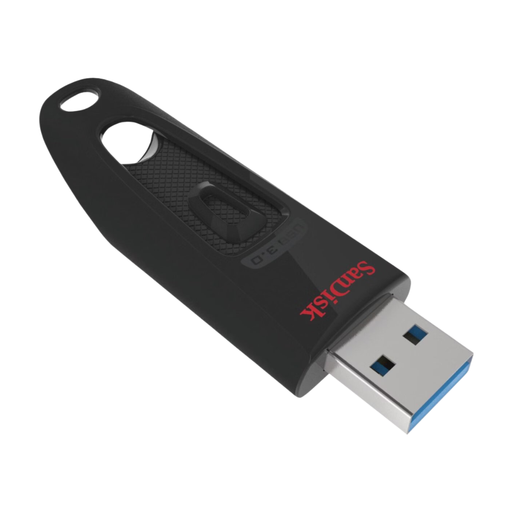
SanDisk Ultra USB Flash Drive 512GB, USB 3.0
This 512 GB variant could suit you if you want to store and carry files on a USB-A computer.
Storage: 512 GB. Connection according to the product information: USB-A; USB 3.0.
View at Joybuy
 No image available
SanDisk Ultra Dual Drive Go USB 3.1/USB-C 512GB
The USB-A and USB-C connections listed are designed for transferring files between devices with those connector types.
Storage: 512 GB. Connections listed: USB-A and USB-C.
View at Joybuy
 No image available
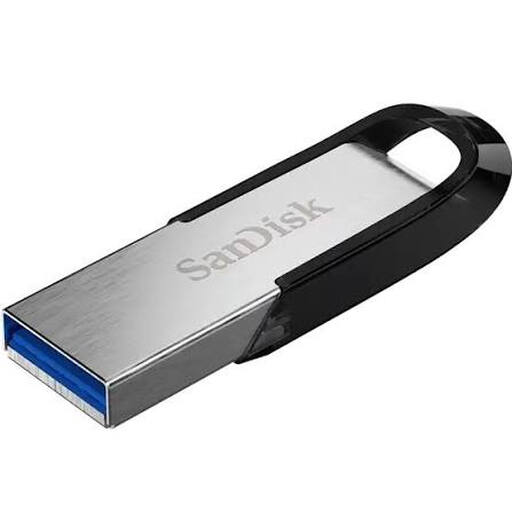
SanDisk Ultra Flair USB 3.0 256GB
A portable option for carrying files. Check the USB ports on the computers you plan to use it with.
Storage: 256 GB. Connection listed: USB 3.0.
View at Joybuy
Frequently asked questions
Which file system should you choose if the studio uses Mac and Windows?
According to Apple, exFAT is compatible with Windows on Mac, and Microsoft says it supports individual files larger than 4 GB. Check that other studio equipment supports it too, and save your files elsewhere before formatting the stick.
Why doesn’t a fast USB stick reach its quoted speed?
Quoted speeds depend on the model and the conditions in which it’s used. For optimum performance from the DataTraveler Max, Kingston recommends a USB 3.2 Gen 2 port and, if you use a hub, a suitable one. For your workload, also look for write tests involving large files for the exact model.
What should you do with recordings before reformatting the stick?
First, copy the files you want to keep to another storage device: formatting deletes the existing contents. Also keep a recent, separate backup of important recordings.
Who should you contact if a USB stick you’ve bought turns out to be faulty?
Contact the seller. According to the Dutch government, there is no fixed statutory guarantee period in the Netherlands; what you can expect from a product depends on the product and the circumstances. Any manufacturer’s guarantee is in addition to this.
Does a lost studio USB stick have to be reported as a data breach in the Netherlands?
Not every lost stick has to be reported automatically. If it contains personal data, the organisation responsible must assess the risk. According to the Dutch Data Protection Authority, it must be reported unless the breach is unlikely to pose a risk to the rights and freedoms of the people affected. If a report is required, the general deadline is 72 hours after becoming aware of the breach.


