Who is this relevant to?

Writers who don’t want to lose their work

You want to keep a separate, recoverable copy of your manuscript and related files without relying on the cloud. VeiligInternetten describes external storage, such as a USB stick, as a backup option; the National Cyber Security Centre recommends keeping multiple copies of important data.

Writers with confidential text

You want to stop anyone who finds a lost stick from reading your personal notes, interviews or manuscript. The Dutch Data Protection Authority cites the loss of a device containing unencrypted personal data as an example of a data breach.

Writers who use different computers

You need to be able to open your backup on devices with different types of USB port. Kingston specifies USB-A for its DataTraveler Exodia range, while SanDisk describes the Ultra Dual Drive Go as having connectors for USB-C and USB-A devices.

What should you look for when buying?

A standard USB-A stick

When is this right for you? If both the computer you write on and the one you’ll use to restore your files have a suitable USB-A port, and you want to copy text files manually.

Keep in mind: USB-A won’t plug straight into a device with USB-C ports only, and a standard stick isn’t automatically encrypted.

A stick with USB-A and USB-C

When is this right for you? If you want to transfer files between devices with different USB ports.

Keep in mind: Check that the exact model has both connectors. Having two connectors won’t protect you from the risk of losing your backup or letting it become out of date.

A stick with hardware encryption

When is this right for you? If your manuscript contains confidential information and the stick could be lost.

Keep in mind: Check how the password and recovery process work. Verbatim says that data on the Secure Pro is erased after ten failed access attempts.

A standard stick encrypted using your computer

When is this right for you? If the computer you use to make the copy supports the encryption method, and you can also open the stick on the device you’ll use to restore your files.

Keep in mind: Microsoft lists Windows Pro, Enterprise and Education for manual BitLocker drive encryption. Apple warns that Disk Utility erases the stick before encrypting it.

Consideration What to look for Who it’s for
Being able to restore a copy Check that the connector fits the device you’ll use to restore your files and that the capacity is enough for the files and versions you want to keep. Regularly try opening a file from the backup. I want to avoid losing my manuscript or having it exist only as an unusable copy. That’s why around 33% of consumers prioritise being able to restore their files.
Keeping files confidential if the stick is lost Decide whether your files are confidential and check that your chosen encryption works on the computers you’ll need to use for recovery. Store recovery information separately. If my stick contains personal notes or confidential text, I want to stop anyone who finds it from reading them. Around 27% of consumers prioritise confidentiality.
The right connector Check the ports on both the computer you write on and the device you’ll use to restore your files. Make sure the model has USB-A, USB-C or both. I want to use the same backup on computers with different USB ports. Around 20% of consumers give device compatibility their highest priority.
Enough storage space Check the size of your manuscript folder and the versions you want to keep before choosing a capacity. A speed rating doesn’t prove that your backup is up to date or that you can restore it. I want enough space for my manuscript and the versions I want to keep, without paying for more capacity than I need. Around 20% of consumers prioritise storage space and cost.

Common pitfalls

  • Keeping your only backup on one stick

    If the stick is lost or becomes unreadable, you could lose your only copy too. The National Cyber Security Centre recommends keeping multiple copies. If you don’t use the cloud, you can keep local copies in separate storage locations.

    Keep your working file on your computer, store separate offline copies as well, and regularly check that you can restore them.

  • Assuming a secure stick has no recovery risks

    Verbatim says that data on the Secure Pro is erased after ten failed access attempts. Forgetting your password or being unclear about the recovery process could also lock you out of your own files.

    Before using the stick, check how the password and recovery process work, and keep a separate, usable copy as a backup.

  • Assuming a shop listing confirms the exact model

    A product listing we checked, titled DataTraveler Exodia 64 GB, gives the model number as DTKN/64GB and describes a metal design without a cap. Kingston associates DTKN with the DataTraveler Kyson range, so the title doesn’t confirm that the product is an Exodia.

    Before buying, compare the full model code and specifications with the information from Kingston.

Brands to consider

Kingston

Kingston describes the DataTraveler Exodia as a USB-A range suitable for documents and more.

  • Kingston lists 64, 128 and 256 GB versions in the Exodia range.
  • Kingston says the Exodia has a protective cap and comes with a five-year warranty. However, a listing we checked, titled Exodia 64 GB, gives the model code as DTKN/64GB and describes a metal design without a cap; Kingston associates DTKN with Kyson. Make sure you check the full model code.

SanDisk

The Ultra Dual Drive Go is worth considering if you want to transfer files between USB-C and USB-A devices.

  • SanDisk specifies both connectors and lists, among others, a 64 GB version.
  • The connectors and capacity alone say nothing about the reliability of your backup routine, so check the ports on both devices.

Verbatim

The Store 'n' Go Secure Pro is designed for portable files where hardware encryption may be useful.

  • Verbatim specifies 256-bit AES hardware encryption and password protection.
  • Verbatim says that data is erased after ten failed access attempts. Check that your devices are supported and keep a separate copy that you can restore.

Transcend

The JetFlash 790 is a USB-A option; the Dutch product information lists several capacities.

  • Transcend specifies, among others, a 64 GB version.
  • Transcend says that speed can vary depending on host hardware, software, usage and capacity. This doesn’t prove that your backup will be more reliable.

USB sticks at Joybuy

This selection includes USB sticks with USB-A, USB-C or both connectors, in a range of capacities. Before choosing a model, check which ports are available on the computer you write on and the device you’ll use to restore your files.

SanDisk Ultra Dual Drive Go USB 3.1/USB-C 512GB

SanDisk Ultra Dual Drive Go USB 3.1/USB-C 512GB

Suitable for transferring files between devices with USB-C and USB-A; check both ports first.

512 GB; USB 3.1; USB-C and USB-A connectors.

Joybuy
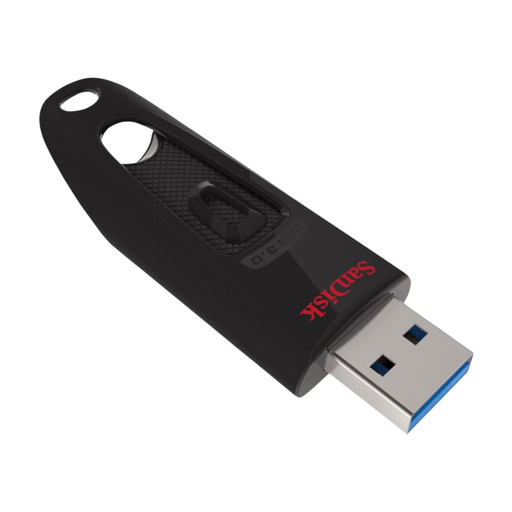
SanDisk Ultra USB Flash Drive 128GB USB 3.0

SanDisk Ultra USB Flash Drive 128GB USB 3.0

An option for storing manuscript files if your computer has a suitable USB-A port.

128 GB; USB 3.0; USB-A connector. Not suitable for direct connection to a device with USB-C ports only.

Joybuy
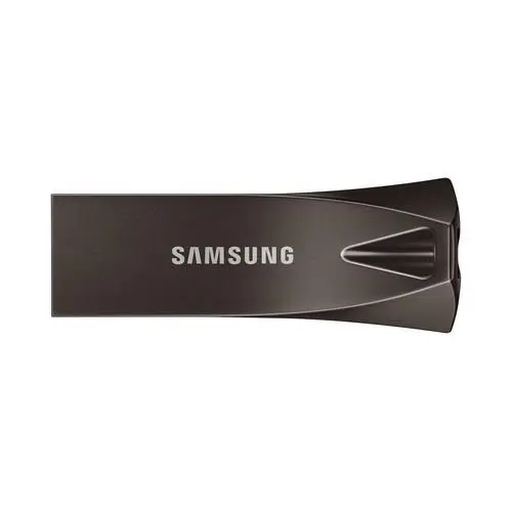
Samsung MUF-256BE USB Flash Drive 256GB USB Type-A 3.2 Gen 1 Grey

Samsung MUF-256BE USB Flash Drive 256GB USB Type-A 3.2 Gen 1 Grey

Suitable for devices with a USB-A port if you want to keep a local copy of your manuscript.

256 GB; USB Type-A; USB 3.2 Gen 1. Not suitable for direct connection to a device with USB-C ports only.

Joybuy
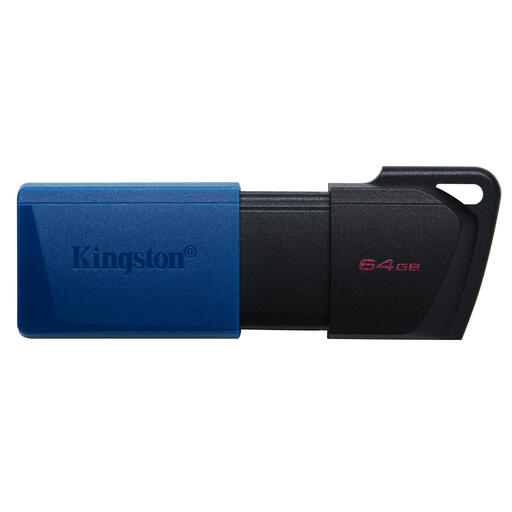
Kingston DataTraveler Exodia M 64GB USB 3.2 Gen 1 Black + Blue

Kingston DataTraveler Exodia M 64GB USB 3.2 Gen 1 Black + Blue

An option for documents if the computer you write on or the device you’ll use to restore your files has a suitable USB-A port.

64 GB; USB 3.2 Gen 1; USB-A connector; sliding protective cap and keyring loop. Not suitable for direct connection to a device with USB-C ports only.

Joybuy
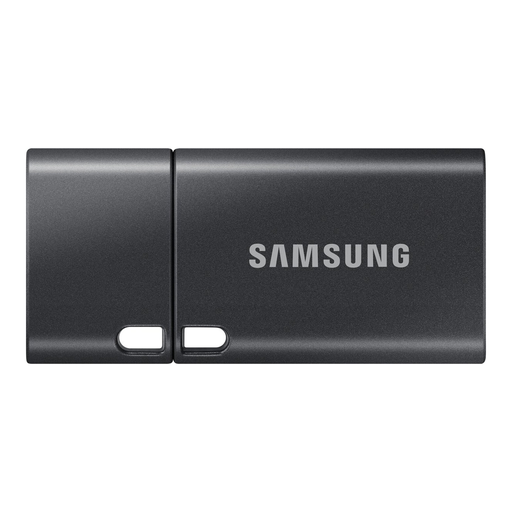
Samsung MUF-512DA USB Flash Drive 512 GB USB Type-C 3.2 Gen 1 Grey

Samsung MUF-512DA USB Flash Drive 512 GB USB Type-C 3.2 Gen 1 Grey

Suitable for devices with a USB-C port; check that the device you’ll use to restore your files has the same connector.

512 GB; USB Type-C; USB 3.2 Gen 1. Not suitable for direct connection to a device with USB-A ports only.

Joybuy

Frequently asked questions

Can I back up a manuscript to a USB stick without using the cloud?

Yes, a USB stick can be used as an external backup location. VeiligInternetten lists USB storage as an option. Keep the original and the copy separate, update the copy and check that you can open your files. The National Cyber Security Centre recommends keeping multiple copies of important data.

Should I encrypt a USB stick containing my manuscript?

Encryption is particularly useful if losing the stick could expose confidential text or personal data. If your organisation processes personal data, the Dutch Data Protection Authority says that the appropriate level of security depends on the circumstances.

Can I protect any standard stick with BitLocker?

Don’t assume it depends on the stick alone: Microsoft lists Windows Pro, Enterprise and Education for manual BitLocker drive encryption. Check which edition of Windows is installed on your computer and whether you can open the encrypted copy on the device you plan to use for recovery.

What should I know before encrypting a stick on a Mac?

Apple warns that encrypting a device with Disk Utility erases it first. Move any existing files somewhere else beforehand, then check that you can open the stick using the password you chose.

Do I need extra storage or a high-speed stick for text files?

Choose a capacity based on the size of your manuscript, attachments and any older versions you want to keep. The connector or speed rating alone won’t tell you whether your latest copy is there and can be restored.
