For home videos you want to use at school, first choose a stick that fits the ports on both your home device and the school computer. Then check that the usable capacity and file system are suitable for your video folder and its largest individual file; Microsoft Learn describes exFAT as suitable for large files. Keep the originals somewhere other than the stick you take with you, as recommended by the Digital Trust Center for backups.
Who is this buying guide for?
Student using different devices
If you move videos between devices that may have different USB ports, the connector and access to your files will determine which stick is practical. SanDisk and Kingston offer models with USB-A and USB-C, or USB-A, respectively.
Creator with large video files
If you want to take an entire folder with you, check that both the folder and its largest individual file will fit, and consider how long copying might take. Microsoft Learn describes exFAT as suitable for large files; Apple Support warns that formatting erases existing files.
Family with private footage
If your videos show identifiable people, you’ll want to keep the originals and carefully consider who can see the footage. The Digital Trust Center advises against relying on a single storage location for backups; the Dutch Data Protection Authority offers guidance on video footage in education.
What should you look for when choosing?
First check the connector and the capacity you need. Then consider write time, a separate copy of the originals and any protection needed for identifiable footage.
| What to consider |
What should you check? |
Who is this important for? |
| Connector for home and school devices |
Check the ports on both devices; choose USB-A, USB-C or a model with both connectors to match those ports. |
If you switch between devices with different ports, you’ll want to open your files without needing an incompatible connector. Around 26% of consumers prioritise the connector above all else. |
| Capacity and file system |
Check the folder and its largest file; make sure there’s enough usable capacity and that the school computer can read the file system. |
If you want to take the whole video folder with you, both the folder as a whole and individual files need to fit. Around 26% of consumers prioritise capacity and file compatibility above all else. |
| Copying time |
Look for the write speed for the exact model; a quoted read speed doesn’t tell you how quickly you can copy files to the stick. |
If you often copy large videos, the time it takes to transfer them to the stick matters. Around 16% of consumers prioritise write time. |
| Keeping the originals |
Keep a separate copy and check that the video opens from the stick. |
If you don’t want the stick you take with you to hold your only copy, keep the originals separately and test the copy. Around 21% of consumers prioritise keeping the original recordings. |
| Privacy |
Consider encryption if you need protection while transporting the stick; also check that the school computer can open it. |
If you’re taking identifiable private footage with you, you’ll want to know who has access to it and how it will be used. Around 11% of consumers prioritise privacy. |
Common buying mistakes
-
Focusing only on the highest read speed
Reading and writing are different operations. Lexar states that write speeds for the JumpDrive D400 are slower than its quoted maximum read speed.
If you copy files often, look for the write speed of the exact model and treat any maximum as a stated figure, not a guaranteed copying time.
-
Assuming extra gigabytes will solve every copying problem
As well as available capacity, the size of the largest file and the playback device’s support for the file system matter. Microsoft Learn describes exFAT as suitable for large files.
Check the folder, the largest file and the school computer before formatting, if needed. Make a copy first: Apple Support warns that formatting erases files.
-
Using the stick you take with you as your only storage location
If a stick is lost or stops working, you could lose your only copy of the recordings. The Digital Trust Center advises against relying on a single storage location.
Keep the originals separately and check that you can actually open the copied video.
Brands to compare
SanDisk
The Ultra Dual Drive Luxe is a range with USB-A and USB-C, designed for transferring files between devices with different ports.
- SanDisk lists two connectors and a metal casing for this model.
- These features don’t automatically apply to other SanDisk sticks. Having two connectors doesn’t guarantee a particular write speed.
Kingston
DataTraveler Exodia is a USB-A range for storing files; IronKey Locker+ 50 G2 is a separate range with hardware encryption.
- Kingston lists a five-year warranty for the Exodia.
- No write speed is stated here for the Exodia. The IronKey Locker+ 50 G2 has USB-A and its own system requirements, so check that they’re compatible with the school computer.
Samsung
The Dutch BAR Plus 128 GB is a USB-A model with a metal casing.
- For the 128 GB model, Samsung quotes sequential read speeds of up to 400 MB/s under the stated test conditions.
- The quoted read speed doesn’t guarantee how quickly your videos will be written to the stick.
Lexar
The JumpDrive Dual Drive D400 has USB-A and USB-C, making it an option for devices with different ports.
- Lexar quotes read speeds of up to 130 MB/s for the 128 GB D400.
- Lexar states that write speeds are slower; performance is based on internal testing and isn’t a comparison test between brands.
Joybuy product picks
These Joybuy picks are designed for storing videos and taking them between home and school devices. For each model, check that the connector, capacity and any quoted speed suit your files and devices.
 No image available
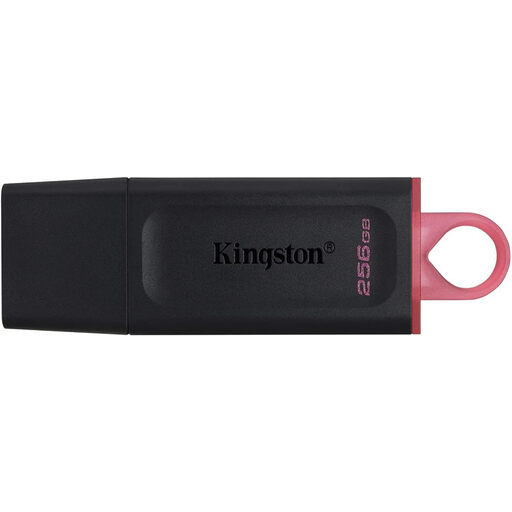
Kingston DataTraveler Exodia DTX 256 GB
The 256 GB model is an option if your video folder fits within the available storage capacity.
The product name lists USB 3.2 Gen 1 and write speeds of up to 625 MB/s; this is a quoted maximum, not a guaranteed transfer speed.
View at Joybuy
 No image available
Kingston DataTraveler Exodia 128 GB
This model is suitable for taking files to devices with a USB-A port.
128 GB, USB 3.2 Gen 1 and USB Type-A. The product information also lists backwards compatibility with USB 2.0.
View at Joybuy
 No image available
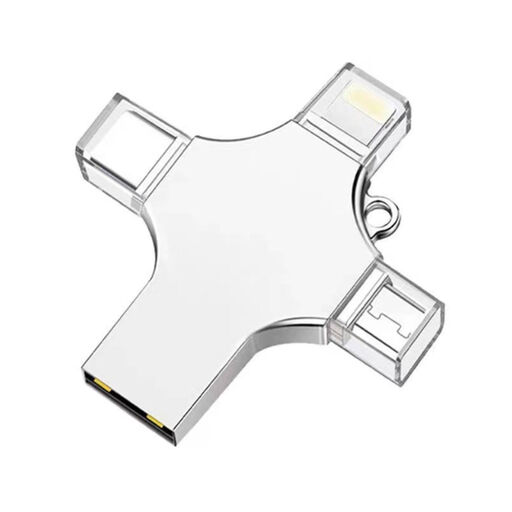
32 GB USB stick with four connector types
This is one way to take videos between devices with the listed connectors, provided those devices support external storage.
The product name lists USB 3.0, Lightning, USB-C and Micro-USB, with 32 GB of storage.
View at Joybuy
 No image available
SanDisk Ultra Flair 64 GB
This model is worth considering if you’re transferring videos to a device with USB-A.
64 GB of storage and USB 3.0. The product information lists use with a USB-A port.
View at Joybuy
 No image available
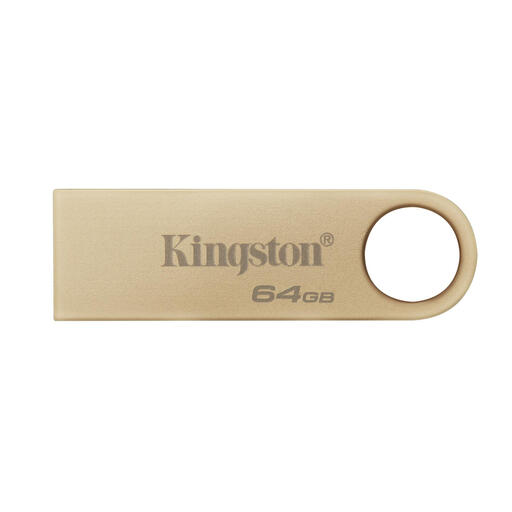
Kingston DataTraveler SE9 G3 64 GB
A 64 GB model for taking video files with you, if that capacity is suitable for your folder.
The product name lists USB 3.2 Gen 1, a metal design and 220 MB/s. It doesn’t specify whether this speed refers to reading or writing.
View at Joybuy
Frequently asked questions
Can you copy a large video if there’s still space on the stick?
Not always: check the size of the individual file and the file system too. Microsoft Learn describes exFAT as designed for large files. Before formatting, check that the school computer can read the format and make a copy first, as formatting erases existing files.
How do you check the USB stick before your presentation?
Copy the files you need and open a video from the stick on the device you’ll use during your presentation. Keep the originals somewhere else. The Digital Trust Center recommends testing whether backups can be restored; this doesn’t guarantee that every device can play every video format.
Are you always limited to a two-year warranty on a USB stick in the Netherlands?
No. According to the Dutch government, the legal guarantee in the Netherlands has no fixed term: you’re entitled to a product that works as it should, depending on what you can reasonably expect. A manufacturer’s warranty, such as the five years Kingston quotes for the DataTraveler Exodia, is separate.
Can you show identifiable people in a home video for a school project?
It depends on who processes the footage and how it’s shared. The Dutch Data Protection Authority distinguishes between private use within a very limited circle and wider sharing. For identifiable footage in education, the Dutch Data Protection Authority outlines consent rules, including parental consent for pupils under 16. This isn’t blanket permission or a general ban on every classroom screening; discuss the intended use with the school and the people involved.


