Start by finding out how group members transfer captures and which connections their devices have. Then choose the capacity based on the clips you want to keep, and consider write speed if you’ll be copying files often. PS5 capture copies have different requirements from recording directly to external Xbox storage, while Nintendo Switch captures can be collected via a computer. A USB stick is handy for sharing files, but keep important captures on a separate medium too, as recommended by the National Cyber Security Centre.
Who is this buying guide for?
Manager of a growing clip archive
You regularly keep videos from several members and want to choose a capacity that suits the actual file sizes. For material you need to keep, maintain a separate backup too; the National Cyber Security Centre recommends storing important data on different media.
Collector of captures from multiple devices
You receive captures from consoles and computers with different transfer methods and USB-A or USB-C connections. First, check how each device transfers files: PlayStation, Xbox Support and Nintendo each describe different methods.
Editor of shared video clips
You often copy large clips to a computer, so you’ll want to consider the model’s write speed, the available port and how shared files are managed. Manufacturer figures don’t guarantee the same speed on your group’s equipment.
What should you look for?
First, map out the group’s transfer methods and connections. Then compare the storage space you need, copying speed, and arrangements for keeping and sharing files.
Exporting PS5 captures
Choose this method: if you want to copy screenshots and clips from the PS5 Media Gallery to the group collection, check that the console recognises the USB drive and use FAT or exFAT.
Bear in mind: Sony distinguishes between a drive for capture copies and extended USB storage for games, so the stick isn’t necessarily intended for both purposes.
Recording Xbox clips directly to external storage
Choose this method: if Xbox members want to record clips using the external recording mode described, Xbox Support specifies a USB 3.0 drive formatted as NTFS.
Bear in mind: this recording feature is not the same as saving captures to a drive formatted for Xbox games.
Collecting Nintendo Switch captures
Choose this method: if members use a Switch, Nintendo describes transferring files to a computer using a data-capable cable connected directly to the console’s USB-C port; a microSD card is another transfer method.
Bear in mind: the cable method described goes via a computer and is not the same as plugging a USB stick directly into the Switch.
| What to consider |
What should you check? |
Who is this important for? |
| Storage space |
Add up your existing captures, estimate how long you want to keep them and allow for the usable space on the model you choose. |
If I want to keep clips from several members, I’ll choose a stick to suit the actual collection rather than going by the biggest number alone. Around 31% of consumers prioritise having enough archive space. |
| Connection and transfer method |
Note the port on each device and whether captures are copied to a computer or recorded directly to external storage. Check the required file system too. |
I want to collect files from different devices without choosing the wrong connection or transfer method. Around 31% of consumers make device compatibility their top priority. |
| Copying time |
Compare the specified read and write speeds for the exact model and check the USB port on the computer you’ll be using. |
When I often transfer large video clips, I want to know how the write specification and port work together. Around 23% of consumers prioritise reducing transfer waiting times. |
| Keeping and managing files |
Agree who has access and where a separate copy is stored; consider access protection if unauthorised access in the event of loss is a concern. |
I want to be able to recover captures if the group stick goes missing, and to agree in advance who can open shared files. Around 15% of consumers prioritise file retention and access management. |
Common pitfalls
-
Confusing a game storage stick with one for PS5 capture copies
Sony distinguishes between extended USB storage for games and a FAT- or exFAT-formatted USB drive for copying captures. Choosing the wrong function could mean having to move your files elsewhere first and reformat the drive.
Before formatting, decide whether you want to move games or export screenshots and clips, then check the instructions for that function.
-
Looking only at read speed
Reading and writing are different tasks. A high specified read speed alone won’t tell you how quickly large clips will be written to the stick; the port and equipment you use also matter.
If you copy files often, compare the write specification for the exact model and check the port on the device you’ll save the files to.
Transferring lots of videos can mean extra waiting time.
-
Keeping the shared group stick as your only copy
If the stick goes missing or the files become unreadable, the group could lose its captures. The National Cyber Security Centre recommends keeping important data on different media and in different locations.
Keep a separate copy and check that you can open files from it; the National Cyber Security Centre also recommends checking that recovery works.
-
Seeing encryption as a complete solution for access and privacy
An encrypted stick is no substitute for a backup. If captures show identifiable people and the community wants to publish them, a lawful basis may also be needed. The Dutch Data Protection Authority describes this requirement for organisations that create and publish identifiable images.
Agree who has access and keep a second copy that you can restore. If images show identifiable people, also check which lawful basis applies to the intended use.
A PIN may require clear arrangements for who manages access and how it can be restored.
Brands to consider
SanDisk
SanDisk offers USB sticks with both USB-A and USB-C connections, including the Ultra Dual Drive Luxe and Extreme PRO Dual Drive.
- SanDisk lists both USB-A and USB-C for the 128 GB Ultra Dual Drive Luxe.
- SanDisk specifies maximum speeds of 1.000 MB/s read and 900 MB/s write for the Extreme PRO Dual Drive. These are manufacturer figures, not measured performance on your group’s equipment.
Kingston
DataTraveler models come in options for common connections and capacities; the IronKey Keypad 200 is a separate range for those considering access to shared files.
- Kingston lists PIN control and hardware encryption for the IronKey Keypad 200.
- These features apply to that range, not every DataTraveler. A PIN requires arrangements for managing and recovering access.
Samsung
The BAR Plus is a USB-A option for groups sharing files via compatible USB-A ports.
- Samsung specifies sequential read speeds of up to 400 MB/s and a metal casing for the 256 GB BAR Plus.
- The specified read speed doesn’t mean clips will be written to the stick at that speed; check the model’s write specification for that.
Transcend
The JetFlash 930C offers USB-A and USB-C, making it an option for transferring files between devices with different ports.
- Transcend specifies maximum speeds of 420 MB/s read and 400 MB/s write for the JetFlash 930C, with 128, 256 and 512 GB models available.
- Transcend warns that console features for external game storage may have their own compatibility requirements. Check these for the method you plan to use.
USB sticks for game captures
This selection of Joybuy products includes USB sticks with 256 or 512 GB of storage, including models with USB-A and USB-C connections. Check that the connection and transfer method are suitable for each device.
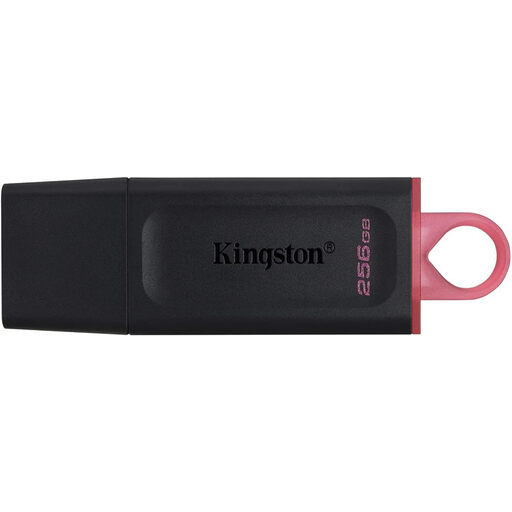 Image unavailable
Kingston DataTraveler Exodia DTX 256 GB USB 3.2 Gen 1
The 256 GB model could suit a capture collection that needs this much space; check the port and file system requirements for your chosen transfer method.
The product title specifies write speeds of up to 625 MB/s. This is a stated maximum, not a guarantee of the speed you’ll get on your group’s equipment.
View at Joybuy
 Image unavailable
SanDisk Ultra Dual Drive Go USB 3.1 USB-C 512 GB
The two connectors can come in handy when members transfer files between devices with USB-C and a traditional USB connection.
The product description lists 512 GB of storage and read speeds of up to 150 MB/s. Check which connection and transfer function your devices require.
View at Joybuy
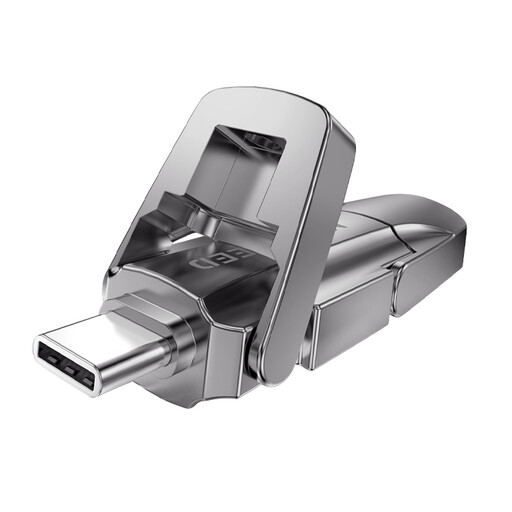 Image unavailable
MOVESPEED YSUYVP10-256GSR 256 GB USB 3.2 Gen 1
With 256 GB of storage and USB-A and Type-C connections, this model could suit a group transferring files using both types of port.
The product title specifies read speeds of 1.090 MB/s. If you often copy clips to the stick, check the model’s write specification too.
View at Joybuy
 Image unavailable
MOVESPEED YSUYVP10-512GSR 512 GB USB 3.2 Gen 1
The 512 GB capacity could suit a larger capture collection; the model has both USB-A and Type-C for transferring files between devices with these port types.
The product title specifies read speeds of 1.090 MB/s. Also check the write specification and the port on the device you’ll use to save your captures.
View at Joybuy
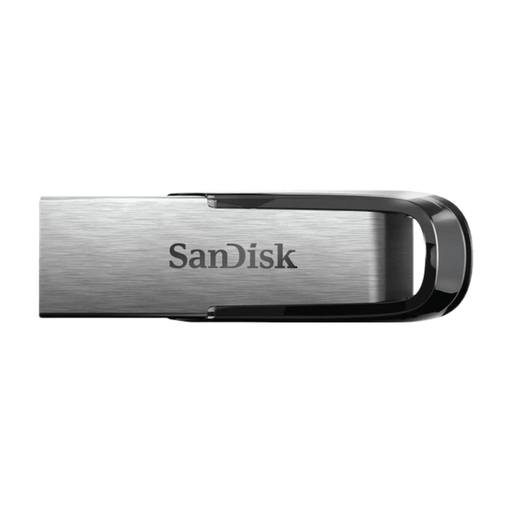 Image unavailable
SanDisk Ultra Flair 512 GB USB 3.0
This USB-A model could suit transfers via a computer with a compatible USB-A port; it won’t connect directly to a USB-C port.
The product description lists 512 GB of storage and read speeds of up to 150 MB/s. A specified read speed is not a write speed.
View at Joybuy
Frequently asked questions
Can you use the same stick for PS5 capture copies and direct Xbox recordings without making any changes?
No, don’t assume the settings will be the same. PlayStation specifies FAT or exFAT for copying PS5 captures to a standard USB drive; Xbox Support specifies USB 3.0 and NTFS for recording directly to external storage. Check which function you need before formatting the stick.
How can Nintendo Switch members transfer their captures to the group stick?
Nintendo describes transferring files to a computer using a data-capable cable connected directly to the Switch’s USB-C port; a microSD card is an alternative. The group’s administrator can then copy the files from the computer to the group collection.
Is one USB stick enough for an archive?
Not for captures the group doesn’t want to lose. The National Cyber Security Centre recommends keeping important data on different media and in different locations. Also test that you can restore and open a separate copy.
What can you do if a USB stick bought in the Netherlands becomes faulty?
When you buy as a consumer, you’re entitled to a product that works properly. The Dutch government describes this as a statutory guarantee; any manufacturer’s warranty is separate. Keep your proof of purchase and contact the seller if the product develops a fault.
Can the community share identifiable participants in captures publicly without permission?
Not automatically. According to the Dutch Data Protection Authority, an organisation needs a lawful basis to create and publish images in which people are identifiable; consent is often an obvious basis. Whether a particular capture contains personal data and which lawful basis applies to sharing it depends on its content and the circumstances.


