
Console gamer with source files on a PC
You want to keep clips or screenshots alongside local project or source files. First, choose a transfer method for your console: PlayStation, Xbox Support and Nintendo each describe different options.


First, choose a transfer method supported by your console or computer, then check the connection and file format. PlayStation, Xbox Support and Nintendo each describe different ways to transfer captures. Choose a capacity that suits your files and, for large videos, compare write speeds rather than just read speeds. Keep a second copy of irreplaceable files somewhere else, too.
You want to keep clips or screenshots alongside local project or source files. First, choose a transfer method for your console: PlayStation, Xbox Support and Nintendo each describe different options.
You copy large video files and need to think about storage space and transfer times. Check your file sizes and the write speed of the specific model. A maximum read speed won’t tell you how quickly files can be written to the stick.
You move captures and source files between devices with different ports. A stick with both connectors can save you from needing an adapter, as long as the devices also support the files and format.
Start with the console or computer transfer method. Then work out how much space you need, how important write speed is and which connectors will fit.
| What to consider | What to look for | Who should consider this? |
|---|---|---|
| Console and file format | Check whether you’ll record directly, export afterwards or copy files from a computer. Make sure the format and function are supported for your chosen method. | I want to save or export clips without the console blocking the transfer. Around 29% of consumers prioritise compatibility. |
| Capacity | Add up the size of a typical set of captures and source files, then decide how many sets you want to keep. Allow for the available free space. | I want to keep captures and source files together, with enough room for my own files. Capacity is the main concern for around 23% of consumers. |
| Write speed | Where possible, compare the write speed of the exact model. Distinguish between manufacturers’ maximum figures and measured performance. | For large videos, I want to know how quickly they can be written to the stick, not just how quickly I can read them from it. Around 18% of consumers prioritise write speed. |
| Connections | Make a note of the ports on your source device, computer and any other devices. Check where you’ll actually plug in the stick. | I switch between USB-A and USB-C devices and want to move files without an unnecessary adapter. Connections are the main consideration for around 18% of consumers. |
| File retention and privacy | Decide where you’ll keep a second copy of irreplaceable files and whether your saved material contains personal data. Check how to open encrypted files on your devices. | I don’t want to lose irreplaceable captures or sensitive source files from a single USB stick. File retention and privacy matter most to around 12% of consumers. |
The console functions described are not the same. Xbox Support distinguishes between game storage and external storage for captures; PlayStation describes a way to copy files from the Media Gallery.
Choose the function and transfer method first. Back up any existing files elsewhere before reformatting a used stick.
A maximum sequential read speed doesn’t tell you how quickly large files can be written to the stick. For example, Samsung Netherlands lists a maximum read speed for the BAR Plus model mentioned.
Where available, compare the write specifications for the exact model, and don’t treat manufacturers’ maximum figures as measured transfer times.
If you lose a portable stick, you could also lose the only local copy of your captures or source files.
Keep irreplaceable originals in a separate second location. If the files contain personal data, also consider whether encryption is right for the way you use them.
The features mentioned apply to specific product lines and models; they don’t automatically apply to every model from a brand.
Worth considering if your file transfer involves both USB-A and USB-C devices.
DataTraveler Exodia is a USB-A range for transferring files. IronKey Locker+ 50 G2 is a separate range to consider if you need encryption.
BAR Plus is worth considering for a USB-A setup if you’re looking at a model with a metal casing.
JetFlash 930C is an option to compare if you move files between USB-A and USB-C devices.
These product picks are intended for saving and transferring game captures and local source files using a USB stick. First, check that your console supports the export method you plan to use.
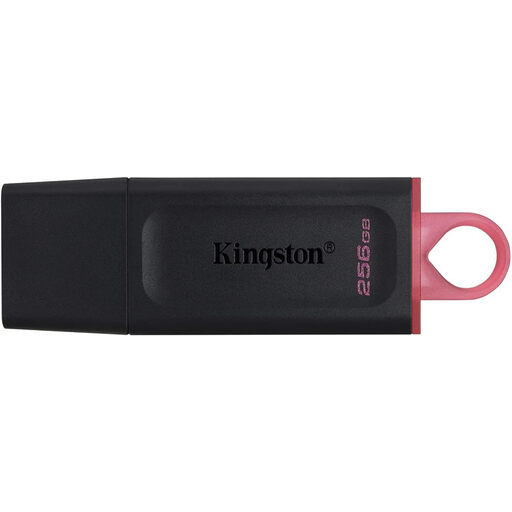 No image available
An option if you want to keep and transfer captures and source files together.
The product name lists 256 GB, USB 3.2 Gen 1 and a maximum write speed of up to 625 MB/s.
 No image available
Suitable for transferring files through a compatible USB-A port.
128 GB; USB 3.2 Gen 1; USB Type-A. The stick won’t plug directly into a port that only has USB-C.
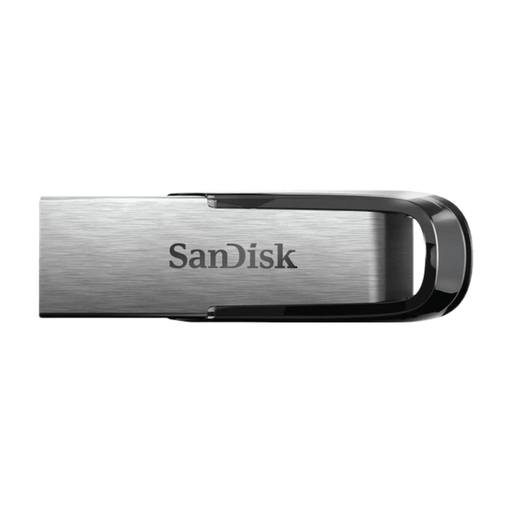 No image available
An option if you want to save and transfer captures and source files through a USB-A port.
512 GB; USB 3.0. The product information lists USB-A; the stick won’t plug directly into a USB-C-only port.
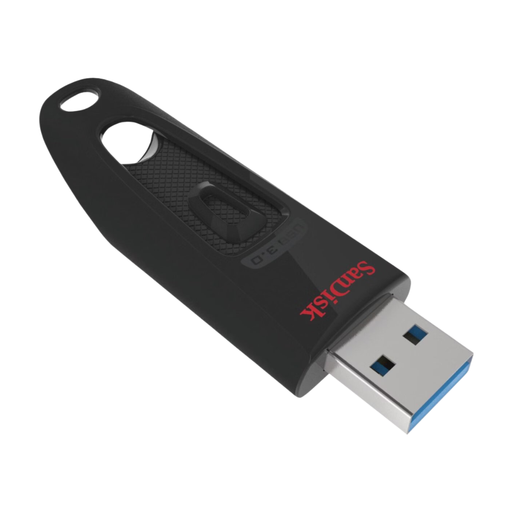 No image available
Worth considering if you want to transfer files through a USB-A port.
512 GB; USB 3.0. The product information describes use via USB-A; the stick won’t plug directly into a USB-C-only port.
 No image available
An option for captures and source files if 64 GB is enough for the files you want to take with you.
64 GB; USB 3.0. The product information describes use via USB-A; the stick won’t plug directly into a USB-C-only port.
Not with the setup described by Xbox: storage formatted for Xbox games can’t also be used as a capture drive. Xbox Support specifies USB 3.0 and NTFS for direct external recording. Copy any existing data elsewhere before reformatting the stick.
For the original Nintendo Switch, Nintendo describes transferring files to a computer using a compatible USB data cable; the dock’s USB ports don’t support this function. Nintendo also lists transfer via a microSD card.
Check the file format: Microsoft states that FAT32 has a maximum individual file size of 4 GiB. Having plenty of total free space doesn’t remove this limit. Before changing the format, check which formats your transfer method supports and make a copy of any existing files.
Encryption is especially worth considering if the files contain personal data. The Dutch Data Protection Authority cites the loss of an unencrypted USB stick containing personal data as a possible data breach. Also check how you’ll open encrypted files on your own devices.
According to the Dutch government, if there’s a problem with a faulty product, the seller must provide a solution. A manufacturer’s warranty is an additional benefit; the outcome depends on the specific fault and how the product was used.