Who is this relevant for?

Creators with lots of editing versions

If you want to keep captures and successive project files, you’ll need enough space. You can also store important versions somewhere separate. Microsoft Support explains how File History can restore earlier versions when the feature has been set up.

Creators who often transfer large clips

If you regularly copy large video files to a stick, check the stated write speed, not just the read speed. Actual speeds can depend on the host device and other conditions.

Console and PC users

If you move captures between a console and a computer, check the connector, export function and file system on both devices. For example, PlayStation explains how to copy captures from the Media Gallery to a USB drive.

What should you look for when buying?

What to consider What should you check? Who is this important for?
Space for captures and versions Add up your clips and project versions, and leave room for new files. Check the capacity of the exact model. If I want to keep captures and several editing versions at the same time, I want to avoid having to delete old files. Around 33% of consumers give storage for captures and versions their top priority.
Write speed Check the stated write speed of the exact model; don’t assume the manufacturer’s maximum speeds are guaranteed transfer speeds. If I often save large clips, I pay attention to how quickly data is written to the stick. Around 27% of consumers prioritise write speed for large files.
Connector and file system Check your devices’ ports and capture export options. Microsoft states that FAT32 has a maximum file size of 4 GiB; also check which file systems your devices support. If I want to move captures between my console and computer, the connector and file system must work with both. Around 20% of consumers prioritise this compatibility.
Restoring earlier versions Decide where you’ll keep a second copy, and check whether your backup lets you retrieve earlier versions. If I want to restore an earlier edit after overwriting it or losing it, I don’t rely on the USB stick alone. Around 20% of consumers give restoring old versions their top priority.

Common buying mistakes

  • Comparing read speed alone

    Reading and writing are different operations. If you’re copying captures to a stick, the stated write speed is what matters. Manufacturers’ maximum speeds don’t guarantee the same performance on every device.

    Compare the write speed of the exact model, and take the host device and connector into account.

  • Using a high-capacity stick as your only backup

    More storage doesn’t create a separate, recoverable copy. If you lose the stick or overwrite a project, you may not have an earlier version.

    Keep important files somewhere else too, and check that you can retrieve an earlier version from there.

  • Using FAT32 without checking file sizes

    Microsoft states that FAT32 has a maximum file size of 4 GiB. Formatting also erases existing data on the stick.

    Check the size of individual clips and which file systems your devices support. Make a copy of any existing data before formatting.

  • Confusing capture export with expanded game storage on PS5

    PlayStation explains capture export through the Media Gallery separately from USB extended storage for games. Formatting a stick as extended storage erases any data already on it.

    First decide whether you want to copy captures or set up game storage. Don’t format a stick containing existing captures as extended storage unless you’ve saved those files somewhere else.

Brands to compare when choosing a product

Kingston

The DataTraveler Max is available with one chosen connector type; USB-A and USB-C are separate variants.

  • Kingston lists capacities of 256 GB, 512 GB and 1 TB, with maximum speeds of 1.000 MB/s read and 900 MB/s write.
  • These are manufacturer’s maximum speeds. Kingston says performance can vary depending on the host, software and usage.

Verbatim

According to Verbatim, the Dual QuickStick 512 GB has both USB-A and USB-C for transferring files between devices with different ports.

  • Verbatim lists maximum speeds of 550 MB/s read and 500 MB/s write.
  • Having two connectors doesn’t guarantee that every device will support the file system.

Transcend

The JetFlash 920 is a USB-A model for anyone considering a stick with this connector.

  • Transcend lists maximum speeds of 420 MB/s read and 400 MB/s write, capacities up to 512 GB, and exFAT formatting as standard.
  • Check that the devices you want to use the stick with support exFAT.

SanDisk

The Extreme PRO Flash Drive with USB-A is designed for devices with this connector.

  • SanDisk lists 512 GB, 1 TB and 2 TB models, with maximum speeds of 1.000 MB/s read and 900 MB/s write.
  • SanDisk bases these speeds on internal tests and says they can vary depending on the host, capacity and usage.

USB sticks at Joybuy

This product selection includes USB sticks for storing and transferring captures and project versions, with a range of capacities and connectors. For each model, check that the port, write speed and file system suit your devices.
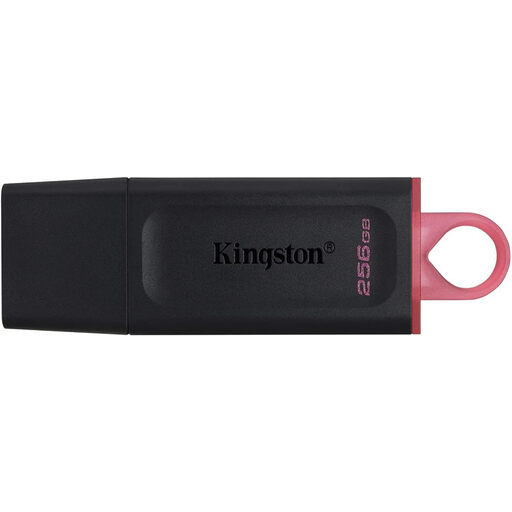
Kingston DataTraveler Exodia DTX, 256 GB

Kingston DataTraveler Exodia DTX 256 GB

Could be a good fit if 256 GB is enough for the files you want to keep at the same time.

USB 3.2 Gen 1; stated write speed up to 625 MB/s.

View at Joybuy

SanDisk Ultra Dual Drive Go, USB-A and USB-C, 512 GB

SanDisk Ultra Dual Drive Go 512 GB

The dual connector can be useful if you move files between devices with USB-A and USB-C.

USB 3.1 and USB-C; stated read speed up to 150 MB/s. Check the write speed and file system for your needs.

View at Joybuy
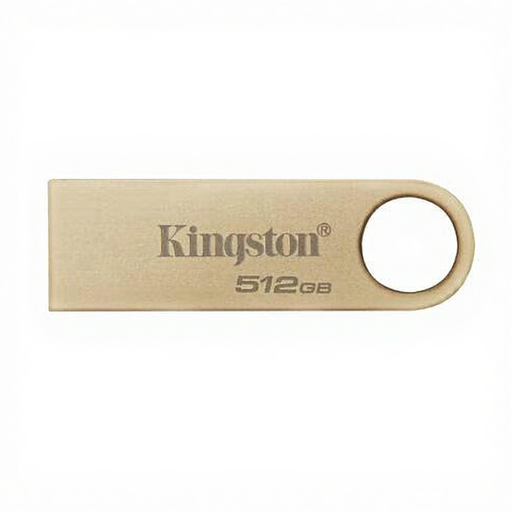
Kingston DataTraveler 512 GB, USB Type-A

Kingston DataTraveler 512 GB USB Type-A

Could be a good fit if you use a USB Type-A device and 512 GB is enough for your files.

USB 3.2 Gen 1; up to 220 MB/s read and 100 MB/s write according to the product information.

View at Joybuy
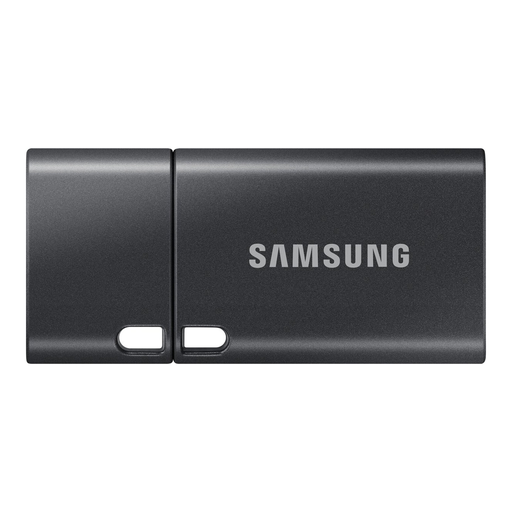
Samsung MUF-512DA, USB Type-C, 512 GB

Samsung MUF-512DA 512 GB USB Type-C

Could be a good fit if you want to store or transfer files on a USB-C device.

USB 3.2 Gen 1; stated read speed up to 400 MB/s. Check the write speed for saving large clips.

View at Joybuy
MOVESPEED YSUYVP10-512GSR, 512 GB, USB-A and USB-C

MOVESPEED YSUYVP10-512GSR 512 GB

The dual connector could be useful if you move files between devices with USB-A and USB-C.

USB 3.2 Gen 1; stated read speed up to 1.090 MB/s. Check the write speed for your transfers.

View at Joybuy

Frequently asked questions

How do I work out how much storage I need?

Add up the captures and project versions you want to keep at the same time, and leave space for new files. Kingston notes that the usable storage is less than the stated capacity.

Can I copy PS5 captures to a USB stick?

Yes. According to PlayStation, you can select a capture in the Media Gallery and copy it to a connected USB drive. This applies to captures, not to installing or playing PS5 games from the stick.

Why won’t a large video file fit on my stick?

Check the file system. Microsoft states that FAT32 has a maximum file size of 4 GiB; exFAT doesn’t have this limit. However, check that your devices support exFAT, and make a copy of existing files before formatting.

How can I stop a new edit from replacing my previous version?

Save versions with clear names and keep a separate copy as well. Microsoft Support explains that File History on a Windows PC set up for this purpose can restore earlier versions of backed-up files and folders. Check that your project folder is included.

Will I get the stated write speed?

Not necessarily. Manufacturers’ maximum speeds aren’t guaranteed transfer speeds; performance can depend on the stick, connector, host and files. So compare the stated write speed of the exact model, and check that it’s suitable for your device.
