
Photo archive administrators
You want a recent, verifiable additional copy with enough space for a growing collection. A USB stick shouldn’t be your only place to store it. VeiligInternetten recommends making regular back-ups.


Choose a USB stick with enough capacity for your measured photo archive, plus room for new photos, and a connector that works with the group’s devices. For large copying jobs, compare the stated write speed too. Use the stick as an additional copy that you check regularly. If the photos show identifiable people, decide who can access them and what level of security is appropriate for the risks.
You want a recent, verifiable additional copy with enough space for a growing collection. A USB stick shouldn’t be your only place to store it. VeiligInternetten recommends making regular back-ups.
You want to transfer photos between computers and, potentially, phones. Check which connectors the devices have and whether mobile devices support external storage.
If you use photos showing identifiable people for organisational purposes, you need to consider access, security and the applicable GDPR rules. The Dutch Data Protection Authority considers identifiable people in images to be personal data.
| What to consider | What to look for when buying | Who is this important for? |
|---|---|---|
| Capacity and a recoverable copy | Check the size of your folders, allow for growth and check how much space is available. Agree when you’ll test whether files can be restored. | If I want to be able to restore the photo archive, the copy needs to be complete and usable. Around 36% of consumers say capacity and a recoverable copy are their top priority. |
| Connector and compatibility | Make a note of whether each device uses USB-A or USB-C. For phones and tablets, also check whether they support external storage. | When volunteers use different devices, I want to know whether the stick connects directly and works with them. Around 29% of consumers prioritise switching between devices. |
| Access and privacy | Decide who will take or use the stick, and what level of security is appropriate for the photos and how they’re handled. | If the photos show identifiable people, I want to prevent unauthorised access. Around 21% of consumers prioritise access protection. |
| Time needed for copying | Compare the stated write speed for the exact version, and check the computer’s connector and USB standard too. | For large or repeated transfers, I want to estimate how long writing will take. Around 14% of consumers say copying time is their main consideration. |
If your only copy is on a lost stick, its capacity won’t help you recover the archive.
Decide which copy is the original, keep a separate copy as well, and test whether you can restore files from it.
Keeping a separate copy takes space and time, both to keep it up to date and to check that files can be restored.
Read and write speeds are different specifications. The device you use the stick with also affects its actual speed.
For large copying jobs, check the write speed for the exact version and the computer’s USB port.
The Dutch Data Protection Authority cites losing a USB stick containing unencrypted personal data as an example of a data breach.
Limit who can take and use the stick to authorised people, and decide whether encryption is needed based on the risks.
The DataTraveler Exodia is a USB-A range, while the IronKey Locker+ 50 G2 is designed for situations where hardware encryption is appropriate.
The Ultra Dual Drive Luxe is designed for transferring files between USB-A and USB-C devices.
The Dual QuickStick is designed for setups using both USB-A and USB-C, where write time is a consideration.
The USB Type-C Flash Drive MUF-256DA/APC is designed for administrators using devices with USB-C.
These Joybuy products are USB sticks for keeping an additional copy of your photos. Check that the connector, capacity and other features of each version suit the group’s devices and how you plan to use it.
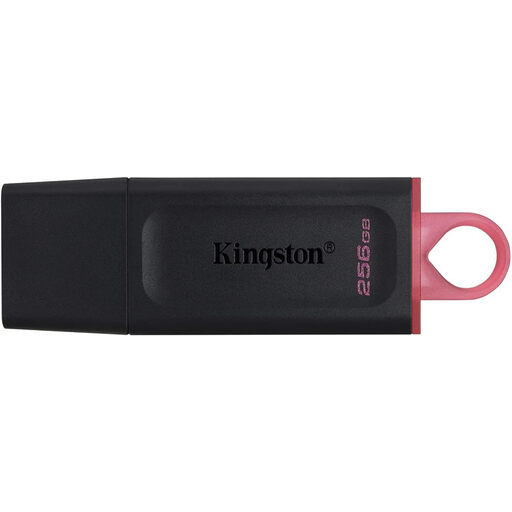 No image available
A 256 GB USB stick for keeping an additional copy of your photos.
The product name specifies USB 3.2 Gen 1.
 No image available
A USB-A version for keeping an additional copy of your photos on devices with this connector.
The product name specifies 128 GB and USB 3.2 Gen 1. A built-in USB-C connector isn’t listed.
 No image available
A 64 GB USB stick for keeping an additional copy of files such as photos.
The product name specifies USB 3.0.
 No image available
A version for transferring files between devices with USB-A and USB-C.
The product name specifies 512 GB and USB 3.1. If you’re using a phone or tablet, check separately whether it supports external storage.
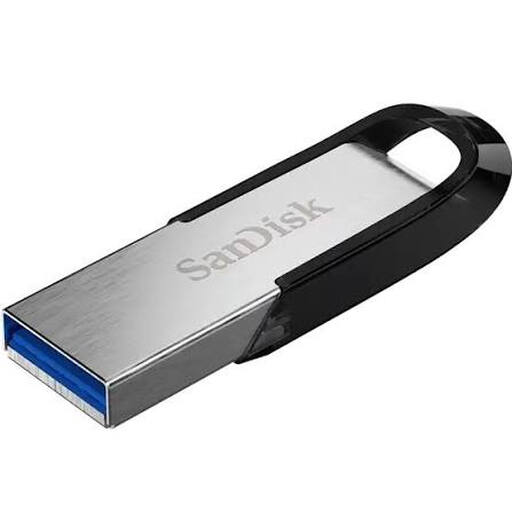 No image available
A 256 GB USB stick for keeping an additional copy of files, including photos.
The product name specifies USB 3.0.
Use the stick as an additional copy, not as your only place to store the archive. VeiligInternetten describes a back-up as a copy that lets you restore files if the original device or files are lost. Keep copies up to date and test regularly that you can restore them.
Check the connectors on the devices you’ll use, the size of your folders and the available space on the stick. Start by copying a small selection and check that you can open it on the device you’d use to restore the files. Formatting deletes any data already on the stick, so make a copy of it first.
According to Kingston, with the FAT32 file system, a single file can’t be 4 GB or larger. You may need a different file system, such as exFAT, if the devices you use support it. Make a copy of any existing files before formatting.
Compare the warranty for the exact version and the cost of the additional storage the group chooses. A hardware warranty won’t replace lost photos; the cost of cloud storage, for example, depends on the provider and its terms.
Identifiable people in photos are personal data. The Dutch Data Protection Authority says that an organisation needs an applicable legal basis under the GDPR to process them; the exception for strictly personal or household use doesn’t automatically apply to a group. For taking and publishing images in which people are identifiable, the Dutch Data Protection Authority says consent is often an obvious legal basis, but what’s needed depends on the purpose and circumstances. Making a back-up doesn’t, in itself, give you permission to publish or share photos further.