
Workshop assistant dealing with two types of port
You’re transferring hand-outs from a shared computer to another device and want to check in advance that the connector will fit both. USB-A and USB-C are examples of the types of port to check.


For everyday hand-outs, a USB stick is usually the simplest choice. First, check that its connector works with both the shared workspace and the device you need the files on. An external SSD is better suited to large files or substantial storage needs. If the hand-outs contain personal data, assess the security requirements separately and don’t automatically assume the shared computer is trustworthy.
You’re transferring hand-outs from a shared computer to another device and want to check in advance that the connector will fit both. USB-A and USB-C are examples of the types of port to check.
You mainly want to take the workshop files with you and check that they’ve copied across properly. Microsoft Support recommends safely removing USB storage in Windows before unplugging it.
If files contain personal data, the organisation needs to tailor its security measures to the situation. The Dutch Data Protection Authority emphasises that appropriate security depends on the circumstances.
Start by checking the ports on both devices. Then work out how much data you actually need to take with you, and separately consider whether the contents need extra protection.
| What to consider | What should you check? | Who should prioritise this? |
|---|---|---|
| Connector | Check the ports on the shared computer and the device you want to use the hand-outs on. See whether the stick you choose has the right connectors for both, or whether you’ll need an adapter. | If I want to transfer files directly from the shared computer to my own device, the connectors need to fit both. An estimated 36% of consumers put connector compatibility first when choosing. |
| Transferring everyday hand-outs | Compare the storage capacity you need with the size of your files. After copying them, open a few to check that the transfer worked. | I mainly want to make sure all the hand-outs are copied across and that I can open them afterwards. An estimated 29% of consumers prioritise transferring everyday documents. |
| Protection in a shared workspace | Check whether the files contain personal data and follow the administrator’s policy. Assess the security of the storage device separately from whether the computer is trustworthy. | If I’m taking sensitive course materials with me, I want to consider both unauthorised access and the shared computer. An estimated 21% of consumers prioritise confidentiality. |
| Large files | Work out the total amount of data you need to store. For large individual files, also check the file system, and check which ports the computer has. | I also take large media files or substantial backups with me and want to make sure there’s enough space. An estimated 14% of consumers prioritise large files. |
USB-A and USB-C are different types of connector. If the computer or the device you want to use the hand-outs on doesn’t have a matching port, you won’t be able to transfer the files directly.
Check the ports on both devices before you buy. Choose a model with two connectors only if it solves a specific compatibility issue.
Without a compatible connector, you may need an adapter or a different storage device.
An encrypted storage device protects the contents saved on it, but it doesn’t automatically make a shared computer trustworthy. The National Cyber Security Centre explains that malware can also be opened from an infected file on a USB stick.
Assess the contents of the hand-outs and the trustworthiness of the workspace separately from the security of the storage device.
An external SSD is designed for greater storage needs, but its quoted maximum speeds don’t tell you how quickly files will transfer on your shared computer.
Compare the number and size of your files with the task at hand. Choose an SSD if you genuinely need to carry larger files or extra storage.
Kingston offers several relevant product lines: DataTraveler Exodia for transferring documents via USB-A, IronKey Keypad 200 for encrypted storage, and XS1000 as an external SSD.
The Dual USB Drive 32 GB is an option if you want to transfer hand-outs between devices with USB-A and USB-C ports.
The Ultra Dual Drive Go is a USB stick option for transferring files between devices with USB-A and USB-C ports.
The BAR Plus is a USB-A alternative if that connector suits both the shared computer and the device you need the hand-outs on.
These Joybuy products are selected for transferring hand-outs: USB sticks for USB-A and/or USB-C ports, plus an external SSD for larger files.
 No image available
The two connectors may be useful if you want to transfer hand-outs between devices with USB-A and USB-C ports.
512 GB of storage; USB 3.1 and USB-C are listed in the product name. The description mentions both USB-C and a traditional USB connector.
 No image available
This USB-A stick may be suitable if both the shared computer and the device you need the files on have a compatible USB-A port.
64 GB of storage and USB 3.0. The description quotes a maximum read speed of approximately 150 MB/s.
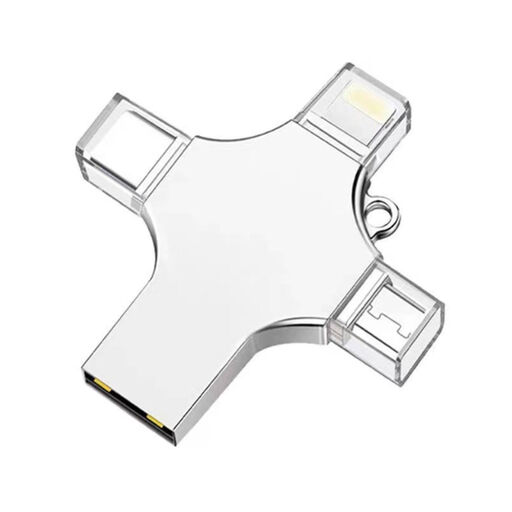 No image available
The multiple connectors listed may come in handy if you want to transfer files between different types of device.
32 GB of storage; the product name and description list USB 3.0, Lightning, USB-C and Micro-USB.
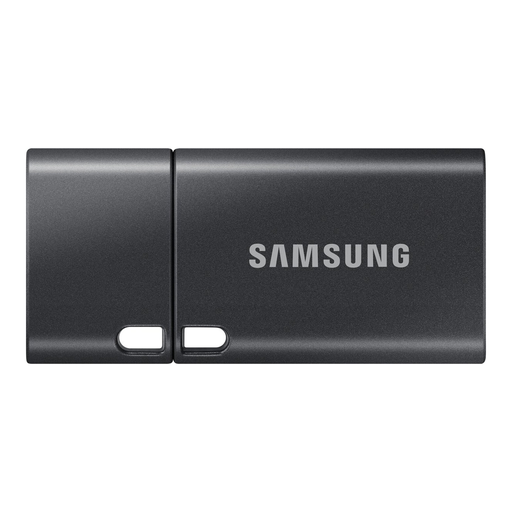 No image available
This USB-C stick may be suitable if both the shared computer and the device you want to use the hand-outs on have a compatible USB-C port.
512 GB of storage; USB 3.2 Gen 1 (3.1 Gen 1). The product description quotes a maximum read speed of 400 MB/s.
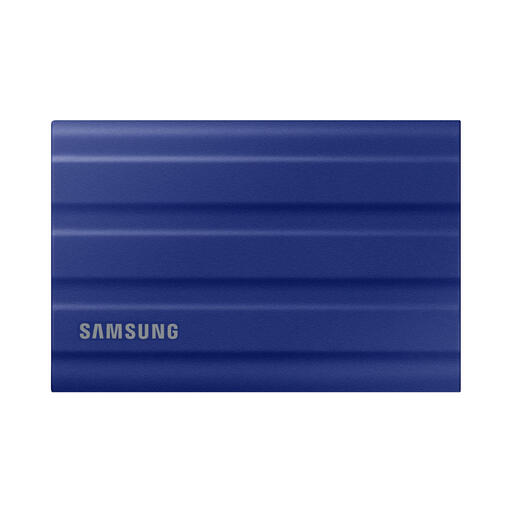 No image available
This external SSD is an option for larger workshop files; the description lists connections for USB-C and USB-A ports.
1 TB of storage and USB 3.2 Gen 2 (3.1 Gen 2). The description quotes maximum speeds of up to 1,050 MB/s read and 1,000 MB/s write, and includes USB-C-to-C and USB-C-to-A cables.
Not without first checking the connector and the administrator’s rules. If the files contain personal data, the organisation responsible must assess the appropriate security measures; the circumstances alone don’t give you permission to use the computer.
Check that copying has finished, then use the Safely Remove Hardware feature in Windows 10 or 11 before unplugging the stick. Microsoft Support recommends this to help prevent data loss.
If the stick uses FAT32, the 4 GiB limit for an individual file may be the reason. Microsoft Learn lists this limit for FAT32. Before reformatting, check the file system and compatibility with both devices, and save any existing files elsewhere first.
For a consumer purchase in the Netherlands, the Dutch government says the retailer is your point of contact if the product is faulty. A manufacturer’s warranty is in addition to your statutory rights.
No, it depends on the risk. According to the Dutch Data Protection Authority, a data breach must be reported unless a risk to the rights and freedoms of the people affected is unlikely. Whether those people need to be informed depends on whether there is likely to be a high risk. The circumstances, including how the data is protected, need to be assessed separately.