
Console gamers who copy captures directly
If you want to save PS5 or Xbox captures to external storage without using the cloud, you’ll need to check your console’s storage and formatting requirements. PlayStation and Xbox use different methods.


First, choose the storage method that works with your console, then check the USB stick’s connection and capacity. PlayStation specifies FAT or exFAT for captures on a standard USB stick, while Xbox recommends USB 3.0 with NTFS for external captures. Nintendo describes transferring files via a computer or using a compatible memory card. Keep important footage in a second local storage location too.
If you want to save PS5 or Xbox captures to external storage without using the cloud, you’ll need to check your console’s storage and formatting requirements. PlayStation and Xbox use different methods.
If you want to archive images from a Switch or Switch 2 on a USB stick, you’ll need to use a computer as an intermediary. Nintendo describes transferring files from both systems via a USB cable connected directly to the console.
If you store lots of video clips offline, check the capacity of the exact USB stick variant. If you copy files regularly, it’s also worth checking the stated write speed. Kingston, SanDisk and Transcend offer models with different connections and specifications.
Choose this option: if you want to copy screenshots and video clips directly from your PS5 to a USB stick.
Bear in mind: PlayStation specifies FAT or exFAT for a standard USB stick. Extended USB storage for games isn’t the right feature for this.
Choose this option: if you want to record captures directly to external storage and use them on a PC later.
Bear in mind: Xbox specifies USB 3.0 and NTFS. Storage formatted for Xbox games can’t also be used as a capture drive.
Choose this option: if you want to transfer Nintendo images to a computer first, then save them to a USB stick.
Bear in mind: the USB ports on the Switch dock don’t support this transfer. For certain Switch 2 captures, Nintendo specifies microSD Express.
| What to consider | What should you check? | Who should pay particular attention? |
|---|---|---|
| Console and formatting | Work out whether you’ll record directly, copy captures or use a computer first. Then check the required format: PlayStation specifies FAT or exFAT for a standard USB stick, while Xbox specifies USB 3.0 with NTFS for external captures. | I want to know before buying whether the USB stick will work with my PS5, Xbox or Nintendo setup, so I don’t choose the wrong storage feature. Around 36% of consumers prioritise console compatibility above all else. |
| Space for your archive | Add up the size of your existing captures and think about how much new footage you want to keep. Check the capacity of the exact variant. | If I want to keep a growing collection offline, I need enough capacity and a second place to store important footage. Around 29% of consumers prioritise having enough archive space. |
| Write speed | If you regularly copy large clips, compare the stated write speed for the same variant, where available. A manufacturer’s maximum figure doesn’t guarantee the speed of a transfer from a console. | When I regularly copy large video files, I mainly want to know how quickly data can be written to the USB stick. Around 21% of consumers say copy speed is their main consideration. |
| Connections | Check the ports on the devices you’ll transfer files between. USB-A and USB-C connections don’t change the formatting requirements or remove the need to use a computer in some cases. | If I move files between devices with different USB ports, I want to connect the USB stick without a separate adapter. Around 14% of consumers prioritise flexibility across ports. |
PlayStation distinguishes between standard USB storage for captures and extended storage for games. Xbox says that storage formatted for Xbox games won’t work for captures.
Decide what you want to use the USB stick for first, and copy any existing files before reformatting it.
Nintendo describes transferring Switch and Switch 2 images to a computer using a cable connected directly to the console. The USB ports on the dock don’t support this feature.
Before buying, check whether you need the computer-based method or storage on a memory card. For captures from software played on Switch 2, Nintendo specifies microSD Express.
A stated read speed doesn’t tell you how quickly files can be written to a USB stick. For example, Kingston gives a maximum read speed for the DataTraveler Micro, but this doesn’t tell you its write speed.
When copying large clips, compare the stated write speed for the exact variant, if available, and treat maximum figures as manufacturer specifications.
Nintendo warns that deleted screenshots and videos can’t be recovered.
After copying your files, check that they open correctly and keep important footage in a second local storage location too.
Kingston offers USB-A sticks, as well as models with both USB-A and USB-C connections.
The Ultra Dual Drive Go is designed for transferring files between devices with USB-A and USB-C ports.
The JetFlash 920 is a USB-A option for anyone looking to compare a stated write speed when transferring large files.
This Joybuy selection includes USB sticks for local storage and file transfers. For each console, check that the connection and format suit the method you want to use.
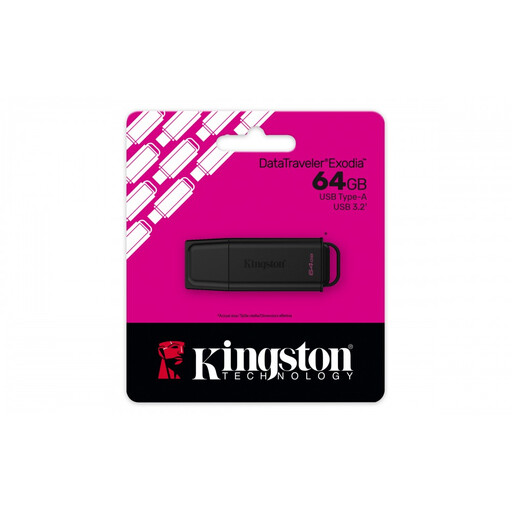 No image available
An option for storing game footage locally and taking files with you via a USB-A connection.
Capacity: 64 GB.
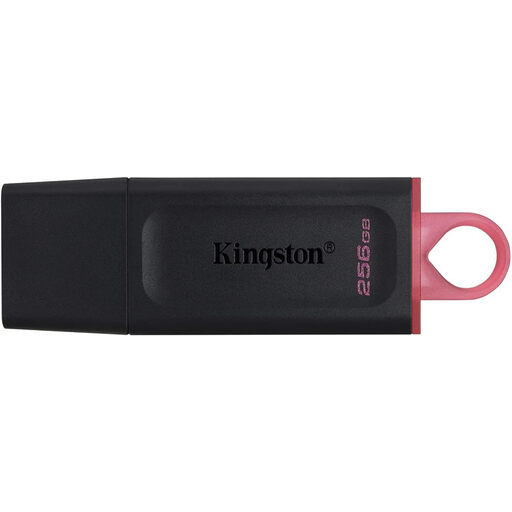 No image available
The larger capacity is useful if you want to store lots of video files locally. Check that the USB-A connection and format suit your storage method.
Capacity: 256 GB. USB 3.2 Gen 1. Stated write speed: up to 625 MB/s.
 No image available
A USB-A option for storing and transferring files via a computer.
Capacity: 128 GB. USB 3.2 Gen 1 Type-A.
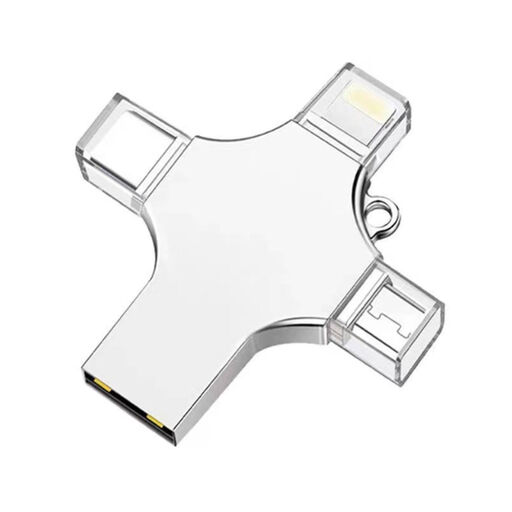 No image available
Designed for transferring and storing files between devices with different connections. Check which connections your devices actually use.
Capacity: 32 GB. Connections listed in the product name: USB 3.0, Lightning, USB-C and Micro-USB.
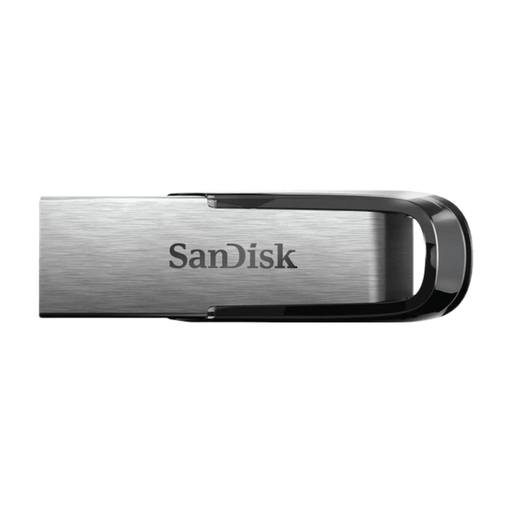 No image available
The stated capacity may suit a large local archive. Check that the USB connection and format are suitable for your console or computer.
Capacity: 512 GB. USB 3.0.
Not for the direct methods described here: PlayStation specifies FAT or exFAT for captures on a standard USB stick, while Xbox specifies USB 3.0 with NTFS for external captures. Xbox Support warns that formatting erases existing files, so move them somewhere else first.
No. Nintendo describes transferring files to a computer using a data-capable cable connected directly to the console’s USB-C port. The USB ports on the dock don’t support this feature. You can then save the files locally on a USB stick.
For captures from software played on Switch 2, Nintendo specifies microSD Express, not other types of microSD card. A USB stick for a computer isn’t a substitute for this memory card method.
No. According to ACM ConsuWijzer, in the Netherlands you also have a legal guarantee alongside any manufacturer’s or seller’s warranty if a product doesn’t meet what you could reasonably expect under normal use. The seller is responsible for providing an appropriate solution.