
Photographer handing over client photos
You want to hand family photos over to a client while keeping your own copy, so you can recover them if needed. The National Cyber Security Centre advises keeping important data in multiple copies.


Choose a USB stick with enough space for the entire photo folder that your client can use with their device. Keep a separate copy too, and test that files open from the stick before handing it over. If the photos clearly identify people and are being supplied for professional work, the level of access protection you need will depend on the risks and whether your client can use the chosen unlocking method.
You want to hand family photos over to a client while keeping your own copy, so you can recover them if needed. The National Cyber Security Centre advises keeping important data in multiple copies.
You want to know in advance which USB ports the source and client devices have, and whether files can be opened on both systems. Kingston Technology describes models with both USB-A and USB-C; the file system may also matter.
You need enough space for the whole photo folder. When copying, consider the available capacity and write speed, not just the stated read speed.
First, check the size of the photo folder and the port on your client's device. Then decide which copying and security steps are right for this transfer.
| What to consider | What should you check? | Who is this important for? |
|---|---|---|
| Recoverable copy | Keep a separate copy and, after copying, open a few files directly from the stick. | If I’m giving the photos to a client, I want to keep my own way of recovering them. Around 28% of consumers prioritise recoverability. |
| Privacy during transfer | Weigh up the risk of losing the stick and check how your client can unlock any encryption. | When photos clearly identify people, I want to decide in advance who can access them if the stick goes missing. Around 28% of consumers put access protection first. |
| Connection and readability | Ask which ports and devices your client uses. For Mac and Windows, check the file system too; Apple Support lists exFAT as a Windows-compatible format that a Mac can use. | If I’m transferring files between different devices, I want my client to be able to open them. Around 22% of consumers prioritise device compatibility. |
| Storage and copying time | Check the folder size, the available space on the stick and the write speed of the exact model you’ve chosen. | For a large photo delivery, I want to know whether all the selected files will fit and how long they’ll take to copy. Around 22% of consumers prioritise storage and copying time. |
Once you’ve handed it over, you no longer have the stick. The National Cyber Security Centre advises keeping important data in multiple copies; also check that files can be opened from your backup.
Keep a separate copy and open a few test files from the stick before handing it over.
If something goes wrong, recovering the files may take longer without a separate copy.
A stated read speed doesn’t tell you how quickly the photo folder will be written to the stick. Manufacturers may list read and write speeds separately, and actual speeds can also vary depending on the device and how it’s used.
Check the write-speed specification for the exact model, and don’t treat the read speed as an indication of copying performance.
A lower write speed may mean it takes longer to transfer a large folder.
Having the right connection doesn’t guarantee that the file system will let you open or write files on the receiving device. Apple Support explains that a Mac may be able to read NTFS, but not write to it.
Check the devices and file system in advance, and test a file on the intended system. Make a copy elsewhere before reformatting the stick.
Reformatting or resupplying the files may require extra preparation.
Lexar describes the JumpDrive Dual Drive E32c as having a software vault that you create; Kingston specifies hardware encryption for the IronKey Vault Privacy 50. These are different product features.
Check how your client will unlock the files and whether the chosen method suits the risk assessment for this transfer.
A secure transfer may require extra preparation for software or sharing a password.
The Ultra Dual Drive Go range is worth considering when the source and client devices have different connectors.
The ranges reviewed include everything from USB-A models to models with both USB-A and USB-C, as well as the IronKey Vault Privacy 50 range.
The USB Flash Drive Type-C 128GB is designed for transfers where both the source and client devices have a compatible USB-C connection.
The JumpDrive Dual Drive E32c is worth considering if you need both USB-A and USB-C.
These USB sticks are options for storing and transferring a photo folder; check the capacity of each model and the connection on your client’s device.
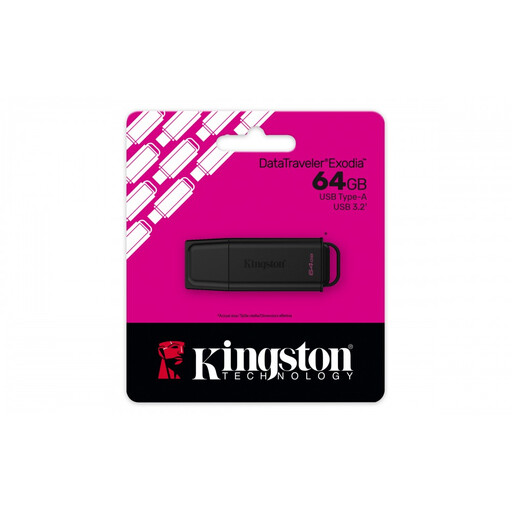 No image available
An option if the photo folder fits within 64 GB and your client’s device has a USB-A port.
Kingston lists USB-A, USB 3.2 Gen 1 and speeds of up to 200 MB/s read and 60 MB/s write.
 No image available
An option if the photo folder fits in the available space and your client has a USB-A port.
Kingston lists 128 GB, USB Type-A and USB 3.2 Gen 1; the product description also mentions compatibility with USB 2.0 ports.
 No image available
Could be suitable for transferring files between devices with a USB-A port, if the folder fits within 64 GB.
SanDisk lists password protection and 128-bit AES encryption via SanDisk software. Check that your client can use the software.
 No image available
An option for transferring files between devices with different USB-A and USB-C connections, if the photo folder fits within 512 GB.
SanDisk lists USB-A and USB-C, with read speeds of up to 150 MB/s. This read speed doesn’t indicate how quickly the photo folder will be written.
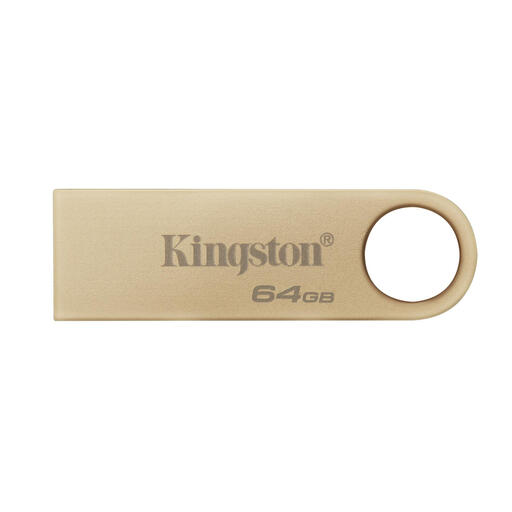 No image available
An option for a photo folder of up to 64 GB when your client’s device has a USB-A port.
Kingston lists maximum read speeds of 220 MB/s and write speeds of 100 MB/s. The stated write speed is a maximum, not a promise of how long copying will take on your devices.
Not if handing it over means you’re giving away your only backup. Keep a separate copy and open a few files from the stick before handing it over. The National Cyber Security Centre advises keeping multiple copies of important data.
First, check the current format and the devices. Apple Support lists exFAT as a Windows-compatible format that a Mac can use; a Mac may be able to read an NTFS drive, but not write to it. Copy any existing files elsewhere before erasing or reformatting a stick.
The right level of protection depends on the risks involved in handling the images professionally. The Dutch Data Protection Authority considers identifiable people in images to be personal data and says organisations must decide for themselves which security measures are needed. An encrypted stick may be appropriate in a particular work situation, but you’ll need to assess this transfer and whether your client can unlock it.
A warranty on the stick doesn’t guarantee that lost photo files can be recovered. Check the terms for the exact model and keep important files in a separate location too.