Choose a USB stick based on how sensitive the logbook is, and on the client’s computer ports and unlocking options. For confidential content, a stick with access protection may be suitable, provided the client can follow the unlocking process; dual USB connectors only help overcome a possible port mismatch. Keep a separate copy yourself too, and check that the files open before handing them over.
Who should consider this choice?
People handing over confidential notes
If you’re handing over personal data, you’ll want to make sure a lost stick doesn’t give unauthorised people access to it. The Dutch Data Protection Authority lists the loss of an unencrypted stick containing personal data as a possible cause of a data breach.
People transferring files between different computers
If you don’t know whether the client uses USB-A or USB-C, check in advance that the stick and its files can be opened on the receiving device. Apple Support notes that you may need a suitable adapter if the connector doesn’t match.
Anyone who wants to keep a verifiable backup
If you want to check the handover and keep a copy for yourself, you can review the files beforehand and keep a separate backup. VeiligInternetten describes a backup as a copy of files.
What should you look for when buying?
Start by considering how confidential the content is and whether the files can be opened on the client’s computer. Then compare capacity, checking options and ease of copying.
Hardware-encrypted USB stick
Suitable when: the content is confidential and the client can follow the agreed unlocking process.
Bear in mind: password access takes preparation and testing; on some models, entering the wrong password repeatedly can erase the data.
USB-A and USB-C stick
Suitable when: the source and destination computers may have different ports.
Bear in mind: two connectors don’t protect the content; also check that the computer can access the storage device and open the files.
USB-A stick
Suitable when: both computers have a compatible USB-A port and straightforward file sharing is all you need.
Bear in mind: you may need a suitable adapter for a computer without a USB-A port; arrange access protection separately if needed.
| Consideration |
What to look for when buying |
Who should consider this? |
| Access to confidential content |
Check the access protection and unlocking process; agree how the password will be shared separately. |
If I’m handing over confidential notes, I don’t want losing the stick to mean that anyone can read them. Around 36% of consumers in this handover scenario put access protection first. |
| Completeness and recoverability |
Compare the file size with the available space, open a test file and keep a separate copy yourself. |
If I don’t want to hand over my only copy, I want to be able to check the transfer and keep a backup for myself. Around 29% of consumers give completeness and recoverability top priority. |
| Connector and readability |
Find out which ports and operating systems the client uses; also check the file system and any unlocking software. |
If I’m not sure which computer the client uses, I want to avoid a situation where the stick or its files can’t be opened. Around 21% of consumers in this situation put connector compatibility and readability first. |
| Copying and safe removal |
Check the write specification for the exact model, and safely eject the stick after copying. |
If I have a lot of files to transfer, I want to be able to finish and check the copy without unnecessary delays. Around 14% of consumers put ease of copying and transfer time first. |
Common buying mistakes
-
Using the transfer stick as your only backup
A USB stick can be lost or damaged. If it’s your only copy, the content may become inaccessible.
Keep a separate, up-to-date copy yourself and check the transferred files before handing over the stick.
-
Confusing dual connectors with access protection
USB-A and USB-C connectors fit different ports, but they don’t protect the files if someone finds the stick.
Assess how sensitive the content is separately from the connector, and choose a suitable security method if needed.
-
Handing over a secure stick without testing it first
The client must be able to follow the unlocking process. Otherwise, the handover may fail; on some models, too many incorrect attempts can erase the data.
Test that the files open on a suitable receiving system, share the password separately and keep a managed backup.
The unlocking process may require extra preparation; on some models, repeated incorrect entries can erase the data.
-
Mistaking read speed for backup speed
Read and write speeds are different. A stated read speed doesn’t tell you how quickly files will be copied to the stick.
Check the write specification for the exact model, then make sure the copied files open.
Brands to consider
These brands offer examples of different connectors and security options. Their inclusion isn’t a general recommendation, or a guarantee that every model is available.
Kingston
The IronKey Vault Privacy 50 range has separate USB-A and USB-C models.
- Kingston lists hardware encryption and multiple password options, including a recovery password.
- Check which connector you need and set up access in advance. Kingston warns that repeatedly entering the wrong administrator password can erase the data.
SanDisk
The Ultra Dual Drive Go 32 GB is an example of a model with USB-A and USB-C connectors.
- The two connectors can be useful when the source and destination computers have different ports.
- Dual connectors don’t make an unencrypted copy confidential.
Samsung
The BAR Plus MUF-64BE3/APC is a USB-A model with a capacity of 64 GB.
- Samsung lists a metal casing and read speeds of up to 300 MB/s for this model.
- The stated speed is for reading, not writing, and may vary depending on the device and conditions of use, according to Samsung. A sturdy casing is no substitute for a second copy.
Verbatim
The Store ’n’ Go Secure Pro 16 GB is a USB-A example with hardware-based password access.
- Verbatim states that the data is erased after ten failed entry attempts.
- Before the handover, check that the client can set up and use access on the intended computer.
Transcend
According to Transcend, the JetFlash 930C has both USB-A and USB-C connectors.
- Dual connectors may be useful when transferring files between devices with different ports.
- The connectors can’t be used at the same time. According to Transcend, mobile devices need to support USB OTG.
USB sticks for this handover at Joybuy
This selection includes USB sticks with USB-A and USB-C, as well as a SanDisk Ultra 64 GB USB 3.0 model. Before the handover, check the capacity you need, compatibility with the client’s computer and the access protection you’ve chosen.
 No image available
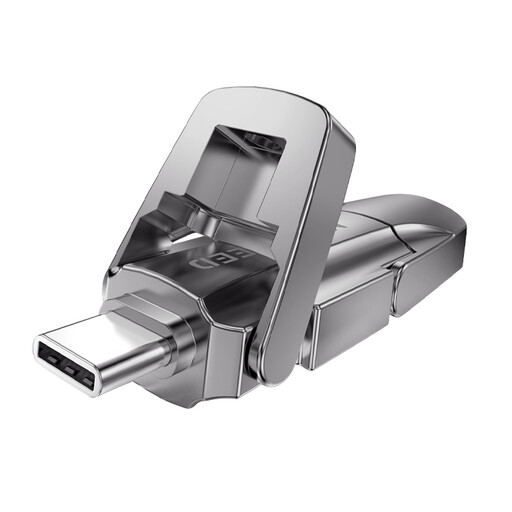
MOVESPEED YSUYVP10-256GSR, 256 GB
May be suitable when the source and destination computers have different USB-A and USB-C ports.
Capacity: 256 GB. The product information lists read speeds of up to 1.090 MB/s and write speeds of up to 1.030 MB/s; actual transfer speeds also depend on the devices used.
View at Joybuy
 No image available
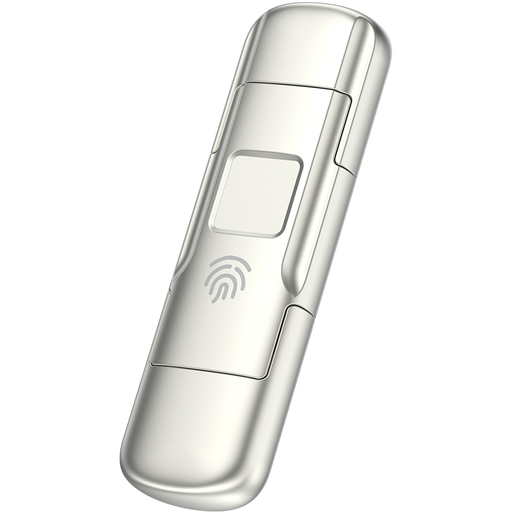
MOVESPEED YSUYC-256GSN, 256 GB, silver
May be worth considering if you need both USB-A and USB-C connectors and want to assess access protection options.
Capacity: 256 GB. The product title lists fingerprint access and USB-A/USB-C; the product information gives read speeds of up to 550 MB/s and write speeds of up to 500 MB/s.
View at Joybuy
 No image available
MOVESPEED YSUYVP10-512GSR, 512 GB
May be suitable if you need to bridge different USB-A and USB-C ports and have a large number of files to transfer.
Capacity: 512 GB. The product information lists read speeds of up to 1.090 MB/s and write speeds of up to 1.030 MB/s; check the copy on the computer you’re using.
View at Joybuy
 No image available
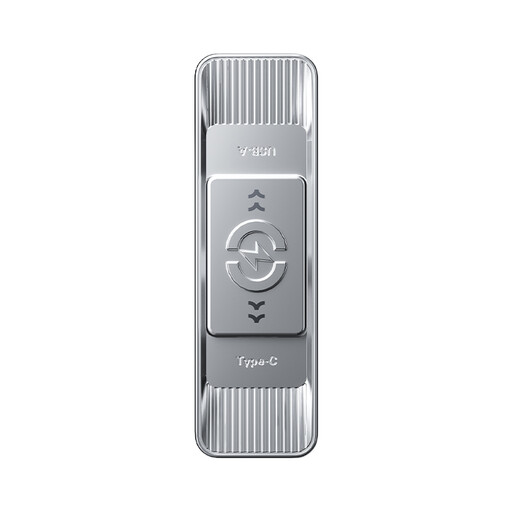
MOVESPEED YSUSP05-512GSR, 512 GB, silver
May be suitable for transferring files between devices with USB-A and USB-C when you need a capacity of 512 GB.
The product title lists USB 3.2 Gen 1 and Type-C as dual connectors. The product information gives read speeds of up to 570 MB/s and write speeds of up to 520 MB/s.
View at Joybuy
 No image available
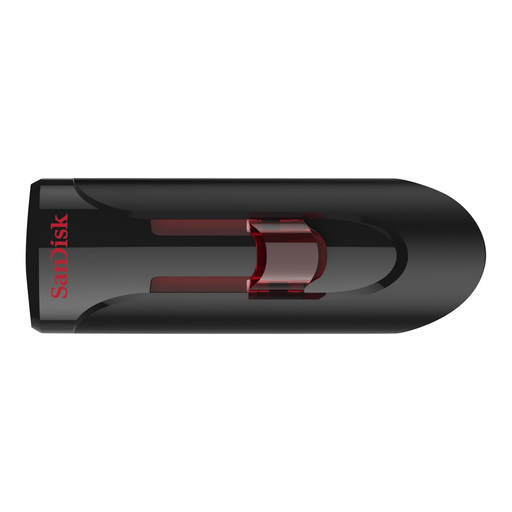
SanDisk Ultra USB 3.0 flash drive, 64 GB
May be suitable if 64 GB is enough and you check the connectors and any required software in advance.
Capacity: 64 GB. According to SanDisk product information, SecureAccess offers password protection with 128-bit AES for private files; using the Mac software requires a download.
View at Joybuy
Frequently asked questions
How much capacity do you need for your diary or logbook?
First, add up the size of the files you want to transfer and compare the total with the available space on the model you’ve chosen. Usable space may be less than the stated capacity, so choose based on the files you actually have.
Can the client open the stick on both Windows and Mac?
Check the connector, file system and any unlocking software on the receiving computer. Kingston lists exFAT as a possible format for the Vault Privacy 50C when used with Mac and Windows; formatting erases existing data, so test your chosen approach in advance.
How can you prevent the copy from being corrupted when disconnecting the stick?
Wait until copying is complete, open a file from the stick to check it, then use the eject function. Microsoft recommends safely removing USB storage to prevent data loss.
Is one USB stick enough as a backup when handing over the files?
Not if you need a recovery copy yourself after the handover. A stick can be lost or damaged, so keep a separate, up-to-date copy in line with your data-handling arrangements.
Do you have to report a lost stick containing personal data?
It depends on the risk to the people concerned, so there isn’t an automatic yes or no. According to the Dutch Data Protection Authority, a data breach must be reported unless it is unlikely to pose a risk; if a report is required, the general deadline is 72 hours after becoming aware of the breach.


