Start by deciding which catalogue files, original photos and exports you may need to restore after the handover. Then choose a drive with enough usable capacity and a connector that fits your computer. For large copying jobs, write speed matters. If the files you take with you contain identifiable customer data, consider the risks and choose appropriate security measures. Keep a separate copy too, and test that you can read the files back.
Who should consider this choice?
Photographers who need to be able to restore a job
If you need to restore files after the handover, check that your copy includes the necessary photos and exports as well as the catalogue. Adobe makes a clear distinction between the Lightroom Classic catalogue backup and the photo files.
Photographers with identifiable client photos
If a drive you take with you contains personal data, tailor its security to the specific privacy risks. The Dutch Data Protection Authority says that appropriate security measures depend on the processing involved and the risks.
Photographers with large copying jobs
If you need to copy large folders before a deadline, compare the stated write speed with the computer’s USB connection and the capacity required for your files.
What should you look for when choosing?
First decide which files you need to be able to restore. Then check the capacity and connector, and compare the stated write speed for large folders.
| What to consider |
What should you check? |
Who should pay particular attention? |
| Recoverability and capacity |
Measure the folders you want to copy and compare their size with the usable storage space. After copying, open files directly from the drive. |
I want to be able to restore the catalogue, necessary photos and exports after the handover, so I check the entire copy. Around 36% of consumers give recoverability and sufficient space top priority. |
| Security for client files |
Assess whether the copy contains personal data and what security is appropriate for the specific risks. Agree who will be able to unlock the drive. |
If I take identifiable client files with me, I want to control access accordingly and know in advance how authorised people can open the copy. Around 29% of consumers prioritise appropriate security. |
| Write speed |
Compare the write-speed specification for the exact model and check which USB interface your computer supports; don’t confuse read speed with write speed. |
For large photo folders, I want to be able to write the copy before the deadline, so I pay attention to write speed. Around 21% of consumers give copying time top priority. |
| Connector |
Check the ports on both the computer you’re copying from and the one you might use to restore the files. Choose USB-A, USB-C or both accordingly. |
If I might need to open the files on computers with different ports, I don’t want to depend on just one type of connector. Around 14% of consumers prioritise compatibility with the computer used for copying and restoring. |
Common mistakes
-
Copying only the catalogue file
According to Adobe, a backup made from Lightroom Classic contains only the catalogue file. The necessary photos and exports are not included automatically.
Make a list of the files you’ll need if anything is lost, then test that you can restore them from the copy.
-
Mistaking read speed for write speed
The stated read speed doesn’t tell you how quickly files will be written to the drive. For the D400 reviewed, Lexar says that the write speed is lower than the stated maximum read speed.
Compare the write-speed specification for the exact model and take your computer’s USB interface into account.
-
Keeping the drive as your only backup
If the drive you take with you is the only copy, losing it could leave you with no way to restore your files. The Digital Trust Center recommends keeping backups in different locations, while the NCSC advises checking that files in a backup can be opened.
Keep a separate copy and check that you can read the files back before the handover.
Brands to consider
Kingston
The Kingston ranges reviewed include models for large copying jobs and drives with access protection.
- Kingston states that the DataTraveler Max series offers write speeds of up to 900 MB/s; actual speeds depend on factors including hardware and usage.
- Kingston says the IronKey Vault Privacy 50 has hardware-based AES-256 encryption and multiple password roles. Agree in advance how passwords and recovery access will be managed.
Lexar
The JumpDrive Dual Drive D400 reviewed is designed for use with USB-A and USB-C connections.
- Lexar lists two connector types and DataShield software for an encrypted vault.
- The stated maximum speed of 130 MB/s is for reading; Lexar says writing is slower.
Samsung
The MUF-256DA/APC model reviewed is designed for use with a USB-C connection.
- Samsung states that this model offers 256 GB of storage and sequential read speeds of up to 400 MB/s.
- Read speed is not a write-speed specification; for a backup, compare the write-speed details for the exact model.
SanDisk
The Ultra Dual Drive Go range is worth considering if you want to transfer files between devices with USB-A and USB-C connections.
- SanDisk describes transferring files between devices with both types of connection.
- For the model you’re considering, check that its capacity and write-speed specifications suit your copying job.
USB flash drives at Joybuy
This selection includes USB-A drives, a USB-C drive and models with both USB-A and USB-C, so you can choose a connector that suits the computer you’re copying from or restoring to.
 No image available
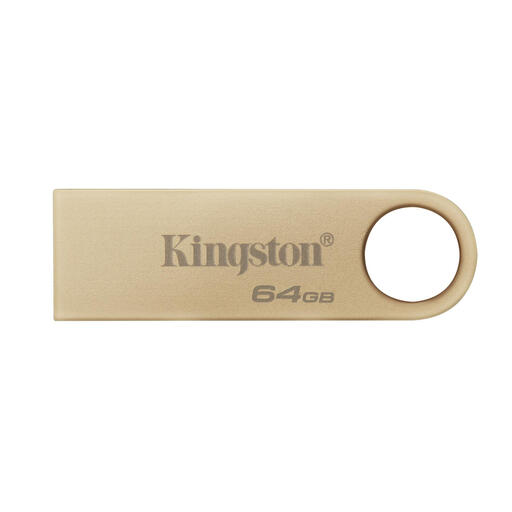
Kingston DataTraveler SE9 G3 64 GB USB 3.2 Gen 1
A good fit for copying via USB-A if your selected files fit within 64 GB.
The stated connection is designed for USB-A host devices.
View at Joybuy
 No image available
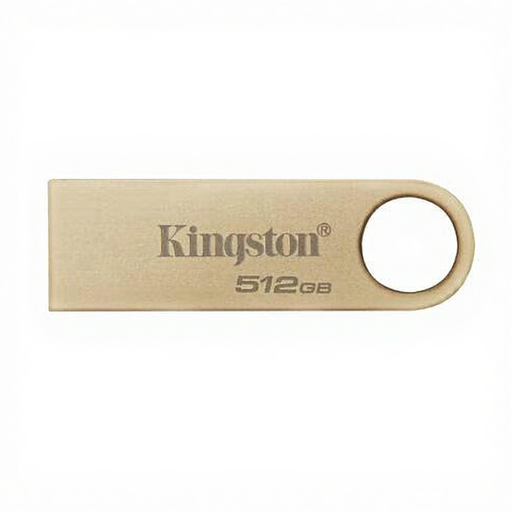
Kingston DataTraveler SE9 G3 512 GB USB 3.2 Gen 1
A good fit for copying via USB-A if your selected files fit within 512 GB.
The stated connection is designed for USB-A host devices.
View at Joybuy
 No image available
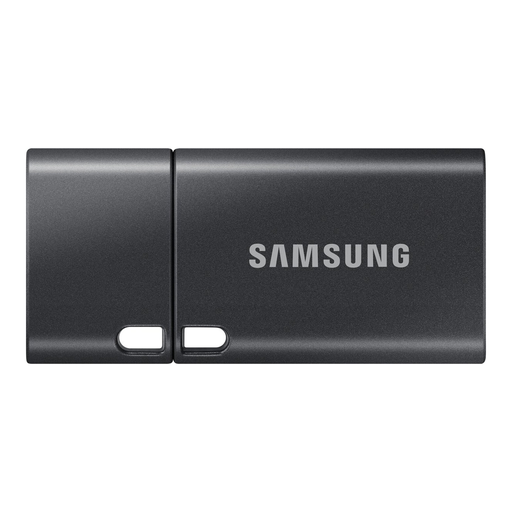
Samsung MUF-512DA USB Flash Drive 512 GB USB-C
A good fit for copying on a computer with USB-C if your files fit within 512 GB.
The product name specifies USB Type-C and USB 3.2 Gen 1.
View at Joybuy
 No image available
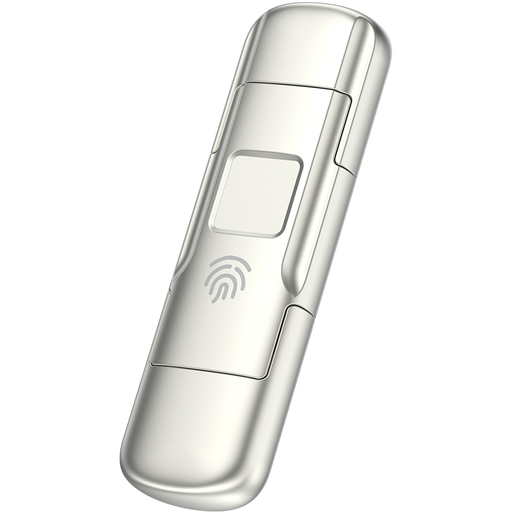
MOVESPEED YSUYC-256GSN 256 GB USB-A and USB-C
A good fit for use with devices that have USB-A and USB-C connections if your files fit within 256 GB.
The product name specifies AES-256 encryption and fingerprint access. Check that the unlocking method fits your handover procedure.
The stated speeds are 550 MB/s read and 500 MB/s write.
View at Joybuy
 No image available
MOVESPEED YSUYVP10-512GSR 512 GB USB-A and USB-C
A good fit for use with devices that have USB-A and USB-C connections if your files fit within 512 GB.
The product name specifies read speeds of up to 1.090 MB/s. Read speed doesn’t tell you how quickly a backup will be written.
View at Joybuy
Frequently asked questions
Does backing up my Lightroom Classic catalogue also back up my photos?
No. According to Adobe, a backup made from Lightroom Classic contains only the catalogue file; you need to back up photos and exports separately. Check which files you actually need to be able to restore.
How do I check my USB backup before handing work over to a client?
Open a few copied files directly from the drive and, where necessary, try restoring them. The NCSC recommends testing backups to check that the right files have been included.
Do I always need to use an encrypted USB flash drive for client photos in the Netherlands?
There is no blanket requirement to use a specific type of encrypted drive for every client photo. The Dutch Data Protection Authority says that appropriate security depends on the processing involved and the specific privacy risks. It also notes that losing a drive containing unencrypted personal data could constitute a data breach.
Do I always have to report the loss of a drive containing client data within 72 hours?
No, not every loss automatically needs to be reported. According to the Dutch Data Protection Authority, the data controller must assess the risk; the Authority must be notified unless a risk to the people affected is unlikely. If notification is required, the general deadline is 72 hours after becoming aware of the breach. Whether the people affected must be informed depends on whether a high risk is likely.


