
New speedrun commentator
You want to connect your voice via USB and quickly mute yourself during a presentation, without setting up a mixer first.


Start with placement and controls: a USB microphone with a suitable desk stand and an easily accessible mute control can work well for a simple setup. If your desk is noisy, the distance from your mouth matters. If you also want to control your voice and game audio separately, check the features of the exact model. A directional pickup pattern or noise filter won’t make a noisy room quiet by itself.
You want to connect your voice via USB and quickly mute yourself during a presentation, without setting up a mixer first.
Your PC fan or keyboard may come through in your commentary. You can adjust the microphone position, but make a test recording to see what difference it makes in your room.
You want to adjust the balance between your voice, game audio and your own monitor mix while speaking.
First decide how you’ll position and control the microphone. Then consider whether you need separate control over your voice and game audio during your presentation.
| What to consider | What should you check? | Who does this matter to? |
|---|---|---|
| Clear voice over desk noise | Check the pickup pattern and whether a boom arm can position the microphone close to your mouth. Make a test recording with your keyboard and PC fan running. | If you can hear your keyboard or fan during commentary, you’ll want to know whether positioning helps in your room. Around 33% of consumers prioritise clear speech in a noisy workspace. |
| Mute and voice level | Check whether the model has an easily accessible mute control and whether you can monitor your voice level. | For live interruptions, you’ll want to be able to mute quickly and notice when your voice gets louder. An estimated 27% of consumers prioritise having controls close to hand. |
| Mixing voice and game audio | Check whether the microphone and any accompanying software offer the mixing options you need, and whether you’re happy to configure them. | If you want to adjust your commentary, game audio and monitor mix separately, the mixing controls matter. Around 20% of consumers prioritise control over their live audio mix. |
| A suitable setup and connections | Check the cable and computer port, the included stand or arm, and whether you want to use USB or need XLR as well. | If you have little time to set up your desk or want to expand your setup later, the positioning and connections need to suit your needs. Around 20% of consumers make this their top consideration. |
A USB connection can plug straight into a compatible computer port; using XLR requires suitable additional equipment. A filter can help with mild background noise, but it’s no substitute for good positioning and a test recording.
A directional pickup pattern and a noise filter aren’t the same thing. Shure says the MV7+ denoiser doesn’t remove keyboard clicks or background voices; OBS Studio describes noise suppression as mainly useful for mild background noise.
Make a test recording while typing and playing, and check whether you can position the microphone closer to your mouth.
Elgato describes the MK.2 as a different model with onboard processing. So the name Wave:3 alone doesn’t tell you which generation or features you’ll get.
Check the full model name and the features of the specific version before ordering.
USB can connect directly to a compatible computer; using XLR requires suitable additional equipment.
Decide whether you’ll use USB on its own for now, and check the cable, stand or arm and any XLR equipment separately.
The SoloCast 2 is designed for a straightforward USB desk setup with a mute control.
The PodMic USB combines USB-C with an XLR connection, for anyone who may want to use a different audio setup later.
The MV7+ is a USB/XLR option with controls and monitoring on the microphone itself.
The Wave:3 MK.2 is designed for presenters who want to manage their voice and other audio sources through Wave Link.
The Yeti Nano offers a compact USB desk setup with cardioid and omnidirectional modes.
This selection ranges from USB microphones for streaming to wireless USB-C and lavalier microphones. For a speedrun presentation, pay particular attention to the model’s connection, positioning and mute control.
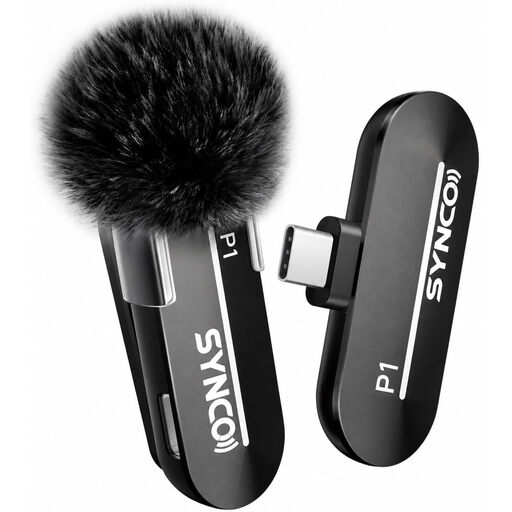 No image available
The product title describes a wireless USB-C microphone for streaming. Check that the connection and wireless setup suit your computer and regular use at a desk.
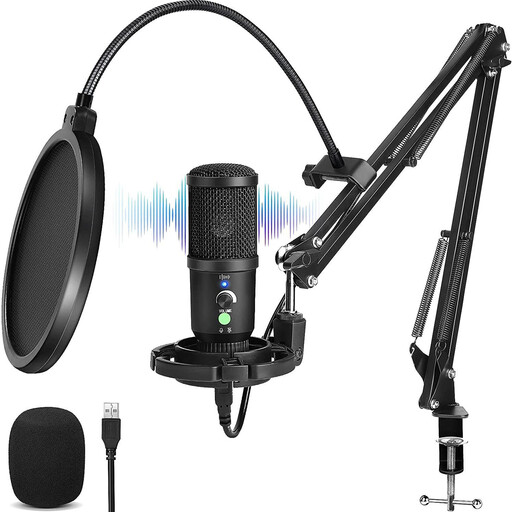 No image available
The product title describes a USB condenser microphone for streaming and gaming. Make a test recording to see whether your voice comes through clearly in your room; a product listing that mentions noise cancellation doesn’t guarantee that background noise will disappear.
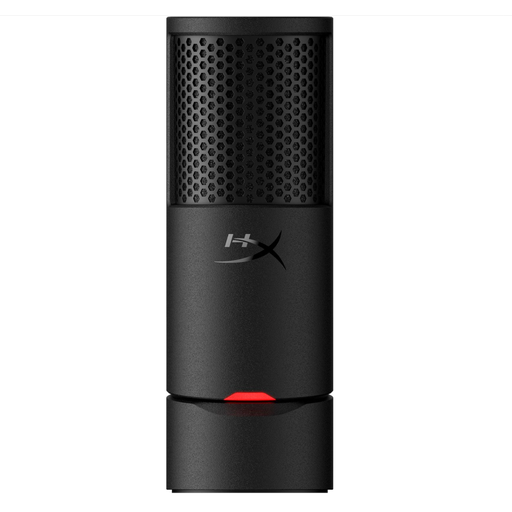 No image available
This USB gaming microphone is described as plug-and-play. HyperX lists touch-to-mute with an LED indicator and an integrated pop filter among the SoloCast 2’s features. Make a test recording to see how its position works with your keyboard.
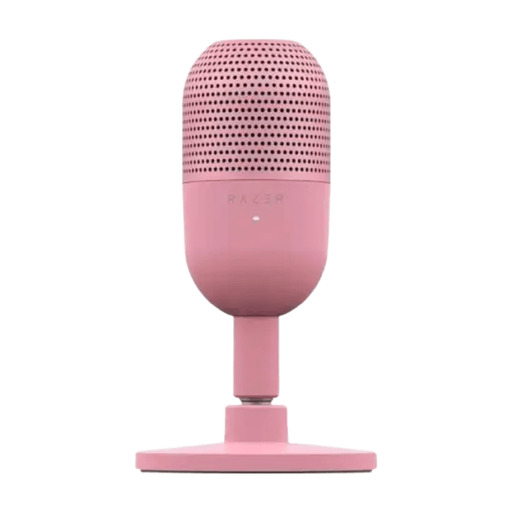 No image available
The product title describes an ultra-compact USB microphone with tap-to-mute. Check whether its compact desk setup and mute control suit the way you present.
 No image available
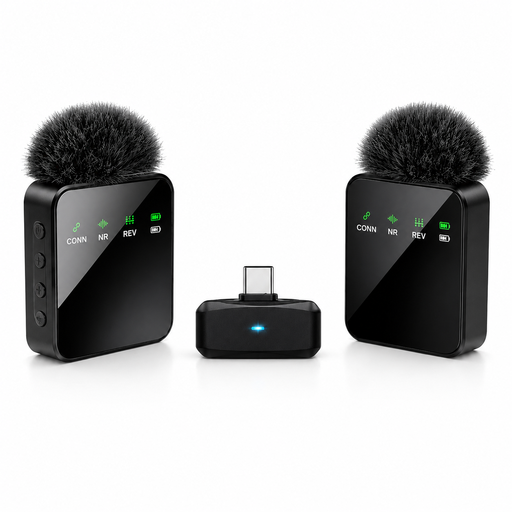
The product title describes two lavalier microphones and a Type-C interface for live streaming. Consider whether a lavalier setup suits your presentation, and how you want to combine game audio with your commentary.
Yes. A USB microphone can connect directly to a compatible computer port; an XLR connection requires suitable additional equipment. Check that the cable and connector are compatible with your computer.
OBS Studio describes noise suppression as useful for mild background noise, but not as a solution for a very noisy room. A noise gate reduces sound during pauses; test the threshold settings to make sure the beginnings and ends of your words aren’t cut off.
Check whether the specific model includes a suitable stand, arm and cable, and whether the connections work with your computer. If you want to use XLR, bear in mind that you’ll need suitable additional equipment.
If a product is faulty, statutory consumer rights apply in the Netherlands alongside any manufacturer’s warranty. The Dutch government states that there is no fixed statutory warranty period; contact the seller about any problem with the product.