
Practising alone in a shared space
You want to hear your pronunciation and pace while other people are in the same room. Shure describes the MV7+ as suitable for close-up speech, but microphone placement and direction still matter.


If other people are speaking in the same room, prioritise a microphone you can position close to your mouth and point away from their voices. A cardioid pickup pattern won’t remove background voices completely, so also choose based on your setup, your laptop’s connections and whether you want to hear yourself through headphones while practising.
You want to hear your pronunciation and pace while other people are in the same room. Shure describes the MV7+ as suitable for close-up speech, but microphone placement and direction still matter.
You’re practising at a computer and want to check what the microphone picks up through headphones. RØDE lists a headphone output and monitor mix control for the NT-USB+.
You want to be able to connect the microphone quickly and see when it’s muted. HyperX lists a mute indicator for the SoloCast 2; make a test recording to check how the microphone sounds in your space.
A good fit if: you speak from one fixed position and other people’s voices are a significant recording concern.
Bear in mind: you’ll need to stay close to the microphone; Shure says the MV7+’s noise processing doesn’t remove background voices.
A good fit if: you practise sitting down and want a straightforward desktop setup.
Bear in mind: a cardioid pattern doesn’t guarantee that other people’s voices will be excluded from the recording; check with a test recording.
A good fit if: you want to hear yourself through headphones while practising and can make the room quiet enough.
Bear in mind: the cable needs to match your laptop’s ports; RØDE says you’ll need a different USB-C-to-USB-A cable if your laptop only has USB-A ports.
| What to consider | What to look for | Who is this important for? |
|---|---|---|
| Recording your own voice clearly | Check the pickup pattern, the direction of the microphone and the result of a test recording while the room is being used as usual. | When I practise my presentation with other people around, I want to be able to hear my own voice clearly. Around 40% of consumers prioritise clear speech over background voices. |
| Hearing the recording as you speak | Check whether the model has a headphone output and suitable level controls. | When I want to hear what the microphone is picking up as I speak, I look for direct headphone monitoring. Around 25% of consumers prioritise this feature. |
| Setting up and muting quickly | Check whether a desk stand and mute indicator are included, and which accessories come with that version. | When I’m using a shared workstation, I want to be able to set up quickly and mute the microphone when needed. Around 17% of consumers prioritise ease of use. |
| Connecting to your laptop | Compare the cable supplied with your laptop’s ports, then select the microphone as the audio input on your computer or in your recording app. | When I record on my own laptop, I want the cable and ports to be compatible. Around 18% of consumers prioritise laptop compatibility. |
Shure says the MV7+’s noise processing doesn’t remove background voices. So a noise processing feature doesn’t guarantee that other people won’t be audible.
Consider where you’ll position the microphone and make a test recording in the room where you plan to practise.
For the NT-USB+, RØDE says you’ll need a different USB-C-to-USB-A data cable if your computer only has USB-A ports.
Check your laptop’s ports and which cable is supplied with the version you’ve chosen.
You may need a compatible USB data cable.
If the wrong audio input is selected, your recording might not include sound from your USB microphone.
Select the microphone as the input, then listen to a short test recording before recording your full presentation.
The MV7+ is a dynamic USB microphone for close-up speech, for example when you’re practising from one fixed position.
The SoloCast 2 is a USB desktop microphone for anyone looking for a simple setup and a visible mute status.
The NT-USB+ is a good choice for practising at a computer when you want to hear yourself through headphones.
These product picks are suited to practising at a computer or desk, with a focus on headphone monitoring, ease of use and muting the microphone.
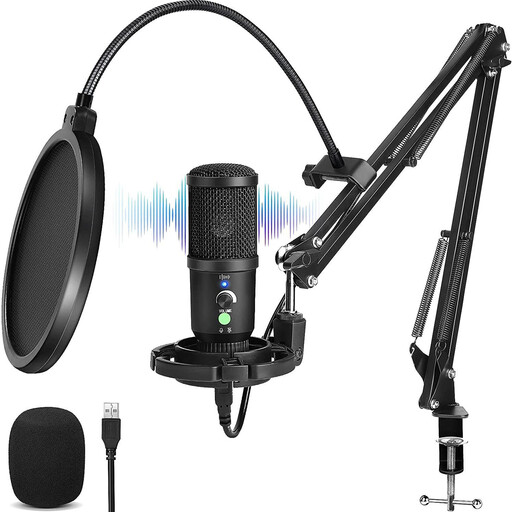 No image available
The direct monitoring mentioned makes it a good choice for practising when you want to hear yourself.
The product name describes a USB condenser microphone with a cardioid pattern and zero-latency monitoring.
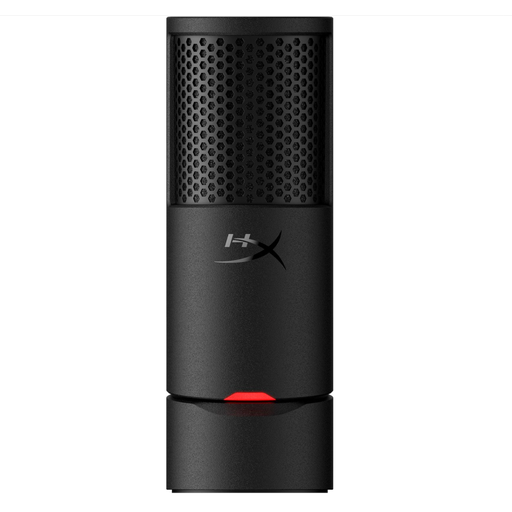 No image available
This desktop microphone is a good fit if you want to be able to mute it easily during short practice sessions.
HyperX lists a cardioid pattern, desk stand, built-in pop filter and mute indicator for the SoloCast 2.
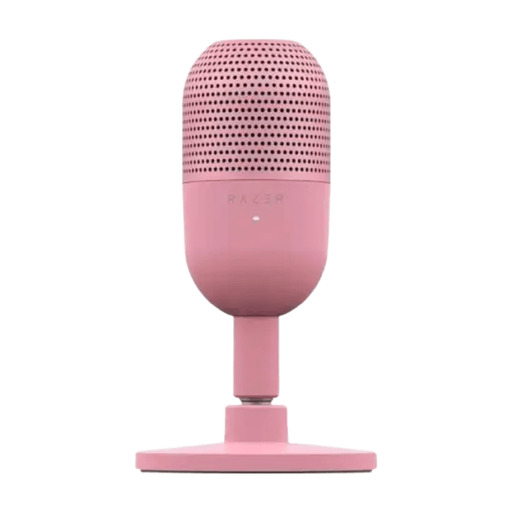 No image available
The compact design could be a good fit for a small desk setup.
The product name describes a USB microphone with tap-to-mute controls.
No, don’t count on it. Shure says the MV7+’s noise processing can’t remove background voices. Speak close to the microphone, point it away from other people and listen back to a test recording.
Connect the microphone using a compatible data cable, then select it as the audio input in your sound settings or recording app. RØDE describes these steps for the NT-USB+; check the instructions for the model you’re using too.
Check the mute status, the direction of the microphone and whether the recording app is using the correct input. Make a short test recording before recording your presentation.
It depends on the model and the equipment you already have. According to RØDE, the NT-USB+ has a headphone output, but you’ll need a compatible pair of headphones. If your laptop only has USB-A ports, you may also need a different data cable.
That depends on the purpose and circumstances; don’t assume that recording and sharing is always permitted. Talk to the people present beforehand about whether their voices will be recorded and how you’ll use the recording, and check the rules with your educational institution. The Dutch Data Protection Authority distinguishes purely personal use from other processing, which requires a legal basis under the GDPR; consent is one possible legal basis.