If you only practise at your laptop, start with a straightforward USB microphone with a directional pickup pattern. Make a test recording to check that your voice comes through clearly alongside the sound of your laptop and the room. If you want to listen as you speak or connect other audio equipment later, look for a headphone output or USB/XLR. These extra features aren’t automatically necessary for practising on your own. A directional pickup pattern is no substitute for good positioning.
Who is this choice relevant to?
Student who wants to listen back to their own voice
If you practise on your own at a laptop, you’ll mainly want to check that your voice is clear and hear how your pace and pronunciation sound. Shure explains how a microphone’s direction and position affect the recording of background noise.
Student who wants a quick set-up
You want to plug in the microphone, select it as the input source and make a short test recording without a complicated set-up. Microsoft Support explains how to select and test a microphone in Windows.
Student who wants to listen while speaking
You want to hear your voice not only afterwards, but also directly through headphones as you practise.
What should you look for?
Start with your main aim: listening back clearly, connecting quickly or hearing yourself as you speak. Only choose extra features if you really need them.
| What to consider |
What should you check? |
Who is this important for? |
| Clear voice recording |
Check the pickup pattern and which side you should speak into. Make a test recording with your laptop in the position it will be in while you practise. Shure notes that a cardioid microphone can pick up sound from in front, so positioning still matters. |
When I practise my presentation on my own, I want to assess my voice without assuming that a directional pickup pattern will eliminate all laptop or room noise. Around 36% of consumers prioritise clarity. |
| Connecting and recording |
Check that your laptop port matches the supplied cable, select the microphone as the input source and play back a test recording. Microsoft Support explains how to test a microphone in Windows. |
I want to make a recording quickly and check straight away that my laptop is using the right microphone. Around 29% of consumers prioritise easy connection and a quick start. |
| Listening while speaking |
Check whether the exact model has a headphone output. RØDE and Audio-Technica list direct headphone monitoring for the NT-USB Mini and ATR2100x-USB respectively. |
If I want to hear how my pronunciation sounds straight away, a headphone output may matter more than simply playing back a recording afterwards. Around 21% of consumers prioritise direct monitoring. |
| Features and set-up |
Decide whether you’ll only be speaking or also recording with other people. Then check which stand, cables and pickup patterns the model offers. XLR and omnidirectional recording are only relevant if you’ll use them. |
I don’t want to spend money on features or desk space for things that won’t help me practise on my own. Around 14% of consumers prioritise simplicity and avoiding unnecessary extras. |
Common mistakes
-
Expecting a directional pickup pattern to filter out all laptop noise
A cardioid microphone also picks up sound from in front. The direction and distance between your mouth, laptop and microphone therefore still affect the recording.
Point the intended speaking side towards your mouth and make a test recording with the laptop in its usual position. Shure explains how pickup pattern and positioning work together.
-
Looking only at the microphone’s connector
According to the manufacturer, the RØDE NT-USB Mini comes with a USB-C-to-USB-A cable. The connector on the microphone alone won’t tell you whether the supplied cable will work with your laptop.
Check your laptop port and the cable supplied with the exact model before ordering.
-
Choosing extra pickup patterns or XLR when you don’t need them
Omnidirectional recording is designed to pick up sound from multiple directions; XLR is relevant if you want to use a conventional XLR input. For simply practising next to a laptop, these features may be unnecessary.
Choose them only if you actually want to record multiple speakers or use other audio equipment.
-
Assuming the manufacturer’s warranty covers all your statutory rights
The Dutch government explains that there is no fixed statutory warranty period in the Netherlands, and that you can contact the retailer if a product is faulty. A manufacturer’s warranty does not automatically replace these rights.
Check exactly what any additional warranty covers and how it relates to your existing rights.
Brands to compare
HyperX
The SoloCast 2 is a compact USB desktop microphone for solo recordings.
- HyperX says this model has cardioid pickup, a built-in pop filter, shock absorption and tap-to-mute controls.
- These features don’t prove that the microphone will sound better than alternatives in every room or set-up.
Razer
The Seiren V3 Mini is designed for a compact USB set-up with one speaker.
- Razer lists a supercardioid pickup pattern, tap-to-mute controls and a built-in shock mount for this model.
- Razer’s description of voice isolation is not an independent measurement of performance when practising next to a laptop.
RØDE
The NT-USB Mini is well suited to desk-based practice if you want to monitor your voice directly through headphones.
- The manufacturer lists a built-in pop filter, a removable desktop stand, a headphone output and a supplied USB-C-to-USB-A cable.
- If your laptop only has USB-C ports, check which connector or cable you’ll need.
Audio-Technica
The ATR2100x-USB is a dynamic handheld microphone for anyone who wants USB connectivity and the option of an XLR connection.
- European product information lists USB and XLR, direct headphone monitoring, a desktop tripod and USB-C-to-USB-C and USB-C-to-USB-A cables.
- XLR isn’t essential if you only want to record next to a laptop.
Logitech G
The Yeti Nano lets you choose between cardioid and omnidirectional pickup.
- Logitech says the omnidirectional mode picks up sound from all around, while the cardioid mode focuses on a speaker in front of the microphone.
- The omnidirectional mode also picks up sound from other directions. G HUB is required for the Blue VO!CE effects promoted by Logitech.
Joybuy product picks
These product picks include microphones for use with a laptop, from compact USB models to wireless sets. Check each model’s connection, included accessories and features to make sure they suit the way you practise.
 No image available
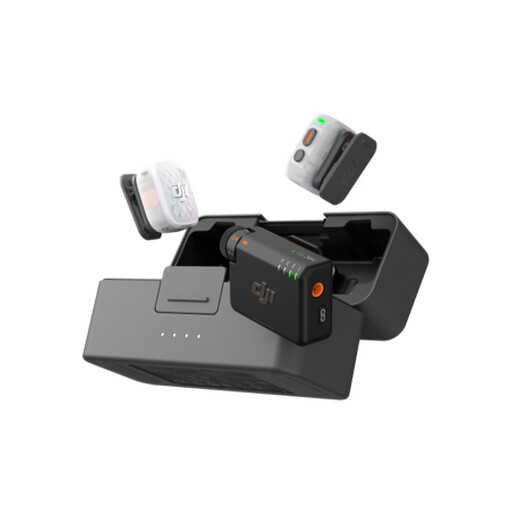
DJI Mic Mini 2S (2 TX + 1 RX + Charging Case)
The product description lists compatibility with PCs and internal recording; according to the product name, the set includes two transmitters, one receiver and a charging case.
The product description also mentions AI noise cancellation. Check that the supplied receiver and connections are compatible with your laptop.
View at Joybuy
 No image available
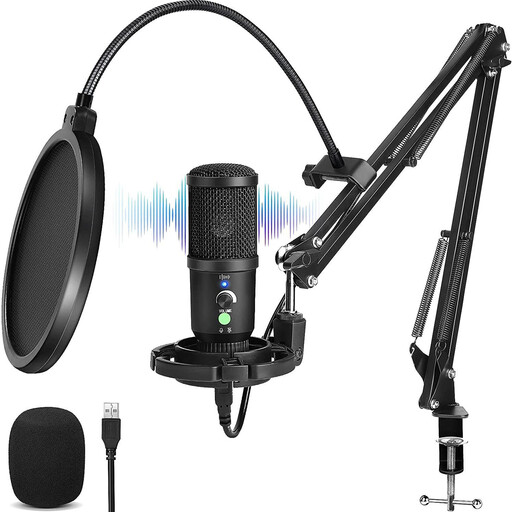
USB condenser microphone with cardioid pickup pattern
The product name specifies a cardioid pickup pattern, while the product description mentions a headphone socket for monitoring.
The description also lists a boom arm, shock mount and pop filter. Check what’s included with the version you’re buying and whether it connects to your laptop.
View at Joybuy
 No image available
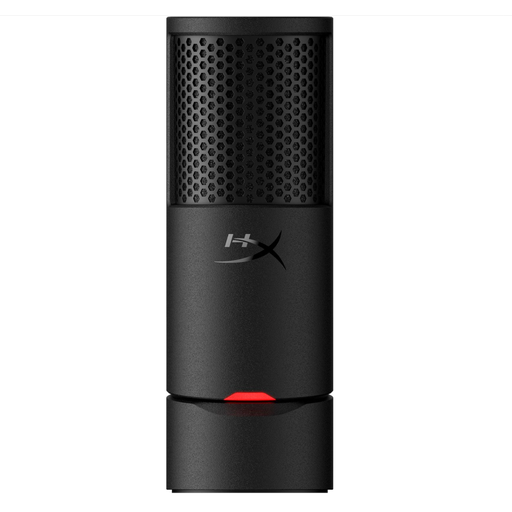
HyperX SoloCast 2
This cardioid USB model is worth comparing if you practise on your own at a laptop; the product information lists a built-in pop filter and adjustable stand.
The product description mentions USB-C and USB-A connectivity. Check which cable comes with the version you’re buying.
View at Joybuy
 No image available
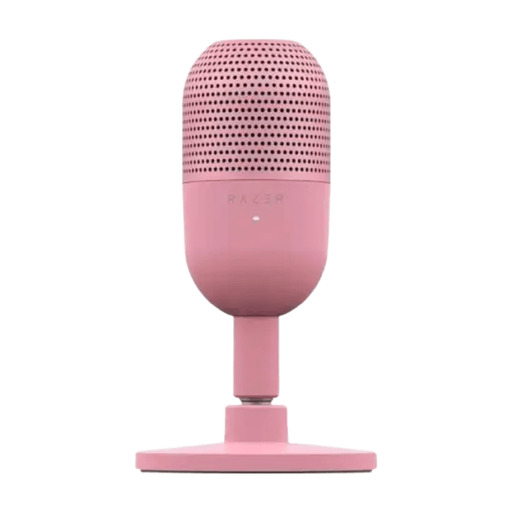
Razer Seiren V3 Mini Quartz
The product information lists a supercardioid USB microphone with tap-to-mute controls, designed for speaking into the front of the microphone.
Check the positioning and make a test recording to see how it sounds with your laptop nearby.
View at Joybuy
 No image available
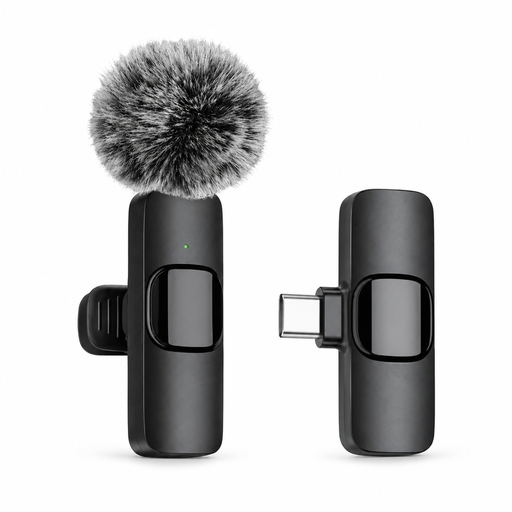
Verbex K9-Black wireless mini lavalier microphone
The product name specifies a wireless lavalier microphone with a Type-C connection; the product description lists computers as compatible devices.
Check that the supplied connection works with your laptop and consider how you want to attach the microphone while practising.
View at Joybuy
Frequently asked questions
How do I check whether my laptop is using the USB microphone?
In Windows, select the microphone you want under the input settings, start a test and play back the sample. Microsoft Support explains how to run this test. Also check the input selected in the app you use to practise.
Do I need a headphone output on the microphone?
Only if you want to hear your voice directly through the microphone as you speak. For feedback afterwards, you can play back the recording. According to the manufacturers, the RØDE NT-USB Mini and Audio-Technica ATR2100x-USB have an output for direct monitoring.
Can I record classmates or a teacher while practising?
Ask your school before recording anyone else or sharing a recording. The Dutch Data Protection Authority advises educational institutions to set rules about making and storing recordings, their purpose and when they should be deleted. These guidelines don’t automatically give you permission to record every classmate or teacher.
What does the manufacturer’s warranty mean for my rights if the microphone breaks?
A manufacturer’s warranty is separate from your statutory rights to a product that is fit for purpose. The Dutch government states that there is no fixed statutory warranty period in the Netherlands and that you should contact the retailer if a product is faulty. Before choosing additional cover, check exactly what it includes.


