
Dictating with background noise
You want to record a single voice in a room without acoustic treatment and can position the microphone close by.


If background noise is your main concern and you can position the microphone close to your mouth, look for a directional model designed for close-up speech. Then compare the stand or arm you’ll need, the USB connection and the controls. A handheld dictation microphone works differently from a fixed desk microphone, and neither replaces dictation software or a suitable set-up.
You want to record a single voice in a room without acoustic treatment and can position the microphone close by.
You want to plug in a USB microphone, select the right input and dictate in your existing word-processing programme.
You dictate more often and value recording controls or a fixed, comfortable set-up.
First, choose a spot where you can position the microphone close to you. Then check that the connection, controls and dictation software suit the way you work.
| What to consider | What should you look for? | Who is this important for? |
|---|---|---|
| Clear speech | Check the microphone’s pickup direction, whether you can position it nearby and how a test recording sounds in your own room. | If I want to reduce background noise, I need to be able to position the microphone at a suitable distance. Around 36% of consumers put clear speech first. |
| Easy dictation | Check your computer’s port and cable, whether you can select the microphone input, and the requirements for the dictation feature. | I want to plug in, select the right input and see text appear without extra steps. Around 29% of consumers prefer a straightforward dictation workflow. |
| A practical set-up | Check whether a stand is included, whether an arm will fit on your desk, and which controls you’ll need while dictating. | If I want to dictate comfortably, the microphone needs to be in a practical position and suit the way I use it. Around 21% of consumers prioritise positioning and posture. |
| A complete set-up | Check what’s included in the exact package and whether your dictation software comes with any requirements or costs. | I want to know in advance which equipment and software I’ll need for the way I work. Around 14% of consumers focus mainly on the complete set-up and software. |
A USB connection doesn’t automatically make a microphone suitable for every dictation feature. Microsoft Support recommends selecting and testing your chosen microphone as the input in Windows. You should also make a test recording in the programme you’ll use to write your letter.
The Shure MV7 and MV7+ have USB, but Shure says the MV7X is a dynamic microphone with XLR only.
Check the full model name and the connection on the exact version you’re considering. If it has XLR only, you’ll also need a separate audio interface.
An XLR-only version requires an extra device and a different connection set-up.
RØDE says the PodMic USB can sound quiet if it’s too far from the speaker.
Plan where you can position the microphone before you buy, then check the input level with a test recording once it’s connected.
If the package doesn’t include a suitable stand, you may need to buy a stand or arm.
Microphone settings and speech recognition are separate things. A good microphone doesn’t guarantee that names or punctuation will appear correctly in your letter.
Dictate a short test passage using the software you plan to use, then check the result before carrying on.
The PodMic USB is a dynamic desktop microphone with USB and XLR connections, designed for close-up speech.
The MV7+ is a dynamic USB/XLR microphone with adjustable features for a fixed speaking position.
The ATR2100x-USB is a dynamic handheld microphone with USB and XLR connections that can also be used on a desk stand.
The SpeechMike LFH3200 is a USB handheld microphone for dictation.
These USB microphones are suited to desk dictation. Compare their controls and the features listed in each product name.
 No image available
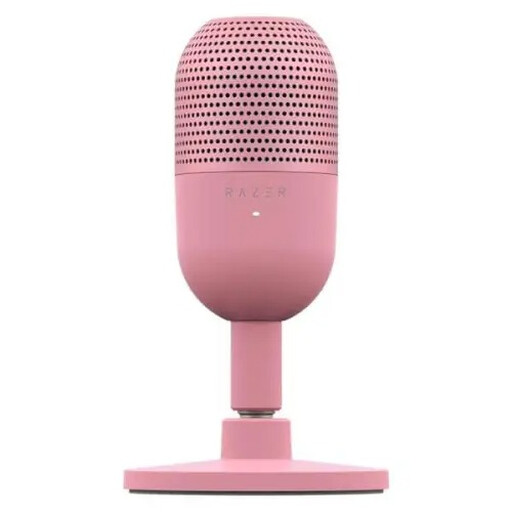
A compact USB microphone for desk dictation, with tap-to-mute controls for those who want to mute the mic at the touch of a button.
The product name highlights its ultra-compact design and Tap-to-Mute feature.
 No image available
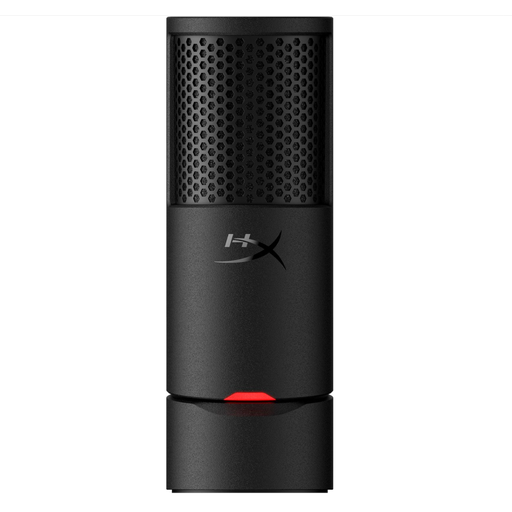
A USB microphone for desk dictation if you’re looking for a mic with a cardioid pickup pattern.
The product name lists cardioid pickup and Plug & Play. Check that the connection and set-up suit your computer and dictation software.
Not with the microphone alone: you’ll also need to select the right microphone input and check that you have access to the dictation feature. Microsoft Support says Dictate in Word via Microsoft 365 requires an enabled microphone, a signed-in account and a reliable internet connection. Check the requirements for your version of Word.
Point the PodMic USB towards your mouth and try RØDE’s recommended distance of around 5–10 cm. Then check the input level and make a test recording. This distance is specific to this model.
That depends on what’s included with the microphone and which software you choose. Audio-Technica lists a desk stand with the ATR2100x-USB, while RØDE says the PodMic USB can be mounted on a stand or arm. Check what’s included with the version you choose and the requirements of your dictation programme.
When you buy online from a business in the Netherlands, you’re usually entitled to a 14-day cooling-off period, although exceptions may apply depending on the circumstances and seller. You’re also entitled to a product that is of satisfactory quality. According to the Dutch government, there’s no fixed time limit for the legal guarantee in the Netherlands; what you can reasonably expect also depends on the product. If there’s a fault, contact the seller.
No. The dictation software also determines how your speech is processed. Microsoft says that voice typing in Windows 11 uses online speech recognition, so check the privacy settings and how the programme works before dictating sensitive content.