
Dictating alongside colleagues
You want your own voice to remain clear while others are working in the same room. So, consider how far the microphone is from your mouth and test a recording at your desk.


Choose based on how close and consistently you can keep the microphone to your mouth. A headset lets you work hands-free, while a separate desk microphone needs a suitable spot and may require a stand or boom arm. A handheld microphone is best suited to situations where dictation controls are important to you. Whichever you choose, check the connection and compatibility with your dictation software. Noise cancellation doesn’t guarantee that your colleagues’ voices will be excluded from the recording.
You want your own voice to remain clear while others are working in the same room. So, consider how far the microphone is from your mouth and test a recording at your desk.
You dictate while viewing or editing documents and want to keep your hands free. A headset could suit you if you’d rather not place a separate microphone on your desk.
Your choice depends on how the microphone, computer and speech software work together. A USB connection alone doesn’t automatically mean your entire dictation workflow will work.
A good fit if: you want to dictate hands-free and need the microphone to move with your head.
Bear in mind: you’ll need to wear the headset, so check that it has the USB connection you want. A headset that reduces noise for the wearer won’t automatically remove voices from the microphone recording.
A good fit if: you’d rather not wear a headset and can position the microphone close to your mouth.
Bear in mind: a stand or boom arm takes up space and may need to be purchased separately. RØDE recommends speaking from around 5–10 cm away when using the PodMic USB.
A good fit if: controls and a dedicated dictation workflow matter more to you than working entirely hands-free.
Bear in mind: you’ll need to hold the microphone, so check that its buttons and settings work with your software.
| What to consider | What should you look for? | Who is this important for? |
|---|---|---|
| Background noise | Compare microphone positions and test a short dictation at your actual workplace. | When I dictate alongside colleagues, I want my voice to be recorded clearly without relying on every other voice being filtered out. Around 36% of consumers prioritise reducing background noise. |
| Hands-free working | Choose between a microphone boom positioned by your mouth and a separate microphone placed appropriately. | When I’m reading or editing a report at the same time, I want to keep my hands free and avoid cluttering my desk. Around 29% of consumers give hands-free, compact working top priority. |
| Dictation controls | Check which buttons your application supports and whether you need automatic switching. | When I often start, stop or correct a recording, I want the controls to fit my dictation workflow. Around 21% of consumers prioritise dictation buttons and workflow controls. |
| Connection and software | Check whether you need USB-A or USB-C, select the microphone as your input device and test the dictation feature you use. | When I want to get started quickly, I need the microphone to work with my computer and application. Around 14% of consumers prioritise a simple set-up. |
A claim about calls or background noise doesn’t prove how accurately your speech software will process a report in a shared workplace.
Before dictating a long report, make a test recording from your usual speaking distance, with the background noise you’d expect at work. Listen back and check the results in your own dictation software.
Allow time for test dictations and correcting recognition errors.
The RØDE PodMic USB is designed to be used close to your mouth and has a mounting point. Finding a suitable place for it can be tricky at a shared desk.
Check that you can position the microphone at your preferred speaking distance, and see what’s included with the exact version you’re buying.
You may need a suitable stand or microphone boom arm, so check before choosing your set-up.
A working connection doesn’t automatically mean your dictation application or the buttons on a particular microphone will be supported. For the Microsoft 365 dictation feature described, Microsoft lists requirements including an active subscription and microphone access.
Check the application, access permissions and the button functions you want. Test the microphone in the application you’ll use for your report.
The dictation feature you choose may require additional software or a subscription.
The wired Evolve2 40 SE is a headset option for hands-free dictation at a shared desk. Check the exact USB and mono or stereo version.
The PodMic USB is a separate dynamic microphone for anyone with a fixed speaking position and space for mounting it.
The SpeechMike Premium Touch SMP3700/3800 series is designed for dictation with a handheld microphone and built-in controls.
The MV7+ is a USB-C/XLR desk microphone for anyone who wants extra adjustable audio features as well as dictation.
This selection includes headsets and separate USB microphones for dictating a report at a shared desk. Check that each model’s connection and compatibility work with your own dictation software.
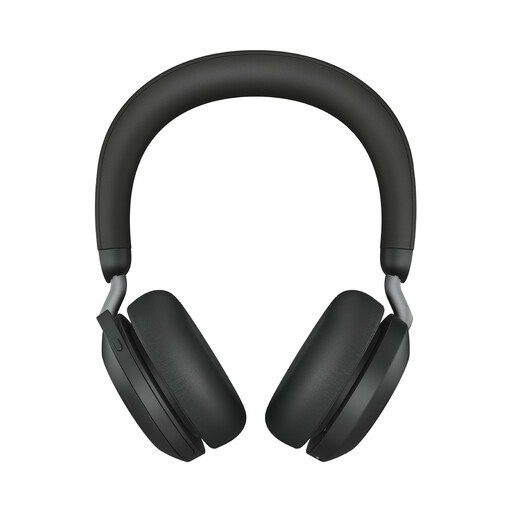 No image available
A headset with a microphone for anyone who doesn’t want to position a separate desk microphone while dictating.
The product name specifies USB-A and MS Teams; check that this version is compatible with your computer and dictation application.
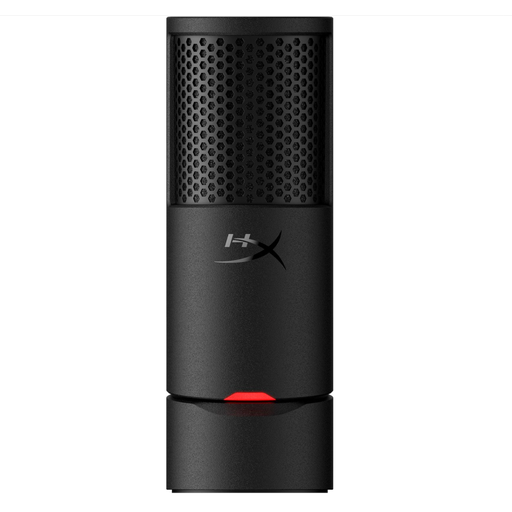 No image available
A separate USB microphone for anyone who’d rather not wear a headset and has space to position a microphone on their desk.
The product name specifies a USB gaming microphone; check its positioning and compatibility with your dictation software.
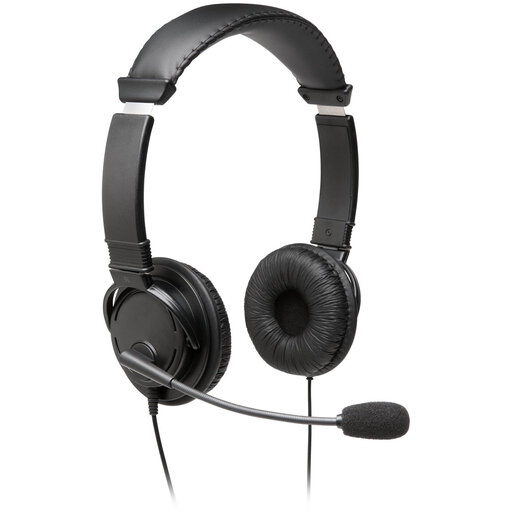 No image available
Headphones with a microphone for anyone who’d rather wear a headset while dictating than position a separate desk microphone.
The product name specifies USB; check that the connection is compatible with your computer.
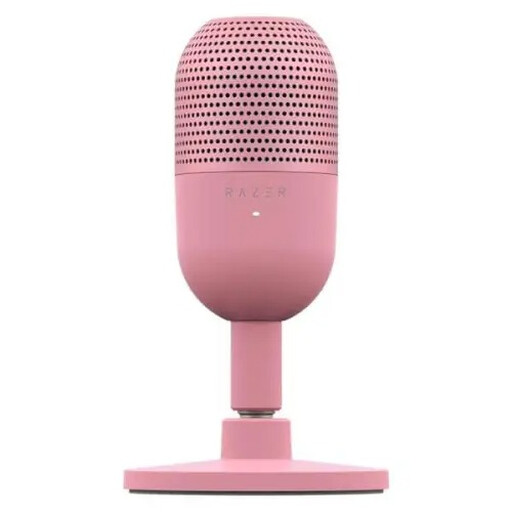 No image available
A separate USB microphone for anyone who’d rather not wear a headset and wants to control the microphone from their desk.
The product name specifies tap-to-mute; check that this control and the USB connection suit your dictation set-up.
 No image available
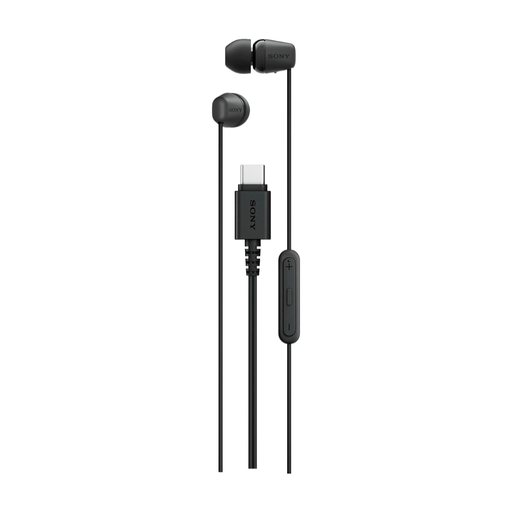
A wired in-ear headset with a microphone for anyone who’d rather not position a separate microphone on their desk.
The product name specifies USB Type-C; check that your computer supports this connection.
In Windows, select the connected microphone as your input device, start a test and listen back to the recording. If Microsoft 365 Dictation can’t hear anything, also check that the microphone isn’t muted, the input level and the microphone permissions.
No. A connection alone doesn’t guarantee that the dictation feature will work. For the Microsoft 365 dictation feature described, Microsoft lists requirements including an active subscription and microphone access. Test the microphone in the application you’ll use for your report.
Yes. If a recording also captures identifiable conversations with colleagues or is used to monitor staff, the organisation needs to consider GDPR. The Dutch Data Protection Authority warns that, because of the employer–employee power imbalance, employee consent is often not an appropriate legal basis for staff monitoring. Prevent unintended recordings and follow the relevant workplace and data policies.
For a consumer purchase in the Netherlands, the seller is responsible for the statutory guarantee. According to ACM ConsuWijzer, depending on the circumstances, the seller must repair, replace or refund a faulty product free of charge. A manufacturer’s guarantee does not replace these rights.