
Dictating in a noisy room
You want to keep one voice clear while other people are talking or the room is echoing. Being able to speak close to the microphone and test it on the spot will help you assess the setup.


If you want to dictate with one voice in a room full of chatter or echo, choose a microphone you can position close to your mouth, and test it where you’ll be speaking. A microphone can’t fix the room’s acoustics. Then choose between a simple desktop model and one with extra dictation controls, and check separately that your computer and dictation software support Dutch.
You want to keep one voice clear while other people are talking or the room is echoing. Being able to speak close to the microphone and test it on the spot will help you assess the setup.
You want a simple USB setup without a complicated recording workflow. You’ll also need microphone access on your computer and suitable speech-to-text software.
You want to control and check your recording during regular dictation. Check that the buttons you need work with your dictation software.
Start by considering how close you can get to the microphone and where you can place it. Then look at the connection, controls and software you need for your dictation.
| What to consider | What should you check? | Who is this important for? |
|---|---|---|
| Clarity amid voices and echo | Check the microphone’s pickup pattern and whether you can position it close to where you’ll be sitting or standing. Try a short dictation test there. | If I’m dictating a letter in a room where people are talking, I want to be able to keep the microphone close to my mouth and hear how my voice sounds first. Around 36% of consumers put clarity first. |
| Easy to connect and position | Check your computer’s USB port, the cable and whether the stand will fit on the table space available. | For a single letter, I want to set down the microphone and get started without a complicated recording setup. Around 29% of consumers prioritise easy connection and setup. |
| Controls and monitoring while dictating | Check whether it has a mute function or headphone socket. Check whether specific buttons work with your dictation software. | If I dictate regularly, I want to be able to control or listen back to the recording as I go. Around 21% of consumers put dictation controls and monitoring first. |
| Total cost and after-sales support | Check what’s included and what software requirements apply. Keep your purchase details in case you have any warranty questions. | I want to know what I need for a working setup, not just which microphone I’m buying. Around 14% of consumers focus on the total requirements and after-sales support. |
Shure says the MV7+ denoiser can reduce continuous sounds such as fans, but it doesn’t reliably remove background voices.
Test the microphone in the room, speak close to it and position it so that sources of unwanted noise aren’t directly in front of it.
Where you place the microphone affects how much direct speech and room reflections it picks up. Shure notes that a microphone can’t improve a room’s acoustics; for the PodMic USB, RØDE specifically recommends speaking from close by.
Before buying, check that you can position the microphone close enough and make a test recording from where you’ll be sitting.
The microphone captures audio, but language support and internet requirements depend on the software you choose. Microsoft Support says Word Dictation requires a Microsoft 365 subscription and a reliable internet connection. Windows Voice Typing and Voice Access are separate features.
Check the exact dictation feature on your computer before buying extra recording equipment.
Samson describes the Q2U as a dynamic cardioid microphone with USB and XLR connections, designed to pick up one voice.
The PodMic USB is a dynamic cardioid microphone with USB and XLR connections, designed for speech recording.
The SpeechMike Premium Touch SMP3700/3800 is a handheld microphone designed for dictation workflows.
The MV7+ is a dynamic USB microphone for close-up speech recording, with a cardioid pickup pattern.
HyperX describes the SoloCast 2 as a compact USB condenser microphone with a cardioid pickup pattern.
This selection includes USB microphones for speech recording and some wireless lavalier models. Check each model’s connection and pickup pattern to make sure they suit your computer and the room.
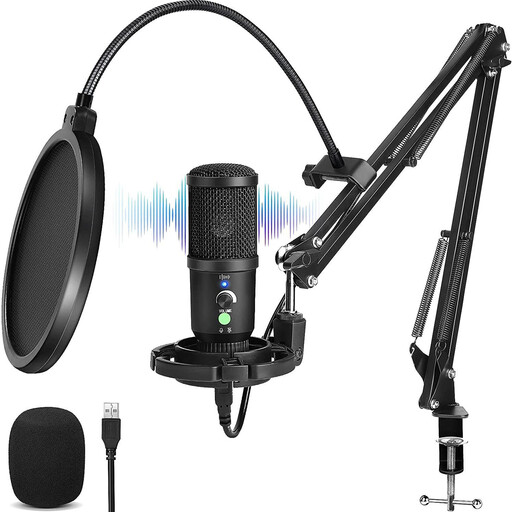 Image unavailable
The boom arm can help you position the microphone near where you’ll be speaking; check that it can be close enough in the room.
The product information lists a cardioid pickup pattern, USB connection, mute button and headphone socket. A USB cable is also included.
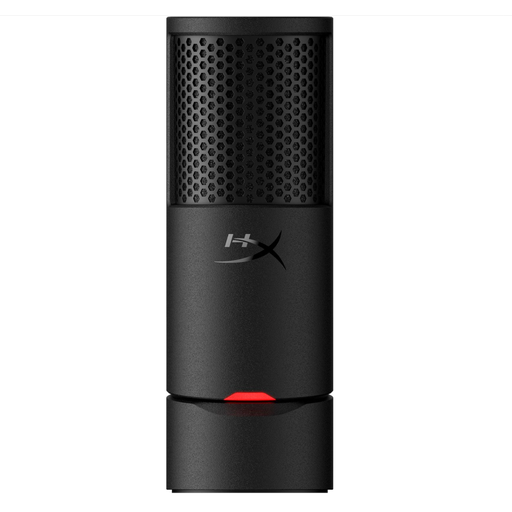 Image unavailable
A desktop model to consider if you can position the microphone close enough to where you’ll be speaking.
The product information lists a cardioid pickup pattern, integrated stand, pop filter, mute control and a USB-C to USB-A cable.
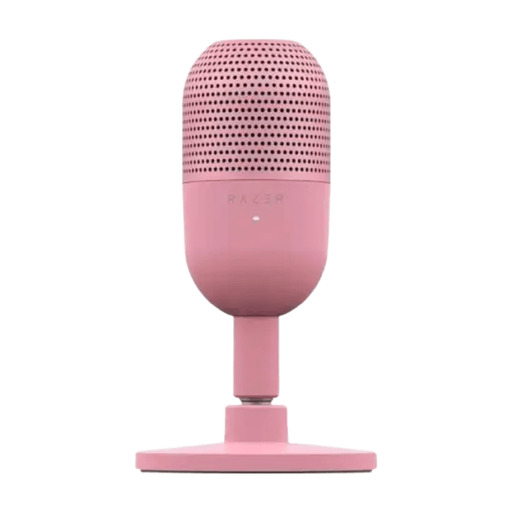 Image unavailable
A compact USB setup to consider if you can place the microphone close to where you’ll be speaking.
The product information lists a supercardioid pickup pattern, USB connection and tap-to-mute function. PC and Mac compatibility is also mentioned.
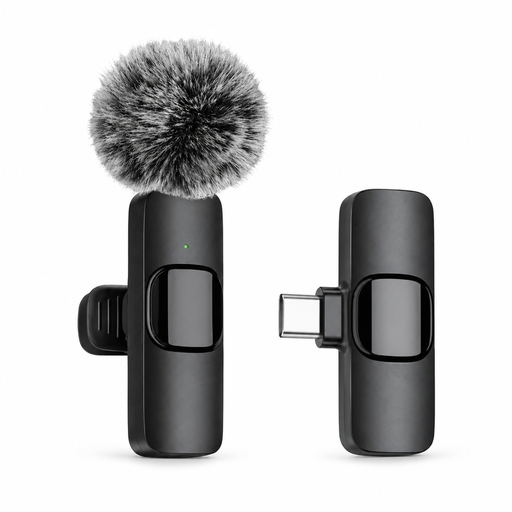 Image unavailable
This is a wireless lavalier microphone; check that its Type-C interface is compatible with your computer and dictation software.
The product information lists a Type-C interface and battery life of 3–6 hours.
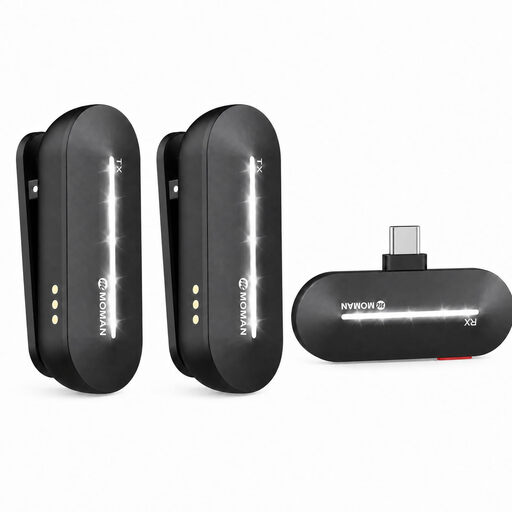 Image unavailable
Check that the USB-C receiver is compatible with your device and that the pickup pattern suits use in a room.
The set is described as having two transmitters and one receiver. The microphones are omnidirectional, not cardioid.
No. You’ll also need a computer with microphone access and suitable speech-to-text software. Microsoft Support says Word Dictation requires a Microsoft 365 subscription and a reliable internet connection. Windows Voice Typing supports Dutch (Netherlands) and uses online speech recognition. Test the feature you’ve chosen on your computer beforehand.
Don’t assume so: Dutch isn’t included in Microsoft Support’s list of Voice Access languages. The feature can work offline after its initial setup, but it’s different from Windows Voice Typing, which Microsoft lists as supporting Dutch (Netherlands) and describes as using online speech recognition.
First, check that the correct microphone is selected and isn’t muted, adjust the input level and try a quieter spot. Microsoft Support recommends these steps for dictation problems. For the PodMic USB, RØDE recommends speaking from around 5–10 cm away. This advice is specific to that model and doesn’t automatically apply to other microphones.
It depends on who is recording and what happens to any identifiable information; the location alone doesn’t determine this. The Dutch Data Protection Authority says an organisation needs a lawful basis under the GDPR when processing personal data. A limited exception may apply to strictly personal or household use. So keep dictation recordings focused on your own voice, and separately check whether recording other people is permitted.