
Hosts with a co-player in the room
You want both voices to be clear from where you’ll actually be sitting. Consider whether one shared pickup pattern will work for your setup, or whether each speaker should sit closer to a separate microphone.


Choose a microphone based on where your co-player sits: a microphone with multiple pickup patterns can be useful if you sometimes share the room, while a directional pattern is a better fit when you’re the only one speaking at the desk. A shared microphone signal won’t give you separate level controls for each person, so make a test recording from your usual seats. OBS Project describes noise suppression as useful for light background noise, not as a fix for a noisy room.
You want both voices to be clear from where you’ll actually be sitting. Consider whether one shared pickup pattern will work for your setup, or whether each speaker should sit closer to a separate microphone.
Your co-player is online, and you want to record your own voice close to the microphone without overlooking noise from a fan, computer or game.
You want to be able to mute the microphone, hear your own voice and check what audio your recording software is receiving while you play.
Coolblue’s buying advice highlights the number of speakers and the recording setup as key factors, so first decide whether your co-player will be sitting next to you or joining online.
Choose this if: you sometimes speak alone and sometimes want to record a co-player in the same room. HyperX lists four pickup patterns for the QuadCast 2 S, while Logitech G describes the Yeti as offering multiple patterns.
Trade-off: a wider pattern may also pick up more room noise, and the shared signal won’t adjust each voice separately.
Choose this if: you’re the only person speaking beside the microphone and your co-player is online. RØDE and Elgato offer examples with different controls and connection requirements.
Trade-off: a microphone aimed at you won’t automatically be suitable for recording someone on the other side of the room.
Choose this if: you speak close to the microphone and are also considering an XLR setup. Shure describes the MV7+ as a microphone for close-up speech, with USB-C and XLR outputs.
Trade-off: you’ll need a separate audio interface for XLR use. This option isn’t an obvious solution for two players sitting far apart.
For co-op streams in a spare room, your choice mainly depends on where the second voice is, how much background noise there is and which controls you need while playing.
| Concern | What to look for | Who should pay particular attention? |
|---|---|---|
| Recording two voices | Check the available pickup patterns and make a test recording from both seats. | If my co-player is sitting next to me, I want to hear whether one microphone can pick up both of us clearly. Around 36% of consumers prioritise recording two local voices. |
| Reducing room noise | Compare positioning close to the speaker with a wider pattern; don’t expect a filter to remove loud noise completely. | If computer or room noise could drown out my voice, I want to get the positioning right first. Around 29% of consumers prioritise clear speech in a noisy room. |
| Connection and compatibility | Check your computer port, the cable supplied and any system requirements for the exact version. | I want to know whether the microphone connects to my computer and works with my system before changing my setup. Around 21% of consumers prioritise connection and compatibility. |
| Live controls and monitoring | Check the mute control, headphone socket and monitoring options on the model you choose. | While playing, I want to be able to mute the microphone and hear my own voice without losing track of the stream. Around 14% of consumers prioritise live audio controls. |
The pattern determines the directions from which the microphone picks up sound, but it won’t automatically compensate for different distances or room noise.
Test both players from their usual seats and compare the recording with a setup where each speaker sits closer to a microphone.
Finding a suitable position may take extra time for setup and test recordings.
OBS Project describes noise suppression as mainly useful for light background noise, not heavy noise. Strong filtering can distort other sounds too.
First improve the microphone positioning, then listen to see whether a filter helps the recording.
Cables, ports and system requirements can vary by model.
For the exact version, check your computer port, the cable supplied and any software or system requirements.
You may need a different cable or adapter, or to adjust your computer setup.
The QuadCast 2 S is an option if you want to switch between recording one or several voices with a single USB microphone.
The Yeti is an alternative with multiple pickup patterns and controls on the microphone.
The NT-USB Mini is a compact option for a direct connection at your desk.
The MV7+ is a USB/XLR option for a host who speaks close to a single microphone.
The Wave:3 MK.2 is designed for a host looking for a cardioid USB microphone with monitoring and Wave Link integration.
These Joybuy products are aimed at a host speaking at their desk; check the recording features and connections on each model to find the right fit for your setup.
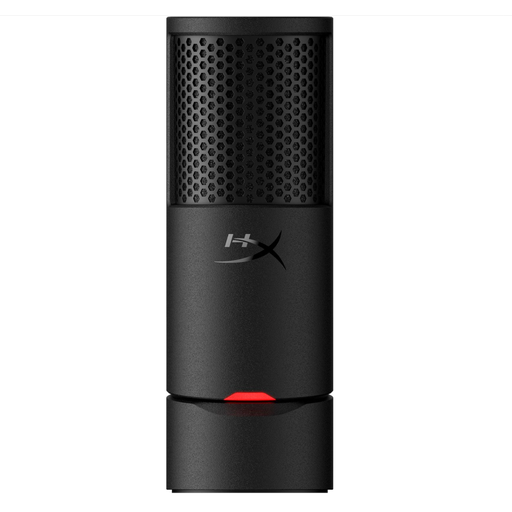 No image available
Suitable for a host who speaks at their desk and wants to be able to mute the microphone while playing.
Cardioid pickup; plug and play; mute button with LED indicator; USB-C-to-USB-A cable included.
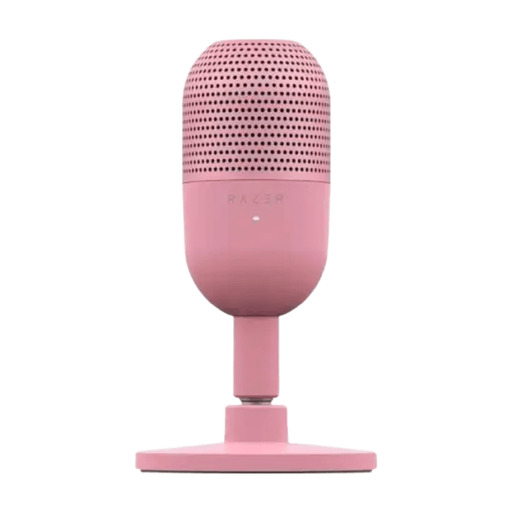 No image available
Suitable for a host who speaks at their desk and wants to mute the microphone while playing.
Supercardioid pickup pattern; USB connection; tap-to-mute.
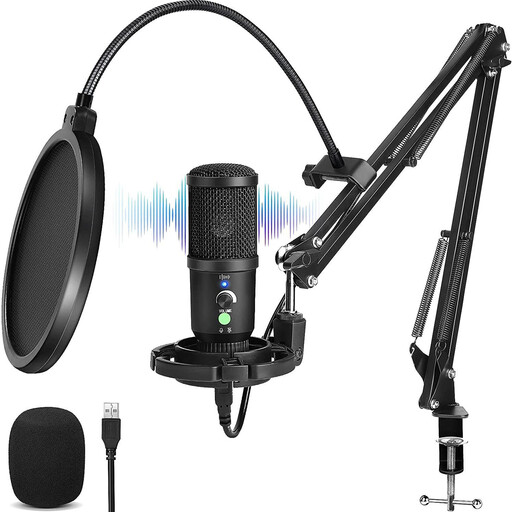 No image available
Suitable for a host who wants to hear their own voice while streaming.
Cardioid pickup pattern; latency-free monitoring; headphone socket; gain control; boom arm stand included.
Yes, if the pickup pattern and positioning work for both seats; Coolblue mentions an omnidirectional pattern as an option for multiple people. Make a test recording, as one shared microphone signal won’t give you separate control over each voice.
Not automatically. OBS Project describes noise suppression as useful for light background noise, but generally not for heavy noise; strong filtering can distort your voice too.
Select the microphone as the input source on your computer and in your recording software, then make a test recording to check that both voices are audible. Adjust an OBS noise gate so it doesn’t cut off your voice.
Not without permission. The Government of the Netherlands says you may only use copyrighted music with the creator’s permission. This general information doesn’t determine which rights have already been cleared for a particular track or game.