If you dictate in a noisy classroom, a directional microphone that you can position close to your mouth is a sensible starting point. Be sure to test it where you’ll be working. A compact condenser microphone on a desk may be quicker to set up, but distance and positioning still matter. Also check that your computer and dictation software are using the right microphone and language.
Who is this choice relevant to?
People dictating in a noisy classroom
If you want to record your voice close up while other conversations or classroom noise are audible, consider the microphone’s positioning and speaking distance. For speech recognition problems, Microsoft recommends trying a quieter location, among other things.
People using a shared classroom workstation
If you want to get started quickly, you’ll need a working USB connection and the correct input setting in your dictation feature. Microsoft also lists an internet connection, a text box and a supported language as requirements for voice typing in Windows.
People who check their recordings
If you want to check the audio before or during dictation, look for a headphone output and controls such as mute or gain. Also check that the stand or boom arm you need is compatible with the version you choose.
What should you look for?
Dynamic microphone for close-up speaking
A good fit if: you want to capture your voice clearly and can keep the microphone close to your mouth while dictating.
Bear in mind: you’ll need room for a suitable stand or boom arm and should keep a fairly consistent speaking distance. RØDE recommends around 5–10 cm for the PodMic USB; this is guidance for that model, not a general rule.
Compact desktop microphone
A good fit if: you have a fixed workstation and want to be able to place the microphone on your desk quickly.
Bear in mind: the distance from your mouth and noise from the desk or classroom. A short test dictation will show whether this position works for your workspace.
When dictating in a classroom, intelligibility, a simple connection, suitable positioning and the ability to check your recording may each be a different priority.
| What to consider |
What to look for |
Who is this important for? |
| Clarity in a noisy classroom |
Check the pickup pattern and the side you should speak into; make a test recording in the place you plan to use it. |
If I’m dictating among other voices, I want to be able to direct the microphone towards my own voice and speak clearly where I’m working. Around 36% of consumers prioritise clarity in a noisy classroom. |
| Getting started with dictation quickly |
Check that the USB connector fits your computer, then select the microphone and Dutch dictation language in your software. |
If I’m using a shared computer, I want to get started without a complicated set-up. Around 29% of consumers prioritise a simple dictation set-up. |
| Positioning at your workstation |
Check whether the version includes a stand or boom arm and whether it will fit on your desk. |
If my workspace changes or has limited room, I want to be able to position the microphone to suit it. Around 21% of consumers focus mainly on flexible positioning. |
| Checking your recording |
Check whether the version has the headphone output you want, plus controls for mute or gain. |
If I want to hear how my voice and classroom noise come through before I start, I want to be able to check the recording. Around 14% of consumers prioritise checking the audio in a test recording. |
Common buying mistakes
-
Assuming a high recording resolution means more accurate dictation
A quoted recording format doesn’t guarantee that speech recognition will convert your words accurately. For problems, Microsoft also points to background noise and the selected language.
Try a test dictation where you plan to work and check that the microphone and language settings are correct.
-
Assuming every microphone comes with a desk stand
The version shown of the FIFINE K688 is supplied without a stand. The RØDE PodMic USB manual describes mounting it on a stand or boom arm.
Check what’s included with the exact version you’re buying and whether the mount will work at your workstation.
Some set-ups may require a suitable stand or boom arm as an extra purchase.
-
Expecting USB to make dictation work automatically
A USB connection alone won’t select the input device or language for your dictation feature. For voice typing in Windows, Microsoft also lists a working microphone, an internet connection and a text box as requirements.
Where possible, test the computer and software you plan to use, along with the Dutch language setting.
Brands to consider
RØDE
The PodMic USB is a dynamic USB/XLR microphone for anyone who can speak close up and wants to position the microphone on a suitable stand or boom arm.
- The manual lists a cardioid pickup pattern, USB-C, a headphone output and a recommended speaking distance of around 5–10 cm. RØDE says a pop filter is included.
- Check which mount you need. These details come from the manufacturer and aren’t the result of testing in a classroom.
FIFINE
According to FIFINE, the K688 combines a dynamic cardioid design with USB and XLR, and includes controls for anyone who wants to monitor their recording.
- FIFINE lists mute, gain control and monitoring in USB mode.
- The version shown doesn’t include a stand, and other bundles may contain different items. Manufacturer claims about background noise reduction don’t prove that dictation will be accurate in a classroom.
HyperX
The SoloCast 2 is a compact USB condenser microphone with an adjustable desktop stand, for anyone who wants to set up a fixed workstation quickly.
- HyperX lists a cardioid pattern, built-in shock mount, pop filter and tap-to-mute control.
- These product features don’t show how well it works for desk-based dictation in a busy classroom. Don’t confuse the SoloCast 2 with the earlier SoloCast.
Shure
The MV7+ is a dynamic USB-C/XLR option for anyone looking for adjustable controls and a way to monitor their recording.
- Shure Netherlands lists Auto Level, a touch-sensitive mute panel and monitoring via a 3.5mm connection.
- The Dutch product page doesn’t list a desktop boom arm with the version shown. Claims about voice isolation and noise reduction don’t prove transcription accuracy in a classroom.
Joybuy products
This selection includes USB microphones for focused dictation, from models for a fixed desk set-up to versions with a boom arm and recording controls.
 No image available
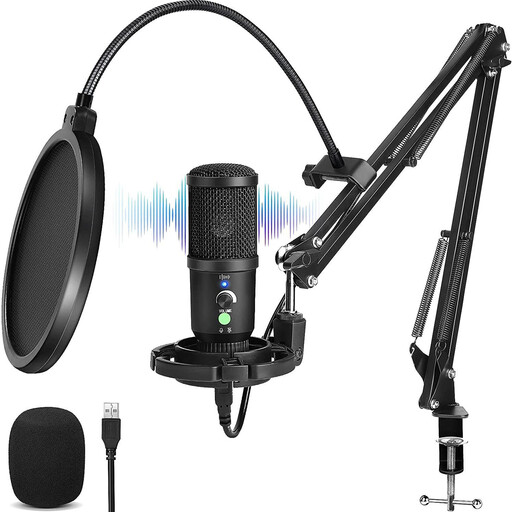
USB condenser microphone with scissor arm
An option to consider if you’re looking for a cardioid USB set-up with recording controls.
The product description lists a cardioid pickup pattern, gain control, mute and a 3.5mm headphone output.
It also mentions a scissor arm, shock mount and pop filter.
Joybuy
 No image available
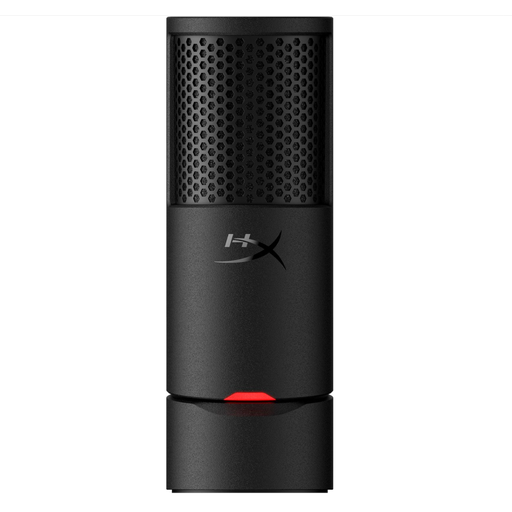
HyperX SoloCast 2
An option for a fixed desk set-up if you’re looking for a compact USB microphone with mute control.
The product description lists a cardioid pickup pattern, an adjustable compact stand and tap-to-mute control.
A built-in shock mount and pop filter are also mentioned.
Joybuy
 No image available
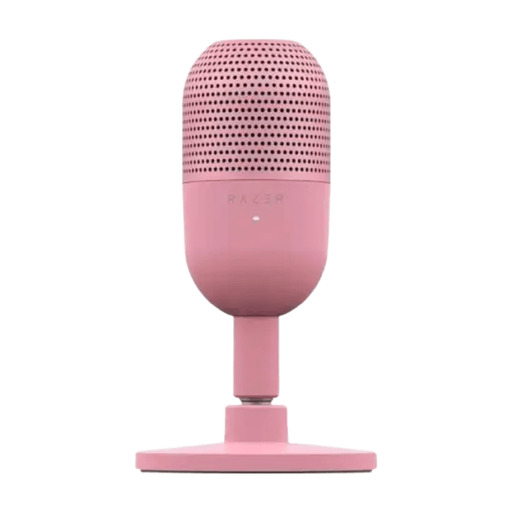
Razer Seiren V3 Mini Quartz
A compact USB option to consider if you’re looking for a directional pickup pattern and tap-to-mute control.
The product description lists a supercardioid pickup pattern and tap-to-mute control.
Joybuy
Frequently asked questions
How do you start dictating on a Windows computer?
First, select the connected microphone as your input device. For voice typing in Windows, Microsoft lists a working microphone, an internet connection and a text box as requirements; press Windows key + H to get started. Dutch (Netherlands) is on Microsoft’s list of supported languages for this feature.
How do you check the positioning before dictating a long report?
Dictate a short test paragraph at your actual workstation and check the input level, clarity and any other voices you can hear. If you have recognition problems, Microsoft recommends selecting the correct input and language or trying a quieter location, among other things. Follow the instructions for the speaking side and distance in the manual for your chosen model.
Do you need to buy anything else, and what warranty applies?
Check whether a cable, stand or boom arm is included with each version. For example, the version shown of the FIFINE K688 is supplied without a stand. Purchases by consumers in the Netherlands are also covered by a statutory guarantee that products must be fit for purpose. ACM ConsuWijzer explains that the seller is responsible if a product breaks sooner than you could reasonably expect under normal use; this does not mean there is a fixed warranty period for a particular microphone.
Can you record other people’s voices in the classroom or process them using a dictation service without permission?
This depends on whether the people recorded can be identified, the school’s policies and how the data is processed. The Dutch Data Protection Authority says schools need a legal basis under the GDPR to process pupil data and must inform pupils and parents. Consent is one possible legal basis, but it isn’t automatically required in every situation. So assess the specific recording and service before using them.


