
Solo streamer with a noisy desk
You’re speaking alone, but your keyboard, PC fan or background noise could also be picked up. Pay attention to positioning and make a test recording; don’t expect a polar pattern to remove all background noise.


Start with a microphone you can position close to your voice, then make a test recording using your own keyboard, game audio and alerts. A compact USB microphone may suit a single speaker; direct monitoring, quick mute controls or mixing software are most useful if you manage the whole audio mix during the stream. Manufacturer specifications can’t guarantee a quiet recording in every room.
You’re speaking alone, but your keyboard, PC fan or background noise could also be picked up. Pay attention to positioning and make a test recording; don’t expect a polar pattern to remove all background noise.
During your charity stream, you manage your voice, game audio and alerts, and want to check what’s actually being broadcast. See if you can monitor the microphone and the final mix separately.
You want to be able to mute instantly during live commentary and easily see whether the microphone is live. Check that you can reach the controls from your usual seated position.
First decide where you can position the microphone and how you speak. Then compare mute controls, monitoring and mix controls based on what you want to manage yourself during the broadcast.
| What to consider | What should you check? | Who is this important for? |
|---|---|---|
| Clear speech | Compare cardioid or supercardioid polar patterns, positioning and a recording made with your own keyboard and fan. OBS warns that noise suppression is generally ineffective with a lot of background noise, and that a strong setting can affect your voice. | If I’m speaking alone, I want my commentary to stay clear while my keyboard or PC is running. Around 33% of consumers put voice clarity first. |
| Control over the audio mix | Check whether there’s a headphone output and whether you can also listen to the final mix in OBS. Additional mixing software needs to be configured and tested in a trial broadcast. | If I manage my voice, game audio and alerts, I want to be able to check the balance between them. Around 27% of consumers put audio mixing first. |
| Quick muting | Check whether you can reach the mute control from your seated position and whether the status light is clearly visible. Test what the control actually mutes during a recording. | If I need to mute quickly while playing, I want to be able to find the control straight away. Around 20% of consumers put instant muting first. |
| Connection and positioning | Check that the cable fits your computer’s USB port and that the stand or arm mount suits your desk. Also consider whether you need any extra controls. | If I want to connect my home studio easily and position the microphone to suit my setup, I want to know in advance what my computer and desk can accommodate. Around 20% of consumers put a simple setup first. |
According to OBS, suppression generally doesn’t work well with a lot of background noise; a strong setting can also affect your voice.
Test with your own keyboard and PC fan. First try adjusting the positioning and polar pattern, then listen to a test recording.
A microphone’s headphone output can let you hear your voice directly, while game audio and alerts are mixed separately in OBS.
Make a test recording with all your audio sources, and listen to the audio output from OBS too.
Elgato publishes separate information for the Wave:3 MK.1 and MK.2, so controls and connections may vary between generations.
Compare the full model name and connections with the information for that exact generation.
The SoloCast 2 is designed for a compact USB setup with one speaker, while the QuadCast 2 offers more polar patterns and on-microphone controls.
The Seiren V3 Mini is designed for a compact USB setup where quick muting is important.
The NT-USB Mini is a compact option if you want direct headphone monitoring and a movable stand.
The Wave:3 MK.2 is designed for anyone who wants software control over the audio mix as well as a USB microphone.
The MV7+ is a dynamic microphone for anyone who speaks close to the mic and may want to move to an XLR setup later.
The Yeti is designed for anyone who wants to switch between polar patterns, for example between a solo stream and a conversation.
These Joybuy products are intended for microphone setups used for live commentary. For each model, check that the connection and positioning suit your computer and desk.
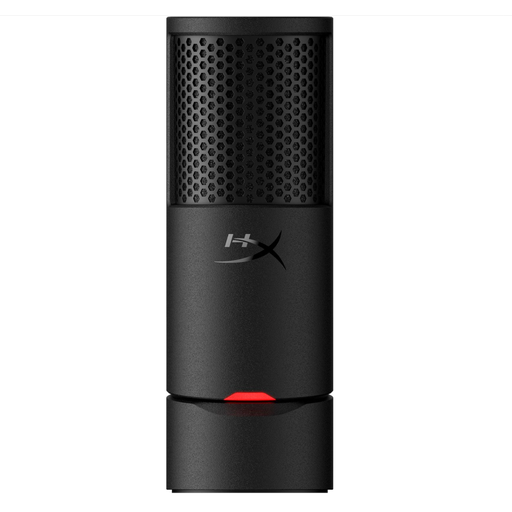 No image available
An option for one speaker looking for a USB gaming microphone; the product name specifies plug-and-play.
Cardioid pickup; black finish.
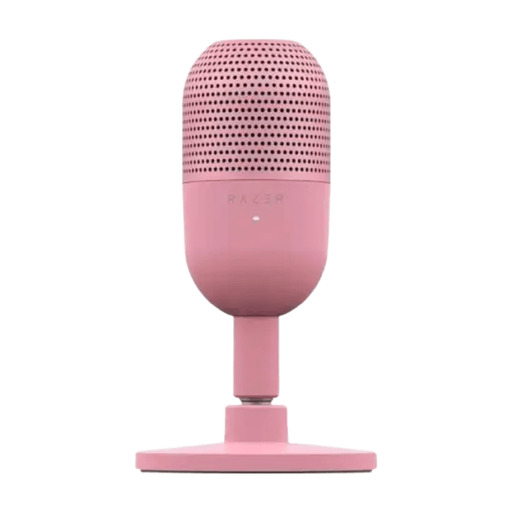 No image available
An option for anyone who wants to be able to mute quickly during live commentary.
The product name specifies USB, tap-to-mute and the Quartz colour variant.
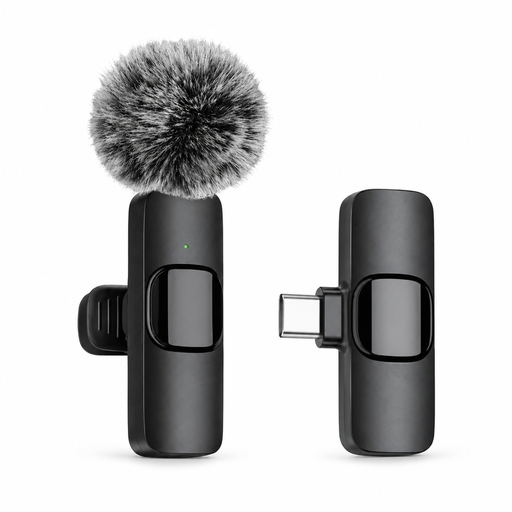 No image available
An option for live commentary if you’d rather wear a lavalier microphone than use a desk microphone.
The product name specifies a Type-C interface and use for live streaming, recording and interviews. Check that the connection is compatible with your computer.
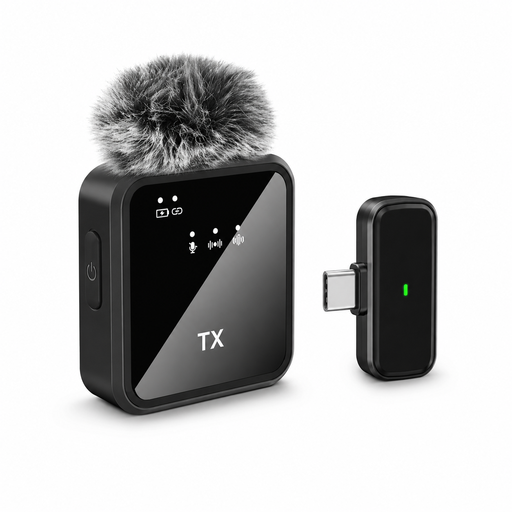 No image available
An option for anyone who wants to wear a lavalier microphone during live commentary rather than use a desk microphone.
The product name specifies a wireless button-style lavalier microphone for live streaming. Before buying, check which connection is compatible with your computer.
Select the microphone as an audio source and check that the same device isn’t also selected globally in OBS’s audio settings. OBS warns that selecting it twice can cause echo; listen to a test recording before you go live.
No, you can’t rely on that. OBS describes noise suppression as useful for light background noise, but generally not for a lot of noise; a strong setting can distort your voice. Try adjusting the microphone position first, then listen to a test recording.
Not for the direct USB connection on models such as the RØDE NT-USB Mini. Check that the supplied cable fits your computer and select the microphone as the input source. Moving to an XLR setup later is a separate decision.
According to the Dutch government, when you buy as a consumer, you’re entitled to a product that works properly, and you should contact the seller to resolve the issue. A manufacturer’s warranty or an extended warranty you’ve bought doesn’t replace your statutory rights. For distance purchases, you’ll often also have a 14-day cooling-off period; check the terms and exceptions that apply to your purchase.