
Solo presenter with an online audience
You’re presenting the summary yourself and want to position and mute your microphone easily. Logitech recommends adjusting the microphone boom so that it sits by your mouth.


A personal USB headset is a good choice when you’re the speaker and mainly need your voice to come through clearly to remote participants. If colleagues in the room also need to join in, a headset microphone won’t necessarily be the right microphone for the whole group. Choose room audio that suits everyone present and avoid having multiple active audio setups interfere with one another.
You’re presenting the summary yourself and want to position and mute your microphone easily. Logitech recommends adjusting the microphone boom so that it sits by your mouth.
You’re presenting in the room, but remote participants also need to hear the colleagues there. Microsoft Support explains how to select a meeting room’s audio as the source in Teams.
You use different computers or meeting rooms and want to know in advance which USB connection and audio settings are available. Check the connection on the exact version you’re considering, then select the right microphone and speaker in your meeting app.
A good choice when: you’re presenting and mainly need your voice to be heard online.
Bear in mind: the microphone is positioned by you, so it won’t automatically pick up the whole room; the cable limits how far you can move from your laptop.
A good choice when: several people in the room need to talk to remote participants.
Bear in mind: select the intended microphone and speaker source. Microsoft Support advises that meeting room audio needs to be set up separately.
First, decide who needs to be heard clearly online. Then check the connection, microphone controls and fit for your presentation.
| What to consider | What should you check? | Who is this important for? |
|---|---|---|
| How clearly your voice comes through | Check whether the microphone is adjustable and whether the mute control is easy to reach. Test your setup in advance. | If I’m presenting the summary myself, I want remote participants to be able to follow what I’m saying. Around 33% of consumers prioritise how clearly their own voice comes through. |
| How clearly the group can be heard | Decide who needs to speak from the room and what room audio is already available. | If colleagues in the room are also asking questions, I want their voices to come through online too. Around 27% of consumers prioritise making other people in the room audible. |
| Computer connection | Compare the connector on the exact version with the available port, then check which audio source is selected in your meeting app. | If I work with different laptops, I want to know in advance whether the headset will fit the available port. Around 20% of consumers say the connection is their first consideration. |
| Comfort and controls | Check the fit, where the controls are and whether the cable is long enough for your setup. | If I’m wearing the headset for a long meeting, I want to be able to find the controls and still hear the room when needed. Around 20% of consumers prioritise comfort and easy-to-reach controls. |
A microphone positioned by the presenter won’t automatically be the right source for colleagues speaking in the room too. Microsoft Support describes room audio as a separate audio source that you need to select.
Before buying, decide whether you’ll be the only person speaking and test questions from the group with a remote participant.
If the group needs to join in, you may need a suitable room audio setup as well as your personal headset.
A model range can include different connections and controls. If a version isn’t compatible with your presentation computer, you may need a different version or a suitable adapter.
Check the full model name, connector and any adapter you may need before choosing a version.
You may need a different version or a suitable adapter to connect the headset to your computer.
Features such as the connection, controls and wireless use can vary between versions. The general model name doesn’t always tell you which features apply to the version you’ve chosen.
Before relying on a specification to make your decision, compare the features of the exact version with the manufacturer’s product information.
The H340 and H390 are wired USB headsets for individual presenters. Check the connection and controls on the version you choose.
The Evolve 20 has wired versions with call controls; for the Evolve2 30 SE, the connection and UC version are important.
The wired Blackwire 3200 series includes mono and stereo versions to suit different preferences during calls.
These wired, USB-focused headsets are designed for presenting on your own when your voice needs to be heard online. They’re not a replacement for suitable room audio when other people in the room also need to join in.
 No image available
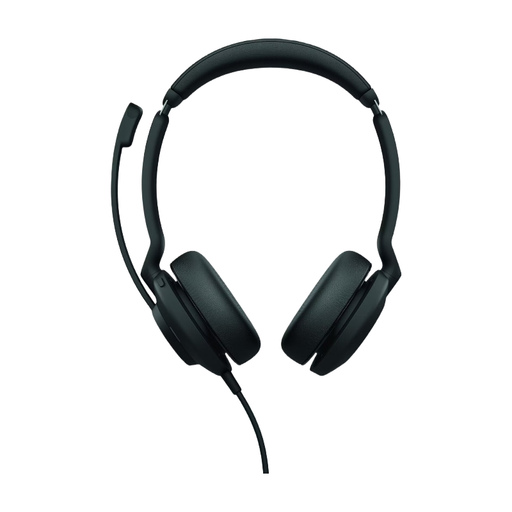
A personal USB headset for online calls, with mute and volume controls.
The product information lists USB-A, compatibility with a USB-C adapter and call controls. It also mentions two integrated microphones.
 No image available
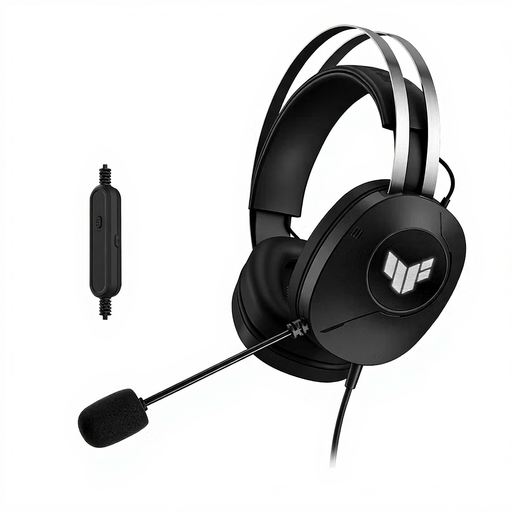
A wired USB-A headset with a boom microphone for speakers addressing remote participants through their computer.
The product information lists stereo audio and an adjustable headband with over-ear ear cushions.
 No image available
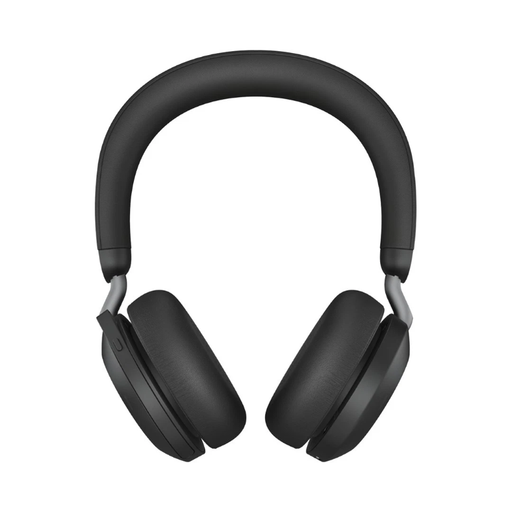
An option for anyone who wants a wired USB-C connection for online calls.
The product information lists Bluetooth and wired use with the supplied USB-C cable, as well as a microphone system and HD Voice.
 No image available
A wired USB headset for presentations where you want to adjust the microphone position and mute control yourself.
The product information lists an adjustable microphone boom, volume control and an in-line mute control.
 No image available
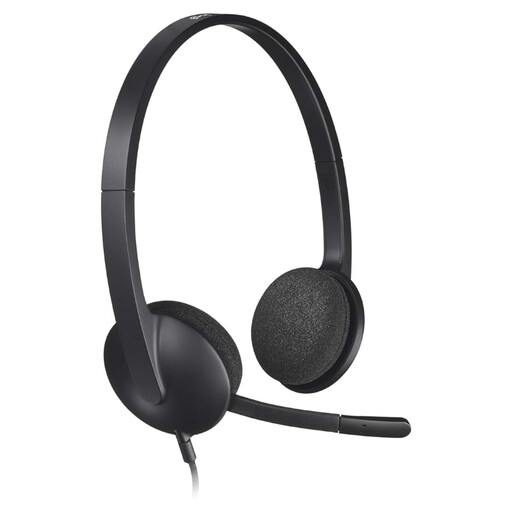
A wired USB headset for an individual speaker who wants an adjustable microphone.
The product information lists a USB connection, stereo audio and an adjustable microphone.
Don’t assume they can. A personal headset is an audio solution for the person wearing it. Decide which room audio setup or speakerphone should pick up the voices of others in the room, and test it with someone joining remotely.
Connect the correct USB version and select the intended microphone and speaker in Teams. Check that the microphone isn’t muted and, if you use Teams, make a test call.
For consumer purchases in the Netherlands, your statutory guarantee is separate from the manufacturer’s warranty and has no fixed statutory end date. According to the Dutch government, what you can reasonably expect from a product depends on factors including the product itself, its price and normal use. If something goes wrong, contact the seller.
Using a headset doesn’t, in itself, give you permission to record a meeting. If an organisation collects or uses personal data, it needs a lawful basis under the GDPR. Consent is one possible basis, but it isn’t automatically the only one. Before recording, consider the specific data processing involved and your organisation’s policy.