
Teacher in a noisy classroom
You teach online and want remote participants to hear your voice clearly, while still being able to keep track of the pupils in the room.


If you’ll mainly be speaking to remote participants, compare a wired USB headset with an adjustable microphone boom and easy-to-reach mute controls. A mono headset leaves one ear free so you can keep track of the class; with stereo, check that you can still hear the pupils in the room clearly. If pupils in the classroom also need to be heard online, assess separately how their voices will be picked up: a headset worn by the teacher won’t automatically capture them.
You teach online and want remote participants to hear your voice clearly, while still being able to keep track of the pupils in the room.
You speak from one spot for extended periods, so you’ll want to consider a suitable USB connection, easy-to-reach controls and a fit that works for back-to-back lessons.
You want online participants to hear questions from the classroom too. So assess the audio set-up for the whole room, not just the teacher’s headset.
First decide who needs to be heard online, then check the connection, teaching app and fit.
| Priority | What to look for when buying | Who is this important for? |
|---|---|---|
| Teacher’s voice clarity | Check the microphone boom and mute controls; ask someone joining remotely to test how clearly they can hear you in the classroom. | If I’m mainly teaching, I want my voice to come through clearly to remote participants; around 33% of consumers prioritise teacher voice clarity. |
| Keeping in touch with the class | Compare mono and stereo, and separately test whether a question from a pupil’s seat can be heard online. | If I want to keep track of the class and sometimes need to pass on pupils’ questions, this affects my choice; around 27% of consumers prioritise interaction with people in the room and pupils’ questions. |
| Connection and teaching app | Check the USB plug on the exact model and select the headset in the teaching app’s settings. | If I want to get started without connection issues, I check that my computer and app can use the headset; around 20% of consumers prioritise connection and compatibility with their teaching app. |
| Comfort and freedom of movement | Check the fit and cable length of the model; if possible, try the headset for a representative lesson length. | For several teaching sessions, I consider how the headset feels and how much room the cable gives me at my computer; around 20% of consumers prioritise comfort and freedom of movement. |
A microphone description refers to the sound sent to other people. The mono or stereo design also affects how much background noise you hear.
Compare microphone placement and headset style separately, and test how clearly you can be heard in the classroom where you teach.
A headset worn by the teacher won’t automatically pick up questions from pupils sitting further away in the classroom.
Decide which speakers need to be heard online and test the set-up from the seats pupils usually use. If necessary, assess separate audio equipment for the classroom.
Models within the same product range can differ in style, USB connection and support for a specific platform.
Before ordering, check the full model details against the available computer port and the teaching app.
The H390 and H340 are wired USB headsets worth comparing for teaching from a computer. The H570e comes in separate mono, stereo, UC and Teams versions.
According to HP, the Blackwire 3300 series offers mono and stereo options for a wired teaching computer set-up.
The Evolve 20 is available in mono and stereo versions, with different USB and platform options.
The UH34 and UH34 Lite are wired USB ranges with mono and dual versions.
The headsets below are options to consider for online conversations and teaching from a computer. Check that the connection and style of each model suit your teaching set-up.
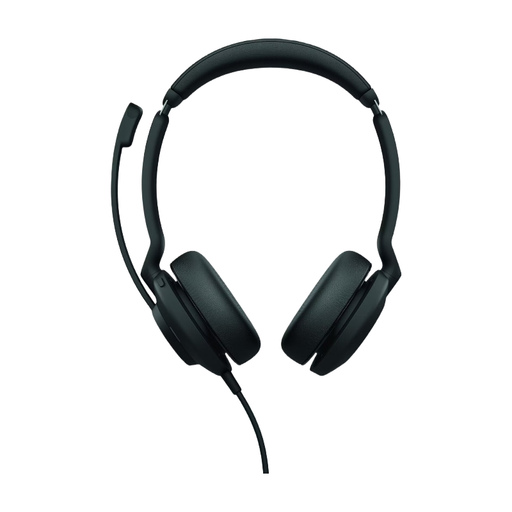 No image available
An option to compare if you’re looking for a wired, over-ear headset for teaching from a computer.
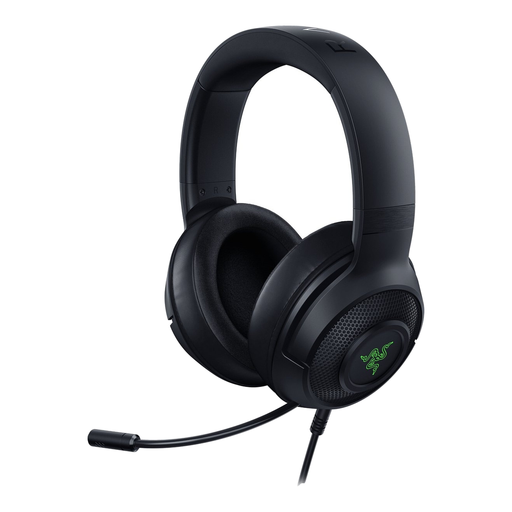 No image available
A headset to consider when comparing options for online conversations; check the connection and microphone controls for your teaching set-up.
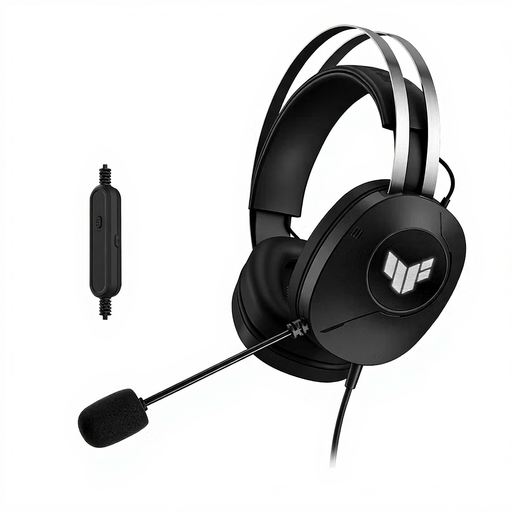 No image available
An option to compare if you’re looking for a wired USB Type-A headset for a computer with that connection.
 No image available
A wired USB headset to compare for use with a computer; check that the model is compatible with the available connection.
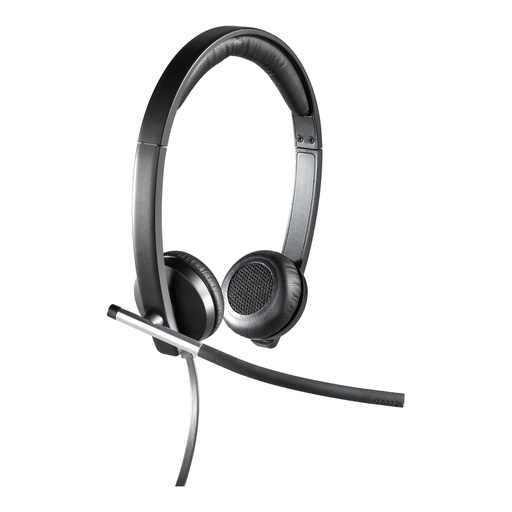 No image available
A wired stereo headset to compare for teaching online; consider whether the style suits how much classroom noise you want to keep hearing.
If you want to keep hearing pupils in the room clearly, a mono headset may suit you because it leaves one ear free. If you’re mainly listening to online participants and classroom noise is distracting, compare stereo options and check that you can still hear the class well enough.
In Microsoft Teams, choose the connected microphone and speaker in the device settings, then make a test call before your lesson. Microsoft Support explains these settings; also check that the headset’s mute button matches the mute status in Teams.
Test a question from the place where pupils usually sit. A microphone worn by the teacher isn’t necessarily suitable for picking up other speakers in the classroom; if needed, assess a separate audio set-up for the room.
Check the connection on the exact headset model and compare it with the port available on your teaching computer. If you use Microsoft Teams, select the headset as your microphone and speaker, then test the connection before teaching.