What should you look for when choosing?
Personal stereo USB headset
A good fit if: you’re discussing the concept online and want to hear voices through both earcups.
Bear in mind: with both ears covered, it may be harder to follow colleagues sitting nearby; a personal microphone isn’t automatically suitable for the whole table.
Personal mono USB headset
A good fit if: you want to hear online participants while still keeping up with conversations around you.
Bear in mind: one ear is left uncovered, so there’s less isolation from background noise; mono doesn’t make the headset a microphone for the whole table.
Shared room audio
A good fit if: several colleagues in the same room need to take turns speaking to remote participants. Microsoft Learn describes how to choose microphones and speakers suited to the room.
Bear in mind: this calls for a room set-up rather than one personal headset. Microsoft warns that, in coordinated Teams Rooms, having multiple microphones switched on can cause echo and feedback.
First decide who will be speaking from the room. Then choose the listening style and connection that suit your role and computer.
| What to consider |
What to look for when buying |
Which consumers should pay particular attention? |
| Several people speaking in the same room |
Decide who will speak from where, and test the microphone and speaker set-up. |
If I’m in a room with colleagues, I want them to be able to speak to remote participants too; around 36% of consumers say that having several people able to speak around the table is their top buying priority. |
| Being heard clearly and muting yourself |
Check the microphone boom, mute controls and selected input, then make a test call. |
If I’m presenting the concept, I want to be able to mute my microphone quickly; around 29% of consumers prioritise being heard clearly and having easy-to-use mute controls. |
| Wearing comfort and awareness of the room |
Check whether the model is mono or stereo and whether the headset is adjustable. |
During a long meeting, I want a listening style that suits how the headset fits and how much I need to interact with colleagues nearby. Around 21% of consumers say wearing comfort and awareness of the room are their top priorities. |
| Connection and meeting controls |
Compare the exact USB version with your computer’s port, then set up the microphone and speaker in your meeting app. |
When I plug in my headset, I want to know the connection and meeting app will work; around 14% of consumers prioritise the connection and app controls. |
Audio solutions at Joybuy
This selection includes both shared audio for colleagues around the table and personal USB headsets for the person speaking.
 No image available
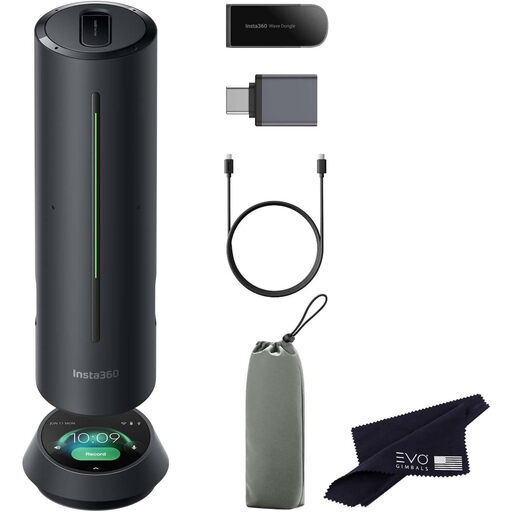
Insta360 Wave AI conference speakerphone with Bluetooth, black
Suitable for shared room audio when several colleagues are taking part around the table; this isn’t a personal headset.
Bluetooth is listed in the product name.
View at Joybuy
 No image available
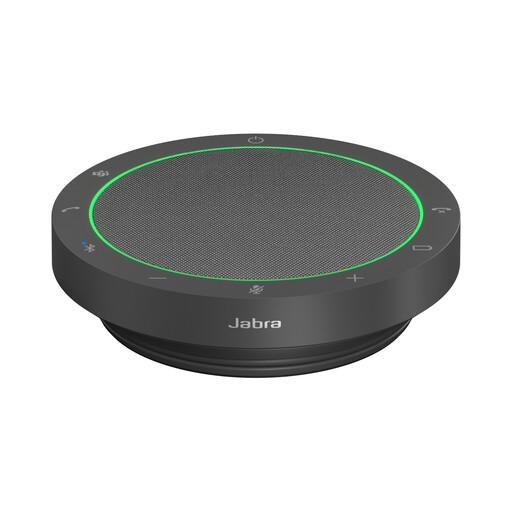
Jabra Speak2 55 MS Teams, dark grey
An option for shared room audio when several colleagues are joining from the same room; it isn’t a personal headset.
MS Teams is listed in the product name.
View at Joybuy
 No image available
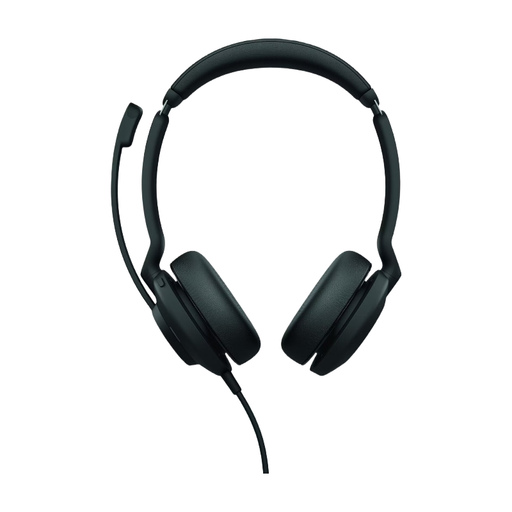
Jabra Evolve2 30 SE headset
Suitable for someone speaking from their computer. A personal headset isn’t a substitute for room audio for the whole table.
View at Joybuy
 No image available
Logitech PC 960 USB headset
Suitable for someone discussing the concept from their computer; a different set-up, with shared room audio, is needed for the whole table.
The product name describes it as a wired USB headset.
View at Joybuy
 No image available
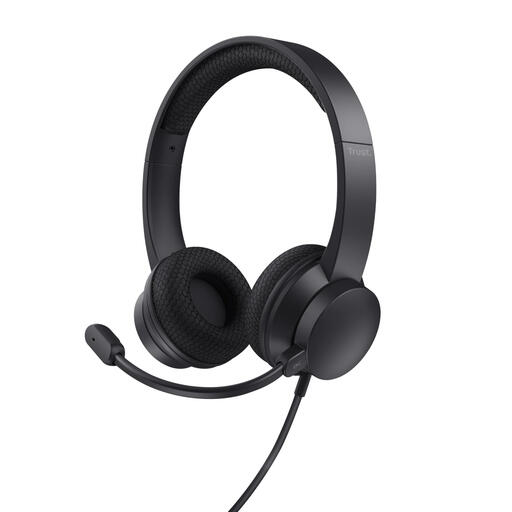
Trust Ayda wired headset, USB Type-A, black
Suitable for someone speaking during an online meeting; a personal headset won’t automatically pick up several colleagues around the table.
Connection listed in the product name: USB Type-A.
View at Joybuy
Frequently asked questions
Can colleagues sitting next to me join the online meeting through my headset?
Don’t assume they can. A personal headset is designed for the person wearing it. If several people need to speak, consider shared room audio and test whether they can be heard clearly from their seats.
How can I check that the right microphone is on before the meeting?
In Microsoft Teams’ audio settings, select the connected microphone and speaker, then make a test call if needed. The settings available may depend on the app and your organisation’s settings.
How can I prevent echo when several computers are connected in the same room?
Check which devices are playing audio and which microphone is active. Microsoft warns that echo and feedback can occur when several microphones are on at once in the specific set-up used by coordinated Teams Rooms. This guidance doesn’t automatically apply to every standard laptop meeting.
How should I use a headset during long discussions?
Don’t set the volume higher than necessary, and pay attention to the fit. VeiligheidNL advises checking how the headset fits around your ears, so background noise is less likely to make you turn up the volume. This isn’t a guarantee for any particular model.
Do I automatically get exactly two years’ statutory warranty in the Netherlands?
No. According to the Dutch government, there’s no fixed period for statutory warranty in the Netherlands. What you can expect from a product depends, among other things, on the product itself and the sales information. If a product is faulty, contact the seller.
Can I return a headset bought online if it doesn’t fit comfortably?
For eligible distance purchases from a business, the Dutch government says you’ll often have a 14-day cooling-off period. Check the specific terms and any exceptions before buying; purchases from private sellers aren’t covered by the same distance-selling rules.


