For a video interview, choose a USB headset with a connection that fits your computer and controls you can test in advance in the meeting app you’ll be using. An adjustable microphone boom and easy-to-reach mute controls can be useful, but they won’t brighten a dark camera image: check your camera preview and adjust the lighting separately.
Who is this buying guide for?
Applicants who want to be clearly heard
You’re taking the interview on a computer and want to position the microphone properly and mute it quickly. Zoom Support explains how to set up a USB headset as your speaker and microphone; test these features before the interview.
Applicants in a dark room
As well as clear audio, you need a clear picture on camera. Zoom Support recommends testing your video in advance; check the lighting on your face separately from your headset.
Applicants who use different computers
You may use different USB ports or meeting apps. Jabra and HP Poly describe models with different connections, while Microsoft Support warns that headset buttons may work differently in some Teams browser calls than in the desktop app. Check the exact model and test the controls.
What should you look for in a USB headset?
First, check that the headset works with your USB port and meeting app. Then test the audio, mute controls and camera image separately. Zoom Support describes audio and video settings as separate checks.
| What to consider |
What should you check? |
Who is this important for? |
| Speech and mute |
Check the microphone position, the mute controls and whether the microphone is active in your meeting app. |
If you want to speak clearly and mute quickly during the interview, pay attention to the microphone and mute status; around 36% of consumers give clear speech and mute control top priority. |
| Camera image |
Check the camera preview before joining and assess the lighting on your face separately. |
If you need your face to be clearly visible in a dark room, you’ll want to check the video in advance; around 29% of consumers prioritise being visible during a video call. |
| Connection and app |
Check whether you need USB-A or USB-C, whether an adapter is required, and how the buttons work in the app you’ll be using. |
If you want to use the headset with different computers or in a browser, check the connection and controls on each device; around 21% of consumers prioritise compatibility and app controls. |
| Wearing style |
Compare mono and stereo versions, and check the fit of the exact model. |
If you want to keep one ear free during the interview or prefer to cover both ears, choose a headset to suit your surroundings and fit; around 14% of consumers focus mainly on wearing style and comfort. |
Things to consider before you buy
-
Confusing noise cancellation with a clearer camera image
A microphone feature won’t change how much light falls on your face. So don’t expect a headset to fix a dark image.
Test your voice and camera preview separately, and adjust the lighting if needed.
-
Assuming every headset in a range is the same
A product range may include versions with different connections, wearing styles or app controls. For example, Jabra describes mono and stereo versions and models for different platforms; HP Poly’s adapter information applies to a specific Blackwire model.
Before you buy, check the full model name, plug, any adapter included and the version designed for your meeting app.
-
Assuming a physical button works in every meeting environment
Microsoft Support notes that some buttons on the Modern USB Headset have limitations in Teams browser meetings. This doesn’t automatically tell you how another headset or app will behave.
Test the mute and volume buttons in the browser or desktop app you’ll use for the interview, and check the mute status on screen.
Brands to compare
Logitech
The H390 is a wired computer headset for anyone looking for a USB connection, an adjustable microphone boom and controls on the cable.
- For the USB-A version, Logitech lists a 1.9 m cable and a noise-cancelling microphone.
- Check which USB version you’re choosing. The product description isn’t an independent measure of how clearly you’ll be heard in your room.
Jabra
According to Jabra, the Evolve 20 range includes different wearing styles and versions for USB-A or USB-C, and UC or Teams.
- Jabra lists microphone noise cancellation and volume and mute controls.
- Features may vary by version; a description of noise cancellation won’t tell you how the headset will sound in your room.
HP Poly
The Blackwire 3320 version 8X220AA is a wired stereo headset with a USB-C cable, a USB-A adapter and Teams controls.
- For this version, HP lists an adjustable microphone boom, mute controls and soft ear cushions.
- These features apply to the version listed; check the full model number before comparing different versions.
USB headsets for computer calls
These Joybuy picks are wired USB headsets with microphones for computer calls.
 No image available
Logitech PC 960 USB headset
A wired option if you want to position and mute the microphone during a video call.
The description lists an adjustable microphone boom, inline volume and mute controls, and a mute indicator.
Joybuy
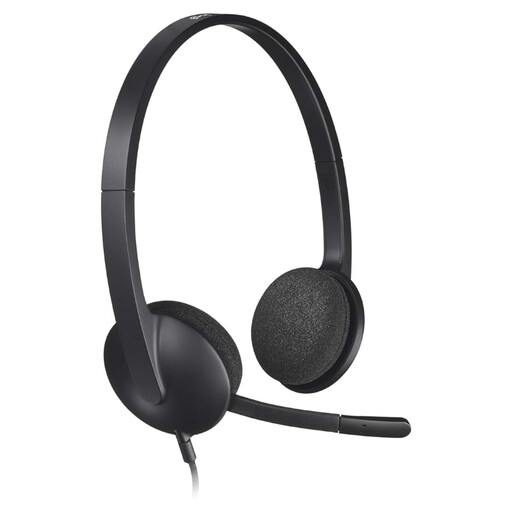 No image available
Logitech H340 USB headset, black, wired
A wired headset to compare if you make calls on a computer and want an adjustable microphone.
The description lists an adjustable microphone and a lightweight design. Check that the connection is compatible with your computer.
Joybuy
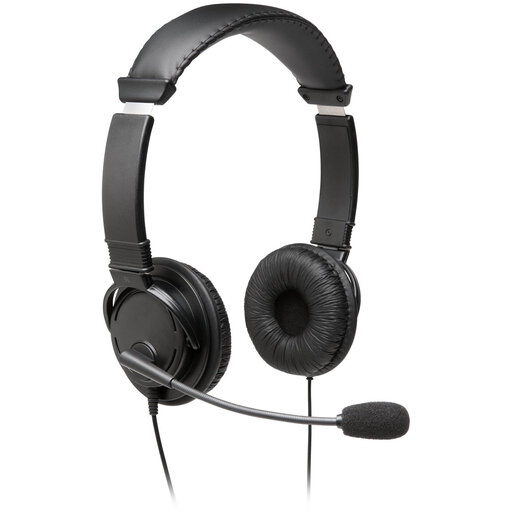 No image available
Kingston USB Hi-Fi headset with microphone
An option to compare if you’re looking for a USB headset with an adjustable microphone boom for computer calls.
The description lists a flexible microphone boom and compatibility with Windows, Mac and Chromebooks.
Joybuy
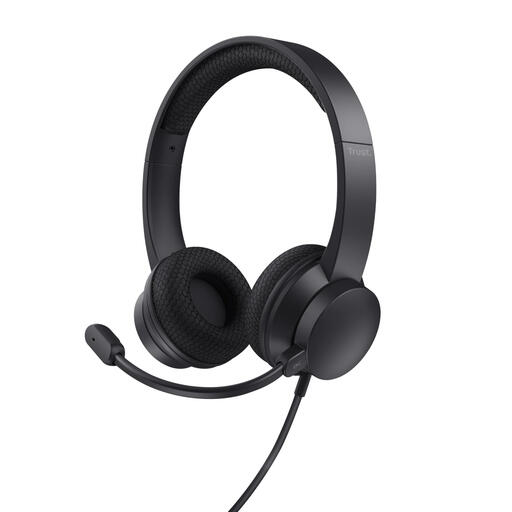 No image available
Trust Ayda headset with headband, USB Type-A, black
A wired option if you want to flip up the microphone to mute it during an online call.
The title lists USB Type-A; the description mentions a USB-C adapter cable, volume controls and ear cushions. Check the adapter included with the exact version.
Joybuy
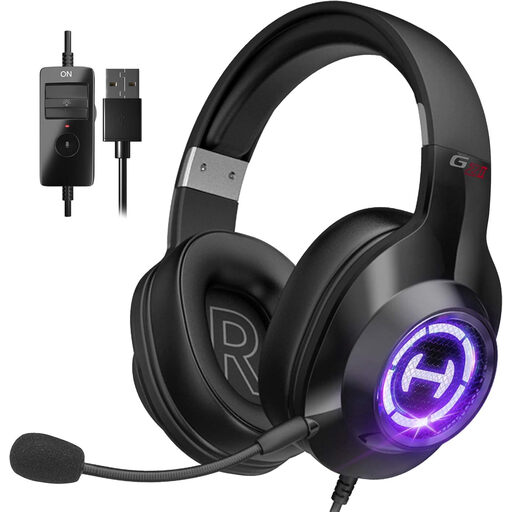 No image available
Edifier G2II USB gaming headset for PC
A USB headset to compare if you make computer calls and want controls on the cable.
The description lists a microphone, inline volume controls and a mute function. Check how it works with the meeting app you use.
Joybuy
Frequently asked questions
Can a USB headset improve my picture in a dark room?
No. Check the camera image separately from the headset. Zoom Support recommends testing your video before joining; check the lighting on your face too.
How can I check that my headset is working just before the interview?
Select the headset as both the speaker and microphone in your meeting app, then test both. Check that mute is off too; Zoom Support describes the audio settings, while Logitech lists the USB connection and audio settings as checks for the H390.
Do the buttons on a Teams headset work in the browser too?
Don’t assume they do. Microsoft Support notes that certain call, mute and volume buttons on the Modern USB Headset aren’t available during Teams calls in a web browser. Test your headset’s buttons in the app you’ll be using.
What is the usual cooling-off period when I buy online from a company?
According to the Dutch Government, when you buy online you usually have 14 days to change your mind, although there are exceptions. Check the seller’s information for your purchase.


