Start by deciding who needs to hear you: a USB headset is a personal microphone and headphones, not a standalone sound system for the classroom. If you’ll also be speaking to the class, check the existing speakers and audio setup. Then compare the connection, mute controls and mono or stereo sound. Test your chosen input and output before the presentation.
Who is this guide for?
Speaker addressing both the class and an online audience
Decide in advance whether your voice needs to come through online, through the classroom speakers or both. A headset won’t automatically amplify your voice for the class; Microsoft Support explains how to select a microphone and speaker in Teams.
Presenter who wants to keep hearing questions from the class
If you’re speaking through a computer but want to keep track of responses from the classroom, compare mono and stereo designs. HP Poly describes mono versions that leave one ear uncovered; EPOS describes the ADAPT 130T USB II as a mono headset.
Presenter using a shared laptop
Check which USB port is available, then test the microphone and audio settings in the software you’ll be using. Logitech and Trust describe different connections and controls for their models.
What should you look for?
| What to consider |
What should you check? |
Who is this important for? |
| Being heard by the right audience |
Check whether the computer needs to work with the classroom speakers or sound system. Test the audio setup in the room. |
If I’m speaking to the class, I want to know that everyone can hear me; a headset won’t make that happen by itself. Around 36% of consumers prioritise being heard in the classroom. |
| Microphone controls |
Check where the microphone and mute controls are. Make a test recording where you’ll be presenting. |
For an online presentation, I want to be able to check which microphone is active and mute it quickly. Around 29% of consumers prioritise microphone controls. |
| Connection and settings |
Compare the laptop’s USB port with the exact model variant. Then select the right microphone and speaker in your software. |
If I’m using a school laptop, I want a connection that fits and no surprises during setup. Around 21% of consumers prioritise laptop compatibility. |
| Hearing questions from the class and wearing it comfortably |
Compare mono and stereo, and consider fit and wearing style. Keep the listening volume moderate. |
I want to keep hearing questions from the class without the headset becoming uncomfortable during my presentation. Around 14% of consumers prioritise staying connected with the class and wearing comfort. |
Common selection mistakes
-
Assuming a personal headset will amplify your voice around the classroom
A headset is designed for personal listening and speaking through a computer. Whether the class can hear you also depends on the room’s audio setup and equipment.
First decide who you’ll be speaking to, then test the complete audio setup in the presentation space.
-
Confusing USB-A, USB-C and different model variants
Models and product ranges can have different connections or accessories. A similar model name doesn’t automatically tell you which version you’re looking at.
Check the full model name and what’s included, then compare them with the laptop’s ports.
-
Taking a noise-cancelling claim as a guarantee of clear classroom sound
A product description can’t predict how your voice will sound in your classroom. Sound from speakers can be picked up again by a microphone and cause feedback.
Make a test recording where you’ll be using the headset, and check separately for feedback with the speakers switched on.
Brands to consider
Logitech
The H390 is a wired stereo option for computer use; the H340 is a simpler USB-A model.
- Logitech lists in-line controls and a microphone boom for the H390. The H390 is available in USB-A and USB-C versions.
- Check which version you’re choosing. The manufacturer’s information about the microphone isn’t an independent test of how clearly you’ll be heard in a classroom.
Trust
The Ayda USB 25088 is designed for easy connection and on-ear controls; the Ayda USB-ENC 25089 is a separate model.
- For model 25088, Trust lists a 1.8 m cable, a USB-C-to-A adapter and muting by raising the microphone.
- Trust describes model 25089 as having a noise-cancelling microphone; don’t assume this feature applies to model 25088. Manufacturer claims aren’t an independent measure of sound quality in a classroom.
HP Poly
The Blackwire 3200 series includes wired versions with mono and stereo wearing styles.
- HP Poly describes an adjustable fit and a choice of wearing styles and connections.
- Information about the series doesn’t mean that every individual model has the same connections or accessories; check the exact version.
EPOS
EPOS describes the ADAPT 130T USB II as a wired, mono USB headset for computer use.
- A mono version may suit you if you’re speaking through a computer and want to keep one ear free to hear the class.
- The manufacturer’s description doesn’t prove that Teams certification is necessary for your presentation or that the headset will amplify sound around the classroom.
Yealink
The UH34 and UH34 Lite range includes wired USB versions in mono and dual configurations.
- Yealink lists different wearing styles and cushion options.
- Check the exact version. The manufacturer’s claims about comfort and speech aren’t an independent comparison for a Dutch classroom.
Headsets at Joybuy
These product picks are headsets for computer use. Check each model’s connection and microphone controls are suitable for your laptop and presentation setup.
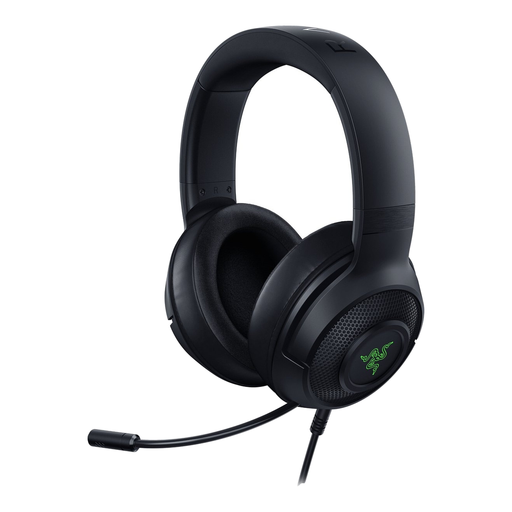 Image unavailable
Razer Kraken V3 X headset, black
The product information mentions PC use and a microphone for communication; check the connection and test the microphone with the computer you’ll be presenting from.
View at Joybuy
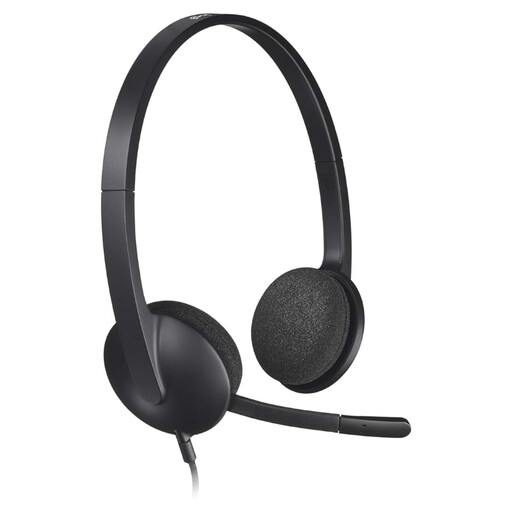 Image unavailable
Logitech H340 USB headset, black, wired
This version may suit you if you’ll be speaking through a computer; Logitech describes the H340 as a USB-A model for computer use.
View at Joybuy
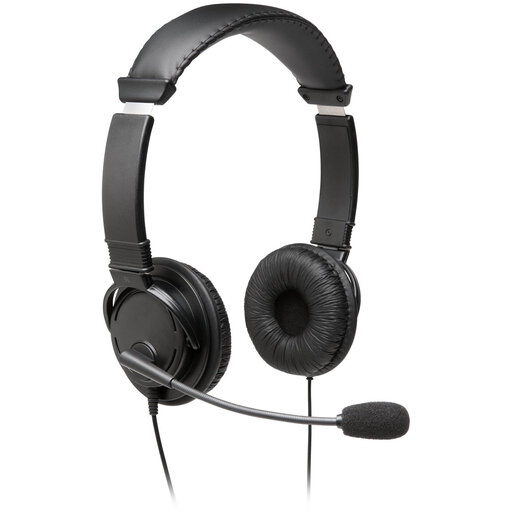 Image unavailable
Kingston USB Hi-Fi headphones with microphone
The product name describes USB headphones with a microphone; check the connection and test the microphone where you’ll be presenting.
View at Joybuy
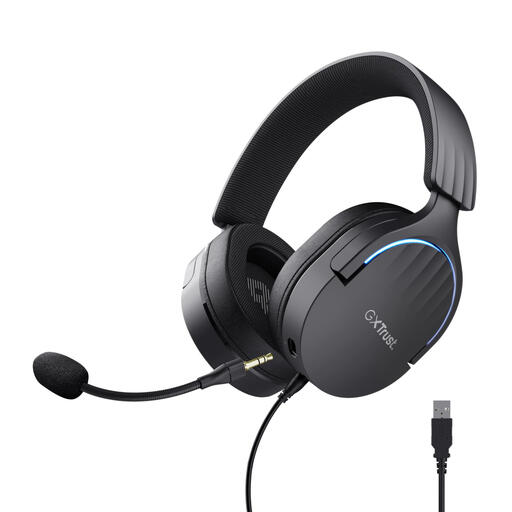 Image unavailable
Trust GXT 490 FAYZO USB gaming headset, 7.1
The product name mentions USB and 7.1; check that the connection and microphone controls are suitable for the computer you’ll be presenting from.
View at Joybuy
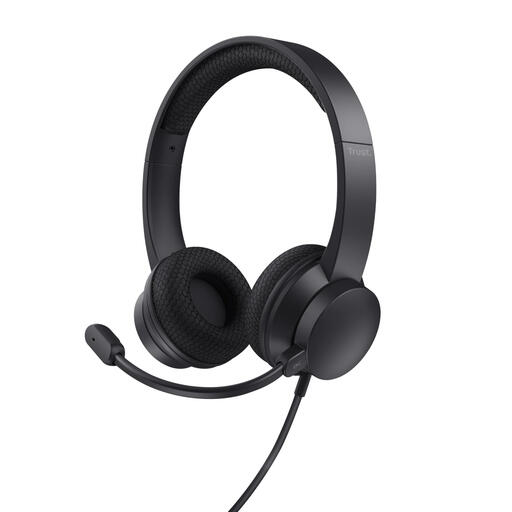 Image unavailable
Trust Ayda wired headset, USB Type-A, black
Check which Ayda version is on offer: Trust describes the Ayda USB 25088 and Ayda USB-ENC 25089 as separate models with different microphone descriptions.
View at Joybuy
Frequently asked questions
Can the class hear me as soon as I plug in a USB headset?
No, not automatically. Check whether the room has a suitable speaker and microphone setup, and which devices the presentation computer is using. Test at a normal speaking volume; sound from a speaker picked up again by a microphone can cause feedback.
How do I test the headset before my presentation?
In Windows, select the intended microphone under Input, start a test and play back the recording. Select the right output separately. If you’re using Teams, also check which microphone and speaker are selected there.
What can I do if a headset I bought online doesn’t fit or is faulty?
For many consumer purchases made at a distance, you have a 14-day cooling-off period; check the applicable terms. If a product is faulty, the seller must provide a solution under the statutory guarantee. The manufacturer’s warranty isn’t your only right.
Can I record my research presentation if pupils are recognisable in the footage?
For recognisable footage of pupils that a school makes and publishes, the Dutch Data Protection Authority states that consent and security are required. From the age of 16, the pupil gives consent; for those under 16, their parents do. This applies to that specific type of school publication, not every live presentation or audio-only recording. Discuss any other recording plans with the school.
How can I listen responsibly through a headset?
Keep the volume low, especially if you’re listening for a long time. Among other things, the WHO advises keeping personal audio below 60% of the device’s maximum volume; this doesn’t guarantee that a particular model is safe at every volume level.


