Start by choosing a backup method that keeps earlier versions, then add up the storage needed for all your copies; a USB flash drive doesn’t create version history by itself. Next, make sure the connector and write speed suit your devices and files. Keep important teaching materials in another location too, and follow your school’s security procedures when handling personal data. Microsoft Support explains how File History can restore earlier versions once it has been set up.
Who is this choice relevant to?
Teaching project creator
You update teaching materials regularly and want to be able to find an earlier version. How you store your copies matters just as much as the USB flash drive itself; Microsoft Support explains how File History can restore earlier versions.
Teacher with large media files
You may also store presentations and videos. Take the combined size of your project folders and versions into account, and compare the stated write speed if you copy files regularly.
Teacher handling sensitive files
If your teaching materials contain personal data, choose a storage option that takes your school’s risks and procedures into account. The Dutch Data Protection Authority stresses that security measures should be appropriate to the risks.
What should you look for?
First decide how you want to restore older project versions. Then choose storage capacity and a connector that suit your files and devices. For important copies, make a plan for storing them elsewhere too.
| What to consider |
What should you check? |
Who is this important to? |
| Restoring earlier versions |
Check whether your backup method keeps earlier versions and whether you can restore a test file. Microsoft File History needs to be set up with a suitable external drive or network location. |
If you want to retrieve an earlier version of a teaching project after making changes, being able to restore it is your top priority. Around 33% of consumers rank version recovery as their top concern. |
| Storage space and copying time |
Add up the size of all the folders and versions you want to keep. For large files, compare the stated write speed as well as the read speed. |
If you keep lots of versions or large media files, you’ll want enough space and a manageable copying time. This combination comes first for around 27% of consumers. |
| Connector and file system |
Check the USB ports on your devices and whether each device supports the file system. FAT32 cannot store a single file larger than 4 GB; check that exFAT is suitable for your devices before formatting. |
If you want to use the same copy on devices with different connectors, it needs to be accessible on each one. Around 20% of consumers put compatibility first. |
| Files containing personal data |
Check whether the copy contains personal data and what type of portable storage and security your school’s policy considers appropriate. Then check the security features and compatibility of the specific model. |
If your project folders contain personal data, you’ll want suitable protection and clear rules for portable storage. Protecting personal data is the main concern for around 20% of consumers. |
Common pitfalls
-
Assuming a USB flash drive automatically keeps a version history
To restore an earlier version, you need a suitable copying or backup method in place; simply saving files to a flash drive won’t do that.
Label versions clearly and test restoring an older file before relying on your method.
If you lose a project version, recreating the teaching materials can take time.
-
Using a portable copy as your only backup
A USB flash drive can be lost or damaged, leaving your files unavailable.
Keep important projects in a separate location too, and regularly check that you can restore files from there.
-
Looking only at the maximum read speed
When you back up files, you write them to the flash drive. What’s more, manufacturers’ maximum speeds don’t guarantee how long copying will take on your computer.
Where the information is available, compare the stated write speed and connector too. Bear in mind the port and files you actually use.
Large backups can take longer to copy.
-
Using a standard flash drive for pupil data without assessing the risks
The Dutch Data Protection Authority cites losing a USB flash drive containing unencrypted personal data as an example of a data breach. The appropriate measures depend on the data and the risks involved.
First check which files you want to copy and what portable storage your school’s policy allows.
Brands to consider
Kingston
Kingston offers several options: the DataTraveler Exodia M with USB-A, the DataTraveler Max with USB-C, and the IronKey Locker+ 50 G2 for hardware-encrypted USB-A storage.
- The product ranges vary in connector, capacity and security features.
- The DataTraveler Max’s stated maximum speed is a manufacturer figure, not an independent real-world test. A standard DataTraveler is not the same as a hardware-encrypted IronKey model.
SanDisk
According to SanDisk, the 128 GB Ultra Dual Drive Luxe is designed for use with devices that have USB-A and USB-C ports.
- According to SanDisk, this model has both types of connector.
- The dual connector doesn’t automatically save project versions or prevent the flash drive from being lost.
Transcend
According to Transcend, the JetFlash 930C combines USB-A and USB-C. Transcend states maximum speeds of 420 MB/s for reading and 400 MB/s for writing across the range.
- The stated figures include both read and write speeds, giving you figures to compare.
- These are manufacturer maximums, not guaranteed speeds on your computer. For use with a mobile device, Transcend says USB OTG support is required.
Samsung
The 128 GB Type-C Flash Drive is a USB-C option for devices with that connector.
- Samsung states a maximum read speed of 400 MB/s for the 128 GB model.
- Samsung notes that actual speeds may vary. This model doesn’t have a built-in USB-A connector.
USB flash drives at Joybuy
These Joybuy options are USB flash drives for storing and transferring project files. A flash drive won’t create a version history by itself, so make sure you also choose a suitable backup method.
 No image available
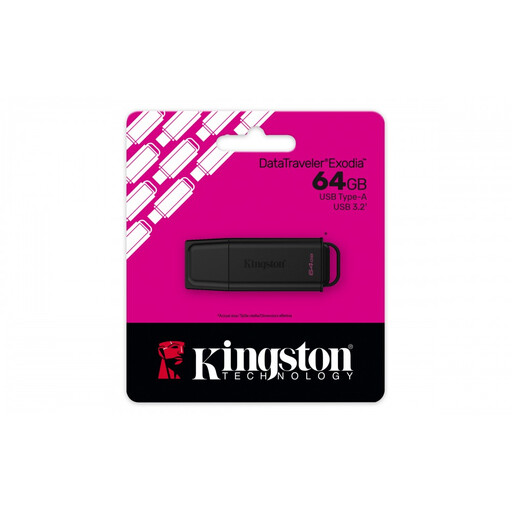
Kingston DataTraveler Exodia 64 GB
An option for manually keeping a separate copy of your teaching projects.
Capacity: 64 GB.
View at Joybuy
 No image available
Kingston DataTraveler Exodia 128 GB
Suitable for keeping project copies manually when you need more storage space.
Capacity: 128 GB. Stated connector and interface: USB 3.2 (Gen 1) Type-A, 2.0. Colour: black and blue.
View at Joybuy
 No image available
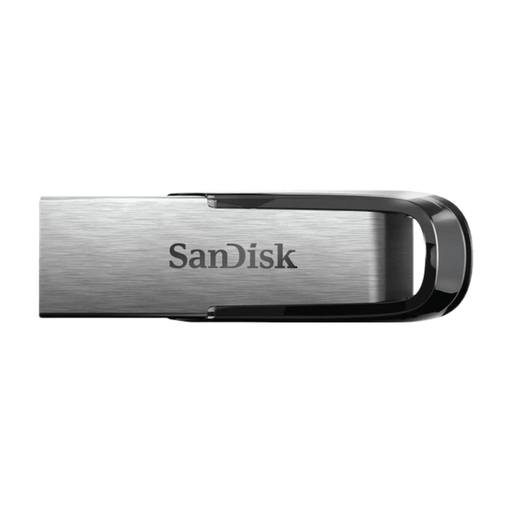
SanDisk Ultra Flair 512 GB
An option for storing project copies with larger files.
Capacity: 512 GB. Interface: USB 3.0.
View at Joybuy
 No image available
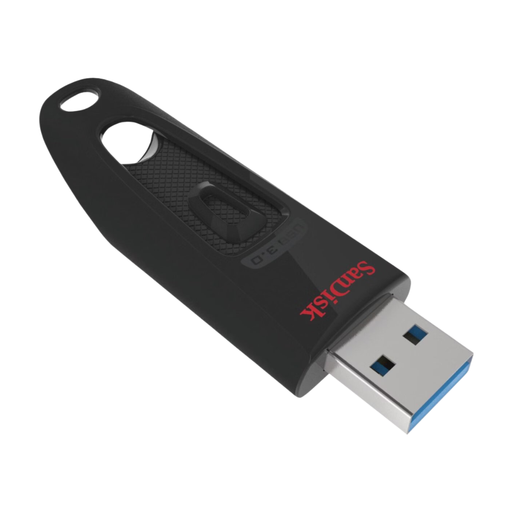
SanDisk Ultra 512 GB
Suitable for keeping multiple project copies when you manage your chosen method manually.
Capacity: 512 GB. Interface: USB 3.0.
View at Joybuy
 No image available
SanDisk Ultra Flair 64 GB
An option for a manually stored copy of your teaching projects.
Capacity: 64 GB. Interface: USB 3.0.
View at Joybuy
Frequently asked questions
Does every USB flash drive automatically keep earlier versions of a teaching project?
No, a USB flash drive won’t do that by itself. Set up separate copies or a suitable version history. Once configured with an external drive or network location, Microsoft File History can restore earlier file versions; check that your folders are actually included.
Can one USB flash drive be your only backup?
That’s risky for important files, as a flash drive can be lost or damaged. Keep another copy in a different location and regularly check that you can restore files from it.
Why won’t a large project file fit when there’s enough free space?
Check the file system: FAT32 can’t handle a single file larger than 4 GB. exFAT may be an option if your devices support it. Back up your existing files elsewhere before formatting, as formatting erases the contents.
Must teaching materials in the Netherlands always be stored on hardware-encrypted USB storage?
There isn’t one specific type of USB flash drive prescribed for every teaching file. If a school processes personal data, its security measures must be appropriate to the risks; you should also follow the school’s policy. The Dutch Data Protection Authority cites losing a flash drive containing unencrypted personal data as an example of a data breach.
What should you do if a USB flash drive containing pupil data goes missing?
Report it straight away, following your school’s incident procedure. Whether the organisation needs to report the data breach to the Dutch Data Protection Authority and the people affected depends on the circumstances and risks; losing a device doesn’t automatically mean both reports are required.


