Start by checking the size and contents of the teaching materials folder. Choose enough usable storage, make a separate up-to-date copy, then open a few files from the drive before you no longer need the original. Next, make sure the connector and write speed suit the computers you’ll use to copy and check the files. If the materials contain personal data, ask the organisation responsible to decide which access protection is appropriate for the risks.
Who should consider this choice?
Someone handing over teaching materials
Wants to check before the handover that the selected documents and versions are on a separate, readable copy. VeiligInternetten describes a backup as a copy of files that you can keep in a different storage location.
Someone managing confidential teaching files
Considers the risk of losing a flash drive and the access the recipient will need. The Dutch Data Protection Authority says the organisation responsible should decide on security measures based on the risks.
Someone using different computers
Copies files on one device and checks or hands them over on another. The available USB ports and the size of media files can affect which option is practical.
What should you look for?
| What to consider |
What should you look for? |
Who is this important for? |
| A usable backup |
Check the size of the folders and versions, compare it with the usable storage space, then open a few files from the drive after copying. |
If I want to be sure before the handover that I can retrieve and open the whole folder, I prioritise being able to check it. Around 36% of consumers say recoverability is their main concern. |
| Confidential content |
Check which files contain personal data, who should have access and whether the organisation requires an encrypted flash drive or another transfer method. Test that you can unlock it on the intended computer. |
If I’m taking files that shouldn’t be readable by everyone, I want to know in advance how the recipient will access them. Around 29% of consumers prioritise confidentiality. |
| Connectors on both computers |
Check which USB-A and USB-C ports are available and whether external storage is permitted on both devices. Also test that the files can be read on the receiving computer. |
If I’m working on two computers with different ports, I want to be able to connect the same flash drive to both. Around 21% of consumers give compatibility the highest priority. |
| Copying time for large files |
Check whether the folder contains lots of large media files, then compare the stated write speed and USB interface with the ports on the computers you’ll use. |
If I’m transferring a large folder of videos or other media files, I want to know whether the connection could limit the copying time. Around 14% of consumers put copying time first. |
Common mistakes when choosing
-
Relying on the flash drive as your only copy
A portable flash drive can easily be lost. If it’s your only copy, you could lose your teaching materials.
Keep a separate, up-to-date copy too, and open a few files from the flash drive before handing it over.
-
Looking only at the stated read speed
Write speed matters when copying files to a flash drive. The computer’s port or a hub you’re using could slow down the transfer.
With large media files, a slower transfer rate can mean extra waiting.
For large files, compare both the stated write speed and the computer’s USB interface.
-
Confusing a USB-C flash drive or one with dual connectors with a secure drive
A connector determines which devices you can plug the drive into; it doesn’t determine who can read the files if the drive is lost.
Assess compatibility and access protection separately. If the files contain personal data, decide with the organisation responsible which measure is appropriate.
-
Confusing the manufacturer’s warranty with your statutory rights
The warranty period stated by the manufacturer does not, by itself, determine how long you have statutory rights in the Netherlands.
Keep your proof of purchase and contact the retailer if the product is faulty. Consider any additional manufacturer’s warranty terms separately.
Relevant brands to consider
SanDisk
The Ultra Dual Drive Luxe has USB-A and USB-C connectors. The Extreme PRO Dual Drive is a separate range for those who want to factor in stated write speeds when transferring large files.
- The Luxe’s two connectors may be useful if the computers have different ports.
- SanDisk states a write speed of up to 900 MB/s for the Extreme PRO Dual Drive. This is a manufacturer’s maximum, not a guaranteed copying time; a computer port or hub could limit the speed. Having two connectors does not in itself mean that files are encrypted.
Kingston
The DataTraveler Exodia is a USB-A range, while the IronKey Locker+ 50 G2 is a separate range with hardware encryption.
- The Exodia may be suitable if USB-A is all you need and the files don’t require separate access protection on the flash drive.
- The IronKey’s security features don’t automatically apply to the Exodia. Kingston lists unlocking and system requirements for the IronKey, so check that the recipient can use the drive.
Verbatim
The Dual USB Drive USB-C/USB-A, product #49966, is designed for moving files between devices with different connectors.
- Verbatim specifies a capacity of 32 GB and USB-C and USB-A connectors for this model.
- The manufacturer says that the USB-C transfer speed depends on the device used. Check that the capacity is suitable for the size of your folder.
Samsung
Wifiwijs listed the BAR Plus as a USB-A option with a metal casing.
- The casing mentioned may be a useful feature to consider when comparing versions.
- This listing doesn’t confirm the write speed or suitability of every BAR Plus version. Check the full model code and specifications of the exact model.
USB flash drives for this handover
This Joybuy selection includes USB flash drives with USB-A and one drive with multiple connectors. Compare the stated capacity with the size of your folder, and check that the connectors work with both computers.
 No image available
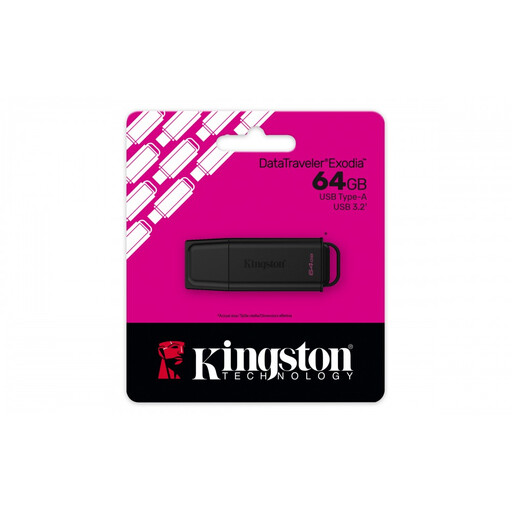
Kingston DataTraveler Exodia 64 GB USB-A
May suit teaching materials that fit within the stated storage capacity and will be used on a computer with USB-A.
64 GB storage; USB-A connector; USB 3.2 Gen 1.
View at Joybuy
 No image available
Kingston DataTraveler Exodia 128 GB USB 3.2 Gen 1 Type-A
May be suitable if the teaching materials folder fits within the stated storage capacity and both computers support USB-A.
128 GB storage; USB 3.2 Gen 1 Type-A; the product title also mentions USB 2.0.
View at Joybuy
 No image available
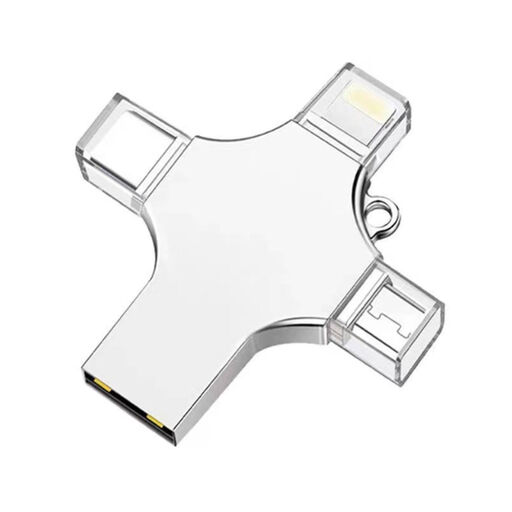
32 GB flash drive with USB 3.0, Lightning, USB-C and Micro-USB
May be useful if you want to move files between devices with different connectors and your folder fits within the stated capacity.
32 GB storage; the product title lists USB 3.0, Lightning, USB-C and Micro-USB connectors.
View at Joybuy
 No image available
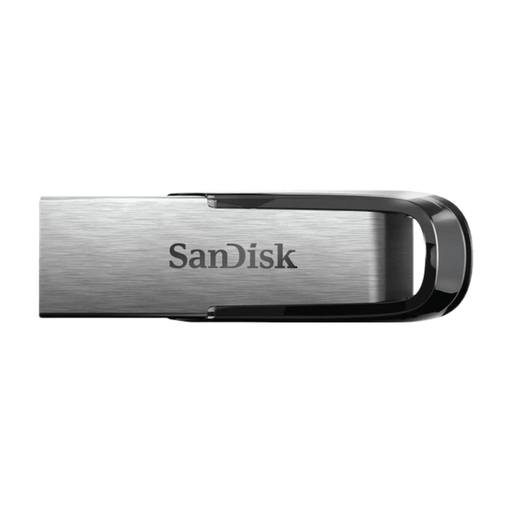
SanDisk Ultra Flair 512 GB USB 3.0
May suit a teaching materials folder that fits within the stated capacity and will be used on a computer with USB-A.
512 GB storage; USB 3.0; stated read speed of up to 150 MB/s. This is a read speed, not a stated write speed.
View at Joybuy
 No image available
SanDisk Ultra Flair 64 GB USB 3.0
May be suitable if the folder fits within the stated capacity and the computer you’re using supports USB-A.
64 GB storage; USB 3.0; stated read speed of up to around 150 MB/s. This is a read speed, not a stated write speed.
View at Joybuy
Frequently asked questions
Is one USB flash drive enough for a backup before handover?
Not if it would be your only remaining copy. VeiligInternetten lists a USB flash drive as one possible storage location for a backup. Keep a separate, up-to-date copy too, and check that you can open your files from the drive.
Which file system should you use if a large file won’t fit on the drive?
Check the file system and whether both computers support it before reformatting the drive. Microsoft says FAT32 has a maximum file size of 4 GiB, while exFAT has no such limit. Back up any existing files before formatting, then test that the receiving computer can read the drive.
Does the GDPR require every teaching file to be stored on a hardware-encrypted USB flash drive?
The Dutch Data Protection Authority doesn’t prescribe a particular USB product. The organisation processing personal data decides on appropriate measures based on the risks. For sensitive documents that can’t be stored on the work server, the Authority lists an encrypted USB flash drive as an option. Assess the contents and your organisation’s policy before transferring files.
What should you check beyond the visible text before sharing teaching materials?
Check whether documents contain unintended or hidden personal data. The Dutch Data Protection Authority highlights this risk when sharing documents and recommends taking extra care with text files, spreadsheets and PDFs, among other formats.
Who can you contact in the Netherlands if a USB flash drive you’ve bought is faulty?
Contact the retailer. The Dutch government says the retailer must provide a solution if a product is faulty; in the Netherlands, there is no fixed statutory time limit on the legal right to a product that works properly. Any manufacturer’s warranty is separate.


