Choose a USB flash drive that works with the computers you use to scan and open the project, and compare its capacity with the actual size of your scan folder. Use the drive as a portable copy, not as your only archive: the National Archives stresses the importance of organising information so you can find it again, while the National Cyber Security Centre recommends keeping separate backups. If the letters contain personal data, also check which storage methods the school allows and who needs access.
Who is this choice relevant to?
Finding your scans later
You want to be able to find your scans in an organised way after the school project, and to take into account the risk of one storage device failing. The National Archives describes digital archiving as deliberately preserving, organising and making information accessible.
Switching between home and school
You use different computers and want to know whether the drive’s connection works with the devices you use to scan and open the project.
Keeping letters with private information
Your scans may contain information that can identify people. Decide who needs access and which storage methods the school allows; the Dutch Data Protection Authority explains schools’ responsibilities when handling personal data.
What should you look for?
First check the ports on the computers you need, then measure your scan folder and decide whether its contents need extra access protection.
| What to consider |
What to look for |
Who is this important for? |
| Keeping and finding files |
Measure the scan folder, allow for new scans and keep a separate copy as well. Organise your files so you can find them again later. |
I want to find my scans after the project and not rely on a single drive. Around 36% of consumers say keeping and finding files is their top priority. |
| Connecting to computers |
Check whether the scanning computer and the school computer have USB-A or USB-C ports; also check the connection type of the exact drive. |
If I switch between computers with different ports, I want to be able to open files directly. Around 29% of consumers put the right connection first. |
| Access to private information |
Check what information the scans contain, who will use them and which storage methods the school allows. If you choose a secure drive, check the system requirements too. |
I don’t want to make sensitive information in letters freely accessible, and I need to take the school’s policies into account. Around 21% of consumers give privacy top priority. |
| Storage space and copying time |
Compare the measured folder size with the drive’s capacity. For large or numerous files, check the write speed of the exact model, not just its USB specification. |
As my scan folder grows, I want enough space and a reasonable copying time. Around 14% of consumers prioritise storage capacity and copying time. |
Common buying pitfalls
-
Assuming the right capacity is a complete archiving plan
A drive may have enough space, but it is still a single storage device. If that copy is lost or stops working, your scans may no longer be available.
Keep the scan folder somewhere else that’s permitted too, and check that you can open the separate copies.
-
Assuming a USB generation guarantees write speed
A USB specification is not the same as a measured write speed for your files. Manufacturers’ read-speed figures don’t tell you how quickly scans will be written to the drive.
Compare write-speed figures for the exact model and check the test conditions if copying time matters to you.
-
Choosing a secure drive without checking the school computer
Access protection is only useful if the storage method is allowed and the drive works with the computers you need to use. Password management also needs consideration.
Check the school’s policies, ports and the specific model’s system requirements before choosing.
Brands to compare
Kingston
DataTraveler Exodia M is a USB-A range for everyday file storage. The separate IronKey Locker+ 50 G2 is worth considering if you need built-in encryption.
- Kingston lists a sliding cap and a five-year limited warranty for the Exodia M.
- The IronKey Locker+ 50 G2’s encryption is not available on the Exodia M. Check the system requirements for the secure model too.
SanDisk
According to the Dutch product page, the Ultra Dual Drive Go is designed for transferring files between USB-A and USB-C devices.
- For the 128 GB model, SanDisk lists a swivel design and read speeds of up to 400 MB/s.
- The stated speed is for reading; it is not a guaranteed write speed for your scan folder.
Samsung
The USB Type-C Flash Drive MUF-64DA/APC is an option if the devices you need to use have USB-C ports.
- For this model, Samsung lists a capacity of 64 GB and read speeds of up to 300 MB/s under the stated test conditions.
- A computer with USB-A ports only cannot connect directly to this drive.
PNY
The European Attaché 4 3.1 range has a retractable connector and is designed for transferring files between computers.
- PNY lists a capless design and compatibility with PC and Mac.
- The specifications consulted relate to the selected 1 TB model; check the details for the capacity you’re considering.
Transcend
JetFlash 790 is a USB-A range with a retractable connector and several capacity options.
- Transcend lists, among others, a 64 GB model and a five-year limited warranty.
- Transcend says speeds may vary depending on the device, software, usage and capacity.
USB flash drives at Joybuy
These Joybuy products are USB flash drives for storing and transferring project files; check each model’s connection, capacity and any access protection.
 No image available
Kingston DataTraveler Exodia 128 GB
Ideal for carrying files between devices with USB-A ports.
128 GB; USB 3.2 Gen 1 Type-A. The title also mentions USB 2.0.
View at Joybuy
 No image available
SanDisk Ultra Dual Drive Go 512 GB
Ideal for transferring files between devices with USB-A and USB-C ports.
512 GB; the description lists both connection types and read speeds of up to 150 MB/s. This is a read speed, not a write speed.
View at Joybuy
 No image available
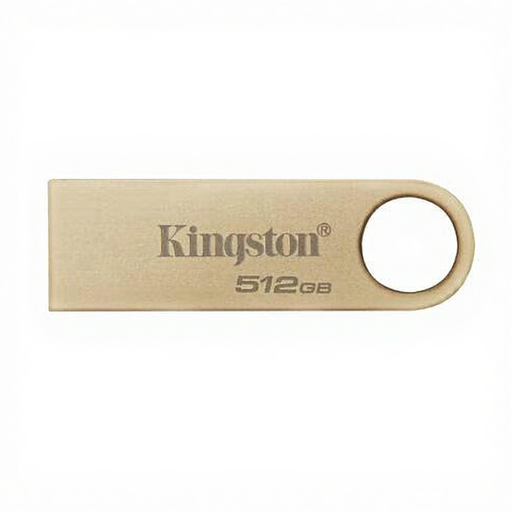
Kingston DataTraveler SE9 G3 512 GB
A USB flash drive for project files and backups on devices with a compatible connection.
512 GB; USB 3.2 Gen 1; stated speeds of up to 220 MB/s read and up to 100 MB/s write.
View at Joybuy
 No image available
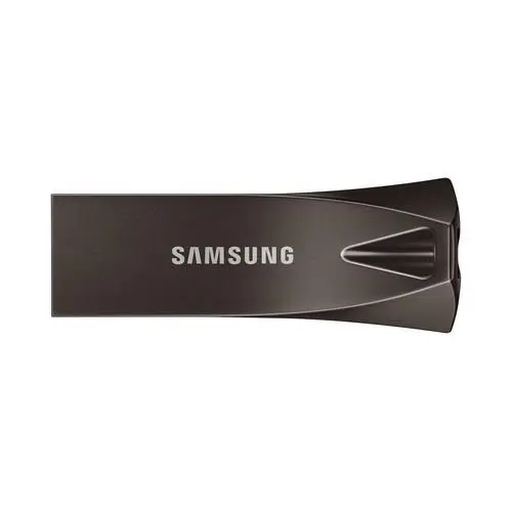
Samsung MUF-256BE 256 GB
Ideal for carrying files on devices with USB Type-A.
256 GB; USB Type-A. Stated speeds of up to 400 MB/s read and 30 MB/s write.
View at Joybuy
 No image available
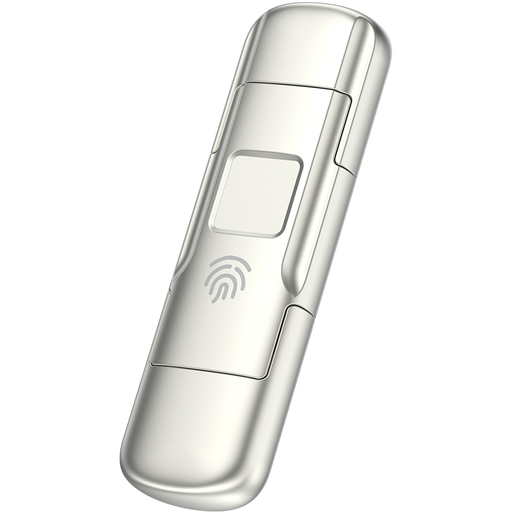
MOVESPEED YSUYC-256GSN 256 GB
For transferring files between devices with USB-A and USB-C; the description also mentions fingerprint access.
256 GB; AES-256 encryption; stated speeds of up to 550 MB/s read and up to 500 MB/s write. Check that this storage method complies with the school’s policies; encryption is no substitute for a separate backup.
View at Joybuy
Frequently asked questions
Can a USB flash drive be your only archive?
No, not if it’s important to keep your scans. Keep separate copies and check that you can open them; organise and label your files so you can find them again later. The National Cyber Security Centre describes the 3-2-1 approach for business data; here, it’s a backup principle, not a legal requirement for pupils.
How do you work out how many GB you need?
Measure the total size of your current scan folder, allow for planned new scans and compare it with the capacity of the exact drive. Files saved for storage or sharing may vary in size, so base your choice on the files you actually want to keep.
What should you check if you’re using the drive with several computers?
Check the ports on the computer you use to scan and the one you use to open the project. A USB-A drive won’t connect directly to a device with USB-C only; for a secure drive, also check that it works with the systems you need to use.
Is an encrypted drive compulsory for letters containing personal data?
The Dutch Data Protection Authority explains that schools must be able to justify how they handle personal data, but the right storage method depends on the situation. The Authority recommends an encrypted drive for mobile working from home when documents can’t be stored on the work server. Ask the school which method is allowed for this project.
What warranty applies if the USB flash drive stops working?
According to the Dutch government, there is no fixed statutory warranty period in the Netherlands; the seller must provide a solution if the product is faulty. Any manufacturer’s warranty is in addition to this. So don’t keep your scans only on the drive: replacing the device won’t recover files you’ve lost.


