What should you look for?
First, arrange a separate, recoverable archive copy. Then choose a flash drive that suits the volume of scans, the ports you use and any privacy requirements.
| What to consider |
What should you check? |
Who is this important for? |
| Recoverability |
Decide where the original scans and a separate, recoverable copy will be kept. The National Cyber Security Centre recommends keeping multiple copies on different media and in different locations. |
If I want to avoid making the archive inaccessible because a single flash drive is damaged or lost, a recoverable copy is my first priority. Around 29% of consumers give recoverability top priority. |
| Space for scans |
Add up the size of your current scan folders and allow for expected growth. Compare the total with the capacity of the exact model. |
If I want to keep existing receipts and new scans on one additional storage device, its capacity needs to suit my collection. Around 23% of consumers put having enough space first. |
| Connector |
Note which ports your scanning and archive computers have, and check whether the flash drive offers USB-A, USB-C or both. |
When I transfer scans between computers with different ports, I don’t want to discover halfway through that the connector isn’t compatible. Around 18% of consumers say port compatibility is their main consideration. |
| Privacy and access |
Find out whether receipts contain personal data, who needs access, and how access and recovery will be managed. The Dutch Data Protection Authority highlights the need for security measures that match the risks. |
If my receipt scans contain personal data and the flash drive is taken elsewhere, I want to know how access is restricted and what I can do if it is lost or a password is forgotten. Around 18% of consumers prioritise protecting personal data. |
| Write time |
Look for a stated write speed or a relevant test of the exact model; a maximum read speed does not tell you how quickly scans will be saved. |
If I regularly copy larger scan folders, I want to know how long it will take to write the files. Around 12% of consumers prioritise copying time. |
USB flash drives at Joybuy
These product selections are intended for transferring or storing an additional copy of scanned receipts; don’t use a USB flash drive as the only place for a long-term archive.
 No image available
Kingston DataTraveler Exodia 128 GB
A USB-A option for transferring scans or keeping an additional copy, provided the computer you use has a compatible port.
128 GB; USB Type-A; USB 3.2 Gen 1.
Don’t use the flash drive as the only place for a long-term archive; plan separate copies on different media and in different locations.
View at Joybuy
 No image available
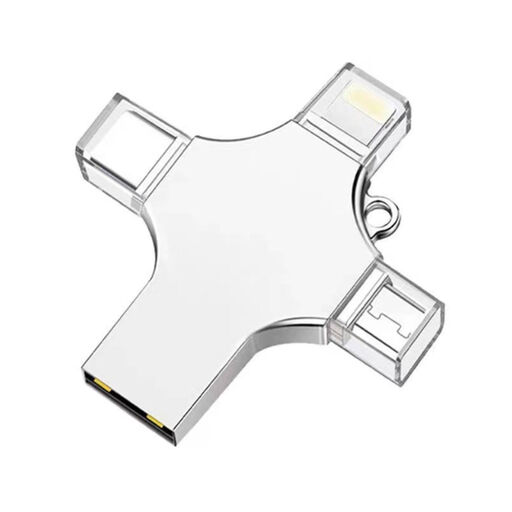
32 GB USB flash drive with four connectors
An option for transferring documents between devices that support one of the listed connectors.
32 GB; USB 3.0, Lightning, USB-C and Micro-USB.
Check that the connectors are compatible with the devices you’ll use to access the scans. Don’t use the flash drive as the only place for a long-term archive.
View at Joybuy
 No image available
SanDisk Ultra Flair 64 GB
A USB-A option for additional storage or transferring files on computers with that port.
64 GB; USB 3.0; the product description lists software-based password protection with 128-bit AES.
Check that the security feature suits your organisation’s needs and devices. Don’t use the flash drive as the only place for a long-term archive.
View at Joybuy
 No image available
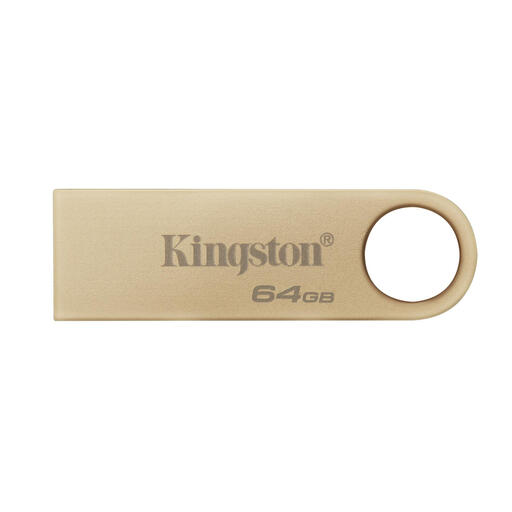
Kingston DataTraveler SE9 G3 64 GB
A USB-A option for additional storage or transferring files using a computer with USB Type-A.
64 GB; USB Type-A; the product description lists write speeds of up to 100 MB/s.
Don’t use the flash drive as the only place for a long-term archive; plan separate copies on different media and in different locations.
View at Joybuy
 No image available
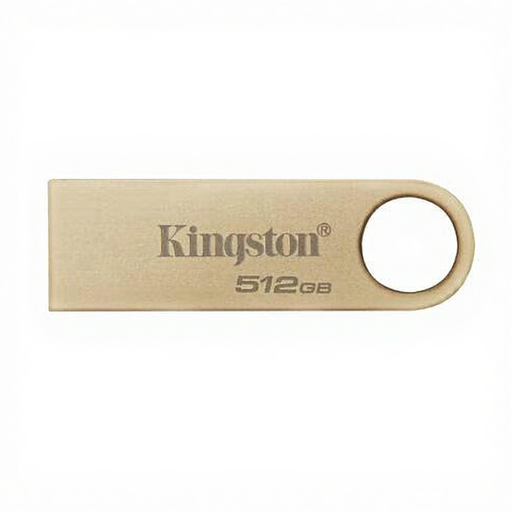
Kingston DataTraveler SE9 G3 512 GB
A USB-A option for additional storage or transferring scan folders, compatible with the port on your computer.
512 GB; USB Type-A; USB 3.2 Gen 1.
Check that the capacity suits the size of your collection. Don’t use the flash drive as the only place for a long-term archive.
View at Joybuy
Frequently asked questions
Can a USB flash drive be the only place to store the community archive?
No. Use the flash drive to transfer files or keep an additional copy. Netwerk Digitaal Erfgoed does not recommend USB flash drives for long-term storage; the National Cyber Security Centre advises keeping multiple copies of important data on different media and in different locations.
How can you make sure the scans remain accessible?
First check the computer’s port and the size of the scan folder. Keep separate copies and periodically open files from those copies. The Library of Congress recommends checking that documents remain readable at least once a year. Choose a format that works on the computers you’ll use to open the files.
Do all receipt scans in the Netherlands have to be kept for seven years?
Not simply because they are scans for a community archive. If receipts are part of a foundation or association’s accounts, Stichting en Vereniging Loket Belastingdienst describes a retention period of at least seven years and, in certain circumstances, ten years for information about property. The information, updated on 10 August 2026, says that the applicable period depends on the purpose of the receipts and the archive manager’s circumstances.
Is encryption required for every USB flash drive?
The Dutch Data Protection Authority does not set a blanket requirement to encrypt every USB flash drive; organisations should tailor security to the risks involved in processing data. If scans contain personal data, losing a flash drive with unencrypted information could be a data breach. Don’t keep personal data for longer than necessary, unless a relevant legal retention period applies.
What else should you consider when choosing a secure flash drive?
As well as access protection, make sure you have password management and a separate, recoverable copy in place. For the Secure Pro, Verbatim says data is erased after ten failed access attempts; check that the capacity, connectors and recovery process are suitable for your archive.


