What should you look for?
Standard USB-A flash drive
Choose this when: your devices have USB-A ports and on-drive security is not a requirement for these files.
Bear in mind: a standard drive does not automatically provide encryption or archive management.
Encrypted USB flash drive
Choose this when: the letters contain personal data and unauthorised access if the drive is lost is a relevant risk.
Bear in mind: check the connection, unlocking method and password recovery process for the specific model.
Managed archive storage
Choose this when: colleagues need to find scans later and losing or damaging a single drive must not cut off access.
Bear in mind: agree how files will be organised, accessed and managed; you can still use a flash drive for transfers.
First check your security needs and the available connections. Then measure your collection of scans to work out how much capacity you need.
| Concern |
What should you check? |
Who is this more relevant to? |
| Protection against unauthorised access |
Who manages the drive, how is it unlocked and what is the recovery process? |
If I transfer scans containing personal data, I want to prevent unauthorised people from opening them if the drive is lost. Around 33% of consumers put protection first when buying. |
| Finding and preserving files |
Where is the managed archive copy kept, and how will you keep the files organised? |
If I want colleagues to find letters later, I need agreements on organisation and management as well as storage space. Around 27% of consumers prioritise preservation and findability. |
| Connections at workstations |
Check the ports on the scanner and computers, and the connector on the flash drive. |
If I transfer scans between shared workstations, I want the drive to connect to the devices we use. Around 20% of consumers put compatibility first. |
| Storage space and transfer time |
Measure a representative batch of scans and check the write speed of the exact model. |
If I regularly add new scans, I want enough space and a suitable transfer speed. Around 20% of consumers prioritise capacity and write speed. |
USB flash drives at Joybuy
These USB flash drives from Joybuy are suitable for transferring scans or keeping an additional copy. Check the connection, capacity and any security features for each model; don’t use a flash drive as your only archive.
 Image unavailable
Kingston DataTraveler Exodia, 128 GB, USB 3.2 Gen 1 Type-A
Suitable as a transfer drive or an additional copy for workstations with a compatible USB-A port.
Capacity: 128 GB. Connection: Type-A. Interface: USB 3.2 Gen 1.
Arrange file organisation and a permanent archive copy separately.
View at Joybuy
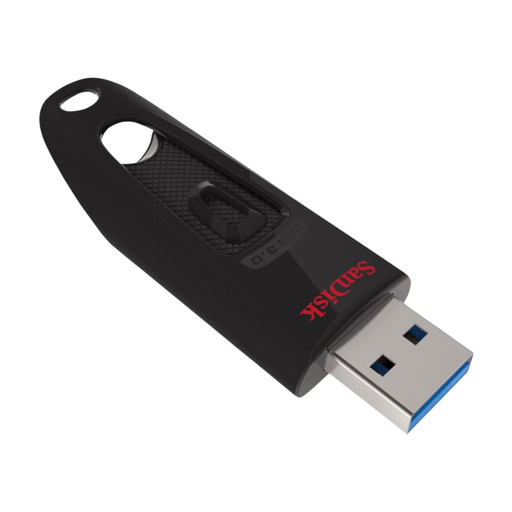 Image unavailable
SanDisk Ultra USB Flash Drive, 128 GB, USB 3.0
An option for transferring files or keeping an additional copy; check that the connection is compatible with the studio computers.
Capacity: 128 GB. Interface: USB 3.0. The product description mentions USB-A and password protection.
Check how security and access work before transferring scans.
View at Joybuy
 Image unavailable
SanDisk Ultra Flair USB Flash Drive, 64 GB, USB 3.0
Can be used for transfers or as an additional copy; compare the capacity with the size of your own scan collection.
Capacity: 64 GB. Interface: USB 3.0.
Check the connections on the devices you use and keep the permanent archive copy separate.
View at Joybuy
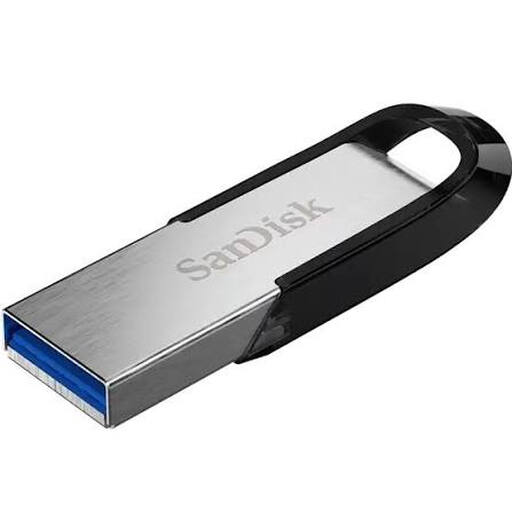 Image unavailable
SanDisk Ultra Flair USB 3.0, 256 GB
An option for transferring files or keeping an additional copy if the stated capacity suits your collection of scans.
Capacity: 256 GB. Interface: USB 3.0.
Check the connection and also use managed archive storage to keep files accessible in the long term.
View at Joybuy
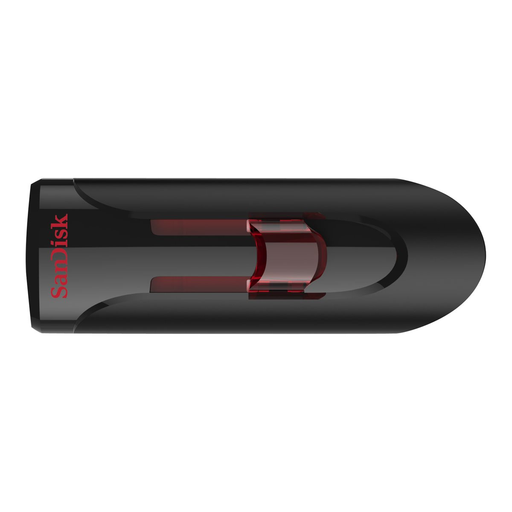 Image unavailable
SanDisk USB Flash Drive, 32 GB, USB 3.0
Worth considering for transfers or as an additional copy if 32 GB is enough for the files you have in mind.
Capacity: 32 GB. Interface: USB 3.0. The product description mentions SecureAccess with 128-bit AES encryption.
Check how access and recovery are managed for this model; also keep a separate archive copy.
View at Joybuy
Frequently asked questions
Can one USB flash drive be the archive for our scanned letters?
Don’t make the drive the only place to find the files without putting other arrangements in place. Take stock of the files, formats and size, and arrange how they will be organised and managed so colleagues can find the letters later.
How do I use a USB flash drive at a shared workstation?
Before buying, check that the connection is compatible with the scanner and computers, and that any unlocking software works on the devices you use. Test the transfer with a copy and check the files in the intended archive location before removing the drive.
How do I work out how much storage space I need?
Measure your current collection of scans and allow for expected additions. Also include space for a separate archive or backup copy in your plan.
What security requirements apply to scanned letters in the Netherlands?
If an organisation processes personal data, the GDPR requires appropriate security based on the risks, according to the Dutch Data Protection Authority. The authority does not specify a universally required USB flash drive brand or type; for sensitive documents that cannot be stored on the work server, it recommends an encrypted USB flash drive. The right measures depend on the content and how it is processed.
Does a manufacturer’s warranty mean lost scans can be recovered?
No. A manufacturer’s warranty does not in itself promise that lost files will be recovered. Check the terms for the model you choose and protect your data by keeping a separate archive copy.


