First, decide how to keep scans and earlier project versions clearly organised, then choose a capacity based on your files and your devices’ connections. A USB flash drive is a handy extra copy or a way to transfer files, but it isn’t a safe place to keep your only copy; access protection also matters for confidential letters. A stated read speed doesn’t automatically tell you how quickly scans will be saved.
Who is this relevant to?
Keeper of irreplaceable letters
You want to be able to find your scans later and are looking for an additional copy rather than relying on a single place to store them. The National Archives outlines considerations for keeping and using digital files over the long term.
Creator of multiple project versions
You want to be able to restore earlier edits, so you’re looking not just at storage space but also at how to manage versions. Microsoft Support explains how File History can help restore earlier versions of files and folders on a suitably configured Windows system.
Sharer of confidential scans
You carry letters with you or share them, and want to make sure that losing a drive doesn’t give someone immediate access to its contents. The Dutch Data Protection Authority points out that documents or USB flash drives taken out with you can be lost or stolen.
What should you look for?
Start by arranging a separate copy and version control. Then work out how much space you need and check that the connection is compatible with your devices. Access protection is a separate consideration and doesn’t replace a backup.
| Purchase concern |
What to look for |
Who is this important to? |
| Keeping and restoring files |
Keep a separate copy somewhere else and try restoring your files. |
I want to be able to retrieve scans of irreplaceable letters if a drive fails, so I’m looking for a separate copy as well as storage. Around 33% of consumers consider keeping and restoring files their top priority. |
| Space for versions |
Check how large your files are and decide which versions you want to keep. |
If I keep several edits, I want enough space to store earlier versions alongside each other. Around 27% of consumers put versions and storage space first. |
| Confidentiality |
For a secure model, check the connection and how you’ll manage the access code. |
When I carry or share confidential letters, I want to limit who can open the files. Around 20% of consumers say confidentiality is their main concern. |
| Connection |
Check whether your devices have USB-A, USB-C or both. |
I want to open scans directly on my devices, so the connection needs to be compatible. Around 20% of consumers prioritise the connections on their own devices. |
Common pitfalls
-
Keeping your only copy on the USB flash drive
A drive can become damaged, which may result in lost files. Veiliginternetten also describes this risk for files stored on external storage.
Make a separate backup and check that you can open or restore your files.
-
Confusing read speed with write speed
A maximum read speed doesn’t automatically tell you how quickly scans will be written to a particular drive.
If you copy files frequently, look for information about the write speed of the exact model. Don’t compare different models based on their speed ratings alone.
-
Thinking encryption replaces version control
Access protection controls who can open files; it doesn’t automatically let you restore older versions or provide an extra copy.
Choose protection for confidential files, and also arrange a separate backup and a way to restore earlier versions.
Brands to consider
Kingston
The DataTraveler Exodia range is worth considering if you use a USB-A port and want to keep documents as an additional copy.
- Kingston lists USB 3.2 Gen 1 and a five-year manufacturer’s warranty for the DataTraveler Exodia. Check the warranty terms for the specific version.
- A USB-A drive won’t plug directly into a device with USB-C only, and it doesn’t provide version control or a separate backup.
SanDisk
The range includes USB flash drives with different capacities and connections, so assess each version and full model separately.
- Models such as the Ultra Dual Drive Luxe USB Type-C and Extreme Pro USB 3.1 Gen1 are separate versions, each with its own connection and features.
- Don’t assume that the speed or connection features of one model apply to another version.
Verbatim
Keypad Secure is worth considering when access protection matters for letters you carry with you or share.
- Verbatim lists a keypad and AES-256 hardware encryption for the 128 GB USB-C version.
- The USB-C version is not the same product as the USB-A Keypad Secure. Check the connection and how you’ll manage the access code.
Samsung
The 128 GB Type-C flash drive is suitable for devices with USB-C.
- Samsung states a maximum read speed of up to 400 MB/s for this model.
- Samsung notes that actual speed depends on the device and conditions of use. The read speed isn’t a stated write speed for your scans, and it doesn’t tell you whether the drive is compatible with USB-A.
Transcend
The JetFlash 930C is designed for transferring files between devices with USB-A and USB-C ports.
- Transcend lists a maximum speed of up to 420 MB/s and support for USB-A and USB-C for the JetFlash 930C.
- The stated maximum speed is a manufacturer’s figure. Check the full model and don’t assume other JetFlash versions have the same features.
USB flash drives at Joybuy
These product options are intended for storing or transferring scans and project files, and come with different capacities and connections. Arrange version control and a separate backup independently of the drive.
 No image available
Kingston DataTraveler Exodia, 128 GB
A good choice for an additional copy of your documents if your device has a USB-A port.
Capacity: 128 GB. Connection: USB Type-A. USB 3.2 (Gen 1).
View at Joybuy
 No image available
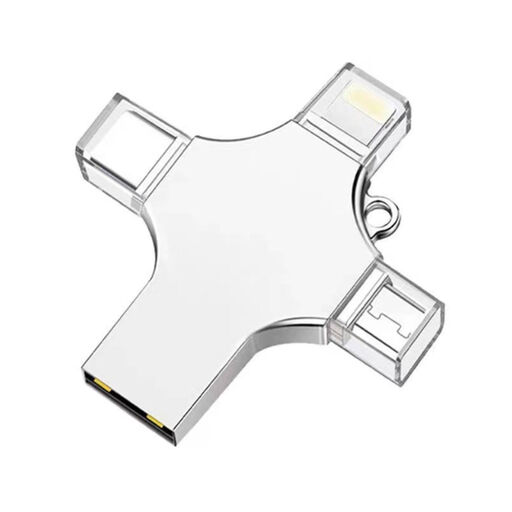
USB flash drive, 32 GB, with four connections
Suitable for transferring files between devices with the listed connections.
Capacity: 32 GB. Connections: USB 3.0, Lightning, USB-C and Micro-USB.
View at Joybuy
 No image available
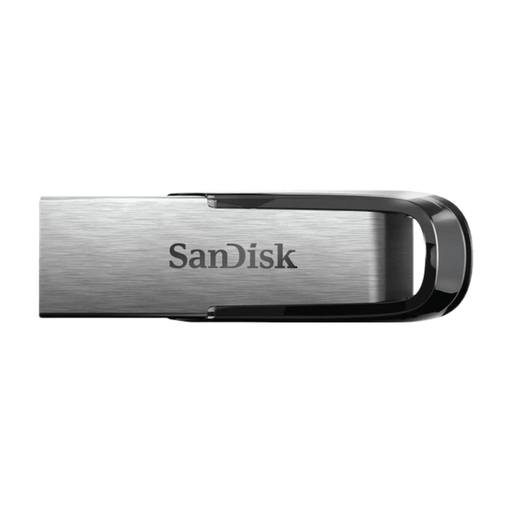
SanDisk Ultra Flair, 512 GB, USB 3.0
Could be suitable as an additional storage copy for documents and project files if you use a USB-A port.
Capacity: 512 GB. USB 3.0. The product description lists USB-A.
View at Joybuy
 No image available
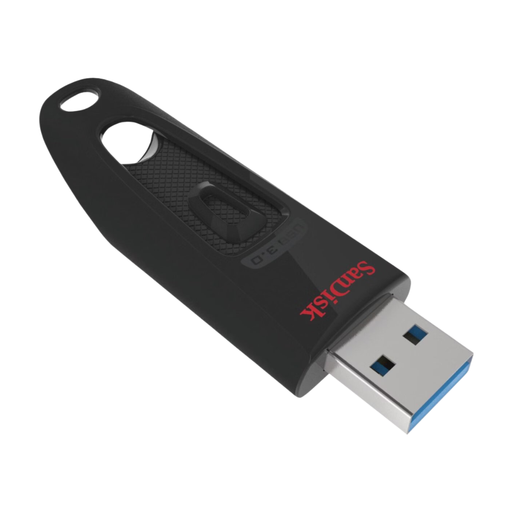
SanDisk Ultra, 512 GB, USB 3.0
Could be suitable as an extra storage copy for documents and backups if your device uses USB-A.
Capacity: 512 GB. USB 3.0. The product description lists USB-A.
View at Joybuy
 No image available
SanDisk Ultra Flair, 64 GB, USB 3.0
Could be suitable for an additional copy of your documents if your computer has a USB-A port.
Capacity: 64 GB. USB 3.0. The description states that it can be used with computers with USB-A.
View at Joybuy
Frequently asked questions
Does a USB flash drive automatically keep old versions of your project?
No, you need to set up and check version control separately. Microsoft Support explains that File History can restore earlier versions of files and folders on a suitably configured Windows system; it isn’t a built-in feature of every USB flash drive.
Can I keep the drive as my only archive after scanning?
Don’t use a USB flash drive as your only place to store files. Files can be lost if the drive becomes damaged, so keep a separate copy and check that you can still open or restore your files.
What warranty applies if a USB flash drive I’ve bought stops working too soon?
For a consumer purchase in the Netherlands, statutory consumer rights apply alongside any manufacturer’s warranty. ACM ConsuWijzer explains that if a fault occurs sooner than you could reasonably expect with normal use, the seller must offer an appropriate solution free of charge; statutory rights don’t have a fixed term of exactly two years.


