Choose a USB flash drive that works with both the computer you use to copy the presentation and the one you’ll present on. Then check that it has enough space for the entire presentation package, including linked files, and test the copy on the computer you’ll use for the presentation. If you copy files regularly, compare write speeds. If you’re carrying sensitive data, also check that you can use the drive’s security features on the presentation computer.
Who is this guide for?
Presenters who switch between computers
You copy the presentation on one computer and open it on another. The USB-A and USB-C ports on both devices determine which drive you can plug in directly. Kingston Technology and SanDisk offer models with different connectors.
Presenters with media files
Your presentation may contain linked files. Before you leave, check the complete copy on the computer you’ll be presenting on. Microsoft Support explains how to package a presentation, including external elements, for a USB flash drive.
Presenters handling sensitive data
You’re carrying personal or other sensitive information and want to consider the risk if you lose the drive. The Dutch Data Protection Authority gives the loss of a USB flash drive containing unencrypted personal data as an example of a data breach.
What should you look for in a USB flash drive?
Start by checking the ports on both computers. Then work out how much space the complete presentation package needs, and whether transfer time or protection in case of loss matters for the way you use it.
| Buying concern |
What should you check? |
Who is this most important to? |
| Compatible connector |
Check the ports on the source and destination computers, as well as the connector on the exact drive model. |
I want to plug the drive directly into both computers, even if they have different ports. Around 40% of consumers prioritise the connector. |
| Space for the entire package |
Check the total size of the presentation and all the files you want to take with you. |
I want to take more than just the presentation file: I also need its associated files. Around 30% of consumers are mainly concerned with having enough storage space. |
| Time spent copying files regularly |
Compare the stated write speed for the exact model. A read speed doesn’t tell you how quickly files are written to the drive. |
I regularly update my presentation files and want to know how long it might take to write them to the drive. Around 20% of consumers prioritise transfer time. |
| Protection if the drive is lost |
Check what data you’re taking with you, how the drive is unlocked and whether you can do this on the presentation computer. |
I’m carrying sensitive information and want to reduce the risk if I lose the drive. Around 10% of consumers prioritise data protection. |
Common mistakes when presenting from a USB flash drive
-
Copying only the presentation file
A presentation may contain external elements, such as linked files. Microsoft Support explains that these can be included when packaging a presentation for a USB flash drive.
Copy the complete package and open it on the computer you’ll be presenting on before you leave, without a cloud connection.
-
Confusing read speed with copy speed
A stated read speed is not the same as a write speed. Samsung lists a maximum sequential read speed for the MUF-128DA/APC. Lexar says the JumpDrive Dual Drive D400 has a lower write speed than read speed, and that performance may vary.
If you often write large files to the drive, compare the write-speed specification for the exact model.
-
Taking sensitive files with you unprotected
The Dutch Data Protection Authority gives the loss of a USB flash drive containing unencrypted personal data as an example of a data breach.
Check what data you’re taking with you and whether you can use your chosen security features on the destination computer.
Brands to compare
Kingston
Kingston offers USB-A drives for everyday file transfers, as well as the IronKey Locker+ 50 for anyone looking for hardware encryption.
- Kingston lists USB-A and USB 3.2 Gen 1 for the 128 GB DataTraveler Exodia model.
- This Exodia model doesn’t have a USB-C connector. For the IronKey Locker+ 50, check that you can unlock the drive on the presentation computer; Kingston specifies that it has hardware encryption.
SanDisk
The Ultra Dual Drive Go SDDDC3-128G-G46 has both USB-A and USB-C connectors, making it suitable for use with computers that have different ports.
- The manufacturer’s Dutch product page confirms that this model has both connectors and a capacity of 128 GB.
- Having both connectors doesn’t guarantee that a presentation with linked files will open completely. Test the copied presentation on the destination computer.
Samsung
The USB Type-C Flash Drive MUF-128DA/APC is designed for use with computers that have a compatible USB-C port.
- Samsung lists a sequential read speed of up to 400 MB/s for this 128 GB model.
- This isn’t a stated write speed. If your computer only has USB-A, you’ll need a different connector or a suitable adapter.
Lexar
According to Lexar, the JumpDrive Dual Drive D400 combines USB-C and USB-A for transferring files between devices.
- Lexar lists a maximum read speed of 130 MB/s for the 128 GB model.
- Lexar says the write speed is lower and actual performance may vary. Check the specifications for the exact model.
Joybuy products for presentation files
This Joybuy selection includes USB flash drives for carrying and transferring presentation files. Before choosing, check the connector on the exact model and the ports on both computers.
 No image available
Kingston DataTraveler Exodia, 128 GB, USB-A
An option if both computers have a compatible USB-A port.
Capacity: 128 GB.
Connector and interface: USB-A, USB 3.2 Gen 1.
View at Joybuy
 No image available
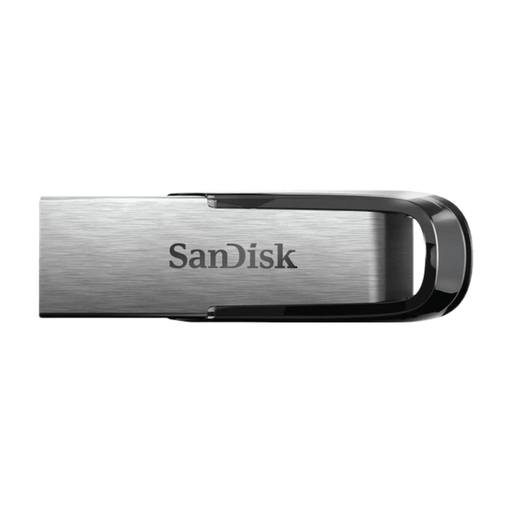
SanDisk Ultra Flair, 512 GB, USB 3.0
An option if your presentation and the files you want to take with you determine how much storage you need. Check that the connector works with both computers.
Capacity: 512 GB.
Interface: USB 3.0.
View at Joybuy
 No image available
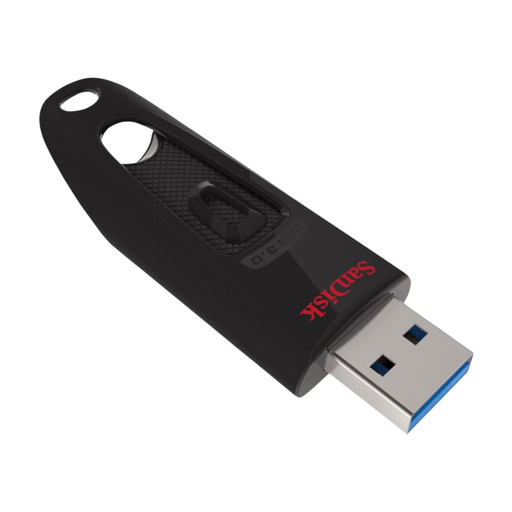
SanDisk Ultra, 128 GB, USB 3.0
An option for carrying presentation files, provided the connector works with both computers.
Capacity: 128 GB.
Interface: USB 3.0.
View at Joybuy
 No image available
SanDisk Ultra Dual Drive Go, 512 GB, USB 3.1/USB-C
Worth considering if you switch between computers with different ports. Check that the exact connectors on this model work with both devices.
Capacity: 512 GB.
Listed in the product name: USB 3.1 and USB-C.
View at Joybuy
 No image available
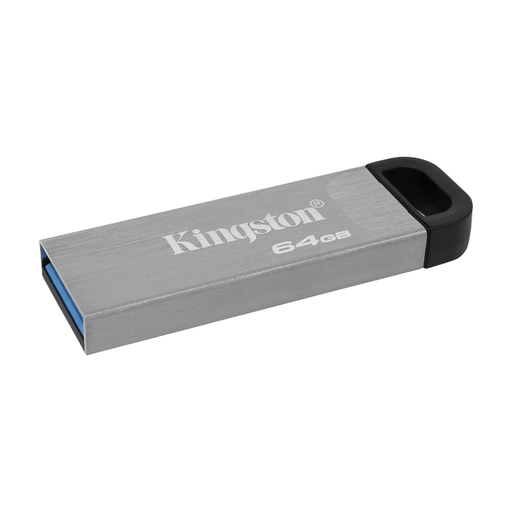
Kingston DataTraveler Kyson, 64 GB
An option for documents and presentation files if both computers have a compatible USB-A port.
Capacity: 64 GB.
View at Joybuy
Frequently asked questions
How do I take a PowerPoint presentation with linked files with me?
Where available, use PowerPoint’s feature to package the presentation for a USB flash drive. Microsoft Support explains that this can include external elements, such as linked files. Also open the copied package on the destination computer.
Can I use a USB flash drive between a Mac and a Windows computer?
This depends, among other things, on the drive’s file system and the computers. Apple Support explains how to format a drive for Windows computers. Before formatting, save all your files elsewhere, as formatting erases the files on the drive.
Can I unplug the USB flash drive as soon as I’ve copied the files?
In Windows, use the Safely Remove Hardware feature before unplugging the drive. Microsoft Support recommends this to help prevent data loss.


